Service Status answers “is the app even connected, and is Internet & SaaS / Private Access turned on?” ZIA Enabled / ZPA Enabled answers “is this user entitled for that service?” Forwarding Profile answers “for this trusted-network type, is the action Tunnel, Tunnel with Local Proxy, or None?” PAC answers “did the device download a valid PAC, and does it DIRECT the IdP?” ip.zscaler.com answers “did this browser hit a ZIA Public Service Edge?” A green tray is ZSATray. It is not a Web row and it is not an enrolled tunnel.
1. Why the green icon lies
Operators collapse five client failures into one screenshot. The service is Off. The user is not entitled for ZIA. The forwarding profile action for Off-Trusted is None. The PAC URL is invalid, so enrollment never finished. The IdP is hairpinned through the tunnel, so SAML loops. Those are five first clicks. The tray being green only means the UI process is alive.
This page is the war-room for the agent. Lesson 4 ships the install and the App Profile. The evidence desk proves the cloud after the packet leaves the laptop. Here you prove the five facts on the device before you open URL policy.

If they say “Client Connector is green, so Zscaler is working,” do not agree. Say: “The tray is ZSATray. I read Service Status, then whether Internet & SaaS and Private Access are enabled, then the Forwarding Profile action for this network type, then PAC, then ip.zscaler.com. Green is not a Public Service Edge.”
2. Concept — five client facts
Memorise five named objects before you click. Each is allowed to prove one thing. Over-claiming the tray is how you ship a bad App Profile at 02:00.
1 · Service Status
On the device, in Client Connector. Official: Using Zscaler Client Connector. Shows connection status and lets the user Turn Off Internet & SaaS, Private Access, ZDX, or Endpoint DLP for a timed window. Green tray ≠ service On.
2 · ZIA / ZPA enabled
Entitlement, not the icon. Device fingerprint Help: ZIA Enabled is True if the user is entitled for Internet & SaaS; ZPA Enabled is True if entitled for Private Access. False means there is no tunnel to chase.
3 · Forwarding Profile
Admin path: Infrastructure → Connectors → Client → Forwarding Profile for Platforms. One action per network type: On-Trusted, Off-Trusted, VPN-Trusted, Split VPN-Trusted. Actions you will actually see: Tunnel, Tunnel with Local Proxy, None.
4 · PAC
The PAC URL lives on the forwarding profile (and App Profile PAC Configuration). Error 3016 = PAC URL is not valid. Error 3017 = PAC file is not valid. A failed PAC download stops Client Connector from authenticating the user.
5 · Auth loop
If IdP / ACS traffic is forced through the tunnel or a PAC that does not DIRECT the IdP, SAML never completes. Exempt the IdP and ACS first. Do not disable Client Connector for the org.
Hard words, once
App Profile = who + OS + which Forwarding Profile. Forwarding Profile = how, per network type. Z-Tunnel 2.0 = all ports; 1.0 is web ports. Export Logs = More → Troubleshoot → ZIP for support. ZSATray = UI; ZSATunnel = tunnel process.
Read left → right. Each box is allowed one claim. If you cannot name the field, you are not proving — you are guessing.
I prove Service Status, then entitlement, then the Forwarding Profile action for this network type, then PAC, then the wire. I do not change URL policy, SSL, or an App Profile Rule Order until I can quote the field that made me do it.
3. Path — ticket → first check
Flowchart first. Do not open the App Profile editor until a diamond says so. Do not restart the laptop until Service Status and the two enable flags are written on the ticket.
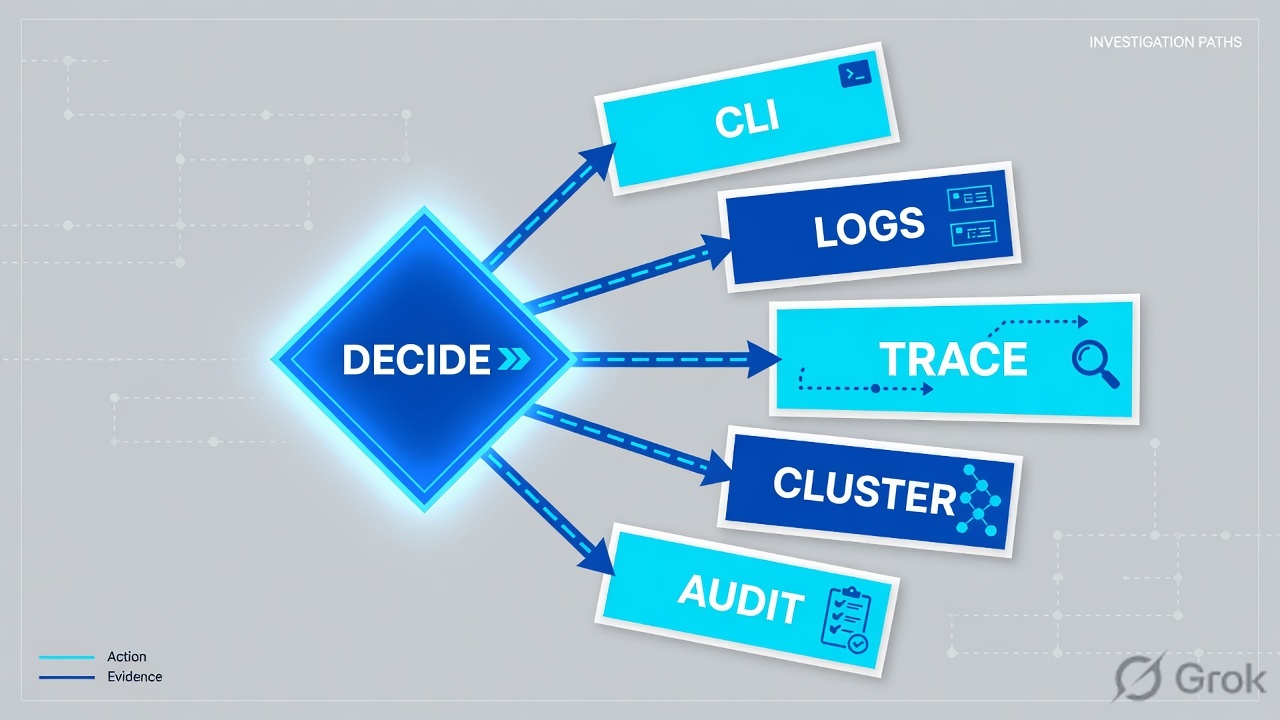
Read the diamond first. An auth loop never starts in a Cloud App rule. A VPN-detected disable never starts in SSL inspection. Off-cloud My IP never starts in Blocked Policy Name.
4. How to choose — first check + proof field
Print this next to the Client Connector window. If you cannot recite the proof field, you are not ready to edit an App Profile.
| If the ticket says… | First check (official path) | Proof field | Do not open first |
|---|---|---|---|
| Green icon, “Zscaler is on,” SaaS still dead | On the device: Client Connector → Service Status; confirm Internet & SaaS / Private Access are not Turned Off | Service Status + ZIA / ZPA On · or ZIA Enabled / ZPA Enabled True |
A new URL Allow |
| Stuck on Authenticating / SAML redirect loop after enroll | Forwarding Profile PAC + App Profile PAC Configuration; confirm IdP + ACS are not hairpinned | PAC DIRECT for IdP/ACS · or error 3016 / 3017 |
Org-wide Turn Off of ZCC |
| “PAC URL is not Valid” / cannot authenticate | Infrastructure → Connectors → Client → Forwarding Profile for Platforms → PAC URL | Error 3016 (URL) or 3017 (file) | A Cloud App rule |
| Third-party VPN up; ZIA tunnel dropped | Same Forwarding Profile — VPN-Trusted action + VPN hostname / IP bypass (Help: ZCC Errors + PAC best practices) | Official “active VPN” error + VPN-Trusted action | Disable SSL inspection |
| Service Status looks connected; browser is off-cloud | On the failing browser: https://ip.zscaler.com, then the Forwarding Profile action for the detected network type | My IP “didn’t come from a Zscaler IP” + action = None / wrong trusted type | ZPA Access Policy |
Help keeps them as two objects. The App Profile (Windows / macOS / Linux / iOS / Android tab) names who matches and which Forwarding Profile to download. The Forwarding Profile names Tunnel / Tunnel with Local Proxy / None per On-Trusted, Off-Trusted, VPN-Trusted, Split VPN-Trusted. Editing Rule Order will not fix a None action on Off-Trusted.
5. Do — runbook Side A → B → C
Side A proves the agent on the laptop. Side B proves the two Admin objects that laptop downloaded. Side C proves the wire and packages logs. On a messy Sev-2, do them in this order until a field lights up.
Side A — Device: Service Status, services, Troubleshoot
-
Open Client Connector, not the Admin Portal
On the failing device, open the app. Official: Using Zscaler Client Connector. Read Service Status. Confirm whether the user (or a remote admin) used Turn Off on Internet & SaaS, Private Access, ZDX, or Endpoint DLP. Help: the app disables those services for a period of time and then re-enables them. A timed Off is not a URL block.
-
Read ZIA and ZPA as two switches
Internet & SaaS Off explains a dead browser and an off-cloud My IP page. Private Access Off explains a dead private FQDN even when Salesforce works. Dashboard Help also tracks ZIA Service Turn Off and ZPA Service Turn Off counts across enrolled devices — use that if more than one laptop flipped.
-
If the UI is up but the tunnel is not, prove the processes
Official allowlist:
ZSATrayis the UI,ZSATunnelhandles traffic tunneling, plusZSAServiceon Windows. Traffic-forwarding runbook: allowlistZSATunnel.exe,ZSATray.exe,ZSAService.exe(andZDPService.exeif Endpoint DLP is in scope). A living tray with a deadZSATunnelis a process ticket, not a policy ticket. -
Use the official Troubleshoot section before you reinstall
Path: More → Troubleshoot. Official actions: Run Zscaler Diagnostics (one-time snapshot of network state), Restart Service, Export Logs (ZIP to your support admin), Start Packet Capture (Help: Enabling Packet Capture — set Run Session For first). Do not start a capture on a production laptop without a duration and a change note.
Device / Client Connector / Service Status
Service Status
ZIA: Internet & SaaS is Off — Help: user can disable Internet & SaaS / Private Access / ZDX / Endpoint DLP for a period.
PROOF: do not open URL policy. Turn the service back on, then reload ip.zscaler.com.
Source: Zscaler Help — Using Zscaler Client Connector (Service Status; disable Internet & SaaS, Private Access, ZDX, Endpoint DLP); Viewing Device Fingerprint Information (ZIA Enabled, ZPA Enabled); Troubleshooting Zscaler Client Connector (Export Logs, Restart Service, Run Zscaler Diagnostics). Lab identities only. Training mock · not live.
sc query ZSAService
tasklist | findstr /i "ZSATunnel ZSAService ZSATray"

REM Official allowlist names: ZSATray = UI, ZSATunnel = tunneling, ZSAService = service
REM If ZSATray is up and ZSATunnel is missing, the tray can still look green.
Side B — Admin: App Profile, Forwarding Profile, PAC
-
Confirm which App Profile the device actually has
Path: Infrastructure → Connectors → Client → Windows (or macOS / Linux / iOS / Android — the OS is the tab). App Profiles. Official fields: Name, Rule Order (ascending numerical order — lowest number wins), Status = Enabled, Forwarding Profile drop-down. A VIP profile at order 4 never matches if Default-Win sits at 1. Source: Configuring Zscaler Client Connector App Profiles.
-
Open the Forwarding Profile that App Profile names
Path: Infrastructure → Connectors → Client → Forwarding Profile for Platforms → Add Forwarding Profile (or the existing profile). Read the action for the network type the laptop thinks it is on: On-Trusted, Off-Trusted, VPN-Trusted, Split VPN-Trusted. If you use Z-Tunnel 2.0, Help requires a forwarding profile with Z-Tunnel 2.0 selected. Source: Configuring Forwarding Profiles; About Z-Tunnel 1.0 & Z-Tunnel 2.0.
-
Read the PAC URL on that profile
Error 3016 PAC URL is not Valid = the URL on the forwarding profile is wrong. Error 3017 PAC File is not Valid = the file itself is invalid. A failed PAC download stops Client Connector from authenticating the user — check network connectivity to the PAC host. Source: Zscaler Client Connector Errors.
-
If a third-party VPN is in the picture, stay on this object
Official error: Client Connector detects an active VPN — check the forwarding profile. Help on App Profiles / PAC: add the VPN gateway hostname or IP to the system PAC so Tunnel with Local Proxy can DIRECT that traffic. Do not start by killing SSL inspection.
Infrastructure / Connectors / Client / Forwarding Profile for Platforms / Edit
Forwarding Profile · Win-Offnet-ZT2
| Network type | Action | What it proves |
|---|---|---|
| Off-Trusted | Tunnel | WFH should hit a ZIA Public Service Edge |
| On-Trusted | None | If trusted-network detection is wrong, WFH goes DIRECT |
| VPN-Trusted | Tunnel with Local Proxy | Add VPN gateway to system PAC (Help) |
Source: Zscaler Help — Configuring Forwarding Profiles for Zscaler Client Connector (path: Infrastructure → Connectors → Client → Forwarding Profile for Platforms); About Forwarding Profiles; Best Practices for Using PAC Files with Zscaler Client Connector. Lab names only. Training mock · not live.
Infrastructure / Connectors / Client / Windows / App Profiles / Win-Offnet-Default
Windows Policy
Source: Zscaler Help — Configuring Zscaler Client Connector App Profiles (Rule Order ascending; Status; Forwarding Profile; PAC Configuration). Identity click-path: Lesson 4 · Authentication and ZCC deploy. Training mock · not live.
Side C — Proof: My IP, auth exemption, Export Logs
-
Prove the browser hit a Public Service Edge
On the user’s device open https://ip.zscaler.com. Official: Verifying a User’s Traffic is Being Forwarded to the Zscaler Service. If the page says the request did not come from a Zscaler IP, stop. There is no
Policy Actionto chase. Fix Service Status / entitlement / PAC / forwarding action, then reload. -
If the ticket is an auth loop, exempt IdP + ACS first
PAC best practices + App Profile PAC Configuration: IdP and ACS must not be forced through the tunnel. A
STRICTENFORCEMENTinstall whose pre-enroll PAC does not DIRECT the IdP bricks its own SSO path — that is a token / PAC ticket, not a “disable ZCC” ticket. Full Entra gallery / ACS runbook: Lesson 4 and the gold authentication lesson. -
Package official logs before you escalate
More → Troubleshoot → Export Logs writes a ZIP for your support admin. Remote path (Help: Configuring User Access to Support Options): Enrolled Devices → Device Details → Fetch Logs. Quote Service Status, Forwarding Profile name, PAC error if any, and the My IP sentence in the same note as the ZIP.
-
Only then open the evidence desk
On-cloud My IP plus a still-failing SaaS URL is a Web Insights ticket. A private FQDN is User Activity. Slow + Allowed is ZDX. Those tools are the next lesson — they are not the first click when the tray is the question. Evidence desk.
- Side A: Service Status shows Internet & SaaS / Private Access On for the services this user is entitled to.
ZSATunnelis running if the tray is up. - Side B: App Profile name + Rule Order match the intended Windows (or macOS) rule. Forwarding Profile action for the detected network type is Tunnel or Tunnel with Local Proxy — not a surprise None. PAC URL fetches a valid file (not 3016 / 3017).
- Side C:
ip.zscaler.comshows the request came from a Zscaler IP (IPv4). Auth loop is gone after IdP/ACSDIRECT. Export Logs ZIP is attached if you escalate.
6. Five war-room tickets
These five land every quarter. Memorise first check + proof field. Times and identities below are lab-only.
| Ticket | Symptom | First check | Proof field |
|---|---|---|---|
| ZCC-01 | Green tray; Salesforce spinning | Service Status | Internet & SaaS Off — or ZIA Enabled = False |
| ZCC-02 | Stuck Authenticating after enroll | PAC + IdP/ACS exemption | PAC does not DIRECT IdP/ACS · or 3016 / 3017 |
| ZCC-03 | “PAC URL is not Valid” | Forwarding Profile PAC URL | Error 3016 (URL) or 3017 (file) |
| ZCC-04 | Cisco / GlobalProtect up; ZIA died | Forwarding Profile VPN-Trusted | Official active-VPN error + bypass / action |
| ZCC-05 | Service looks On; My IP off-cloud | Forwarding action + trusted-network type | Action None on the type the laptop detected |
ZCC-01 — Green icon, service Off
02:12 · P2. Priya on a hotel network. Slack photo of a green tray. Salesforce spins. L1 already drafted a URL Allow for salesforce.com.
First check: on her Client Connector, Service Status. Official: Using Zscaler Client Connector — the user can disable Internet & SaaS (and Private Access, ZDX, Endpoint DLP) for a period.
If ZIA is Off: quote that line. Turn it back on (or wait for the timed re-enable). Reload ip.zscaler.com. There is no Blocked Policy Name yet.
If ZIA is On and ZIA Enabled is False: entitlement — the user is not entitled for Internet & SaaS in Client Connector. That is an App Profile / service-assignment ticket, not a Salesforce Allow.
Do not trust a colleague’s tray screenshot from a different laptop. The proof is Service Status on the failing device. A green ZSATray with Internet & SaaS Off is working as designed.
ZCC-02 — Auth loop after enroll
02:25 · P2. New hire enrolls. Browser bounces login.microsoftonline.com → Zscaler ACS → IdP again. L1 wants Client Connector uninstalled “so they can get in.”
First check: PAC on the Forwarding Profile the pre-enroll POLICYTOKEN / App Profile is using. Confirm the IdP and the ACS are not forced through the tunnel.
Proof field: a PAC DIRECT (or equivalent bypass) for the IdP and ACS. If the PAC failed to download, you will see the official PAC-download error — authentication cannot start until that file loads. Error 3016 / 3017 live on the same object.
I would not disable Client Connector for the org. I would exempt IdP + ACS, re-test the same user, then finish enrollment. Identity click-path: Lesson 4 · Auth + ZCC deploy.
ZCC-03 — 3016 / 3017 PAC
02:40 · P2. Overnight someone edited the PAC host. Half the WFH fleet cannot authenticate. The tray still looks installed.
First check: Infrastructure → Connectors → Client → Forwarding Profile for Platforms → the PAC URL on the profile those devices use.
Proof field: 3016 PAC URL is not Valid if the URL is wrong; 3017 PAC File is not Valid if the file is invalid. Help: a failed PAC download stops Client Connector from authenticating the user. Fix the URL or the file, confirm the device can reach it, then re-auth one pilot — not a tenant-wide Force re-auth.
Help also notes 3016 / 3017 can appear for admins merely browsing the forwarding profile or app profiles pages. Quote the error from the user device before you declare a fleet outage.
ZCC-04 — Active VPN detected
02:55 · P2. Contractor connects corporate GlobalProtect, then Client Connector reports ZIA is down. L1 wants SSL inspection disabled.
First check: Zscaler Client Connector Errors — this class of error occurs if Client Connector detects an active VPN. Check the forwarding profile. Read VPN-Trusted (and Split VPN-Trusted) actions. Add the VPN gateway hostname / IP to the system PAC if you are on Tunnel with Local Proxy (official PAC best practices).
Proof field: the official active-VPN wording plus the VPN-Trusted action you intended. A None action on VPN-Trusted is a design choice — quote it; do not “fix” it with SSL.
I would leave SSL alone. I would quote the VPN error, the forwarding-profile action for VPN-Trusted, and the PAC bypass for the VPN gateway. Then retest Salesforce with both agents up.
ZCC-05 — Connected agent, off-cloud browser
03:10 · P2. Service Status looks healthy. Internet works. ip.zscaler.com says the request did not come from a Zscaler IP. Someone typed “Zscaler is down” in the channel.
First check: which trusted-network type did the laptop detect, and what is the Forwarding Profile action for that type? A hotel laptop that matches On-Trusted (fragile DNS / DNS suffix criteria) will take the On-Trusted action — often None — and go DIRECT. Tunnel with Local Proxy plus a missing system proxy does the same for browser traffic.
Proof field: the official off-cloud sentence on My IP, plus the network type + action pair. Then fix detection or the Off-Trusted action (Tunnel / Z-Tunnel 2.0 is the usual WFH intent). Reload My IP on the same browser.
Do not rip Z-Tunnel from one IPv6-looking My IP. Official My IP caveat: the service might not recognize IPv6 traffic that is already on-cloud. Confirm with a Web Insights row in the same minute if the path is IPv6-first. Evidence desk.
7. Traps + close-the-ticket proof

| You see | Weak close | Strong close |
|---|---|---|
| Green tray | “Zscaler is working” | Service Status + ZIA / ZPA On + ZIA Enabled / ZPA Enabled |
| Internet & SaaS Off | New URL Allow | Quote Turn Off; re-enable; reload My IP |
ZIA Enabled = False | Restart Service | Entitlement / App Profile assignment — user is not entitled for ZIA |
| SAML redirect loop | Uninstall ZCC for the org | Exempt IdP + ACS from PAC / tunnel; re-enroll one user |
| Error 3016 / 3017 | Force re-auth the tenant | Fix Forwarding Profile PAC URL or file; prove the device can fetch it |
| Active VPN error | Disable SSL inspection | Forwarding Profile VPN-Trusted action + PAC bypass for the VPN gateway |
| My IP off-cloud, services On | “Zscaler is down” | Network type + action (often None on a false On-Trusted) |
Tray up, no ZSATunnel | Another URL Allow | More → Troubleshoot → Restart Service; quote process list; Export Logs |
| IPv6 My IP looks off-cloud | Rip Z-Tunnel | Official IPv6 caveat; confirm with a Web row in the same minute |
- UTC window written next to the device name and the App Profile you think it has.
- Service Status quoted: Internet & SaaS and Private Access On or Off — not “the icon is green.”
- Entitlement quoted when relevant:
ZIA Enabled/ZPA Enabled. - Forwarding Profile name + network type + action (Tunnel / Tunnel with Local Proxy / None).
- PAC: URL fetches, or 3016 / 3017 named. IdP + ACS
DIRECTif the ticket was an auth loop. - Wire proved on the failing browser (
ip.zscaler.com) after the client facts are clean. - Export Logs ZIP attached if you escalate. No Activate of a URL rule from an off-cloud My IP.
I name the question, then the first check, then one official field. Service Status proves the agent. Enabled proves entitlement. The Forwarding Profile proves how this network type is supposed to send traffic. PAC proves whether authentication can even start. ip.zscaler.com proves the wire. I do not change URL policy, SSL, or an org-wide disable until that field is on the ticket. Deploy + identity: Lesson 4 · Auth and ZCC deploy. Cloud proof after the packet leaves: evidence desk.
Knowledge check
Six war-room judgments. Each maps to a first check or a proof field. Check answers, then Reset if you picked the wrong object.
Sources
- Zscaler Help — Using Zscaler Client Connector (Service Status; disable Internet & SaaS, Private Access, ZDX, Endpoint DLP)
- Zscaler Help — Troubleshooting Zscaler Client Connector (More → Troubleshoot: Export Logs, Restart Service, Run Zscaler Diagnostics)
- Zscaler Help — Using Zscaler Diagnostics
- Zscaler Help — Enabling Packet Capture for Zscaler Client Connector (More → Troubleshoot → Start Packet Capture)
- Zscaler Help — Zscaler Client Connector Errors (PAC download fails auth; active VPN → check forwarding profile; 3016 PAC URL; 3017 PAC file)
- Zscaler Help — Zscaler Client Connector: Connection Status Errors
- Zscaler Help — Configuring Forwarding Profiles for Zscaler Client Connector (Infrastructure → Connectors → Client → Forwarding Profile for Platforms)
- Zscaler Help — About Forwarding Profiles
- Zscaler Help — Configuring Zscaler Client Connector App Profiles (Rule Order, Status, Forwarding Profile, PAC Configuration)
- Zscaler Help — Best Practices for Using PAC Files with Zscaler Client Connector
- Zscaler Help — About Z-Tunnel 1.0 & Z-Tunnel 2.0
- Zscaler Help — Zscaler Client Connector Processes to Allowlist (
ZSATray,ZSATunnel,ZSAService) - Zscaler Help — Understanding the Zscaler Client Connector Dashboard (ZIA Service Turn Off / ZPA Service Turn Off)
- Zscaler Help — Viewing Device Fingerprint Information (
ZIA Enabled,ZPA Enabled) - Zscaler Help — Interacting with Zscaler Client Connector Remotely (view service status; enable / disable ZIA and ZPA)
- Zscaler Help — Configuring User Access to Support Options (Enrolled Devices → Fetch Logs)
- Zscaler Help — Client Connector Traffic Forwarding Support Troubleshooting Runbook
- Zscaler Help — Verifying a User’s Traffic is Being Forwarded to the Zscaler Service (
ip.zscaler.com)
Related: Batch 11 · Lesson 4 — Authentication and ZCC deploy · Gold · Zscaler Authentication (Entra SAML + SCIM) · ZCC App & Forwarding Profiles · Evidence desk — first tool + proof field · Lesson 3 — traffic forwarding · 16 ZCC scenarios