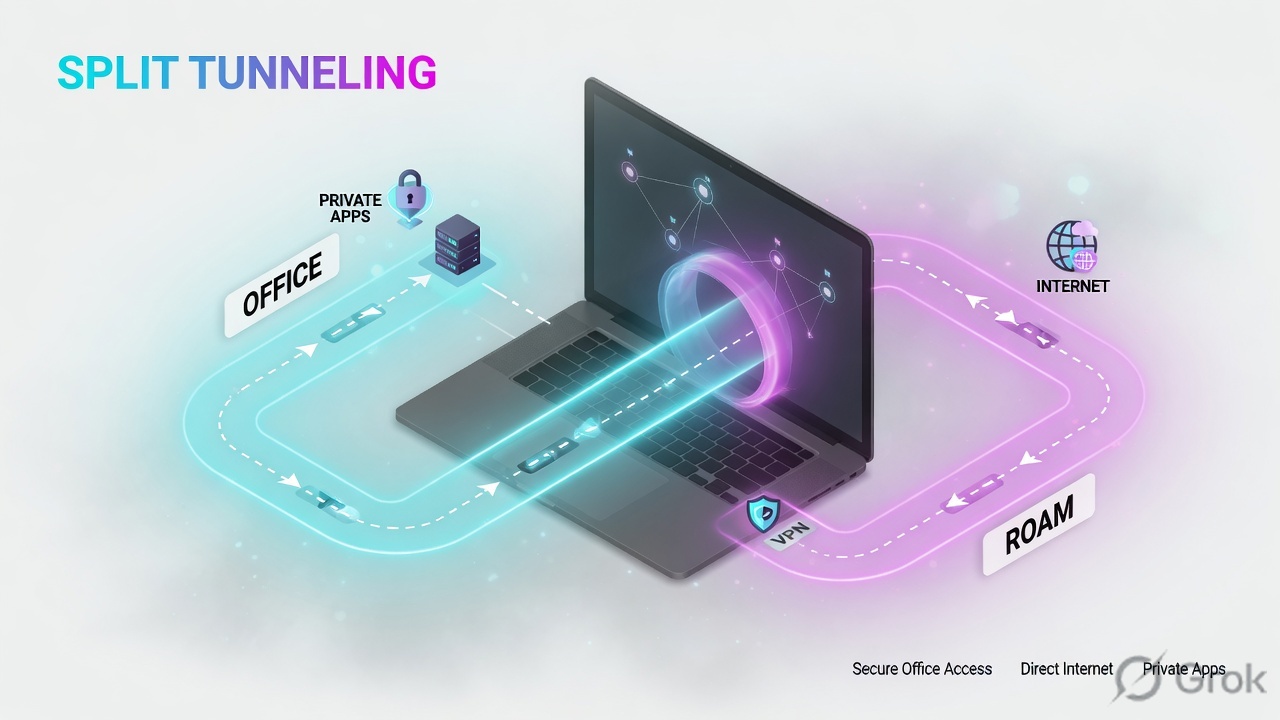
The wrong belief that wastes your first hour
Most engineers open a ZCC ticket and immediately blame the Zscaler cloud. Wrong — and that reflex burns your first hour on the one thing least likely to be broken. The Zscaler cloud is a globally redundant platform. Your problem is almost always closer to the user: the device, the local Wi-Fi, the IdP, or one mis-set toggle in the forwarding profile.
The Zscaler Digital Transformation Administrator (ZDTA) blueprint teaches this as the first move: localize the fault. There are seven places a ZCC flow can die — end-user device, local network, corporate firewall, the IdP, the Zero Trust Exchange, between Zscaler and the internet, and the Zscaler service itself. Knowing the chain turns a 3-hour guessing game into a 10-minute walk.
Your two best friends: the More menu and connection status
Before any scenario, learn these two. They appear in every fix below.
The 3-dots menu (top-right of ZCC). Holds Start/Stop Packet Capture, Restart Service, Repair App, Update Policy. So what: 80% of fixes start here.
Bundles a ZIP into %ProgramData%\Zscaler\. So what: this is what Zscaler support asks for first — collect it before you restart anything.
Per-service ON/OFF on the ZCC home tab: Internet Security (ZIA), Private Access (ZPA), Digital Experience (ZDX). So what: tells you which service is down, not just "ZCC is broken".
Shows Authenticated vs Authenticating vs a login prompt. So what: distinguishes an IdP/SAML problem from a tunnel problem in one glance.
Quick gut-check before we dive — you'll see the real answers as you read. 1. Z-Tunnel 2.0 prefers which transport? 2. Where does ZCC save its log ZIP? 3. If "Internet Security" shows OFF but the user has internet, is the user protected?
%ProgramData%\Zscaler\, (3) usually NO — OFF often means fail-open let them straight onto the internet, unprotected.① Enrollment & Authentication failures
This is where new ZCC rollouts spend most of their pain. The agent installs fine, then can't prove who the user is. The tell is the Authentication Status — if it never reaches Authenticated, the tunnel will never come up, no matter what you do downstream.
ZCC stuck on "Authenticating…" — endless login / registering loop
- Stale device token or corrupt local enrollment cache after an OS reimage or clone.
- System clock skew > 5 minutes — SAML assertions fail signature validation.
- An SSL-inspecting middlebox (school/hotel proxy, another security agent) breaking the auth TLS.
On the ZCC home tab, the Authentication Status cycles Authenticating → Registering → back. Open More → Troubleshoot → Export Logs and grep the bundle for the auth handshake.
w32tm /query /status
Leap Indicator: 0(no warning) Stratum: 3 (secondary reference) Source: time.windows.com Last Successful Sync Time: 11/05/2026 09:41:55 Phase Offset: 412.7s <-- 6+ min skew = SAML will reject
- Fix time:
w32tm /resync /force(offset must be < ~5 min). - Clear the stale enrollment:
More → Troubleshoot → Restart Service; if it persists,More → Logoutthen re-authenticate. Last resort:Repair App. - If a middlebox is in the path, allowlist the Zscaler auth domains so they bypass third-party inspection.
Authentication Status reads Authenticated and the username is correct. Service Status for Internet Security flips ON within ~10 seconds.
A user is cloned from a golden image and 40 laptops all show the SAME device in the portal, flapping Authenticating. What single property is shared that shouldn't be?
SAML / IdP redirect never completes — blank page or "page can't be displayed"
- Embedded browser vs system browser mismatch — the IdP requires a modern browser ZCC's embedded view doesn't satisfy (common with Conditional Access / device-bound MFA).
- The user's domain doesn't map to the right IdP (multi-IdP tenant).
- IdP-side certificate expired — affects all users at once.
If only some users fail, it's domain→IdP mapping. If everyone fails simultaneously at the same minute, it's an IdP cert/outage. In the ZCC Portal, use the IdP SAML attribute test link to confirm the assertion is returned and well-formed.
curl -I https://<your-org>.okta.com/app/zscaler/sso/saml
HTTP/2 200 content-type: text/html; charset=utf-8 strict-transport-security: max-age=31536000 x-okta-request-id: Yc8a... <-- reachable; if 5xx/timeout, IdP-side
- Switch the ZCC app profile to browser-based authentication (system browser) so Conditional Access and passkeys work.
- Multi-IdP: verify the user's UPN domain maps to the correct IdP, or pre-assign with the installer's
--userDomainoption. - Expired IdP cert → rotate it in the IdP and re-import metadata into the ZCC Portal.
The SAML round-trip lands back in ZCC as Authenticated; the SAML attribute test shows the expected NameID and group claims.
ZPA "Unable to validate device certificate" — Private Access won't authenticate
- An intermediate device is doing SSL inspection on ZCC's own traffic, so the cert ZPA sees isn't the cert Zscaler issued.
- Faulty / expired certificate on the IdP affecting all users.
- Device posture profile expects a client cert with a non-exportable private key that's missing.
Check Service Status → Private Access is OFF while Internet Security is ON — that split points at ZPA-specific cert/posture, not the whole stack. Export logs and look for the cert-validation line.
openssl s_client -connect 10.20.30.40:443 -servername gateway.<cloud>.net </dev/null 2>/dev/null | openssl x509 -noout -issuer
issuer=C=US, O=Zscaler Inc., CN=Zscaler Root CA # If you instead see issuer=O=AcmeProxy or a corporate CA, # a middlebox is inspecting ZCC traffic — that breaks ZPA cert validation.
- Add ZCC processes and Zscaler domains to the inspection-bypass on any other security agent / proxy in the path.
- Rotate the IdP cert if expired; re-push the device-posture profile so the client cert is re-issued.
Private Access Service Status flips ON; a known internal app (e.g. jira.corp.local) resolves and loads.
Rahul at TCS sees ZCC flip Authenticating → Registering in a loop on exactly the 12 laptops that were imaged from one golden VM last night. Every other laptop is fine. What's the root cause?
② Tunnel & Traffic-forwarding failures
Auth is green but the user still has no protected internet — or no internet at all. Now the fault is the Z-Tunnel or the forwarding profile. First, the mental model: watch a ZCC session start up and see exactly where it can stall.
▶ Watch a ZCC session start — and break
Press Play. Each stage lights up; the stage where most tickets die turns red.
ip.zscaler.com confirms you're on-cloud.The four Forwarding-Profile actions — tap to learn each
Stage 5 above is the Forwarding Profile. It picks one of four actions per network. Get this wrong and the user is online but unprotected (Scenario 6).
Native Z-Tunnel interception — no system proxy needed. The production default with Z-Tunnel 2.0. So what: most reliable; survives apps that ignore proxy settings.
Web traffic goes to a local listener via system proxy settings. So what: if the proxy/PAC isn't applied, apps bypass ZCC entirely — the classic "not protected" cause.
Forces the device to use a PAC file for routing. So what: a stray DIRECT rule in the PAC sends a destination straight out, skipping Zscaler.
No traffic control — traffic goes direct. So what: legitimate on a trusted LAN; a disaster if it leaks to off-net, where users browse unprotected.
Z-Tunnel won't establish — Authenticated, but no protected traffic
- A local firewall blocks UDP/443, so DTLS can't form and TLS fallback isn't enabled — tunnel dies.
- The DTLS connection timeout is too aggressive on a high-latency link.
- Egress firewall doesn't allow the ZEN ports (80, 443, 9400, 9480, 9443).
Many guest/corporate firewalls permit TCP/443 but silently drop DTLS on UDP/443. Test it directly.
Test-NetConnection gateway.zscalertwo.net -Port 443 # TCP works but DTLS (UDP/443) may still be blocked — confirm with capture
ComputerName : gateway.zscalertwo.net RemoteAddress : 165.225.x.x RemotePort : 443 TcpTestSucceeded : True <-- TCP ok; if tunnel still down, UDP/443 is the culprit
- Open UDP/443 outbound on the local/egress firewall, OR enable TLS fallback in the forwarding profile (ZCC 3.4+/macOS 3.9+) so it drops to TCP/443 when DTLS fails.
- Raise the DTLS Connection Timeout (5–60s) on flaky links.
- Allowlist all ZEN ports (80/443/9400/9480/9443) on the corporate firewall.
Browse to https://ip.zscaler.com → it reports your ZEN node and "you are connected". Tunnel shows established in logs.
On hotel Wi-Fi, Priya's ZCC is Authenticated but every site times out. Test-NetConnection gateway:443 returns TcpTestSucceeded: True. Z-Tunnel 2.0 is set to DTLS-only. Most likely cause?
ZSAService / ZSATunnel not running — driver fault, ZCC tray greyed out
- The ZSATunnel network driver (LWF) failed to load after a Windows update.
- ZSAService crashed or was stopped by another endpoint tool.
- Corrupt install after an interrupted upgrade.
The Windows ZCC processes are ZSATray.exe (UI), ZSATrayManager.exe (SYSTEM service), ZSATunnel.exe and ZSAService.exe. On macOS: ZscalerTunnel, ZscalerService. Check they're alive.
sc query ZSAService tasklist | findstr /i "ZSATunnel ZSAService ZSATrayManager"
SERVICE_NAME: ZSAService
STATE : 4 RUNNING
ZSATunnel.exe 7220 Services 0 44,128 K
ZSATrayManager.exe 6184 Services 0 51,402 K
# If STATE is STOPPED or ZSATunnel is absent, the driver/service failed.- First try
More → Troubleshoot → Restart Service— reloads ZSAService and the tunnel driver without a reboot. - Driver still won't load →
More → Troubleshoot → Repair App, then reboot. - Persistent crash → collect logs, uninstall (you may need the ZCC uninstall/disable password), reinstall the matched build.
sc query ZSAService shows RUNNING and ZSATunnel.exe is in the task list; the ZCC tray icon goes from grey to active.
A developer says "ZCC is on and Authenticated, but my git clone over SSH (port 22) fails while the browser works fine." Z-Tunnel 1.0 is in use. Why?
Traffic not forwarding to Zscaler — user has internet, but it's not protected
- Forwarding Profile action for the current network is set to None (often the on-trusted-network setting bleeding to off-net).
- Tunnel with Local Proxy chosen but the system proxy / PAC isn't applied, so apps ignore the local listener.
- A PAC file
DIRECTrule is sending the destination straight out.
ip.zscaler.com says "you are not using Zscaler". In Tunnel with Local Proxy mode, ZCC forwards web traffic to a local listener via system proxy settings; if those aren't set, traffic bypasses. Confirm the profile and the PAC.
curl -s https://ip.zscaler.com/getZpaServerInfo 2>/dev/null & echo --- & netsh winhttp show proxy
Current WinHTTP proxy settings:
Proxy Server(s) : 127.0.0.1:9000 <-- ZCC local listener = forwarding active
Bypass List : <-loopback>
# If "Direct access (no proxy server)" in TWLP mode, proxy wasn't applied.- Set the off-trusted-network Forwarding Profile action to Tunnel (Z-Tunnel 2.0) so it works without relying on system proxy.
- Staying on Tunnel-with-Local-Proxy → enable "Redirect Web Traffic to Zscaler Client Connector Listening Proxy" under Z-Tunnel 2.0 Transport Settings so web requests hit the local listener.
- Audit the PAC for a
DIRECTrule matching the destination.
ip.zscaler.com reports your ZEN; the Web Insights log in the ZIA portal shows the user's requests arriving.
Teams / Zoom calls drop or stutter only on ZCC — MTU / fragmentation
- Tunnel encapsulation overhead pushes packets over the path MTU; large frames fragment or get dropped.
- UCaaS (Teams/Zoom) not bypassed, so latency-sensitive media rides the tunnel.
Calls fail specifically when ZCC is ON; turning ZCC off "fixes" it (a classic MTU tell). Find the largest unfragmented packet to the ZEN.
ping -f -l 1472 gateway.zscalertwo.net
Packet needs to be fragmented but DF set. <-- 1472 too big # Step down (1452, 1422...) until replies succeed; that + 28 = path MTU. Reply from 165.225.x.x: bytes=1422 time=24ms TTL=54 <-- works
- Configure recommended UCaaS bypasses so Teams/Zoom media goes direct (Zscaler publishes the bypass list).
- If media must stay tunnelled, lower the tunnel MTU to the discovered path MTU.
A 10-minute Teams call holds with ZCC ON; the UCaaS app shows direct media, no tunnel hop.
③ Network detection & environment failures
Now the trickiest class: ZCC works perfectly in the office, breaks on the road — or the reverse. The agent is making a where am I? decision, and getting it wrong. Use this decision tree as your first 30-second triage.
Trusted-network detected wrong — on-network treated as off (or vice-versa)
- Trusted Network Criteria rely on a dynamic property (Hostname/IP resolution) that fails during a network transition, so ZCC mis-classifies the network.
- VPN or split-DNS makes a remote network resolve the internal DNS suffix, so off-net looks on-net.
Zscaler recommends static criteria — DNS Server and DNS Search Domains — over dynamic hostname resolution, precisely because a failed resolve makes ZCC apply the wrong forwarding action. Check what the device actually resolves.
ipconfig /all | findstr /i "Search Suffix DNS Servers"
Connection-specific DNS Suffix . : corp.infosys.local
DNS Servers . . . . . . . . . . . : 172.16.10.10
172.16.10.11
# On-net should match Trusted Network Criteria; off-net must NOT.- Rebuild Trusted Network Criteria on static properties (DNS Server IPs + DNS Search Domains) instead of hostname/IP resolution.
- If a VPN leaks the internal suffix off-net, scope criteria with multiple conditions (ALL logic) so a single leaked attribute can't flip the verdict.
ZCC shows On Trusted Network only at the office and Off Trusted Network elsewhere; the matching forwarding action applies each time.
Aditya's laptop randomly flips between On/Off Trusted Network at his desk, applying the wrong forwarding action. The criteria use a Hostname that must resolve to 172.16.10.50. What's the most robust fix?
"Captive Portal Detected" — stuck on hotel / airport Wi-Fi ("captive-portal hell")
- ZCC tries to tunnel before the user signs in to the Wi-Fi splash page, so the portal never loads — and ZCC stays in captive-portal detention even after the portal is gone.
- Older ZCC builds kept showing the portal even when detection was disabled (a long-standing bug across 3.6–4.2).
The user sees a persistent "Captive Portal Detected" state. Pasting the splash URL into a browser works — proof ZCC is intercepting the portal it should be letting through.
curl -sI http://www.gstatic.com/generate_204
HTTP/1.1 302 Found Location: https://hotel-wifi.example.com/login <-- redirect = captive portal # A clean network returns: HTTP/1.1 204 No Content (no redirect)
- Train users to complete Wi-Fi sign-in before ZCC fully enrolls/connects; tap the ZCC captive-portal prompt to open the splash page.
- Tune captive portal detection in the app profile (hostname/IP it probes) so it correctly releases once the portal clears.
- Upgrade to a build with the captive-portal fixes (4.2.0.198+); the toggle to disable detection actually works there.
After Wi-Fi sign-in, ZCC leaves the captive-portal state on its own and the tunnel comes up; generate_204 returns 204.
Partner AV / firewall / VPN conflict — ZCC and another agent fight over the stack
- A third-party VPN or EDR also installs a network filter driver; two filters mangle the same packets.
- Another agent SSL-inspects ZCC's traffic, breaking auth/tunnel.
- Endpoint firewall blocks ZSATunnel from opening its listener.
ZCC works after a clean boot, then degrades when the VPN/EDR starts. Capture both adapters with More → Troubleshoot → Start Packet Capture and look for double-encapsulation or resets.
netsh winsock show catalog | findstr /i "Zscaler VPN Layered"
Winsock Catalog Provider Entry Description : Zscaler LSP Description : AcmeVPN Layered Service Provider <-- 2nd filter = conflict risk # Two layered providers competing on the same flows = packet mangling.
- Follow Zscaler's VPN-interoperability best practice: order the agents, or set the third-party VPN to split-tunnel so it doesn't grab Zscaler's traffic.
- Add ZCC processes to the AV/EDR allowlist and exclude Zscaler domains from any other SSL inspection.
ZCC stays connected with the other agent running; the capture shows clean single-encapsulated tunnel traffic.
Everything slow — ZCC connected to a far-away ZEN data center
- ZCC latched onto a distant ZEN (e.g. a Mumbai user pinned to a Singapore node) after travel or a DNS quirk.
- ISP routing the user to a sub-optimal Zscaler region.
ip.zscaler.com shows the connected ZEN city. If it's far from the user, latency is the problem, not bandwidth.
curl -s https://ip.zscaler.com | findstr /i "Zscaler City"
Your request is arriving at this server from the IP address 165.225.x.x You are connected to Zscaler. ZEN: SINGAPORE <-- a Lucknow user should be on a closer node RTT to ZEN: 78 ms <-- high for a domestic user
More → Troubleshoot → Restart Serviceforces re-selection of the nearest ZEN.- If it keeps picking a far node, raise a Zscaler support case to check sub-cloud / geo steering for that egress IP.
ip.zscaler.com now shows a nearby ZEN; ZDX (Digital Experience) page-load scores recover.
④ SSL inspection, device posture & lifecycle
L1 view: do the safe, reversible steps — restart service, check time, escalate with logs. The deeper fixes below are tagged for L2/L3.
When auth, tunnel and forwarding are all green but specific apps misbehave, the agent is fine — your policy is the problem. This is the aha-moment of ZCC support: a perfectly healthy ZCC will still "break" apps if SSL inspection or posture is wrong. Stop poking the client; read the policy.
Teams / banking app breaks under SSL inspection — cert-pinning conflict
- The app uses certificate pinning; Zscaler re-signs the TLS, the app sees a "wrong" cert and refuses.
- The Zscaler intermediate CA isn't trusted on the device.
Browser sites work but the pinned app (Teams desktop, a banking app) fails with a TLS/cert error. The ZIA SSL Inspection log shows the flow being decrypted.
openssl s_client -connect teams.microsoft.com:443 </dev/null 2>/dev/null | openssl x509 -noout -issuer
issuer=O=Zscaler Inc., CN=Zscaler Intermediate CA <-- being inspected # A pinned app wants Microsoft's own issuer; the Zscaler issuer trips the pin and the app dies.
- Add the app's domains to the SSL Inspection bypass (Do Not Inspect) so the original cert reaches the app. Keep the bypass tight — bypassing also blinds IPS/File-Type/DLP for that flow.
- Ensure the Zscaler intermediate CA is deployed to the device trust store for everything you do inspect.
The app connects; openssl ... -issuer on the bypassed domain shows the app's own CA, not Zscaler's.
Device posture failing — access denied even though ZCC is connected
- A posture check no longer matches: disk-encryption off, AV (CrowdStrike/Defender/SentinelOne) not running, OS below the required version, or a missing client cert / registry / file artifact.
- CrowdStrike ZTA score below the configured threshold.
ZPA access to a posture-gated app is blocked while non-gated apps work. The ZCC/ZPA log names the specific failed posture profile.
manage-bde -status C: | findstr /i "Conversion Protection" sc query CSFalconService
Conversion Status: Fully Encrypted
Protection Status: Protection On <-- disk-encryption posture PASS
SERVICE_NAME: CSFalconService
STATE : 4 RUNNING <-- AV posture PASS- Remediate the failed artifact (enable BitLocker, start the AV service, patch the OS).
- If the posture profile is over-strict, adjust the criteria or the ZTA threshold in the portal and re-evaluate.
The posture-gated app loads; ZPA Diagnostics shows the posture profile as Satisfied.
Auth, tunnel, forwarding all green. ip.zscaler.com confirms on-cloud. But the in-house HR app at hr.corp.local throws a cert error only on managed laptops. Where do you look — client or policy?
hr.corp.local to SSL Inspection bypass, or deploy the Zscaler intermediate CA to those laptops. Restarting ZCC would waste your time here.ZCC upgrade / auto-update stuck or failing
- The ZSAUpdater can't reach the update host, or an antivirus is quarantining the new build.
- The app-profile update rule (gradual rollout) hasn't reached this device yet — it isn't actually stuck.
- Insufficient privileges / a previous partial install left a lock.
ZCC checks for software updates roughly every 2 hours. Confirm whether the device is even targeted before assuming failure; then check updater reachability.
"C:\Program Files (x86)\Zscaler\Zscaler\ZSATray.exe" --updatePolicy # then read the running version reg query "HKLM\SOFTWARE\WOW6432Node\Zscaler Inc.\Zscaler" /v ProductVersion
ProductVersion REG_SZ 4.2.0.198 # Compare against the target build in the ZCC Portal's update rule.
More → Troubleshoot → Update Policyto pull the latest update rule immediately.- Allowlist the Zscaler update host on the firewall/AV; exclude ZCC install paths from quarantine.
- Stuck partial upgrade →
Repair App, or uninstall (with disable password) and install the target build.
ProductVersion matches the portal's target build; the tray reports the new version with no pending-update banner.
"Internet Security is Off" — and the user is browsing happily (fail-open trap)
- ZCC couldn't reach a ZEN, so fail-open let traffic go direct — the user is online but unprotected.
- A user with the disable password turned the service off, or strict enforcement isn't configured.
This is the dangerous one — it looks healthy. Internet works, so no one raises a ticket, but Web Insights shows zero traffic for that user. Fail-open trades security for uptime; fail-close would have blocked internet instead.
curl -s https://ip.zscaler.com | findstr /i "not using"
The request is NOT going through the Zscaler service. # Confirmed: fail-open let them out direct. "Internet works" != "protected".
- Fix the underlying tunnel/reachability problem (sections ② / ③) so ZCC reconnects and Internet Security flips back ON.
- Review Fail-Open settings: for high-security tenants prefer fail-close (or a short fail-open timeout). Remove the user-facing disable password unless support genuinely needs it; enforce strict-enforcement so users can't simply switch protection off.
ip.zscaler.com reports "you are connected to Zscaler"; Web Insights shows the user's requests flowing again.
Nothing obvious — you need to escalate: export logs + packet capture the right way
You've localized the hop but the root cause isn't visible from the UI — or Zscaler support asks for a log bundle. Do it in the right order so the capture actually contains the failure.
- 1.
More → Clear Logs— start fresh so the bundle isn't 90% noise. - 2.
More → Troubleshoot → Start Packet Capture. - 3. Reproduce the issue.
- 4.
More → Troubleshoot → Stop Packet Capture. - 5.
More → Support → Export Logs→ save the ZIP.
"C:\Program Files (x86)\Zscaler\Zscaler\ZscalerSupportTool.exe" /log dir "%ProgramData%\Zscaler\"
Directory of C:\ProgramData\Zscaler log-48172\ CaptureAdapters_20260530T1144.pcap CaptureLWF_20260530T1144.pcap ZSALogs_20260530.zip <-- attach this to the support case # macOS path: /Library/Application Support/com.zscaler.Zscaler
The ZIP and both .pcap files exist with a timestamp inside your repro window. Packet capture must be enabled for the device in the ZCC Portal first.
A 6,000-seat BFSI tenant debates Fail-Open vs Fail-Close for ZCC. Compliance demands no unprotected internet; the business wants no hard outages. What's the defensible call?
One-glance cheat-sheet — symptom → first action
Pin this. When a ticket lands, match the symptom and do the first action before anything else.
ip.zscaler.com. Print this for the helpdesk wall.🤖 Ask the AI Tutor
Tap any question — instant, scoped to this ZCC lesson. No login, no waiting.
Pre-curated from Zscaler Help docs + community Q&A + the ZDTA blueprint. For live prod issues, paste your ip.zscaler.com output + log bundle into chat.techclick.in.
📝 Wrap-up assessment — six more
You answered 4 inline. Six left. 70% (7 of 10) marks this lesson complete on your profile. Answer all, then tap Submit all answers.
In 2 lines: a user says "ZCC is on but I have no internet, and it's NOT a captive portal." What are the first two things you check, and why?
ip.zscaler.com — is traffic even going through Zscaler, or did fail-open let it out direct? (2) The Forwarding Profile action for this network — is it accidentally None, or is Tunnel-with-Local-Proxy not applying the system proxy? Auth being green means the problem is downstream of authentication: tunnel or forwarding.Tap to generate a one-liner you can paste to a colleague — then tweak it in your own voice.
Memory fades in 48 hours unless you revisit. Opt in and we'll email you 3 micro-questions on this lesson at Day 1, Day 7 and Day 30.
📚 Sources
- Zscaler Help — Troubleshooting Zscaler Client Connector & Connection Status Errors. help.zscaler.com
- Zscaler Help — Zscaler Client Connector Traffic Forwarding Troubleshooting Runbook. help.zscaler.com
- Zscaler Help — About Z-Tunnel 1.0 & Z-Tunnel 2.0 + Best Practices for Deploying Z-Tunnel 2.0 (DTLS UDP/443, TLS fallback). help.zscaler.com
- Zscaler Help — Configuring Trusted Networks & Configuring Forwarding Profiles (static vs dynamic criteria). help.zscaler.com
- Zscaler Help — ZPA / Private Access Authentication Errors & Configuring Fail-Open Settings. help.zscaler.com
- Zscaler Help — Enabling Packet Capture & Zscaler Client Connector Processes to Allowlist (ZSATunnel / ZSAService / ZSATrayManager; macOS ZscalerTunnel). help.zscaler.com
- Zscaler Community (Zenith) — "ZCC in Authentication/Registering constant loop", "Captive Web Portal issues", "Long-Standing Captive Portal Issue", "ZTunnel 2.0, DTLS/TLS, MTU". community.zscaler.com
- Zscaler — ZDTA (Digital Transformation Administrator) Exam Blueprint (Basic Connectivity 20%, Platform Services 15%; localize-the-fault method, ZCC packet-capture path). zscaler.com
- SecureDynamics / SMU IT KB — Exporting Logs from Zscaler Client Connector with Packet Captures (More → Support → Export Logs; %ProgramData%\Zscaler; CaptureAdapters/CaptureLWF .pcap). securedynamics.net
- Nexthink Docs — Zscaler troubleshooting usage guide (Get Zscaler status / Start Zscaler remote actions; ZSAService). docs.nexthink.com
📖 Glossary
- ZCC (Zscaler Client Connector)
- The endpoint agent that authenticates the user and forwards their traffic into the Zscaler Zero Trust Exchange.
- ZEN / Service Edge
- The Zscaler enforcement node the tunnel connects to. Accepts traffic on 80, 443, 9400, 9480 and 9443.
- Z-Tunnel 1.0 vs 2.0
- 1.0 tunnels only web ports (80/443) over TLS. 2.0 tunnels all ports/protocols, preferring DTLS over UDP/443 with TLS fallback.
- DTLS
- Datagram TLS — TLS over UDP. Lower latency than TCP-based TLS; Z-Tunnel 2.0's primary transport.
- Forwarding Profile
- The per-network rule that decides how ZCC sends traffic: Tunnel, Tunnel-with-Local-Proxy, Enforce-PAC, or None.
- Trusted Network
- A network ZCC recognises as your corporate LAN (via DNS server, search domains, etc.), so it can apply on-net behaviour.
- SAML / IdP
- The identity handshake. The IdP (Okta, Entra ID…) returns a signed SAML assertion that ZCC uses to authenticate the user.
- Fail-open / Fail-close
- What ZCC does when it can't reach a ZEN: fail-open lets traffic out direct (online but unprotected); fail-close blocks internet (protected but offline).
- Device Posture
- Checks (disk encryption, AV running, OS version, client cert) a device must pass before ZPA grants access.
- ZSATunnel / ZSAService
- Core Windows ZCC processes — the tunnel driver and the main service. macOS equivalents: ZscalerTunnel, ZscalerService.
What's next?
Now you can fix the client. Next, go up the stack: how the ZIA policy pipeline decides allow/deny once traffic reaches the ZEN — Cloud Firewall, DNS Control, File Type and IPS, in order.
— Techclick Team