Cloud & Branch Connector Monitoring answers “is this VM registered, and what is its Status / Geolocation?” Ingress / VPC path answers “did the workload subnet even send the packet to a Cloud Connector?” Traffic Forwarding answers “did this flow go to Internet & SaaS, Private Access, Direct, Drop, or Local — and which Workload Group matched?” Session Insights answers “did this transaction land on this CC VM / Cloud Connector Group?” Cloud Provisioning Template + API key answers “did this AMI even enroll?” A green EC2 is not a Session row. A healthy Cloud Connector is not an App Connector. A Zero Trust Gateway is a managed gateway, not a second name for the VM you run.
1. Why a Cloud Connector ticket is five commands
Operators collapse five failures into one sentence. The VM never enrolled. The route table never pointed at the Gateway Load Balancer. Traffic Forwarding sent the CIDR Direct. Session Insights is empty because the Location never registered. The private FQDN needed an App Connector. Those are five first clicks.
This page is the night-shift desk for Cloud Connector proof. The cousin lesson teaches which VM to order. Here you learn the five tools you actually open, in order, when someone says the workloads are dark.
If they say “prove Cloud Connector is working,” do not say “I opened the Admin Portal.” Say: “I prove the instance with Monitoring Status + Event-log health check, the VPC path with ingress routing + Session Insights CC VM, the decision with Traffic Forwarding method + Workload Group, the transaction with Session / DNS / Tunnel Insights, and enrollment with the Cloud Provisioning Template + API key.”
2. Mental model — five proof surfaces
Memorise five named objects before you click. Each surface is allowed to prove one thing. Over-claiming a field is how you replace a healthy AMI at 02:00.
1 · Instance health
Cloud & Branch Connector Monitoring: Name, Group, Location, Geolocation, Status. Event logs fire on a health-check status change. Does not prove a workload packet arrived.
2 · Workload / VPC path
Cloud route table, GWLB / load balancer, Service Interface, Public IP. Official AWS / Azure / GCP troubleshooting starts at ingress routing. A healthy VM with no inbound steer is a silent hole.
3 · Traffic Forwarding
Policy: send select traffic to Internet & SaaS (ZIA), Private Access (ZPA), or use Direct, Drop, or Local. Source Workload Groups apply to Cloud Connector forwarding only.
4 · Insights logs
Logs → Insights → Branch and Cloud Connectors → Session, DNS, or Tunnel Insights. Quote CC VM, Cloud Connector Group, Application Segment. Filter Internet & SaaS when that is the hop.
5 · Provisioning
API key + Cloud Provisioning Template + provisioning URL. Fields include Cloud Connector Group Creation, VM Size (Small / Medium / Large), Auto Scaling. ASG template only with an ASG.
Hard words, once
Cloud Connector = customer VM that forwards workloads to ZIA / ZPA. Zero Trust Gateway = Zscaler-managed gateway (no AMI you babysit). App Connector = ZPA broker next to the private app. They are not synonyms.
Read left → right. Each box is allowed one claim. If you cannot name the field, you are not proving — you are guessing.
I prove the instance, then the VPC path, then the forwarding method, then the Insights row, then enrollment. I do not replace an AMI, flip 0.0.0.0/0, or edit Traffic Forwarding until I can quote the field that made me do it.
3. Decision flow — ticket → first tool
Flowchart first. Do not open the Traffic Forwarding editor until a diamond says so.
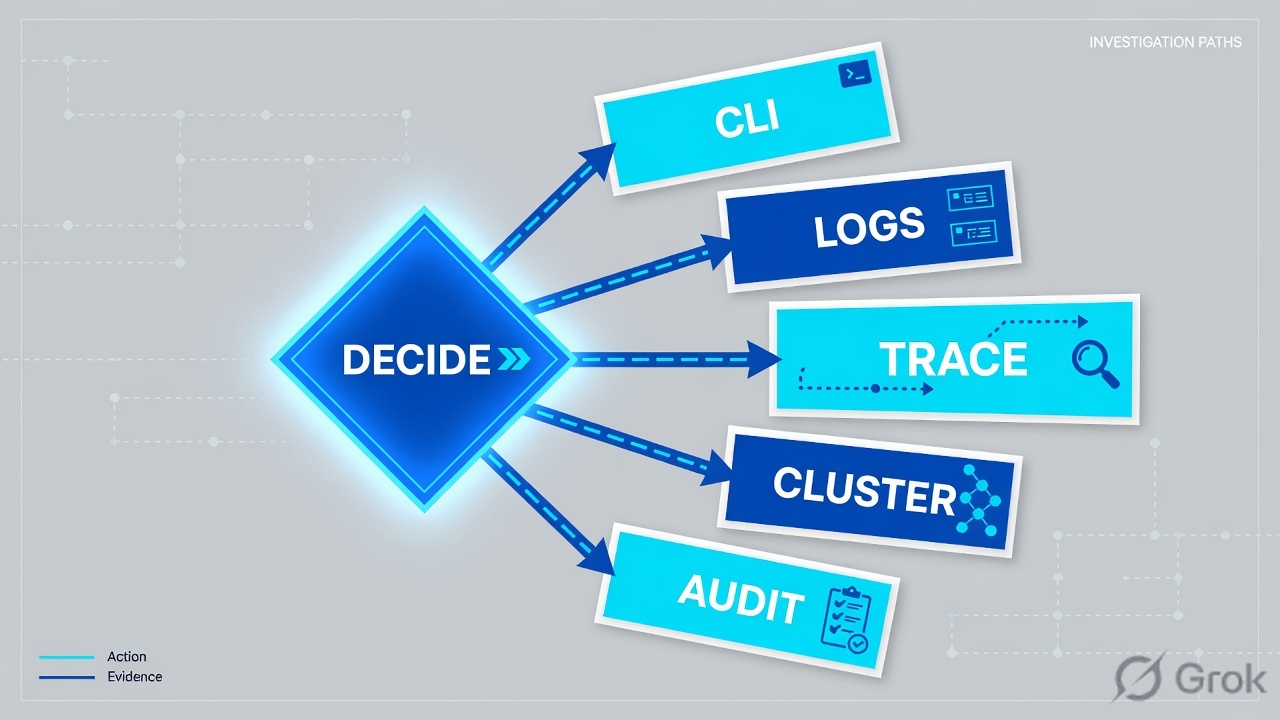
Read the diamond first. A private FQDN never starts in Cloud Connector Session Insights. Empty Insights never starts in a new URL Allow. Inactive never starts in Traffic Forwarding.
4. How to choose — first tool + proof field
Print this next to the Cloud & Branch Connector Admin Portal. If you cannot recite the proof field, you are not ready to change anything.
| If the ticket says… | First tool (official path) | Proof field | Do not open first |
|---|---|---|---|
| VM missing, Inactive, or wrong geolocation | Cloud & Branch Connector Monitoring (name, group, location, geolocation, status). Event logs for the health-check change. | Status + Geolocation + Public IP / Service Interface. Inactive → registration + policy fetch. |
A new Traffic Forwarding Allow |
| Instance Active; whole subnet or VPC still dark after a route change | Cloud ingress: AWS GWLB / TGW, Azure route table + workload subnet → load balancer, GCP routing to the VM | Default route / GWLB endpoint / load-balancer target that actually owns 0.0.0.0/0 for that subnet |
Web Insights URL Category |
| Some CIDRs inspect; a new Workload Group or CIDR goes Direct | Cloud & Branch Connector Traffic Forwarding rules | Forwarding method (Internet & SaaS / Private Access / Direct / Drop / Local) + Source Workload Group | Replace the AMI |
| Path should be on-CC; need the transaction | Logs → Insights → Branch and Cloud Connectors → Session Insights (then DNS or Tunnel) | CC VM + Cloud Connector Group (+ Application Segment when ZPA). Location registered. Internet & SaaS filter when that is the hop. |
ZIA Web Insights as if this were a laptop |
| New stack never appears after Terraform / ARM / Deployment Manager | Infrastructure → Connectors → Cloud → Provisioning + API Key Management | API key + Provisioning Template type (ASG vs non-ASG) + provisioning URL (no spaces) | A ZIA URL Allow |
| “We bought Zero Trust Gateway — where is my AMI?” | Zero Trust Gateway object (AWS / Azure / GCP pages in Help) | The gateway resource Zscaler manages. There is no customer Cloud Connector VM to SSH. | A Cloud Provisioning Template for an AMI you do not deploy |
A Cloud Connector that is Active does not broker crm.internal.example. That is an App Connector (or a combined Branch + App image). Cloud Connector forwards workload traffic to ZIA and ZPA. Zero Trust Gateway is the managed Cloud Connector service — Help: What Are Zero Trust Gateways? Do not hunt Session Insights for a user laptop; that laptop is Client Connector or a site tunnel.
5. Runbook Side A → B → C
Side A proves the VM enrolled and is healthy. Side B proves the VPC path and the Traffic Forwarding decision. Side C proves the transaction in Insights. On a messy Sev-2, do them in this order until a field lights up.
Side A — Instance health + provisioning
Primary sources: Accessing Cloud & Branch Connector Monitoring; Troubleshooting Cloud Connector with AWS / Azure / GCP; Deploying Zscaler Cloud Connector (API key + Cloud Provisioning Template); NSS Feed Output Format: Event Logs.
-
Open Monitoring before you SSH anything
Official Monitoring page lists name, group, location, geolocation, and status for each Cloud Connector VM. Path used when you edit membership: Infrastructure → Connectors → Cloud → Management → Cloud Connector Groups (Overview or the group). Quote
StatusandGeolocationfor the instance named on the ticket. -
If Status is Inactive, prove registration — do not replace the AMI yet
Official Azure / AWS / GCP troubleshooting: Inactive means check registration and policy fetch (Support if both look correct). Confirm the Cloud Connector can reach the Zscaler cloud (NSG / security group / DNS). Quote the Event log: Cloud Connector generates Event logs when a health-check status change occurs.
-
If Geolocation is wrong, prove Public IP + Service Interface
Official: wrong geolocation → verify outbound NAT and the egress path; confirm Public IP. AWS specifically: associate the Cloud Connector Service Interface with the correct path. A wrong city on the map is a routing/NAT ticket, not a Traffic Forwarding ticket.
-
If the VM is missing entirely, open Provisioning
Cloud Connector authenticates and registers with the API key. Official deploy path: generate the key, then a Cloud Provisioning Template (creates the provisioning URL). Documented fields include Cloud Connector Group Creation, VM Size (Small / Medium / Large), and Auto Scaling. ASG only with an ASG template; non-ASG only with a non-ASG template. Azure also checks: API key, username/password, provisioning URL with no spaces, template type, Key Vault Get/List, Network Contributor /
Microsoft.Network/networkInterfaces/read. -
Confirm Internet Access Gateway is populated
Official post-deploy / “unable to monitor” check: in the Admin Console the Internet Access Gateway is populated, Session logs show Cloud Connector self-traffic, and Tunnel Insights is visible. That is the green bar for “the box talks to ZIA.” It is not yet a workload packet.
Infrastructure / Connectors / Cloud / Management / Cloud Connector Groups
Cloud & Branch Connector Monitoring
| Name | Group | Location | Geolocation | Status |
|---|---|---|---|---|
| lab-cc-1a | lab-cc-ap-south-1 | lab-cc-mumbai | Mumbai, IN | Active |
| lab-cc-1b | lab-cc-ap-south-1 | lab-cc-mumbai | Ashburn, US | Active |
| lab-cc-1c | lab-cc-ap-south-1 | — | — | Inactive |
02:04:11Z lab-cc-1a health check → Active · Internet Access Gateway populated
02:06:40Z lab-cc-1b geolocation Ashburn — Public IP / Service Interface mismatch
02:08:02Z lab-cc-1c Inactive — registration / policy fetch not complete
Source: Zscaler Help — Accessing Cloud & Branch Connector Monitoring (name, group, location, geolocation, status); Editing Cloud Connectors; Troubleshooting Cloud Connector (Inactive = registration + policy fetch; wrong geolocation = Public IP / Service Interface / outbound NAT); Event logs on health-check status change. Lab names only. Training mock · not live.
Path:            Cloud & Branch Connector Monitoring
Quote:           Name + Group + Location + Geolocation + Status
If Inactive:     registration + policy fetch; Event log health-check change
If wrong geo:    Public IP + Service Interface + outbound NAT
If missing VM:   API key + Cloud Provisioning Template type + provisioning URL
Gateway check:   Internet Access Gateway populated · self-traffic in Session logs
Side B — Workload / VPC path + Traffic Forwarding
Primary sources: Deploying Cloud Connector on AWS / Azure / GCP (post-deploy routing); Troubleshooting Cloud Connector (ingress routing); About Traffic Forwarding; Configuring Traffic Forwarding Rules (Direct / Drop / Local; Source Workload Groups are Cloud Connector only).
-
Prove the subnet actually steers to Cloud Connector
Azure Help: after the VM deploys you must create a routing table and a workload subnet that redirect traffic to the load balancer. AWS Help: Cloud Connector typically sits behind a Gateway Load Balancer (often with Transit Gateway in a hub). GCP Help: send traffic to the deployed Cloud Connector VM. Official troubleshooting always asks for ingress routing to the Cloud Connector before it asks for a policy change.
-
Do not hairpin return through Cloud Connector for inbound internet
If an internet-facing ALB / public IP is the front door, the workload’s
0.0.0.0/0must not steal the return path through Cloud Connector NAT. That is the classic asymmetric-routing ticket. Quote the route table for the workload subnet and the exception for the inbound prefix. This is a path proof, not a ZIA URL proof. -
Open Traffic Forwarding, not a ZIA URL rule
Help: Traffic Forwarding sends select traffic to specific destinations. You can forward through Internet & SaaS (ZIA), and you can also use Direct, Drop, or Local. Cloud Connector also forwards to Private Access (ZPA) when that is the design. Source Workload Groups are only applicable to Cloud Connector traffic forwarding policies.
-
Quote the matching rule + Workload Group + method
If a new CIDR or tag-based Workload Group went Direct after last night’s change, that name is the ticket. Do not add a ZIA Cloud App Allow to “fix” a Direct. Do not replace the AMI. Change or reorder the forwarding rule, then re-read Session Insights for that
CC VM.
Policies / Traffic Forwarding / Rule 12
Traffic Forwarding Rule
Source: Zscaler Help — About Traffic Forwarding; Configuring Traffic Forwarding Rules (Direct, Drop, Local; Source Workload Groups apply to Cloud Connector forwarding only). Lab identities only. Training mock · not live.
Side C — Session / DNS / Tunnel Insights
Primary sources: Analyzing Traffic Using Insights; About Insights Logs; Session Insights Logs: Columns / Filters; DNS Insights Logs: Columns; Tunnel Insights Logs: Filters; Troubleshooting (“unable to monitor” — Location registered, tunnel logs to Internet & SaaS, use the Internet & SaaS filter).
-
Open Branch and Cloud Connector Insights, not ZIA Web Insights first
Official path: Logs → Insights → Branch and Cloud Connectors → Tunnel, DNS, or Session Insights. You drill into transactions that passed through the Cloud Connector appliance. A laptop URL Category hunt is the wrong store if the source is an EC2 / VM / GKE pod.
-
Filter the VM, then read the official columns
Session Insights Filters document CC VM — limit data to the Cloud Connector virtual machine you care about. Session Insights Columns include Application Segment and Cloud Connector Group. DNS Insights Columns include Cloud Connector Group. Quote those names plus the UTC window on the ticket.
-
If Insights is empty, prove Location + filter — do not write a URL Allow
Official “unable to monitor traffic”: the Cloud Connector Location created in the Admin Console is registered; tunnel logs show traffic to Internet & SaaS; when you filter, you use the Internet & SaaS filter. Also confirm Session logs still show self-traffic (the appliance itself). Empty workload rows + present self-traffic is a path or forwarding ticket, not a dead VM.
-
Use Tunnel Insights for the ZIA hop, DNS Insights for resolution
The same Insights family has Tunnel and DNS views. A workload that never resolves will not produce the Session you expect. A Cloud Connector that never built the ZIA tunnel will show empty Internet & SaaS tunnel logs even when Monitoring is Active. Quote the Insights type you actually opened.
Logs / Insights / Branch and Cloud Connectors / Session Insights
Session Insights Logs
| Time (UTC) | CC VM | Cloud Connector Group | Application Segment | Note |
|---|---|---|---|---|
| 02:11:04 | lab-cc-1a | lab-cc-ap-south-1 | — | self-traffic |
| 02:11:18 | lab-cc-1a | lab-cc-ap-south-1 | — | workload 10.8.4.22 → SaaS |
| 02:11:22 | lab-cc-1a | lab-cc-ap-south-1 | CRM-Prod | ZPA hop after forward |
Source: Zscaler Help — Analyzing Traffic Using Insights; About Insights Logs; Session Insights Logs: Columns (Application Segment, Cloud Connector Group); Session Insights Logs: Filters (CC VM); DNS Insights Logs: Columns; Troubleshooting (Location registered; Internet & SaaS filter; self-traffic). Lab identities only.
- Side A: Monitoring shows the named VM
Activein the expectedGeolocation. Internet Access Gateway is populated. Event log records the health-check change. - Side B: The workload subnet default route points at GWLB / the Cloud Connector load balancer. Traffic Forwarding method for that Workload Group is the one you intended (not a surprise Direct / Drop).
- Side C: Session Insights filtered on that
CC VMreturns the workload row (not only self-traffic). Location is registered. Internet & SaaS filter used when that is the hop.
6. Five tickets as full stories
These five land every quarter. Memorise first tool + proof field. Times and identities below are lab-only.
| Ticket | Symptom | First tool | Proof field |
|---|---|---|---|
| ZCCN-01 | ASG “healthy,” Monitoring Inactive / missing | Monitoring + Event logs + Provisioning | Status + registration / policy fetch · or API key + template + URL |
| ZCCN-02 | One new subnet dark after a route-table change; VM Active | Ingress / VPC path | Workload subnet default route → GWLB / LB (or still NAT Gateway) |
| ZCCN-03 | Payments CIDR no longer inspects after a Workload Group ship | Traffic Forwarding | Forwarding method = Direct / Drop + Source Workload Group name |
| ZCCN-04 | Path should be on-CC; “no logs in Zscaler” | Session Insights (+ DNS / Tunnel) | CC VM + Cloud Connector Group · Location registered · Internet & SaaS filter |
| ZCCN-05 | Cloud Connector Active; crm.internal.example still dark — or “where is the ZTGW AMI?” | Product check | App Connector (private app) or Zero Trust Gateway object (managed) — not this VM’s Session row |
ZCCN-01 — Prove instance health (Monitoring + Event log)
02:12 · P1. Mumbai Cloud Connector ASG shows InService in AWS. Workloads cannot reach SaaS. L1 wants the AMI replaced.
First tool: Cloud & Branch Connector Monitoring. Quote Name, Group, Location, Geolocation, Status for each AZ member.
If Inactive: official next check is registration and policy fetch, plus Event logs for the health-check status change. Confirm NSG / security group / DNS so the VM can reach the Zscaler cloud. Do not treat an InService EC2 as enrolled.
If missing: open Provisioning. Quote API key presence, Cloud Provisioning Template type (ASG vs non-ASG), and the provisioning URL with no spaces. Azure also needs Key Vault Get/List and the network read role on the user-assigned identity.
Auto Scaling Enabled on a non-ASG template (or the reverse) is a documented miss. Help: only deploy an ASG with an ASG template. Replacing the AMI does not fix a template-type mismatch.
ZCCN-02 — Prove the workload / VPC path
02:28 · P1. After a landing-zone route change, subnet 10.8.24.0/22 disappeared from Insights. Sibling subnet 10.8.20.0/22 is fine. Monitoring shows both Cloud Connectors Active. Someone drafted a Traffic Forwarding Allow.
First tool: the cloud route table for that workload subnet. Official deploy guides: redirect the workload subnet to the GWLB / load balancer, not to the NAT Gateway you just put back.
Proof field: the default route target. If it still points at NAT / Internet Gateway, Cloud Connector never saw the packet — Session Insights will stay empty except for self-traffic. Quote the route, the GWLB endpoint or load-balancer target, and the UTC of the route change.
I would not Activate a forwarding rule. I would paste the two route tables. Restore steer to Cloud Connector, then wait for a Session Insights row on that CC VM from an address in 10.8.24.0/22.
ZCCN-03 — Prove Traffic Forwarding + Workload Group
02:41 · P2. Payments EKS still reaches the internet, but DLP / URL inspection vanished after a Workload Group change. L1 wants a ZIA Cloud App Allow.
First tool: Traffic Forwarding rules that list Source Workload Group lab-payments-eks (Cloud Connector-only criterion). Read the forwarding method.
Proof field: method = Direct (or Drop / Local) on the new group. Direct is a successful bypass, not a broken VM. Internet & SaaS is the method that puts the flow on ZIA. Quote the rule name + group + method. Then Session Insights will explain the empty inspect trail.
A ZIA URL Allow cannot inspect a flow Cloud Connector already sent Direct. Fix the forwarding method, then re-read Session Insights. Workload Groups on ZPA Access Policy are a different object — do not edit Access Policy to “fix” egress inspect.
ZCCN-04 — Prove the transaction (Session Insights)
02:55 · P2. Platform: “Zscaler has no logs.” Monitoring is Active. Route table is correct. Traffic Forwarding is Internet & SaaS. L1 opened ZIA Web Insights and filtered a user that does not exist.
First tool: Logs → Insights → Branch and Cloud Connectors → Session Insights. Filter CC VM + time. Add Cloud Connector Group. Use the Internet & SaaS filter when that is the hop.
Proof field: a workload row with that CC VM and Cloud Connector Group. If only self-traffic exists, go back to path / forwarding. If even self-traffic is missing, go back to Location registered + Internet Access Gateway + Tunnel Insights. DNS Insights is the sibling when the name never resolves.
I would not hunt Policy Action on a laptop user. I would paste the Session Insights filter and the first workload row — or the official empty-log checks (Location registered, Internet & SaaS filter, self-traffic).
ZCCN-05 — Prove you have the right product
03:08 · P2. Two flavours of the same Slack thread. (A) Cloud Connector is Active but crm.internal.example fails. (B) The account bought Zero Trust Gateway and someone is still looking for a Cloud Provisioning Template.
First tool (A): stop. Cloud Connector forwarded the VPC. Private-app brokering is an App Connector (group + provisioning key + User Activity). See App, Branch, Cloud Connector.
First tool (B): the Zero Trust Gateway object (Adding an AWS / GCP Zero Trust Gateway). ZTGW is the managed Cloud Connector service — Zscaler runs the gateway. There is no AMI for you to enroll with an API key.
“Cloud” in the product name does not mean “our App Connector in AWS.” An App Connector deployed in AWS is still an App Connector. A Zero Trust Gateway is not a missing Cloud Connector Group.
7. Traps + close-the-ticket proof
| You see | Weak close | Strong close |
|---|---|---|
| EC2 / VMSS InService, Monitoring Inactive | Replace the AMI | Quote Status + Event-log health check; prove registration / policy fetch |
| Wrong geolocation | Move the VM to another AZ “for latency” | Public IP + Service Interface + outbound NAT (official geo troubleshooting) |
| Active VM, empty Session Insights | A Cloud App rule blocked the VPC | Ingress route, then Location registered + Internet & SaaS filter + self-traffic |
| Self-traffic only | “Zscaler is down” | The box talks to ZIA. The workload subnet does not. Fix the path or forwarding method |
| Workload Group sent Direct | Add a ZIA URL Allow | Quote Traffic Forwarding method + Source Workload Group |
| ASG template on a single VM (or reverse) | Scale the group blindly | Official: ASG only with an ASG template |
| Private FQDN dark, CC Active | Restart both Cloud Connectors | Wrong product. App Connector + User Activity |
| Zero Trust Gateway tenant | Hunt a Cloud Provisioning Template | Prove the managed gateway object. There is no customer AMI |
| Inbound ALB + default route via CC | Disable Cloud Connector for the VPC | Asymmetric return. Exempt the inbound prefix; keep egress on CC |
- UTC window written next to the tool you opened.
- Instance quoted: Monitoring
Name+Status+Geolocation(or “missing” + template / API key). - Path quoted: workload subnet default route target, or Traffic Forwarding method + Workload Group.
- One transaction quoted: Session Insights
CC VM+Cloud Connector Group, or DNS / Tunnel Insights with the Internet & SaaS filter, or official empty-log checks. - Product named: Cloud Connector vs App Connector vs Zero Trust Gateway.
- Next tool named — or change-control owner named. No AMI replace without residual control.
I name the question, then the first tool, then one official field. Monitoring proves the instance. Ingress routing proves the VPC path. Traffic Forwarding proves Direct / Drop / ZIA / ZPA. Session Insights proves the transaction. The Cloud Provisioning Template + API key prove enrollment. Zero Trust Gateway is the managed form — I do not SSH an AMI I do not own. I do not treat Cloud Connector as an App Connector. Deeper enroll/HA map: App, Branch & Cloud Connectors.
Knowledge check
Six night-shift judgments. Each maps to a first tool or a proof field. Check answers, then Reset if you picked the wrong surface.
Sources
- Zscaler Help — What Is Zscaler Cloud Connector?
- Zscaler Help — What Are Zero Trust Gateways?
- Zscaler Help — Zero Trust Gateway Management
- Zscaler Help — Adding an Amazon Web Services Zero Trust Gateway
- Zscaler Help — Accessing Cloud & Branch Connector Monitoring (name, group, location, geolocation, status)
- Zscaler Help — Editing Cloud Connectors (Infrastructure → Connectors → Cloud → Management → Cloud Connector Groups)
- Zscaler Help — Step-by-Step Configuration Guide for Zscaler Cloud Connector (Cloud Provisioning Templates → provisioning URLs)
- Zscaler Help — Deployment Templates for Zscaler Cloud Connector (ASG template only with an ASG)
- Zscaler Help — Deploying Zscaler Cloud Connector with Amazon Web Services (API key, Cloud Connector Group Creation, Auto Scaling, Monitoring columns)
- Zscaler Help — Deploying Zscaler Cloud Connector with Microsoft Azure (route table + workload subnet → load balancer; VM Size)
- Zscaler Help — Deploying Zscaler Cloud Connector on the Google Cloud Platform
- Zscaler Help — Troubleshooting Cloud Connector with Amazon Web Services (Service Interface, Internet Access Gateway, ingress routing)
- Zscaler Help — Troubleshooting Cloud Connector with Microsoft Azure (Inactive; geolocation / Public IP; API key; provisioning URL; self-traffic; Location registered; Internet & SaaS filter)
- Zscaler Help — Troubleshooting Cloud Connector with Google Cloud Platform
- Zscaler Help — About Traffic Forwarding
- Zscaler Help — Configuring Traffic Forwarding Rules (ZIA; Direct, Drop, Local; Source Workload Groups)
- Zscaler Help — Analyzing Traffic Using Insights (Logs → Insights → Branch and Cloud Connectors → Tunnel, DNS, or Session Insights)
- Zscaler Help — About Insights Logs
- Zscaler Help — Session Insights Logs: Columns (
Application Segment,Cloud Connector Group) - Zscaler Help — Session Insights Logs: Filters (
CC VM) - Zscaler Help — DNS Insights Logs: Columns (
Cloud Connector Group) - Zscaler Help — Tunnel Insights Logs: Filters
- Zscaler Help — NSS Feed Output Format: Event Logs (health-check status change)
- Zscaler Help — Understanding the Zscaler Cloud & Branch Connector API
- Zscaler Help — Understanding High Availability and Failover (health probes to ZIA Public Service Edges / Private Service Edges)
- Zscaler Help — About Cloud Connectors (VMs that forward to ZIA and ZPA)
Related: App, Branch & Cloud Connectors — enroll, HA, prove health · Prove Zscaler is working — evidence desk · Cloud Connector deep-dive · Zscaler practice dashboard