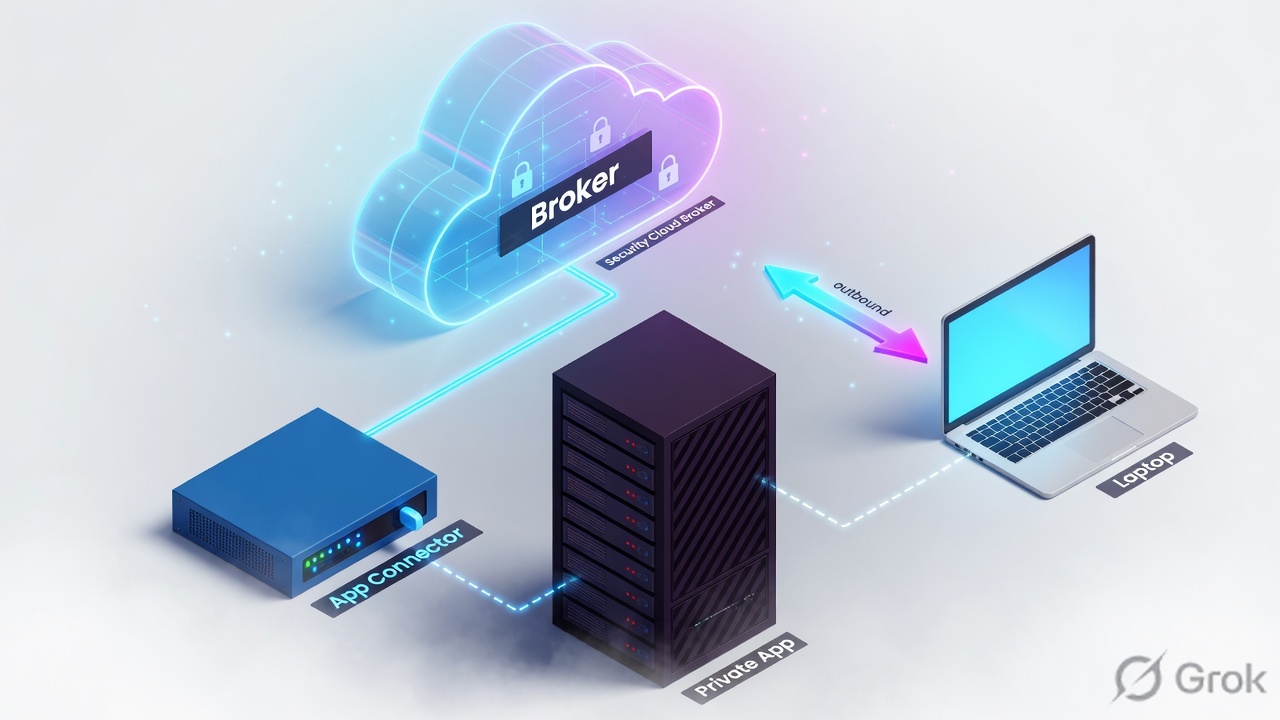
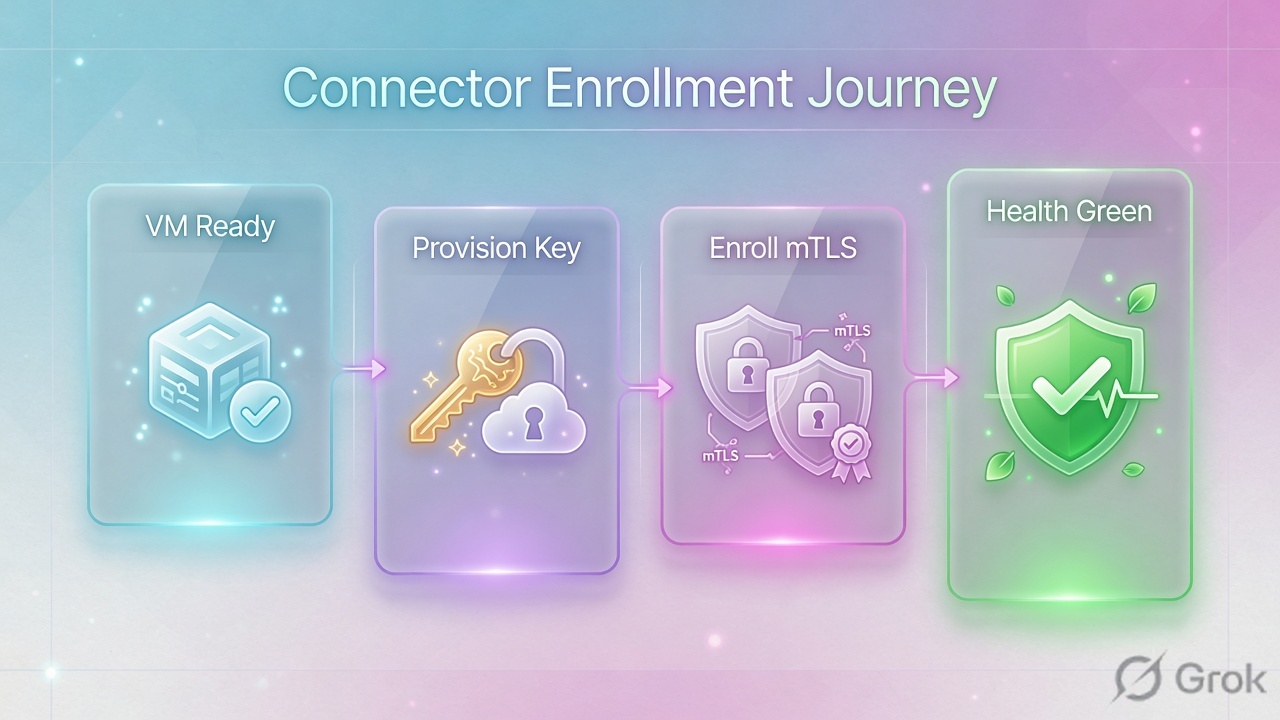
An App Connector is the only ZPA component that talks to the private app. It never listens inbound. You create an App Connector Group at one site (same latitude/longitude), mint a provisioning key bound to that group, write the key to /opt/zscaler/var/provision_key, and start zpa-connector. Zscaler recommends N+1 connectors in that group. No healthy connector is operator slang for session status NO_CONNECTOR_AVAILABLE — no eligible connector in the bound group. A green VM that cannot reach the server is a different code: APP_NOT_REACHABLE. Branch Connector and Cloud Connector are traffic-forwarding VMs (ZIA + ZPA), not a second name for the App Connector.
1. Why the connector is the product
Lesson 9 taught the broker: Client Connector and App Connector both dial outbound to a Public or Private Service Edge. The edge stitches one microtunnel. The user never receives a subnet.
This lesson is the box that makes that broker real. Policy, Application Segments, and Client Connector can all be perfect. If no App Connector in the assigned group is enrolled, enabled, and able to reach the server, the user still fails. Operators summarise that as “no healthy connector.”
Three different VMs share the word “connector.” Mixing them is the first production miss.
App Connector
ZPA-only. Sits next to the private server. Inside-out interface to the ZPA cloud. This is the box Jira needs.
Branch Connector
Branch or DC VM that forwards site traffic to ZIA and ZPA. Direct-to-cloud, full proxy. Not a second App Connector name.
Cloud Connector
Same idea as Branch Connector, but for public-cloud workloads (VPC / VNet). Registers with an API key + provisioning template.
Combined image
On VMware / Hyper-V / KVM, Zscaler ships a Branch Connector & App Connector image when a site must both forward and broker private apps.
If someone says “we deployed a Cloud Connector so ZPA should work,” ask: is there an App Connector (or a combined Branch + App image) that can reach the application server? Cloud Connector forwards. App Connector brokers the private app.
2. Mental model — three VMs, one job each
Memorise three objects before you open the Admin Console. Every “which appliance do I order?” conversation maps back to these.
Read left → right. App Connector is the ZPA broker next to the app. Branch and Cloud Connector are forwarding VMs. A site can run a combined Branch + App image.
Hard words, before the runbook
| Term | What it actually is |
|---|---|
| App Connector Group | The HA and path-selection unit. Every App Connector belongs to one group. Zscaler requires the same geographic location (latitude and longitude) for members of a group. |
| Provisioning key | A text string that enrolls an App Connector. It is a credential, and it is bound to one App Connector Group. The cloud uses it to place the VM in that group. |
| OAuth 2.0 enrollment token | The preferred enrollment method in current Help. Provisioning keys remain the classic path this lesson walks. |
| Enrollment | The VM presents the key (or token), receives a certificate signed by the Signing Certificate (enrollment CA), and appears on App Connectors. |
| Health reporting | The App Connector probes the application and reports Up or Down. Connector-to-cloud green + app Down is not “healthy for Jira.” |
NO_CONNECTOR_AVAILABLE | Official Private Access session status. The Central Authority cannot resolve an App Connector for the user. App Connector ID shows as zero in diagnostics. |
APP_NOT_REACHABLE | Different status. App Connectors exist for the application, but none of them can reach the server. |
The group is the unit of HA and of path selection. The key belongs to the group, not to the VM. Health has two layers: the connector can reach ZPA, and the connector can reach the app.
3. Decision flow — which connector, then enroll
Flowchart first. Do not start by downloading an image.
Diamond = decision. App Connector if the job is brokering a private app. Branch or Cloud Connector if the job is forwarding a site or a VPC.
4. How to choose
Use the table in the design review. Do not order three SKUs “just in case.”
| App Connector | Branch Connector | Cloud Connector | |
|---|---|---|---|
| Job | Broker one private app (ZPA) | Forward branch/DC traffic to ZIA + ZPA | Forward public-cloud workload traffic to ZIA + ZPA |
| Where it lives | Same L3 reachability as the server | Branch or data-centre edge | VPC / VNet (AWS, Azure, GCP) |
| Enrollment | Provisioning key or OAuth 2.0 token, bound to an App Connector Group | API key + Branch Connector provisioning URL / template | API key + Cloud Connector provisioning template |
| Admin (current console) | Infrastructure → Private Access → Component → App Connector Groups / Keys / App Connectors | Infrastructure → Private Access → Component → Branch Connector Groups, plus Cloud & Branch Connector help | Infrastructure → Connectors → Cloud → Provisioning |
| HA unit | N+1 App Connectors in one group, same lat/long | HA pair / failover on the forwarding VM (see Cloud & Branch Connector HA) | Template VM Size + Auto Scaling; pair with ZPA Cloud Connector Groups |
| Pick this when | Users (or Browser Access) must reach an internal FQDN/port | The site should go direct-to-cloud instead of GRE/IPSec + local stack | Workloads in a VPC need ZIA/ZPA without a user Client Connector on the server |
| Do not pick this when | You only need internet/SaaS forwarding | You only need to broker one app and already have ZCC + GRE/IPSec | You think “cloud” means “our App Connector in AWS” — that is still an App Connector |
An App Connector deployed in AWS is still an App Connector. It uses the App Connector image, group, and provisioning key. A Cloud Connector is a different product with a provisioning template and an API key from Administration → API Configuration → Legacy API → Cloud & Branch Connector API.
5. Runbook — Side A VM, Side B provision, Side C proof
Primary source for Side A: App Connector Deployment Prerequisites plus the platform guide for your hypervisor or cloud. Primary source for Side B: Configuring App Connector Groups and Configuring App Connector Provisioning Keys. Primary source for Side C: Managing Deployed Software Components and Understanding Private Access Session Status Codes.
Older ZPA-only portals still show Configuration & Control → Private Infrastructure → App Connector Management. Teach the current unified path below; if your tenant still has the legacy labels, the object names (App Connector Groups, App Connector Keys, App Connectors) are the same.
Side A — VM and network prereqs
Do this on the compute and firewall tickets before anyone pastes a key.
-
Place the VM where the app lives
The App Connector must reach the application on the ports in the Application Segment (TCP/UDP as configured). It must also egress to Zscaler Service Edges on TCP 443. Official firewall language: allow egress on TCP, UDP, and ICMP. The App Connector does not need an inbound VIP from the internet.
-
Size from the current prerequisites page
Platform deployment guides list a base of 4 GB RAM and 2 CPU cores (Xeon E5 class). For ZDX, Zscaler recommends 8 GB RAM (more if probe count is high). Confirm the live App Connector Deployment Prerequisites page for your image before you order hardware — do not freeze a 2022 blog as capacity planning.
-
Deploy the official image
Use the App Connector image for that platform (VMware, AWS, Azure, GCP, Linux, Hyper-V, Nutanix, OpenShift). After first boot, Help notes it can take up to 15 minutes before the instance is ready to enroll.
-
Console login and time
Default system-console account (Managing Deployed Software Components): username
admin, passwordzscaler. Change it. NTP must be correct — if the App Connector clock disagrees with ZPA, certificate enrollment is delayed because the cert is not yet valid. -
Prove two reaches from the VM, before the key
From the App Connector: DNS + TCP to the application FQDN/port, and outbound 443 toward ZPA (no SSL inspection middlebox re-signing the Zscaler cert). A later “Active but Jira down” ticket is almost always this hop, not the key.
Zscaler recommends deploying App Connectors in groups for high availability and horizontal scaling, and sizing groups for N+1. Members of one group must share the same geographic location (latitude and longitude) so path selection works. Two data centres = two App Connector Groups. Do not “HA” Mumbai and Singapore in one group.
Side B — ZPA Admin: group, then key, then enroll
Order is fixed: group first, because the provisioning key must select a Group.
Infrastructure / Private Access / Component / App Connector Groups / Add
Add App Connector Group
Click next: Save the group, then open App Connector Keys → Add. Source: Configuring App Connector Groups — Status Enabled, Location used for path selection, Persist Local Version Profile and version profile on Update Settings.
-
Add the App Connector Group
Infrastructure → Private Access → Component → App Connector Groups → Add. Set Status to Enabled. Fill Name, Description, Location, and Location Coordinates. Leave version-profile overrides alone unless you have a written upgrade window. Every group should later have at least one OAuth 2.0 enrollment token or provisioning key.
-
Add the provisioning key
Infrastructure → Private Access → Component → App Connector Keys → Add (Help title: Add App Connector Provisioning Keys). Current Help also supports OAuth 2.0 enrollment tokens as the preferred method — same idea, different credential. If you use a key, fill the documented fields below and copy the string once.
Infrastructure / Private Access / Component / App Connector Keys / Add
Add App Connector Provisioning Key
Click next: copy the key, then put it on the VM. Source: Configuring App Connector Provisioning Keys — Name (periods, hyphens, underscores only), Group, Maximum Reuse of Provisioning Key, Signing Certificate. The table later shows Maximum # of App Connectors and Provisioning Key Utilization Count.
-
Inject the key and start the service
Official re-enroll / first-enroll sequence from Troubleshooting App Connectors (Linux systemd image):
App Connector console · enrollsudo systemctl stop zpa-connector sudo rm /opt/zscaler/var/* sudo touch /opt/zscaler/var/provision_key sudo chmod 644 /opt/zscaler/var/provision_key # paste the key from Admin into that file, then: sudo systemctl start zpa-connector sudo systemctl status zpa-connector
The service reads the key, enrolls under the App Connector Group bound to that key, and the VM should appear on App Connectors. Help: App Connectors you added but have not deployed are not listed — so an empty table usually means the key never landed, not that “Add App Connector” was skipped.
-
Bind the group to the app path
The Server Group for the Application Segment must use this App Connector Group. A healthy connector in a different group does not serve Jira. That is the usual “green VM, users still fail” story after someone cloned a key from DC2.
-
Branch / Cloud Connector, if that is the ticket
Cloud Connector: retrieve the API key from Administration → API Configuration → Legacy API → Cloud & Branch Connector API (API Key Management; Add Cloud Service API Key if none exists). Then Infrastructure → Connectors → Cloud → Provisioning → Add Cloud Connector Provisioning Template. Documented fields include Cloud Connector Group Creation (Automatic), VM Size (Small / Medium / Large), and Auto Scaling. Branch Connector: same API-key idea plus a Branch Connector provisioning URL / template on the VM. Combined Branch + App images exist on VMware, Hyper-V, and KVM when the site must both forward and broker.
Side C — prove health (close the ticket)
Green in one place is not proof. Collect three stamps.
Infrastructure / Private Access / Component / App Connectors
App Connectors
| Name | App Connector Group | Status | Last software update | Connections |
|---|---|---|---|---|
| mum-ac-01 | DC1-MUM-AppConnectors | Enabled | Success | Public Service Edge · up |
| mum-ac-02 | DC1-MUM-AppConnectors | Enabled | Success | Public Service Edge · up |
| mum-ac-03 | DC1-MUM-AppConnectors | Disconnected | — | filter: Connection Status Code = Disconnected |
Click next: open the connector, confirm the group, then Logs → Insights → Diagnostics → Log Type: App Connector Status. Source: About App Connectors (Status enabled/disabled, last software update, connection/health) and Accessing App Connector Status Diagnostics.
-
Admin: the connector exists and is Enabled
Infrastructure → Private Access → Component → App Connectors. Confirm Status is Enabled, the row is in the intended App Connector Group, and connections/health are up. Optional dashboard: Analytics → Switch to Existing Reports → Private Applications → App Connectors.
-
On-box: the service is running
A healthy systemd App Connector answers
sudo systemctl status zpa-connectoras active. If you must re-enroll after an accidental delete in Admin, use the wipe + new key sequence from Side B — Help notes this class of failure often follows deleting the object while the VM is still up. -
App health, not just connector health
Health reporting is Up or Down from the App Connector’s view of the application. Connector-to-cloud up + application Down is
APP_NOT_REACHABLEterritory, not “ZPA is down.” -
User session must not be NO_CONNECTOR_AVAILABLE
Pilot the entitled user. In diagnostics, a
NO_CONNECTOR_AVAILABLE(or operator “no healthy connector”) session shows App Connector ID as zero. That means the CA could not pick an eligible connector — wrong group, all members disconnected, group disabled, or connectors paused for upgrade. Fix the group membership and health, then re-test. A success session names a real App Connector, not zero.
- App Connectors page: two rows (N+1), same group, Status = Enabled, connections up.
sudo systemctl status zpa-connectoractive on both VMs.- Application health reporting Up for jira.lab.example:443.
- Pilot user activity: session status is not
NO_CONNECTOR_AVAILABLEorAPP_NOT_REACHABLE; App Connector ID is not zero.
6. Runtime path after go-live
After enrollment, the VM is not “done.” This is the path a Monday ticket walks.
Read left → right, then down. “No healthy connector” is the left box. A green connector that cannot open Jira is the amber box.
Application-level HA (optional second layer)
Inside one site, N+1 members of one App Connector Group is the default HA. Across sites, Help documents Configuring Application Load Balancing and High Availability: mark Server Groups Passive so traffic uses App Connectors in the passive group only when the active side is unhealthy. Switch-back language in that article is a health-percentage check on the two groups (passive below half healthy and active above half healthy). Do not invent your own “primary/secondary” toggle on the VM.
7. Traps + proof

| What you see | What it usually is | What you do |
|---|---|---|
“No healthy connector” / NO_CONNECTOR_AVAILABLE / App Connector ID = 0 |
No eligible App Connector in the bound group (disconnected, disabled, wrong group, paused for upgrade, key never enrolled). | App Connectors page + Diagnostics Log Type App Connector Status, filter Connection: Status Code Equals Disconnected. Fix membership, then re-pilot. |
| Connector Enabled / last seen seconds ago, users still time out | APP_NOT_REACHABLE — none of the configured App Connectors can reach the server (route, security group, DNS, wrong port). |
From the VM, connect to the app FQDN:port. Health reporting Down confirms this. Do not mint a new key yet. |
| VM running, empty App Connectors table | Key never consumed, wrong file path/permissions, or clock skew delaying the enrollment cert. | Confirm /opt/zscaler/var/provision_key is mode 644, NTP is sane, restart zpa-connector. Help: undeployed connectors are not listed. |
| Green connector in DC2, users of DC1 Jira fail | Provisioning key (and therefore the VM) is bound to the wrong App Connector Group. | The Group field on a key cannot be treated as a later edit for placement. Re-enroll with the DC1 key. Wipe /opt/zscaler/var/* first. |
| All users fail during a software window | App Connectors paused for upgrade (AC / paused-state codes). Single-member group = outage. |
N+1 in the group. Stagger Upgrade Day / version-profile windows. Persist Local Version Profile only with a written exception. |
| Cloud Connector “up,” private app still dark | Wrong product. Cloud Connector forwarded the VPC; no App Connector can reach the server. | Deploy or reuse an App Connector (or combined image) that can open the app port. |
| Enrollment loops after an Admin delete | Object deleted in the console; the VM still thinks it is enrolled. | Official recover: stop service, wipe /opt/zscaler/var/*, write a new key, start service. |
Opening inbound 443 to the App Connector, publishing the app on a public VIP, or dumping 10.0.0.0/8 into one Application Segment so “something is healthy.” The connector is outbound-only. Health is not restored by making the app a VPN again.
- Two App Connectors, one group, same Location Coordinates, both Enabled.
- Provisioning Key Utilization Count increased; Maximum Reuse still has headroom.
- On each VM:
systemctl status zpa-connectoractive; VM can open the app port. - Application health reporting Up.
- Pilot allow: session names this group’s connector (ID ≠ 0).
- Negative test: stop one VM — second connector takes the session (N+1). Stop both —
NO_CONNECTOR_AVAILABLE(proves the error string). - A user not in Access Policy is still denied (Enabled ≠ allow).
Knowledge check
Six judgment items. Map each miss to the section in the reason, then retry.
Sources
- Zscaler Help — About App Connectors (Infrastructure → Private Access → Component → App Connectors; Status; health/connections; undeployed connectors are not listed)
- Zscaler Help — Configuring App Connectors (Add; select an existing App Connector Group; OAuth enrollment vs provisioning key)
- Zscaler Help — About App Connector Groups (groups for HA and scale; Location / Location Coordinates; Status; every connector belongs to one group)
- Zscaler Help — Configuring App Connector Groups (Add path; Status Enabled; Persist Local Version Profile; Update Settings / version profile)
- Zscaler Help — About App Connector Provisioning Keys (key is a credential bound to a group; Maximum # of App Connectors; Provisioning Key Utilization Count)
- Zscaler Help — Configuring App Connector Provisioning Keys (App Connector Keys → Add; Name; Group; Maximum Reuse of Provisioning Key; Signing Certificate; View or Export…; OAuth 2.0 tokens preferred)
- Zscaler Help — App Connector Deployment Prerequisites (sizing; ZDX 8 GB RAM; egress 443; TCP/UDP/ICMP; app ports)
- Zscaler Help — App Connector Deployment Guide for Linux (console login;
/opt/zscaler/var/provision_key; systemd service) - Zscaler Help — Troubleshooting App Connectors (wipe var, chmod 644, re-enroll; Diagnostics filters; clock skew;
NO_CONNECTOR_AVAILABLEwith ID = 0) - Zscaler Help — Managing Deployed Software Components (
sudo systemctl status zpa-connector; default admin / zscaler; App Connectors page check) - Zscaler Help — Understanding Private Access Session Status Codes (
NO_CONNECTOR_AVAILABLE,APP_NOT_REACHABLE, paused-for-upgrade) - Zscaler Help — Understanding Health Reporting (application Up / Down from the App Connector)
- Zscaler Help — Accessing App Connector Status Diagnostics (Logs → Insights → Diagnostics → Log Type: App Connector Status)
- Zscaler Help — ZPA Leading Practices Guide (same lat/long per group; N+1)
- Zscaler Help — Configuring Application Load Balancing and High Availability (active / Passive Server Groups)
- Zscaler Help — About Branch Connectors (VM that forwards to ZIA and ZPA)
- Zscaler Help — What Is Zscaler Branch Connector?
- Zscaler Help — What Is Zscaler Cloud Connector?
- Zscaler Help — Deploying Zscaler Cloud Connector with AWS (Infrastructure → Connectors → Cloud → Provisioning; API Key Management path; VM Size; Auto Scaling)
- Zscaler Help — Deploying Branch Connector & App Connector on VMware (combined image; API key registration)
Related: Lesson 9 · ZPA architecture · Lesson 11 · ZPA policies · App Connector deploy (deep) · App Connector troubleshooting · ZPA troubleshooting · Zscaler authentication