Branch Connector Monitoring Status answers “is this VM Active or Inactive?” Details Location + Tunnel Insights Tunnel Status answers “is this site bound, and is the tunnel up?” Traffic Forwarding Forwarding Method answers “did this destination go Direct, ZIA, ZPA, Drop, or Local?” ZIA Web Insights answers “did that Location produce an Allowed / Blocked / Cautioned row — and which policy?” HA Status answers “is the pair Active / Standby / INIT, and do both templates share the same Location Name?” A green hypervisor is not Status. An App Connector restart is not a branch ticket. A ZIA GRE Tunnel Insights row is not a Branch Connector tunnel.
1. Why a branch ticket is five commands
Operators collapse five Branch Connector failures into one sentence. The VM never registered. The Location is blank so ZIA never sees the site. A Traffic Forwarding rule sent Salesforce Direct. A ZIA URL rule blocked only this Location. The HA pair is INIT because the two configuration templates do not share a Location Name. Those are five first clicks, not one “restart both VMs.”
Official Help: Zscaler Branch Connector is a virtual machine that forwards branch traffic to the Zero Trust Exchange for Internet & SaaS (ZIA) and Private Access (ZPA). It is not an App Connector. It is not Cloud Connector (the public-cloud VM). It is not Zscaler Client Connector on a laptop. Name the product before you name the reboot.
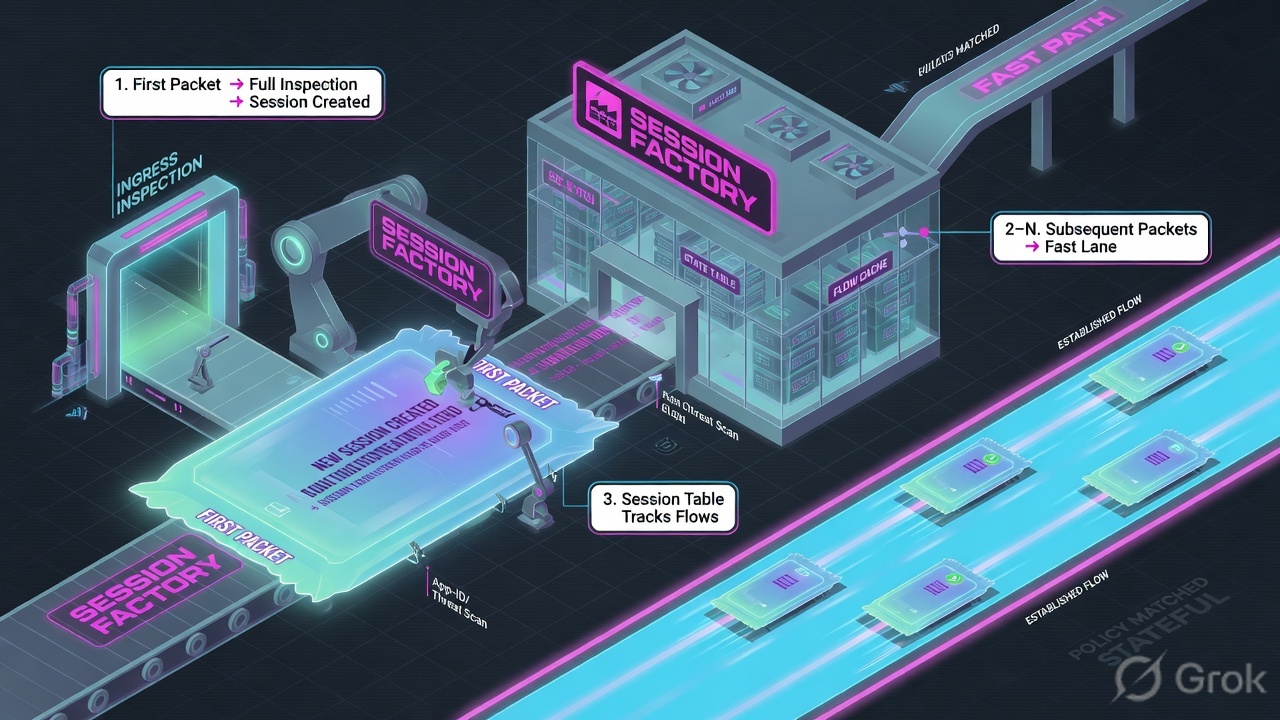
If they say “troubleshoot Branch Connector,” do not say “I opened the Admin Portal.” Say: “I prove the VM with Monitoring Status, the site with Details Location and Tunnel Insights Tunnel Status, the steering with Traffic Forwarding Forwarding Method, the ZIA verdict with Web Insights Policy Action filtered on that Location, and the pair with HA Status plus matching Location Name.”
2. Concept — five proof tools
Memorise five named objects before you click. Each tool is allowed to prove one thing. Over-claiming a field is how you reboot a healthy Active node at 02:00.
1 · Connector Status
Infrastructure → Connectors → Edge → Branch Connector Monitoring. Quote Status Active or Inactive, plus Name, Group, Location, Geolocation. Does not prove a URL verdict or a Forwarding Method.
2 · Tunnel / Location
Details Location + Logs → Insights → Branch and Cloud Connectors → Tunnel Insights. Quote Location, Tunnel Status, Tunnel Type, Tunnel Source IP. A Sample-looking byte count is not a user allow.
3 · Forwarding
Infrastructure → Connectors → Edge → Forwarding Policy. Quote Forwarding Method: Direct, ZIA, ZPA, Drop, or Local — plus Rule Name, Rule Order, Rule Status. Session Insights Forwarding Type proves what actually shipped.
4 · ZIA logs for the site
ZIA Logs → Insights → Web Insights → Logs, filter Location = the Branch Connector Location. Quote Policy Action + Blocked Policy Name. Empty Web usually means the wire never landed — not “a Cloud App rule ate the internet.”
5 · HA / pair
Details HA Status = Active, Standby, or INIT. Official HA: separate configuration templates, same Location Name, HA Deployment Status Active-Standby. Two Active with different Location Names is not a pair.
Hard words, once
Gateway vs Non-Gateway (One-Arm) = Configured Mode. Branch Connector group = policy cluster. App Connector = ZPA application-side VM — different product. Event logs fire on a status change (NSS Event feed).
Read left → right. Each box is allowed one claim. If you cannot name the field, you are not proving — you are guessing.
I prove the VM, then the Location and tunnel, then the Forwarding Method, then the ZIA row for that Location, then the HA pair. I do not reboot, flip Forwarding Method to Direct, or Activate a URL Allow until I can quote the field that made me do it.
3. Path — ticket → first tool
Flowchart first. Do not open the ZIA policy editor, and do not reboot the hypervisor, until a diamond says so.
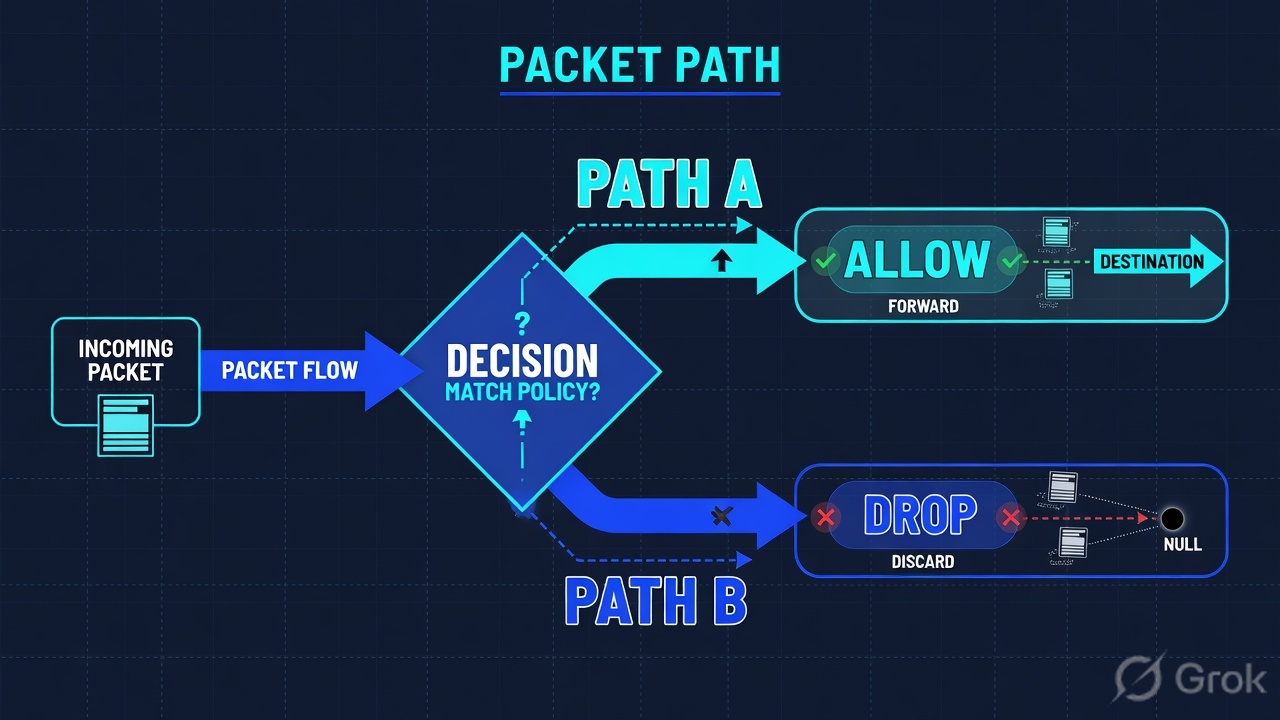
Read the diamond first. One SaaS going Direct never starts in Web Insights. Failover never starts with a URL Allow. Inactive never starts in Blocked Policy Name.
4. How to choose — first tool + proof field
Print this next to the Cloud & Branch Connector Admin Portal. If you cannot recite the proof field, you are not ready to change anything.
| If the ticket says… | First tool (official path) | Proof field | Do not open first |
|---|---|---|---|
| Whole branch dark / “restart both VMs” | Infrastructure → Connectors → Edge → Branch Connector Monitoring | Status Active or Inactive (+ Name, Group, Location, Geolocation) |
Hypervisor reboot, a new URL Allow |
| Status Active, still no internet; Web empty for the site | Details Location, then Logs → Insights → Branch and Cloud Connectors → Tunnel Insights |
Location + Tunnel Status + Tunnel Type + Tunnel Source IP |
ZIA GRE Tunnel Insights, Cloud App rule edit |
| One SaaS / one private FQDN takes the wrong path | Infrastructure → Connectors → Edge → Forwarding Policy, then Session Insights | Rule Forwarding Method (Direct / ZIA / ZPA / Drop / Local) + session Forwarding Type |
App Connector restart, a second URL Allow |
| Only this site blocked after a ZIA policy change | ZIA Logs → Insights → Web Insights → Logs, filter Location | Location + Policy Action + Blocked Policy Name |
Reboot the Active node |
| Primary died; failover did not pick up users | Both VMs on Monitoring + Details; both Branch Provisioning templates | HA Status Active / Standby / INIT + same Location Name on both templates |
“Make both Active” without matching Location Name |
Details Configured Mode is gateway or non-gateway (one-arm). Official Traffic Forwarding Help: when you scope a rule with Cloud & Branch Connector group / location, that scoping is for devices deployed in gateway mode. If the VM is one-arm and you treat the rule like a gateway default, you will “fix” a rule that never owned that packet. Quote Configured Mode before you rewrite Rule Order.
5. Do — Side A → B → C
Side A proves the VM and the Location/tunnel. Side B proves where the packet was steered, then whether ZIA logged that Location. Side C proves the HA pair. On a messy Sev-2, do them in this order until a field lights up.
Side A — Connector Status, then tunnel / Location
-
Open Branch Connector Monitoring, not the hypervisor
Path: Infrastructure → Connectors → Edge → Branch Connector Monitoring. Official: Accessing Cloud & Branch Connector Monitoring. The table lists Name, Group, Location, Geolocation, and Status. Filter the lab name you think is Pune — not a Cloud Connector in another region, not an App Connector.
-
Quote Status before you say “it’s down”
Official Details article: operational
Statusis Active or Inactive. Inactive means stop. There is no Web Insights policy to chase. Help on sibling Cloud Connector deployments: an inactive connector after a correct-looking registration / policy fetch is a Support ticket — not a ZIA URL Allow. Quote Name + Status + Last Upgrade / First Deployed Time from Details if the node looks “new.” -
Open Details and read Location + Configured Mode
Path: click the Branch Connector in the Monitoring table → Details (official: Analyzing Branch Connector Details). Quote
Location,Geo Location,Provisioning Template Name,Configured Mode, and the Routing section. A VM that is Active with a blank or unexpected Location will not produce ZIA Web rows for the site you named on the ticket. -
If Location is set and the site is still dark, open Branch Connector Tunnel Insights
Path: Logs → Insights → Branch and Cloud Connectors → Tunnel Insights → Logs. Official columns:
Location,Tunnel Status,Tunnel Type,Tunnel Source IP. Filter Location + the UTC window. This is not ZIA Logs → Insights → Tunnel Insights (GRE / IPSec from a router). Wrong Insights family is a false “tunnel is fine.”
Path:            Infrastructure → Connectors → Edge → Branch Connector Monitoring
Name (lab):      Pune-BC-01
Status:          Active | Inactive
Location:        Pune-Branch          (Details + Monitoring)
Configured Mode: Gateway | Non-Gateway (One-Arm)
Then:            Logs → Insights → Branch and Cloud Connectors → Tunnel Insights
Quote:           Location + Tunnel Status + Tunnel Type + Tunnel Source IP
If Inactive:     do not hunt Web Insights Policy Action — prove registration first
Infrastructure / Connectors / Edge / Branch Connector Monitoring
Branch Connector Monitoring
| Name | Group | Location | Geolocation | Status | HA Status |
|---|---|---|---|---|---|
| Pune-BC-01 | Pune-BC-Group | Pune-Branch | IN | Active | Active |
| Pune-BC-02 | Pune-BC-Group | Pune-Branch | IN | Active | Standby |
| Pune-BC-DR | Pune-BC-Group | — | IN | Inactive | INIT |
Source: Zscaler Help — Accessing Cloud & Branch Connector Monitoring (Name, Group, Location, Geolocation, Status); Analyzing Branch Connector Details (Status Active / Inactive, HA Status Active / Standby / INIT). Lab names only. Training mock · not live.
Logs / Insights / Branch and Cloud Connectors / Tunnel Insights / Logs
Tunnel Insights Logs
| Location | Tunnel Type | Tunnel Source IP | Tunnel Status |
|---|---|---|---|
| Pune-Branch | (quote column) | 203.0.113.10 | quote field |
| Pune-Branch | (quote column) | 203.0.113.10 | status change |
ZIA Logs → Insights → Tunnel Insights is GRE / IPSec from a router.
This page is Branch and Cloud Connectors → Tunnel Insights.
Source: Zscaler Help — About Insights Logs; Analyzing Traffic Using Insights; Tunnel Insights Logs: Columns (Location, Tunnel Status, Tunnel Type, Tunnel Source IP). Quote the live Tunnel Status / Tunnel Type strings — this mock does not invent an enum. Training mock · not live.
Side B — Forwarding Method, then ZIA logs for the Location
-
Open Traffic Forwarding, not a new ZIA URL Allow
Path: Infrastructure → Connectors → Edge → Forwarding Policy. Official: About Traffic Forwarding; Configuring Traffic Forwarding Rules. Read Rule Order, Rule Name, Rule Status, Location / Sublocation, Cloud & Branch Connector Groups, and
Forwarding Method. Official methods: Direct, ZIA, ZPA, Drop, Local. ZIA forwards internet-bound traffic to Internet & SaaS. ZPA forwards application traffic to Private Access. -
Prove the session, not only the rule
Path: Logs → Insights → Branch and Cloud Connectors → Session Insights → Logs. Official columns include
LocationandForwarding Type. Filter Location + the destination you care about. A rule that says ZIA while Session InsightsForwarding Typeis Direct is the ticket — the packet never entered ZIA, so Web Insights will stay empty. -
Only then open ZIA Web Insights for that Location
Path: ZIA Logs → Insights → Web Insights → Logs. Filter
Location= the Branch Connector Location (locations created in the Cloud & Branch Connector Admin Portal appear under ZIA Location Management; you can add sublocations there). QuotePolicy Action(Allowed / Blocked / Cautioned) andBlocked Policy Name. Source: Web Insights Logs: Columns. -
If Web is empty after Status Active + tunnel up + Forwarding Method ZIA
You still do not Activate a Cloud App rule. Confirm the ZIA Location name matches Details
Locationcharacter-for-character. Confirm you did not filter a sibling sublocation. Desk-side,ip.zscaler.comon one failing PC only proves that browser hit a Public Service Edge — it does not prove the Location object. Empty Web + Method Direct is forwarding. Empty Web + Method ZIA + down Tunnel Status is the tunnel.
Path:            Infrastructure → Connectors → Edge → Forwarding Policy
Rule Name:       Pune-Internet-ZIA
Rule Status:     Enabled
Forwarding Method: Direct | ZIA | ZPA | Drop | Local
Then:            Logs → Insights → Branch and Cloud Connectors → Session Insights
Quote:           Location + Forwarding Type + Rule Name
Then ZIA:        Logs → Insights → Web Insights → Logs
Filter:          Location = Pune-Branch
Quote:           Policy Action + Blocked Policy Name
If empty Web:    do not add a URL Allow — re-read Status, Location, Tunnel Status, Method
Infrastructure / Connectors / Edge / Forwarding Policy
Traffic Forwarding Rules
| Order | Rule Name | Status | Method | Scope |
|---|---|---|---|---|
| 1 | Pune-CRM-ZPA | Enabled | ZPA | crm.internal.example |
| 4 | Pune-SFDC-Direct | Enabled | Direct | *.salesforce.com |
| 10 | Pune-Internet-ZIA | Enabled | ZIA | 0.0.0.0/0 (lab) |
Source: Zscaler Help — About Traffic Forwarding (Forwarding Method: Direct, ZIA, ZPA, Drop, Local; Rule Status); Configuring Traffic Forwarding Rules (Rule Order, Rule Name, Rule Status, Forwarding Method). Destinations above are lab labels. Training mock · not live.
Logs / Insights / Web Insights / Logs
Web Insights Logs
| Location | URL / App | Policy Action | Blocked Policy Name |
|---|---|---|---|
| Pune-Branch | outlook.office.com | Allowed | — |
| Pune-Branch | login.salesforce.com | Blocked | URL-Uncat-Pune |
Source: Zscaler Help — About Insights; Web Insights Logs: Columns (Location, Policy Action, Blocked Policy Name); About Locations / Configuring Sublocations (Location objects created in the Cloud & Branch Connector Admin Portal). Lab identities only.
Side C — HA pair
-
Read HA Status on both nodes before you “fail over”
Official Details:
HA Statusis Active, Standby, or INIT. A working pair is one Active + one Standby, same Location, same Group. Two Active with different Locations is two singles. Both INIT is not a pair yet — do not tell the floor “failover is ready.” -
Prove the templates share a Location Name
Path: Infrastructure → Connectors → Edge → Management → Branch Provisioning. Official: Configuring a Branch Connector Configuration Template. For high availability, configure each Branch Connector with separate configuration templates that use the same Location Name.
HA Deployment Statusis Active-Standby by default. Mismatched Location Name is the classic “we built HA and nothing failed over” ticket. -
After a real failover, re-read Side A then Side B
The new Active node must show Monitoring
StatusActive, DetailsLocationstill Pune-Branch, Tunnel InsightsTunnel Statushealthy for that Location, and the first ZIA Web row onLocation= Pune-Branch. Event logs (NSS Event feed) fire when a status change occurs — use them as a timestamp, not as a substitute forHA Status.
Path:            Infrastructure → Connectors → Edge → Branch Connector Monitoring
Pune-BC-01 HA Status:  Active
Pune-BC-02 HA Status:  Standby   (or INIT — say so)
Location both:   Pune-Branch
Templates:       Infrastructure → Connectors → Edge → Management → Branch Provisioning
Prove:           separate templates + same Location Name
HA Deployment Status: Active-Standby
After failover:  new Active + Tunnel Status + first Web Insights Location row
- Side A VM: Monitoring
Status= Active for the node that should own traffic. Side A site: DetailsLocationis the name on the ticket. Side A tunnel: Tunnel InsightsTunnel Statushealthy for that Location at the same minute. - Side B: Traffic Forwarding
Forwarding Methodmatches the design (ZIA for internet, ZPA for the private FQDN). Session InsightsForwarding Typeagrees. ZIA Web Insights for that Location namesPolicy Action. - Side C: one Active + one Standby, same Location Name on both templates. After failover, the new Active produces the first Web row — not a reboot screenshot.
6. Five tickets as full stories
These five land every quarter. Memorise first tool + proof field. Times and identities below are lab-only.
| Ticket | Symptom | First tool | Proof field |
|---|---|---|---|
| ZBC-01 | Whole Pune floor dark; Slack says restart both VMs | Branch Connector Monitoring | Status Active / Inactive |
| ZBC-02 | Status Active; Web empty; “tunnel must be up, hypervisor is green” | Details Location + BC Tunnel Insights | Location + Tunnel Status |
| ZBC-03 | Outlook works; Salesforce never hits ZIA | Forwarding Policy + Session Insights | Forwarding Method / Forwarding Type |
| ZBC-04 | Only this branch blocked after a ZIA URL ship | ZIA Web Insights, filter Location | Policy Action + Blocked Policy Name |
| ZBC-05 | Primary powered off; users stay dark; “HA is configured” | HA Status + Branch Provisioning templates | HA Status + same Location Name |
ZBC-01 — Prove connector Status
01:42 · P1. Pune branch: every desk lost internet. Hypervisor vCenter is green. L1 drafted a reboot of Pune-BC-01 and Pune-BC-02 “to be safe.”
First tool: Infrastructure → Connectors → Edge → Branch Connector Monitoring. Filter Name Pune-BC.
Proof field: Status. If both rows are Inactive, quote Inactive + time. That is registration / policy-fetch / connectivity to the Zero Trust Exchange — not a URL category. If one row is Active, you do not reboot the Active node to “match” the Inactive one. Next diamond is Location + tunnel, not a URL Allow.
Do not open App Connector diagnostics. App Connectors sit on the application side of ZPA. A dark branch is a Branch Connector ticket until Status, Location, and Tunnel Status say otherwise.
ZBC-02 — Prove tunnel + Location
02:05 · P1. Monitoring Status = Active on Pune-BC-01. ZIA Web Insights filtered to Location Pune-Branch is empty. Someone pasted a ZIA GRE Tunnel Insights screenshot from the Mumbai router and said “tunnels are fine.”
First tool: Details Location, then Logs → Insights → Branch and Cloud Connectors → Tunnel Insights.
Proof field: Details Location must be Pune-Branch (or you just found the miss). Then quote Tunnel Status, Tunnel Type, Tunnel Source IP for that Location in the ticket minute. ZIA GRE / IPSec Insights is the router-tunnel lesson. Wrong family is a false healthy.
Empty Web is the clue the Branch Connector tunnel or Location never landed. Restore the BC tunnel path, wait for Tunnel Status healthy and the first Web row on Location Pune-Branch. Do not Activate a Cloud App rule on an empty log.
ZBC-03 — Prove Forwarding Method
02:22 · P2. Outlook on the Web works from Pune. Salesforce spins. L1 wants “another Allow for salesforce.com.” Monitoring Status is Active. Tunnel Insights for Pune-Branch looks healthy.
First tool: Infrastructure → Connectors → Edge → Forwarding Policy, then Session Insights.
Proof field: a higher Rule Order sending *.salesforce.com with Forwarding Method = Direct (or Drop). Session Insights Forwarding Type for that Location must agree. Direct means ZIA never saw the transaction — Web Insights cannot name a Blocked Policy Name that does not exist. Flip the method only under change-control after you quote the rule.
Private FQDN crm.internal.example is a Forwarding Method = ZPA question, then ZPA User Activity — not Web Insights URL Category. Connector enroll / HA for App, Branch, and Cloud Connectors: Lesson 10.
ZBC-04 — Prove ZIA logs for the site
02:40 · P2. A URL Filtering change shipped at 02:10. Only Pune complains. Other Branch Connector Locations still reach the same SaaS. Someone wants to reboot Pune-BC-01 “because it is this site.”
First tool: ZIA Logs → Insights → Web Insights → Logs. Filter Location = Pune-Branch, last hour.
Proof field: Policy Action = Blocked and Blocked Policy Name = the rule that shipped at 02:10. That name is the ticket. Change that one rule — or exclude this Location / Location Group — Activate, then re-read the same two columns on the same Location. A reboot will not rewrite Blocked Policy Name.
I would not reboot the Active node. I would quote Location + Policy Action + Blocked Policy Name. Activate is not proof until the same Location filter returns Allowed.
ZBC-05 — Prove the HA pair
03:05 · P1. Facilities powered off Pune-BC-01. Users stayed dark. The runbook said “Active-Standby, it will fail over.” Both templates exist.
First tool: Monitoring + Details on both VMs, then Branch Provisioning templates.
Proof field: Pune-BC-02 HA Status still INIT (or Active on a different Location). Templates use Pune-Branch vs Pune-Branch-02. Official HA requires separate templates with the same Location Name. Until that string matches, you do not have a pair. Fix the Location Name under change-control; then watch HA Status become Active / Standby and wait for Tunnel Status + the first Web row.
Do not force both nodes Active on mismatched Locations and call it HA. That is two Branch Connectors. Quote HA Status + Location Name. Event logs timestamp the status change; they do not invent a pair.
7. Traps + close-the-ticket proof
| You see | Weak close | Strong close |
|---|---|---|
| Hypervisor green, users dark | Restart both VMs | Monitoring Status Active / Inactive |
| Status Inactive | A new URL Allow | Quote Inactive; prove registration / policy fetch; do not hunt Policy Action |
| Status Active, Web empty | “Zscaler is down” | Details Location + BC Tunnel Insights Tunnel Status |
| ZIA GRE Tunnel Insights healthy | “The tunnel is fine” | That is the router family. Open Branch and Cloud Connectors → Tunnel Insights |
| One SaaS missing, Outlook fine | Second URL Allow | Forwarding Forwarding Method + Session Forwarding Type |
| Private FQDN down | Web Insights URL Category | Method ZPA, then ZPA User Activity — not a ZIA URL row |
| Blocked only on this Location | Reboot the Active node | Web Insights Policy Action + Blocked Policy Name filtered on Location |
| “HA is configured” | Power off primary to test live | HA Status Active/Standby/INIT + same Location Name on both templates |
| Both INIT | Declare failover ready | INIT is not Standby. Fix templates; re-read HA Status |
| One-arm VM, gateway-scoped rule | Rewrite Rule Order blindly | Quote Configured Mode first (official gateway-mode scoping) |
| Opened App Connector page | “Connectors are down” | Wrong product. Branch Connector Monitoring is the branch VM |
- UTC window written next to the tool you opened.
- Product named: Branch Connector — not App Connector, not Cloud Connector, not Client Connector.
- Monitoring
Statusquoted when the ticket is “the VM is down.” - One site quoted: Details
Location+ Tunnel InsightsTunnel Status, or ForwardingForwarding Method, or Web InsightsPolicy Actionon that Location, or pairHA Status+ Location Name. - ZIA GRE Tunnel Insights not used as a Branch Connector tunnel proof.
- Next tool named — or change-control owner named. No reboot / no Activate without residual control.
- After failover: new Active + Tunnel Status + first Web Insights Location row.
I name the question, then the first tool, then one official field. Monitoring Status proves the VM. Location plus Branch Connector Tunnel Status proves the site path. Forwarding Method proves steering. Web Insights Policy Action on that Location proves the ZIA verdict. HA Status plus matching Location Name proves the pair. I do not reboot, flip a method to Direct, or Activate a URL rule until that field is on the ticket. Related: App, Branch & Cloud Connector enroll / HA · ZIA GRE + IPSec (router tunnels).
Knowledge check
Six war-room judgments. Each maps to a first tool or a proof field. Check answers, then Reset if you picked the wrong surface.
Sources
- Zscaler Help — What Is Zscaler Branch Connector? (VM that forwards branch traffic to ZIA / ZPA via the Zero Trust Exchange)
- Zscaler Help — Step-by-Step Configuration Guide for Zscaler Branch Connector
- Zscaler Help — Accessing Cloud & Branch Connector Monitoring (Name, Group, Location, Geolocation, Status, HA Status; path under Infrastructure → Connectors → Edge)
- Zscaler Help — Analyzing Branch Connector Details (
StatusActive / Inactive;HA StatusActive / Standby / INIT; Location; Geo Location; Provisioning Template Name; Configured Mode; gateway vs non-gateway / one-arm; Routing) - Zscaler Help — About Insights (Logs → Insights → Branch and Cloud Connectors: Session, DNS, Tunnel)
- Zscaler Help — About Insights Logs
- Zscaler Help — Analyzing Traffic Using Insights
- Zscaler Help — Tunnel Insights Logs: Columns (
Location,Tunnel Status,Tunnel Type,Tunnel Source IP) - Zscaler Help — Tunnel Insights Logs: Filters (Location filter)
- Zscaler Help — Session Insights Logs: Columns (
Location,Forwarding Type) - Zscaler Help — Session Insights Logs: Filters
- Zscaler Help — About Traffic Forwarding (Infrastructure → Connectors → Edge → Forwarding Policy; Forwarding Method Direct / ZIA / ZPA / Drop / Local; Rule Status)
- Zscaler Help — Configuring Traffic Forwarding Rules (Rule Order, Rule Name, Rule Status; Forwarding Method ZIA / ZPA; gateway-mode group / location scoping)
- Zscaler Help — Configuring a Branch Connector Configuration Template (Infrastructure → Connectors → Edge → Management → Branch Provisioning; HA = separate templates, same Location Name; HA Deployment Status Active-Standby)
- Zscaler Help — About Branch Configuration Templates
- Zscaler Help — NSS Feed Output Format: Event Logs (Event logs when a Cloud Connector or Branch Connector status change occurs)
- Zscaler Help — Understanding Zero Trust SD-WAN Devices (gateway vs non-gateway / one-arm language used with branch edge devices)
- Zscaler Help — About Insights (ZIA) (Logs → Insights)
- Zscaler Help — Web Insights Logs: Columns (
Location,Policy Action,Blocked Policy Name) - Zscaler Help — Web Insights Logs: Filters
- Zscaler Help — About Locations (Location objects created in the Cloud & Branch Connector Admin Portal)
- Zscaler Help — Configuring Sublocations (sublocations on a Cloud & Branch Connector parent Location)
- Zscaler Help — About Branch Connectors (ZPA) (VM images that forward to ZIA and ZPA; not App Connectors)
- Zscaler Help — About Branch Connector Groups
Related: Lesson 10 · ZPA App, Branch & Cloud Connectors · ZIA GRE + IPSec tunnels · Evidence desk — first tool + proof field · ZIA command center · Zscaler practice dashboard