Start here · understand the lesson before the detail
What you are learning
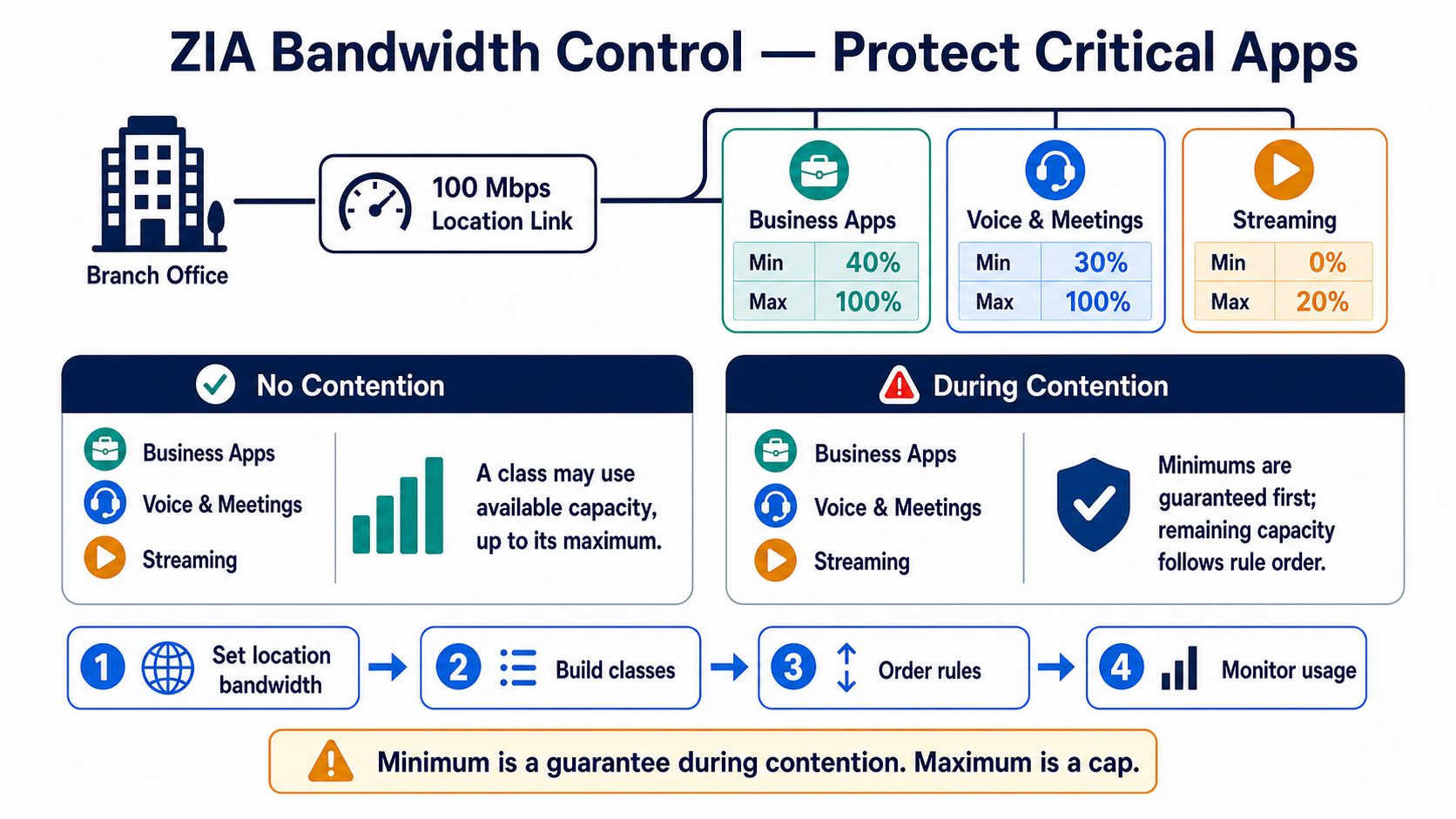
This lesson explains what ZIA bandwidth control really protects: business-critical traffic when a known location’s internet link becomes busy. You will set the link size, create traffic classes, understand minimum versus maximum, order rules, and verify usage.
In plain English
Bandwidth control works for configured locations because ZIA needs known upload and download values. A minimum is the bandwidth guaranteed to a class during contention. A maximum is a cap that applies even when spare capacity exists. Rule order helps allocate what remains.
Real example
A 100 Mbps branch hosts a town hall while users stream video and download large files. Voice and meeting traffic receives a guaranteed minimum when the link is busy; streaming can be capped. When the link is quiet, classes can use available capacity only up to their configured maximum.
Follow this flow
- Measure usable upload and download capacity for the location or sublocation.
- Enable bandwidth control and create classes from apps, URL categories, or file behaviour.
- Order critical classes first and set realistic minimum and maximum percentages.
- Confirm total guarantees and test both quiet-link and contention conditions.
- Monitor the bandwidth dashboard and tune from observed business traffic.
Evidence to collect
- Configured location/sublocation upload and download limits
- Class membership and rule order
- Minimum and maximum percentages with change approval
- Usage during contention plus user experience before and after tuning
Common mistake to avoid
Do not treat minimum and maximum as the same setting. Do not guarantee more than the link can provide, and do not expect location bandwidth control to behave the same for remote users whose source is not a configured location.
Current official source checkpoint
- About bandwidth controlcurrent official reference used for this beginner explanation
- Bandwidth policy examplecurrent official reference used for this beginner explanation

Key terms before you continue
Most engineers think…
"Bandwidth Control is just 'block streaming' — I'll cap YouTube to 10% and I'm done."
Wrong, and that half-idea is why people complain "my bandwidth rule does nothing". The real engine is a borrowing model: you don't just cap the bad traffic — you guarantee a floor to the good traffic, and let everyone burst into idle capacity. A class with a 10% cap and a class with a 30% guarantee behave completely differently the moment the link gets busy. Master the guarantee-vs-maximum pair and you can make a town-hall Zoom survive a saturated branch without ever "blocking" anything.
What Bandwidth Control actually is
Think of your branch's internet link like the water supply to an office building. One pipe feeds everyone. When the whole floor opens the tap at once, pressure drops and the important sink — say, the canteen — runs dry. QoS is the plumbing that guarantees the canteen tap a minimum flow no matter how many other taps are open.
Zscaler Bandwidth Control is exactly that plumbing, run in the ZIA cloud instead of on a hardware box. Because all the branch's web traffic already passes through a ZIA Service Edge, Zscaler can see every flow and shape it there. It uses window shaping and throttling instead of brute-force packet drops, so business apps stay smooth.
Crucially, it shapes the traffic ZIA forwards — your web egress through Zscaler. It does not manage your MPLS, your LAN, or traffic that bypasses Zscaler. It's link-level QoS for the Zscaler-forwarded pipe, not a replacement for WAN QoS.
The four moving parts
Every Bandwidth Control setup is these four pieces, in order. Get them in the wrong order and the rule silently does nothing. Tap each card.
The download/upload Mbps you tell ZIA the link is worth. Percentages mean nothing without it. So what: this is the #1 forgotten step — set it first.
A bucket of URL categories + cloud apps (e.g. Streaming Media). Five are predefined; you add custom ones. So what: a class is the "what" a rule shapes.
Matches a class (+ locations, time, protocols) and sets Min. and Max. %. So what: the rule is where the guarantee-vs-cap decision lives.
The catch-all evaluated last — everything not matched lands here. You can edit it but not delete it. So what: it's your safety net for un-classed traffic.
① Define the link — the step everyone skips
Here's the rule that breaks more bandwidth deployments than anything else: a percentage of an undefined link is a percentage of nothing. If you don't tell ZIA how big the location's pipe is, your "cap streaming at 10%" has no 100% to measure against, so it never throttles. Set the link size before you write a single rule.
Administration > Location Management > Locations > [Bengaluru-Branch] > Edit
  ⮑ Enable "Enforce Bandwidth Control"
  ⮑ Download (Mbps): 160      # branch link is 200 Mbps real; use ~80%
  ⮑ Upload (Mbps):   160
Save  ▸  Activate
Location "Bengaluru-Branch" : Bandwidth Control = ENABLED
  Download limit = 160 Mbps   Upload limit = 160 Mbps
# Now 100% in every rule = 160 Mbps. Sub-locations can "Use Location Bandwidth"
# (shared, first-come-first-serve) or "Override" with their own Mbps.
Symptom
Sneha at Infosys built a perfect rule to cap Streaming Media at 10%. Users on the Bengaluru branch still saturate the link with video. "The rule isn't working."
The location's bandwidth was never defined. With no download/upload Mbps set, ZIA has no total to apply percentages to, so shaping is effectively off.
Set Download and Upload to ~70–80% of the real link speed and enable Bandwidth Control on the location. Save and Activate.
Re-test: the Bandwidth Control dashboard now shows Streaming Media flattening at its cap during busy hours.
A bandwidth rule caps Streaming Media at 10% but never throttles. The class definition and rule look correct. What's the first thing to check?
② Build the buckets — bandwidth classes
A bandwidth class answers "shape what?". Zscaler ships five predefined classes and lets you build your own from URL categories and individual cloud apps. Predefined: File Share, Finance, General Surfing, Sales/Support Apps, Streaming Media. General Surfing is the catch-all — it grabs everything not matched by the other named buckets, and you can't edit it.
For a Zoom/Teams priority, the predefined buckets aren't enough — you build a custom class. You pick the Web Conferencing URL category and the specific cloud apps (Zoom, Microsoft Teams, Webex) so the class catches exactly the conferencing traffic and nothing else.
Policy > Bandwidth Control > Bandwidth Classes > Add Bandwidth Class
  ⮑ Name: Web-Conferencing
  ⮑ URL Categories:  Web Conferencing
  ⮑ Cloud Apps:      Zoom, Microsoft Teams, Cisco Webex
Save  ▸  Activate
Bandwidth Class "Web-Conferencing" created
  Matches: URL category [Web Conferencing] + cloud apps [Zoom, Teams, Webex]
# Predefined classes still available: File Share, Finance, General Surfing,
# Sales/Support Apps, Streaming Media. General Surfing = catch-all (non-editable).
Symptom
Rahul at TCS wants to prioritise Teams calls, but his rule using the predefined "Sales/Support Apps" class doesn't catch Teams traffic at all.
Teams isn't in that predefined bucket. The predefined classes are coarse — to shape conferencing precisely you need a custom class with the Web Conferencing category + the Teams/Zoom cloud apps.
Create a custom Web-Conferencing class with the Web Conferencing URL category and the Zoom/Teams/Webex cloud apps, then point the rule at it.
Web Insights now logs Teams flows under the Web-Conferencing class, and the dashboard shows that class consuming bandwidth.
Pause & Predict
A class has Guaranteed 30% and Maximum 100%. Right now the link is almost empty. Before you read on: how much bandwidth can this class actually use this instant? Type your guess.
Which class is the predefined catch-all that grabs everything not matched by the other named buckets — and can't be edited?
General Surfing is the catch-all and is non-editable — anything not in another class falls into it.③ Guaranteed vs Maximum — the borrowing model
Now the heart of it. A bandwidth rule sets two numbers on a class:
- Guaranteed (Min.) Bandwidth % — the floor reserved during contention. Even when the link is jammed, this class still gets at least this slice.
- Maximum Bandwidth % — the ceiling, applied at all times. A class can never exceed this, busy or idle.
The magic: a class can burst above its guarantee up to its maximum when others are idle, but is throttled back down to its guarantee the moment higher-priority traffic competes. Idle bandwidth is shared out by rule priority. That's why the same rule looks like "unlimited" at 3 a.m. and "capped" at 11 a.m.
▶ Watch the link fill — then watch classes throttle
A 200 Mbps branch (defined as 160 Mbps in ZIA). Press Play to walk the stages, then Squeeze it to start the town-hall + a streaming surge and see the guarantees enforce.
The worked 200 Mbps branch
Let's make Sneha's town-hall survive. The Bengaluru branch link is 200 Mbps; we defined it as 160 Mbps in ZIA (80%). Here's a clean allocation:
Rule 1  Web-Conferencing    Min 30%  Max 100%   # Zoom/Teams town-hall — protected
Rule 2  Microsoft 365       Min 30%  Max 100%   # Outlook/SharePoint sync — protected
Rule 3  Streaming Media     Min  0%  Max  10%   # YouTube/Netflix — squeezed, never starves others
Rule 4  Large Files         Min 10%  Max  50%   # big downloads — bounded
Default Rule  (Any)         Min  0%  Max 100%   # everything else — catch-all, evaluated last
Guaranteed floors:  Conf 30% = 48 Mbps   M365 30% = 48 Mbps   Large 10% = 16 Mbps
Streaming is capped at Max 10% = 16 Mbps  (can't climb higher even if it wants to)
→ Town-hall Zoom is guaranteed 48 Mbps minimum and borrows more if M365 is idle.
→ When the link is quiet at night, Conferencing/M365 can each burst toward 100%.
Pause & Predict
In the table above, Streaming Media has Max 10% but Min 0%. During a quiet night with nothing else running, can streaming use 80% of the link? Predict before reading on.
On a 160 Mbps (defined) link, a Web Conferencing class has Guaranteed 30%, Maximum 100%. During a busy contention window, what is its guaranteed floor?
Don't push guarantees so high they sum past 100%. If you guarantee Conferencing 40%, M365 40%, Sales 30% and Large Files 20%, that's 130% of a link that only has 100% — the math can't hold and the floors fail under load. Best practice: raise a Min. by 5% at a time, test, then repeat. Keep total guarantees comfortably under 100% so there's idle room to borrow from.
④ Verify, and why your rule "isn't working"
Never claim a class is throttled because the rule "looks right". Prove it. The truth lives in two places: the Bandwidth Control dashboard (top bandwidth classes and usage over time) and Web Insights logs (which class each transaction matched). For standard reports, Analytics > Interactive Reports.
Analytics > Bandwidth Control dashboard
  ⮑ Watch "Streaming Media" flatten at ~16 Mbps during busy hours (its 10% Max)
  ⮑ Watch "Web-Conferencing" never drop below ~48 Mbps under load (its 30% floor)
Analytics > Web Insights > Logs
  ⮑ Filter the user/location → "Bandwidth Class" column names the matched class
User: sneha@infosys.example  Location: Bengaluru-Branch
  flow: teams.microsoft.com   Bandwidth Class: Web-Conferencing   action: shaped(floor 30%)
  flow: youtube.com           Bandwidth Class: Streaming Media     action: throttled(cap 10%)
# If the class column is blank/"General Surfing" for Teams → your custom class didn't match.
Symptom
Aditya at Wipro has a flawless bandwidth rule, link defined, classes correct. Branch users on GRE are throttled fine — but roaming laptop users on ZCC are never shaped.
Bandwidth Control enforces against a location with a defined link. Roaming users on Z-Tunnel 2.0 don't map to a branch's bandwidth-defined location, so the per-location shaping doesn't apply to them.
Scope expectations: Bandwidth Control is per-location link QoS. For roaming users, manage app experience with ZDX/forwarding design, not branch bandwidth rules. Confirm GRE/IPSec locations have the link defined and "Enforce Bandwidth Control" on.
Branch users show shaping in the dashboard; roaming users don't — which is expected, not a bug.
▶ Prove the throttle — the verification walk
Karthik confirms the cap is real instead of guessing. Play the healthy verification, then Squeeze it to see the "class blank" failure mode.
Branch (GRE) users are shaped correctly, but roaming ZCC laptop users are never throttled by the same bandwidth rule. Most likely reason?
Upload and download are separate. A video upload to a partner portal can saturate the upstream even when download looks fine — set both limits. Shave overhead. ~5–7% of TCP traffic is overhead; defining the link at 70–80% of the real speed leaves headroom so guarantees actually hold.
Pause & Predict
A flow that doesn't match any of your custom bandwidth classes arrives at peak hour. What shapes it, and what are its Min/Max? Predict before reading the reveal.
Common-mistake flips — tap the fix
These four cause the bulk of "bandwidth control isn't working" tickets. Tap to reveal the first thing to check.
Location bandwidth not defined → percentages have no total. So what: set Download/Upload Mbps + "Enforce Bandwidth Control" first.
Guarantees sum past 100% — the link can't honour them. So what: keep total Min % under 100%, raise by 5% and test.
You set download but not upload. So what: upload and download are independent — define and shape both.
Z-Tunnel 2.0 roaming users aren't on a bandwidth-defined location. So what: it's per-location QoS — expected, not a bug.
Whatever you changed, open Analytics → Bandwidth Control dashboard during a busy window. A capped class should flatten at its Maximum; a guaranteed class should never dip below its floor. Cross-check Web Insights → Logs for the per-flow Bandwidth Class column. If the dashboard disagrees with what you expected, your class definition or location link is wrong — not the cloud.
🤖 Ask the AI Tutor
Tap any question — instant, scoped to this lesson. No login, no waiting.
Pre-curated from Zscaler Help docs + community Q&A, scoped to ZIA Bandwidth Control. For a live prod issue, paste your dashboard/Web Insights export into chat.techclick.in.
📝 Wrap-up assessment — six more
You've answered 4 inline. Six left. 70% (7 of 10) marks the lesson complete on your profile. Tap Submit all answers at the end.
🧠 In your own words
Type one line: why does a class with Guaranteed 30% / Maximum 100% look "unlimited" at night but "capped" at noon? Then compare to the expert version.
🗣 Teach a friend
Best way to lock it in — explain it in one line to a teammate. Tap to generate a paste-ready summary.
📖 Glossary
- Bandwidth Control
- A ZIA policy that shapes how much of a location's internet link each traffic class can use — cloud-enforced QoS on the Zscaler-forwarded pipe.
- QoS (Quality of Service)
- Controlling which traffic gets bandwidth priority so business-critical apps stay usable when the link is congested.
- Location bandwidth
- The download/upload Mbps you tell ZIA a location's link is worth — the 100% every rule percentage is measured against.
- Bandwidth class
- A named bucket of URL categories and cloud apps that a rule shapes together. Five are predefined; you add custom ones.
- Bandwidth rule
- Matches a class (plus locations, time, protocols) and sets its Guaranteed (Min.) and Maximum bandwidth percentages.
- Guaranteed (Min.) %
- The floor a class is reserved during contention — it always gets at least this share of the defined link.
- Maximum %
- The ceiling a class can ever use, enforced at all times, even when the link is idle.
- Contention
- When total demand exceeds the link and multiple classes compete for bandwidth at once — when guarantees enforce.
- Borrowing
- A class using more than its guaranteed floor by consuming idle bandwidth other classes aren't using, up to its Maximum.
- Default rule
- The catch-all bandwidth rule (Min 0% / Max 100%) evaluated last — editable but not deletable.
📚 Sources
- Zscaler Help — About Bandwidth Control (borrowing model, location bandwidth requirement, default rule Min 0% / Max 100%, rules evaluated in ascending order). help.zscaler.com/zia/about-bandwidth-control
- Zscaler Help — About Bandwidth Classes (five predefined classes: File Share, Finance, General Surfing, Sales/Support Apps, Streaming Media; custom classes from URL categories + cloud apps; General Surfing catch-all). help.zscaler.com/zia/about-bandwidth-classes
- Zscaler Help — Bandwidth Control Policy Example & Configuring / Adding Rules to the Bandwidth Control Policy (Microsoft 365 40% / Streaming 10% Max 25% worked example; Min./Max. fields; match logic Classes AND [Location Groups OR Locations] AND Time AND Protocols). help.zscaler.com/zia/bandwidth-control-policy-example
- Zscaler — Bandwidth Control Deployment and Operations Guide (verification via Bandwidth Control dashboard + Web Insights; 10–15% overhead; raise Min by 5% and test; remote/Z-Tunnel users not enforced; upload vs download). help.zscaler.com/.../bandwidth-control-deployment-and-operations-guide
- Zscaler Community (Zenith) — "Bandwidth Control and Z-Tunnel 2.0" (real practitioner thread on per-location enforcement vs roaming users). community.zscaler.com — Bandwidth Control and Z-Tunnel 2.0
- Zscaler product page + data sheet — Bandwidth Control (window shaping/throttling to avoid packet drops; prioritise Microsoft 365, Zoom, Teams, Salesforce over recreational traffic). zscaler.com/products-and-solutions/bandwidth-control
- Zscaler ZDTA Certification Exam Guide (2025/2026) — Connectivity & Platform Services objectives (policy frameworks, traffic shaping). zscaler.com — ZDTA Certification
What's next?
You can now make business apps win a congested branch link without blocking anything. Next, zoom out to the whole policy stack — how Cloud Firewall, DNS Control, URL Filtering and IPS chain together inside one ZIA hop, and where Bandwidth Control sits among them.