The ticket
Priya: “ZCC is green. Diagnostics for SAP show Empty Connector.” People ping the SAP host next. That is the wrong first move. Empty Connector means ZPA never selected a broker for this user + app.
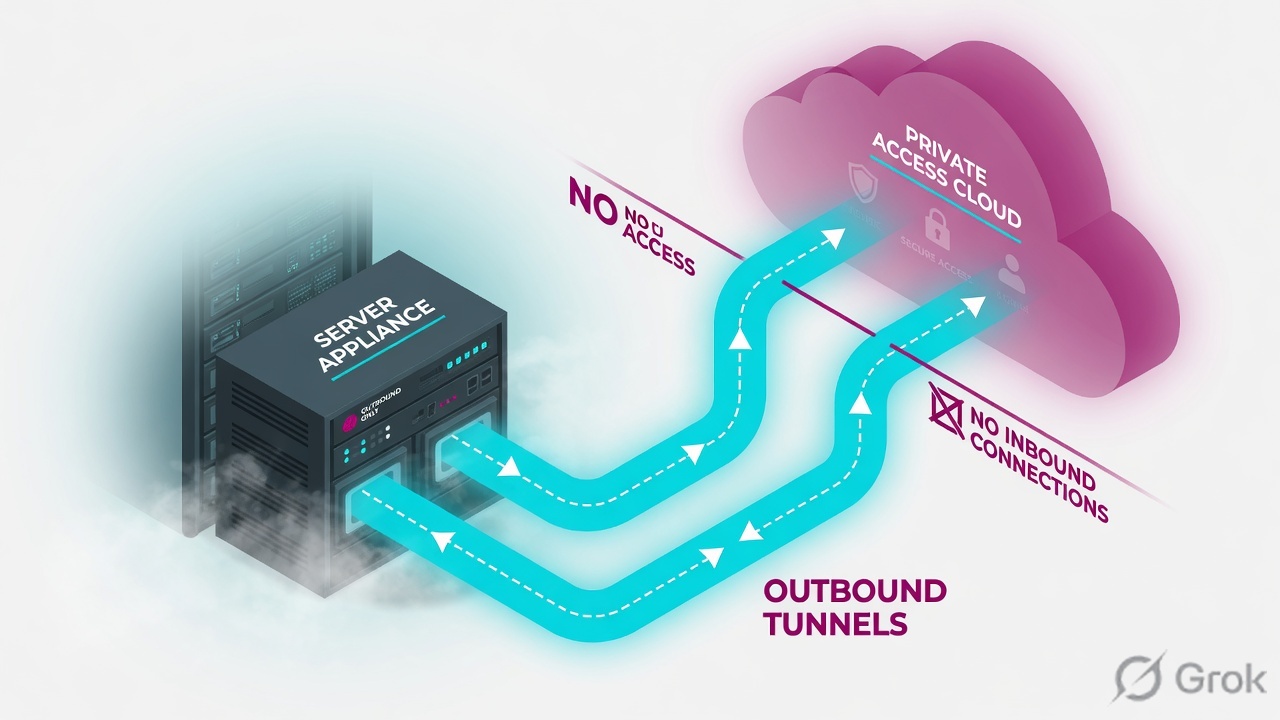
Provision a VM, enroll with a provisioning key, put it in an App Connector Group, map that group to the Application Segment. Health is IP:port reachability from the connector, not ‘SAP is healthy’.
Mental model — enroll then map
- Provisioning key — enroll string. One key can stamp many connectors in a group.
- App Connector Group — site / AZ. Mapping is how a segment finds a path.
- Health — connector to server:port. Empty Connector is upstream of health.
If the group is not mapped to the segment, diagnostics stay Empty Connector even when the VM pings 8.8.8.8. Source: About App Connectors.
Outbound only. Key enrolls. Group maps. Empty Connector is mapping or policy, not ping SAP.
Hard words: Provisioning key is a secret enroll token — treat it like a bootstrap password. Connector Group is the pool ZPA may use. Empty Connector means none was eligible.
How to place connectors

| Choice | Use when | Trap |
|---|---|---|
| Two+ VMs per site group | Any production LAN | One VM, then patching = outage |
| Closer to Application | TCP apps, want the connector nearest the server | Default is often closer-to-user; continuous health limits apply |
| Privileged lock-down | Always | Inbound RDP from internet ‘for support’ |
| Same DNS as users | FQDN segments | Connector using public DNS for an internal name |
Source: About App Connectors and About App Connector Provisioning Keys.
Empty: policy/group. Red health: DNS/firewall from connector to IP:port. Different desks.
Runbook — Side A / B / C
Side A · platform
VM
Follow the platform guide (VMware/AWS/Azure/Linux). Outbound 443 to ZPA. No inbound publish. Restrict SSH to jump hosts.
Enroll
When prompted, paste the provisioning key for that group. Wrong key = connector lands in the wrong group.
Side B · ZPA Admin
Key + group
Configuration → App Connectors / Provisioning Keys. Create the group for Pune-DC. Generate the key. Enable the connector after it checks in.
Map
On the Application Segment / Server Group, attach this connector group. Access Policy must Allow the user to that Segment Group.
Configuration / App Connectors / Add Provisioning Key
Add App Connector Provisioning Key
The key is the enroll secret. Map the group to the segment or diagnostics stay Empty Connector. Training mock · not live.
Side C · prove
Connector dashboard
Connector is enrolled, version current, last seen fresh. Then Diagnostics for a pilot user: Connector name populated.
Health
Red health = connector cannot open that IP:port (routing, firewall, DNS). Green health + Access deny = policy, not connector.
Runtime path after go-live

Client → ZPA Service Edge → selected App Connector (outbound already established) → app IP:port. If no connector is eligible, you see Empty Connector / codes such as no policy found — not a SAP dump.
Traps and proof
| Symptom | First check | Do not |
|---|---|---|
| Empty Connector | Group mapped to segment? Policy Allow? | Ping SAP |
| Enrolled but unused | Wrong group / segment still on old group | Reimage immediately |
| Health red, policy Allow | Connector DNS and LAN firewall to the port | Reinstall ZCC |
| One connector hot | Group size and selection method | Publish a /8 to ‘spread load’ |
- Two connectors enrolled in cg-pune-dc.
- Pilot user Diagnostics shows a connector name for SAP.
- SSH to connectors only from jump hosts.
Putting the provisioning key in a ticket or chat. It enrolls machines into your production path.
← App segments · Next: Access policy →
Knowledge check
Six connector tickets. Pick the first safe move.
Sources
- About App Connectors
- About App Connector Provisioning Keys
- Understanding Health Reporting
- App Connector Deployment Guide (VMware)
Related: App segments · Access policy · ZPA command center