ZPA is default-deny. An Application Segment that is Enabled is only a definition — FQDN or IP plus the TCP/UDP ports ZPA will broker. Nobody reaches it until an Access Policy rule explicitly allows that segment or its Segment Group. Evaluation is two steps: first the most specific Application Segment that matches the request, then the Access Policy list top-down, first-match. Criteria (SAML, SCIM, posture, client type, trusted network) are AND across types and OR inside one type. Proof is not “the user can browse.” Proof is a User Activity row whose Policy field is the rule you intended and whose Application field is the segment you defined.
1. Why Enabled is not an allow
Lesson 9 taught the broker. Lesson 10 put App Connectors next to the app. This page is the decision: which user, on which device, may reach which exact private destination.
A firewall engineer arriving from PAN-OS or FortiGate wants a bottom Deny Any. Official ZPA Help is the opposite. By default ZPA blocks access to applications and Segment Groups until you configure policy rules that explicitly allow access. A terminal Block-All is redundant. If you drag it above later Allows, it becomes a self-inflicted outage.
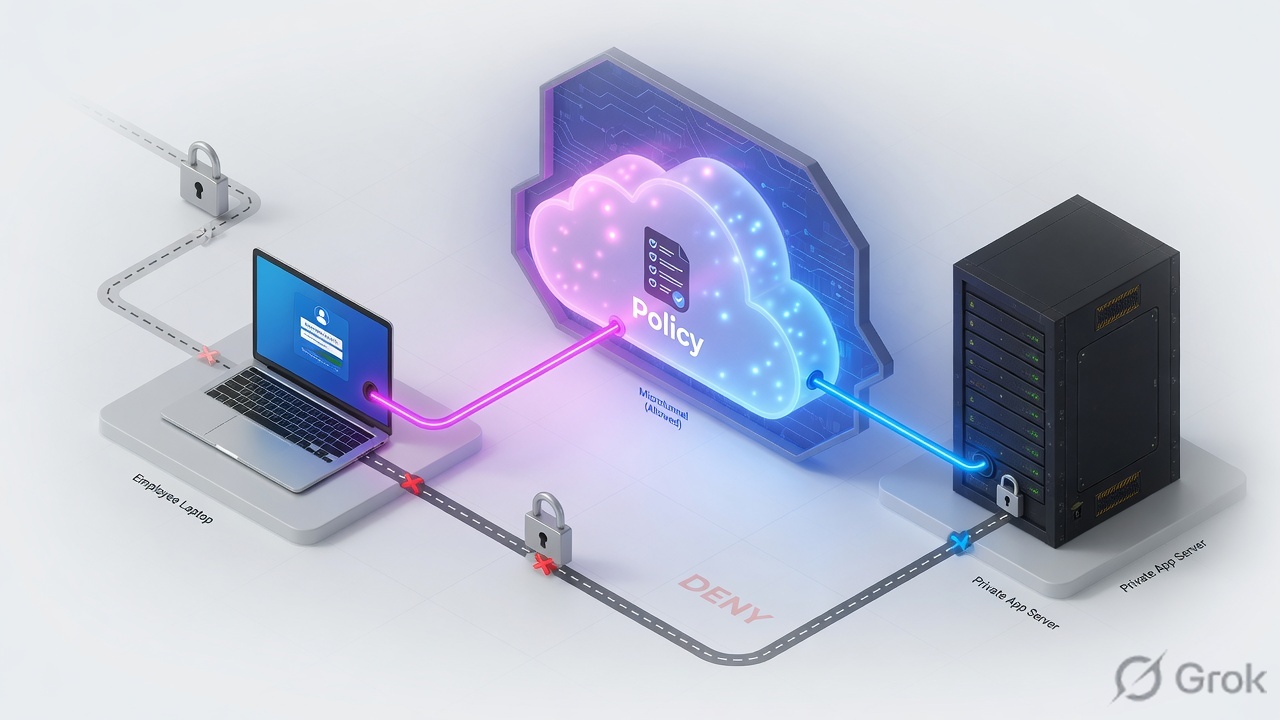
Two different tickets hide in the same user sentence “Jira is down.”
- No matching Allow — default-deny. The segment exists. The user is authenticated. No Access Policy line matched. Diagnostics show a policy deny / no allow, not a dead connector.
- Wrong first match — a broad Allow sitting above a contractor Block. The contractor is in. The Block rule is dead code. Diagnostics show the wrong
Policyname.
If they ask “how does ZPA evaluate Access Policy?”, do not say “like a firewall, top-down.” Say the official two-part order: most specific Application Segment, then first-match top-down. Then add: default is block until an Allow exists.
2. Mental model — object chain
Policy cannot allow a thing you never defined. Memorise four objects. Every “authenticated but blocked” ticket is a broken link in this chain.
Application Segment
The app definition: domain names or IPs, TCP and/or UDP port ranges, Bypass Type, Double Encryption, health reporting. Enabled means the object exists. It is not an Allow.
Segment Group
A bundle of Application Segments so one Access Policy rule can grant a set of apps. A defined segment belongs in exactly one Segment Group. Forget the group and the rule cannot see the app.
Server Group
Binds the segment to the App Connector Group that can actually reach those servers. Dynamic Server Discovery vs a static server list is a Server Group choice, not a policy choice.
Access Policy
Who may reach which Application Segment or Segment Group. Criteria: SAML attributes, SCIM groups/attributes, posture profiles, trusted networks, client types, platform, country. Action: Allow Access or Block Access. Default if nothing matches: deny.
Read left → right. The segment is the destination. The Segment Group is what most rules target. Access Policy is the only allow.
The Application Segment answers what is the app. Access Policy answers who may reach it. Confusing those two is how you get “the segment is green and the user is still denied.”
3. Match-order flowchart
Do not start the whiteboard with the Add Rule form. Start with the request. Official Help: ZPA evaluates Access Policy using the most specific Application Segment and a top-down, first-match principle. If a user must be blocked while a broader group is allowed, the Block rule must sit above the Allow.
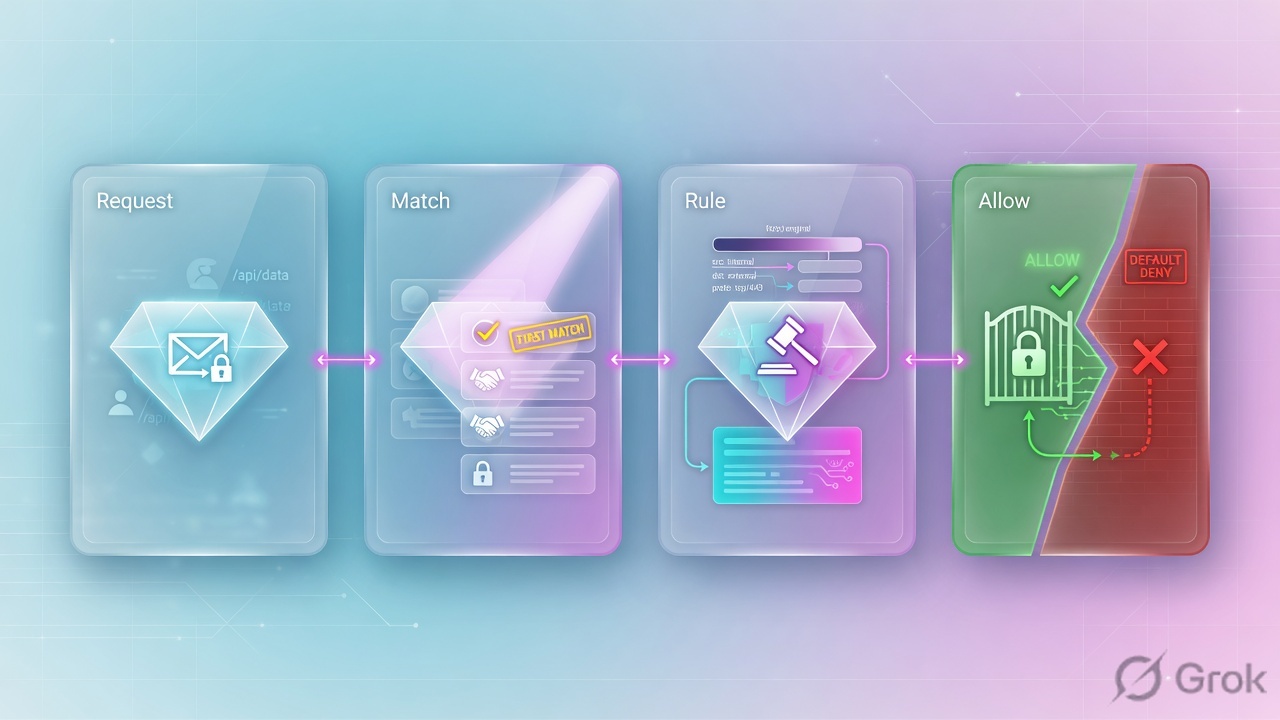
Diamond = decision. Default-deny dies when no rule matches. A Block that sits below a matching Allow is never read. Missing ports die before policy.
Worked example you can say in an interview:
- Two segments exist:
*.lab.exampleTCP443(wildcard, discovery) andpayroll.lab.exampleTCP443(exact). - User requests
payroll.lab.example:443. ZPA selects the more specific segment — the exact FQDN — not the wildcard. - Access Policy is then walked only in that context, top-down. Rule 1: Block Access if SCIM group = Contractors. Rule 5: Allow Access if SCIM group = Finance and posture = Compliant-Win.
- A contractor hits rule 1 and stops. A Finance user on a compliant Windows laptop misses rule 1, hits rule 5, Allow. An intern in neither group matches nothing and is denied — you did not need a bottom Block-All.
Most-specific segment is not the same as first-match rule. A precise payroll segment can still be opened by a sloppy Allow that lists that Segment Group and “any user.” Specificity of the FQDN does not save you from a broad identity criterion.
4. How to choose — ports, bypass, criteria
Use these tables in the design review. The wrong knob is usually “we published the whole RFC1918 range and hoped policy would save us.”
Application Segment knobs
| Decision | Prefer | Do not |
|---|---|---|
| Domain / IP | The FQDN users type. Add the raw IP only if bookmarks use it. | One wildcard *.corp.internal as the only production segment |
| TCP / UDP ports | The real ports: 443, 22, 3389, 445. Split UDP (Kerberos 88, DNS if you must) onto their own ranges. | 0–65535 “to be safe.” Health reporting then probes a universe of ports. |
| Bypass Type = Never | Default for almost every private app. ZCC brokers and ZPA logs the session. | Leaving Always on a crown-jewel app and then opening a “ZPA is blind” ticket |
| Bypass Type = On Net | Split-tunnel: on a trusted corporate network the packet goes direct; off-net it brokers. | Using On Net when you still need ZPA logs and posture on-site |
| Bypass Type = Always | A destination you intentionally never want in ZPA (rare exclusion). | Debugging with Always on — there will be no User Activity row |
| Double Encryption | Off, unless a written control requires a second crypto layer inside the TLS microtunnel. | On for ICMP-dependent apps. Official Help: ICMP does not work with Double Encryption. |
| Health reporting | On for the ports that actually serve users, so a dead app is not advertised. | On + wildcard + wide ports — connector CPU death, not “better visibility” |
Access Policy criteria
| Criterion | Use when | Trap |
|---|---|---|
| Application Segment / Segment Group | Every rule. Target the Segment Group for a set of apps; use the segment when one app is special. | Rule points at SG-Engineering while payroll lives in SG-Finance — the rule never sees it |
| SAML Attribute | Department, employeeType, or another assertion present at login | Per-IdP SAML Attributes for Policy is Off → criterion is ignored, rule never matches |
| SCIM Group / SCIM Attribute | Stable group membership synced from Entra / Okta | SCIM Attributes and Groups for Policy Off, or a nested group that never expanded |
| Posture Profile | Managed laptop must pass EDR / disk-encrypt / machine-cert checks | ZCC-only. Browser Access users have no posture to report |
| Trusted Network | Treat on-net vs off-net differently (often with Bypass On Net or a tighter rule) | ZCC-only. A clientless session will not satisfy this criterion |
| Client Type | Allow ZCC for thick clients; a separate rule for Browser Access | Attaching posture to a Browser Access rule and wondering why it never matches |
| Platform / Country | Windows-or-macOS only; approved source countries | AND across types: Finance OR Treasury AND Windows — a Mac Treasury user misses the whole rule |
Official training model used in ZPA policy builders: values inside one criterion type are OR; different criterion types on the same rule are AND. A Treasury user on macOS fails a rule that is (Finance OR Treasury) AND Platform = Windows, and falls to default-deny.
5. Runbook Side A → B → C
Lab goal: only the SCIM group Finance on a compliant ZCC Windows laptop may reach payroll.lab.example TCP 443. Contractors are explicitly blocked. Everyone else hits implicit deny. You will prove the Allow and the Block in User Activity.
Primary sources: Zscaler Help — Configuring Defined Application Segments; Configuring Access Policies; About Access Policy; Accessing User Activity Diagnostics.
Side A — Define the application
-
Write the destination on paper first
FQDN users type, TCP/UDP ports, internal server the App Connector can resolve, who should reach it. Lab:
payroll.lab.example, TCP443, server10.40.20.15, audience = Finance. If APIs hit8443, that port must be on the segment too — a 443-only definition will never match 8443 (flowchart step 2). -
Create the Application Segment
ZPA Admin → Resource Management → Application Management → Application Segments → Defined Application Segments → Add. Name
Payroll-Lab, status Enabled, domainpayroll.lab.example, TCP port443. Place it in Segment GroupSG-Finance(exactly one). Bind Server GroupDC1-Payroll-Servers. -
Set Bypass Type and Double Encryption on purpose
Bypass Type = Never so the session is brokered and logged. Double Encryption = Disabled unless a written control requires the inner crypto layer. Health reporting On for TCP 443 only.
Resource Management / Application Management / Application Segments / Defined Application Segments / Add
Add Application Segment
Source: Zscaler Help — Configuring Defined Application Segments (Resource Management → Application Management → Application Segments → Defined Application Segments). Lab FQDNs only. Enabled is not an allow. Bypass Never = broker + log.
Side B — Write Access Policy
-
Turn on identity for policy on the IdP
Administration → IdP Configuration → Edit IdP (classic ZPA Admin). Enable SAML Attributes for Policy and SCIM Attributes and Groups for Policy. If either toggle is Off, a rule that depends on that criterion is silently skipped — SSO still succeeds, the user still falls to default-deny.
-
Add the narrow Block first
Official current Help path: Policies → Access Control → Private Applications → Access Policy → Add. Classic ZPA Admin still says Policy → Access Policy → Add Rule. Rule name
Block-Contractors-Payroll, action Block Access, applications = Segment GroupSG-Finance(or the Payroll-Lab segment), SCIM Group =Contractors. Give it a lower order number than the Allow. Official Help: list the block rule before the allow rule. -
Add the Finance Allow under it
Rule name
Allow-Finance-Payroll, action Allow Access, same Segment Group, SCIM Group =Finance, Posture Profile =Compliant-Win, Client Type = Client Connector. Do not add a bottom Block-All. Implicit deny is already there.
Policies / Access Control / Private Applications / Access Policy / Add
Add Access Policy
First-match, top-down. Implicit deny handles everyone these two rules do not match.
Source: Zscaler Help — Configuring Access Policies (Policies → Access Control → Private Applications → Access Policy). Classic tenants: Policy → Access Policy. Block contractors at order 1. No bottom Block-All.
Side C — Prove it in ZPA diagnostics
-
Open User Activity, not a screenshot of the rule
Logs → Insights → Diagnostics. Log Type = User Activity. Filter on the pilot username and the last 15 minutes. Official field list includes
Policy(access policy rule name),Application,AppGroup,Host,ServicePort,ConnectionStatus,InternalReason,DoubleEncryption,Username,Connector. -
Finance allow must name the rule
From a compliant ZCC Windows laptop, open
https://payroll.lab.example. Success is a row withPolicy = Allow-Finance-Payroll,Application = Payroll-Lab,Host = payroll.lab.example,ServicePort = 443, and a successfulConnectionStatus. IfPolicyis a different rule, first-match already fired somewhere else — do not add another Allow. -
Contractor block must also leave a row
Repeat as a Contractor user. You want
Policy = Block-Contractors-Payrolland a deny / block status — not silence. Silence usually means Bypass Type Always, or the FQDN/port never matched a segment. An intern in neither group should show no matching Allow (implicit deny), not your contractor Block.
User Activity: Username = pilot, Host = FQDN typed, Application = Payroll-Lab, AppGroup = SG-Finance, Policy = Allow-Finance-Payroll, ServicePort = 443, DoubleEncryption = 0 (Disabled). Contractor: same Host/Application, Policy = Block-Contractors-Payroll.
6. Runtime path after go-live
After save, the click path is the flowchart you already walked — plus two things that are not policy.
- Client Connector matches
payroll.lab.exampleto an Application Segment and hands the process a synthetic IP. The real10.40.20.15never lands on the laptop. - The SYN rides the existing ZCC → Service Edge leg. The edge selects the most specific segment for that FQDN+port.
- Access Policy is evaluated first-match. Allow → pick a healthy App Connector from the Server Group. Block or no match → stop. No stitch.
- On Allow, the connector dials
payroll.lab.example:443locally. The edge stitches the microtunnel. Payroll sees the connector source IP, not the user’s home IP. - User Activity writes
Policy,Application,Host,ServicePort,ConnectionStatus. That row is the audit trail. The rule form is not.

Access Policy decides allow vs block. Timeout Policy (re-auth / idle) is a separate policy type and is not first-match in the same way — do not reorder Access Policy to “fix a timeout.” Keep that fight on the Timeout page.
7. Traps + proof
| Symptom | Likely cause | What you prove |
|---|---|---|
| Segment Enabled, user blocked, SSO works | No Access Policy Allow matches that user + most-specific segment | User Activity: no Allow rule name. Add Policy, do not “re-enable” the segment |
| Contractor still reaches payroll | Broad Allow above the contractor Block (first-match) | Policy = the Allow, not the Block. Drag Block above Allow. Official Help: list the block before the allow |
| Wildcard Allow never fires for payroll | A more specific payroll.lab.example segment exists; evaluation uses that one | Application = the exact segment. Put the rule on that segment / its Segment Group |
| Jira works “around ZPA”; Diagnostics empty | Bypass Type = Always (or On Net while the device is on a trusted network) | No User Activity row. Set Bypass = Never and retest — a row must appear |
| Group rule never matches; SSO is fine | IdP toggle SAML Attributes for Policy or SCIM Attributes and Groups for Policy is Off; or nested SCIM group never synced | Rule is skipped, not denied. Enable the toggle, flatten the group, re-sync, retest |
| 443 works, API on 8443 fails | TCP port range is 443 only — no segment matched FQDN+8443 | User Activity: no Application for that port. Add 8443 to the segment (or a sibling segment) |
| Posture rule never matches Browser Access | Posture and Trusted Network are ZCC-only | Client Type on the row is not Client Connector. Write a separate clientless rule without posture |
| Authenticated, still blocked, connector green | Segment not in the Segment Group the rule targets — or Server Group has no connector that can reach the host | Check Segment Group column on the segment. “No healthy connector” is Lesson 10, not an Access Policy miss |
| Ping fails after Double Encryption On | Official Help: ICMP does not work with Double Encryption | Disable Double Encryption on that segment, or stop requiring ICMP as a health test |
Pilot checklist
- Payroll-Lab exists with TCP 443 only, Bypass = Never, Double Encryption = Disabled, one Segment Group, one Server Group.
- IdP: both “for Policy” toggles On. SCIM shows Finance and Contractors as direct members.
- Access Policy order: Block-Contractors-Payroll (1) then Allow-Finance-Payroll (5). No bottom Block-All.
- Finance + compliant ZCC: User Activity
Policy=Allow-Finance-Payroll,Application=Payroll-Lab,ServicePort=443. - Contractor:
Policy=Block-Contractors-Payroll. - Intern / unknown group: denied with no Allow match (implicit deny).
- Wrong port 8443: no segment match — proves ports are part of the definition, not “whatever TCP.”
Knowledge check
Six judgment questions. Map each miss back to match-order, Side A ports/bypass, Side B criteria, or Side C diagnostics.
Sources
- Zscaler Help — About Access Policy (most specific Application Segment + top-down first-match; SAML/SCIM, posture, trusted networks, client types as criteria)
- Zscaler Help — Configuring Access Policies (Policies → Access Control → Private Applications → Access Policy; default block until an Allow exists; list the block rule before the allow)
- Zscaler Help — About Policies / Policy Evaluation Order (most specific segment + first-match)
- Zscaler Help — Configuring Defined Application Segments (Resource Management → Application Management → Application Segments)
- Zscaler Help — About Applications (Double Encryption, health reporting configured per Application Segment)
- Zscaler Help — Configuring Bypass Settings (Bypass Type on the Application Segment)
- Zscaler Help — Understanding Double Encryption (inner crypto layer inside the outer TLS tunnels)
- Zscaler Help — ICMP and Double Encryption (ICMP does not work with Double Encryption)
- Zscaler Help — Accessing User Activity Diagnostics (Logs → Insights → Diagnostics → User Activity)
- Zscaler Help — Understanding User Activity Log Fields (
Policy, application, connection fields) - Zscaler Help — Understanding Private Access Session Status Codes
- Zscaler Help — ZPA Leading Practices Guide (rule order matters; most specific + first-match)
Related: Lesson 9 · ZPA architecture · Lesson 10 · App Connectors · ZPA Access Policy deep-dive · Application Segments deep-dive · Zscaler authentication · Lesson 12 · CBI / SIPA