Lessons · F5 LTM series · Module 6
This page is the full Techclick workbook F5-BIG-IP-LTM-Module-6.pdf (52 pages). Nothing from the PDF is skipped: theory, GUI, TMSH, 8 labs, 5 production scenarios, 35 interview answers.
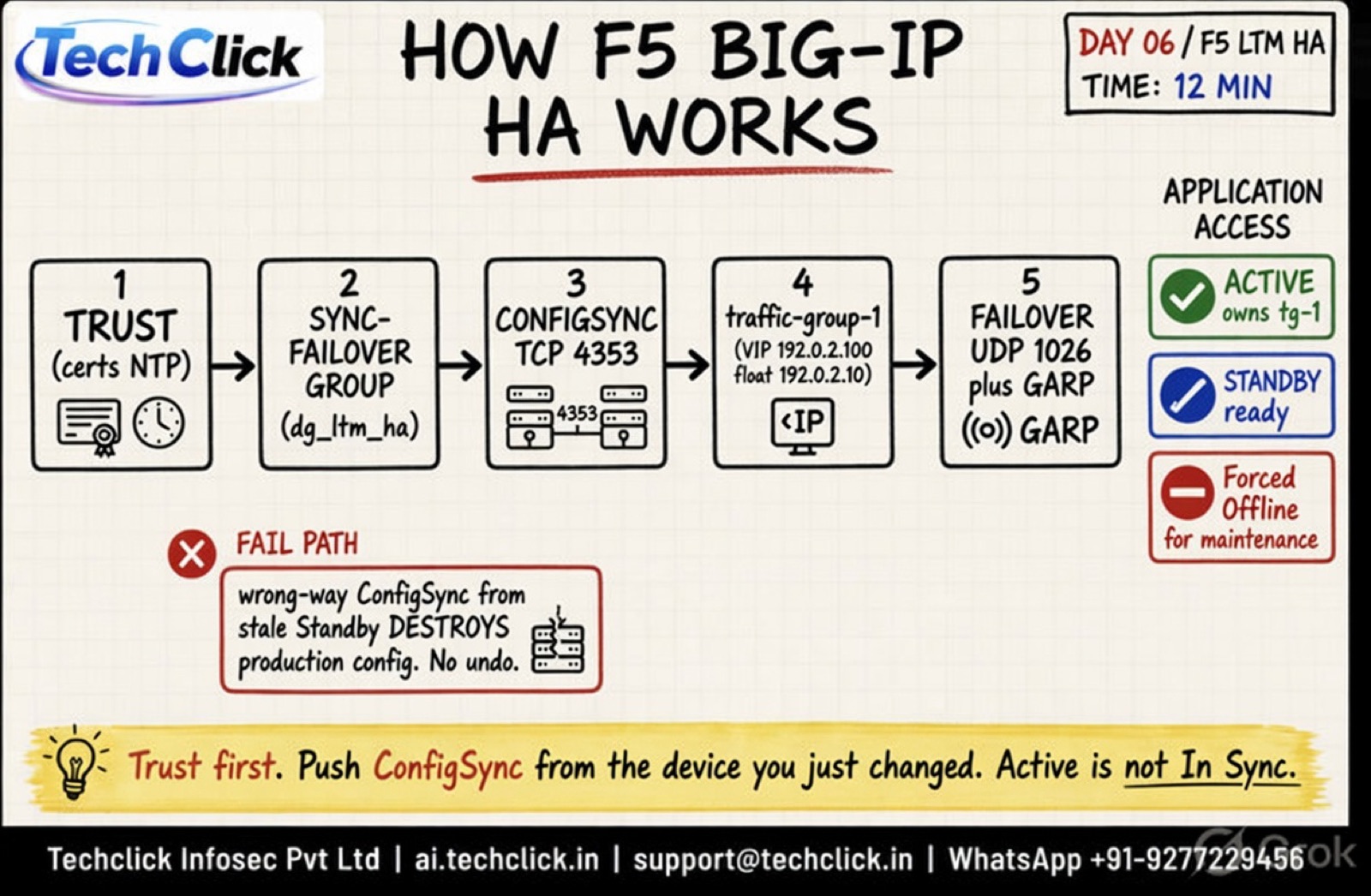
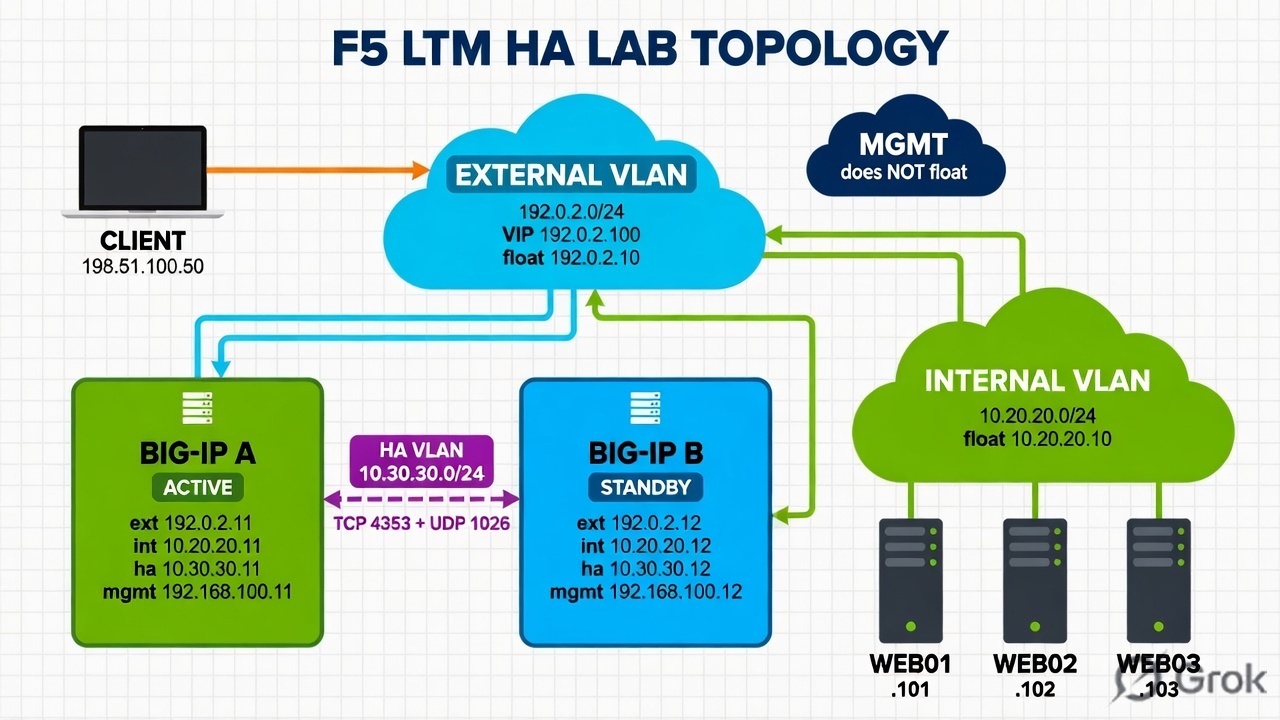
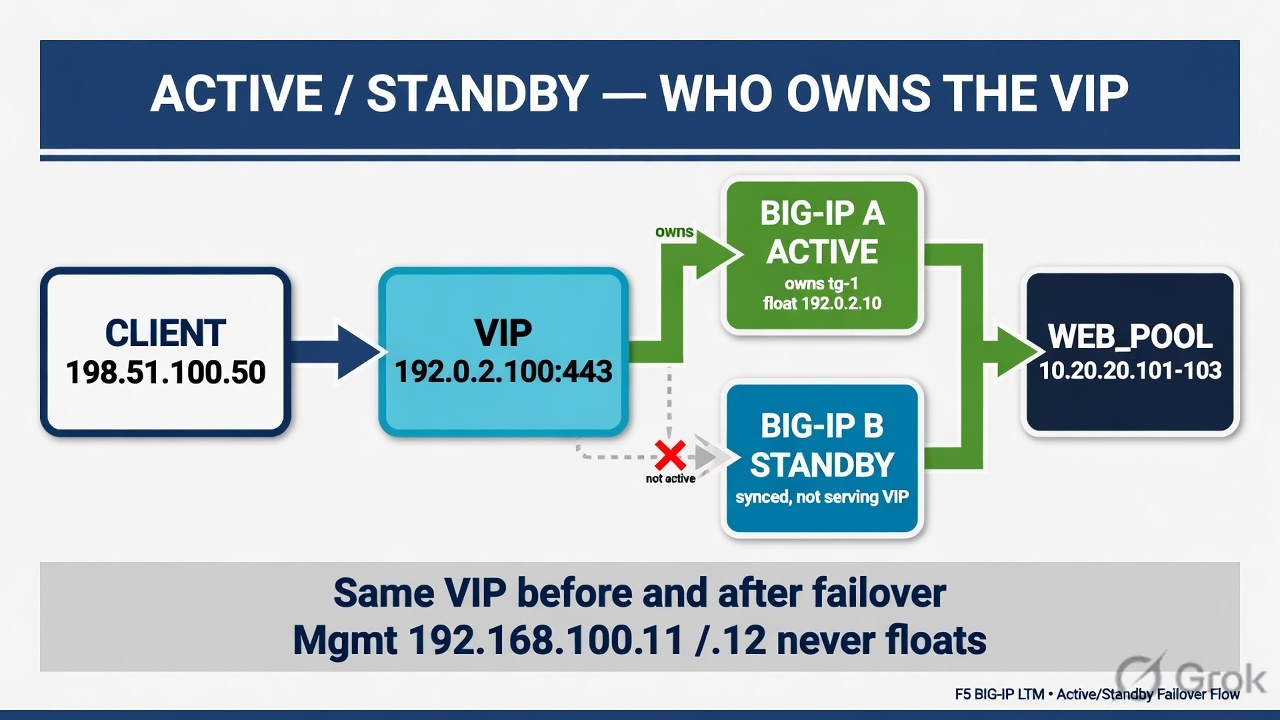
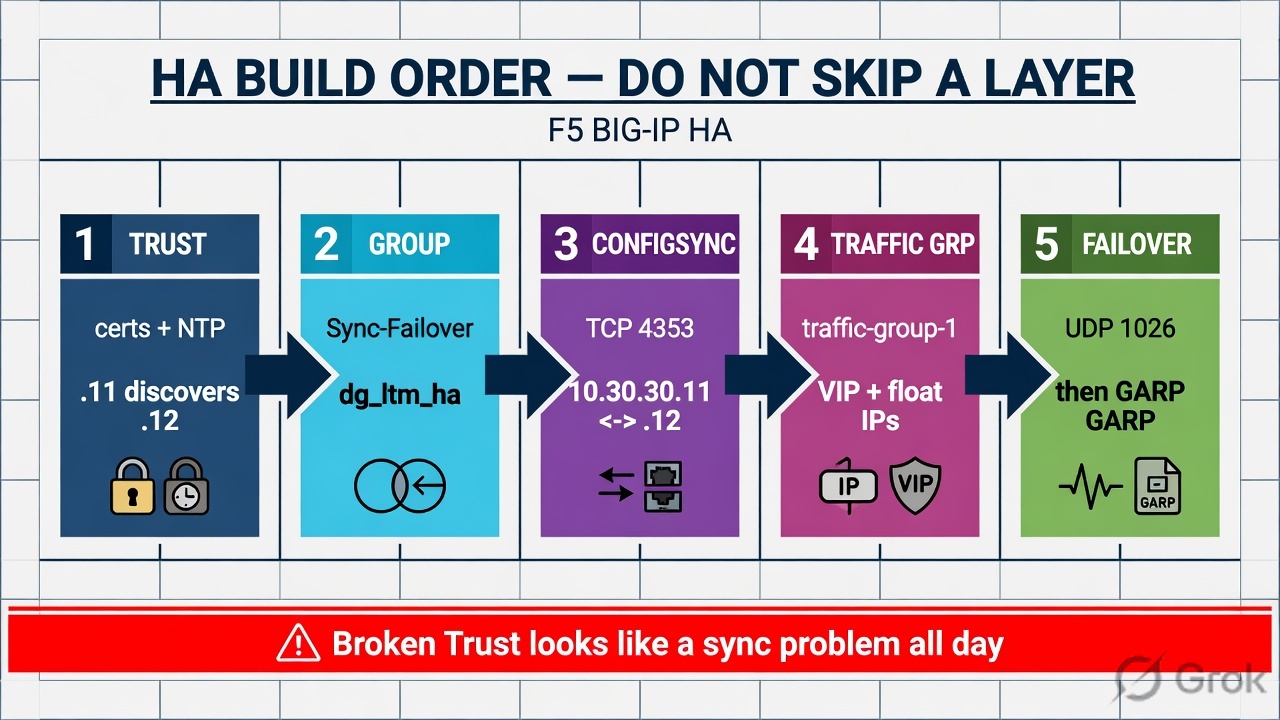
Build HA in this order: Device Trust → Sync-Failover Device Group → ConfigSync address → Failover unicast → traffic-group-1 floating objects. ConfigSync state and Active/Standby state are independent. Management IP never floats. Sync from the authoritative device only — there is no undo. HA improves availability; it is not a zero-downtime guarantee.
Device Trust
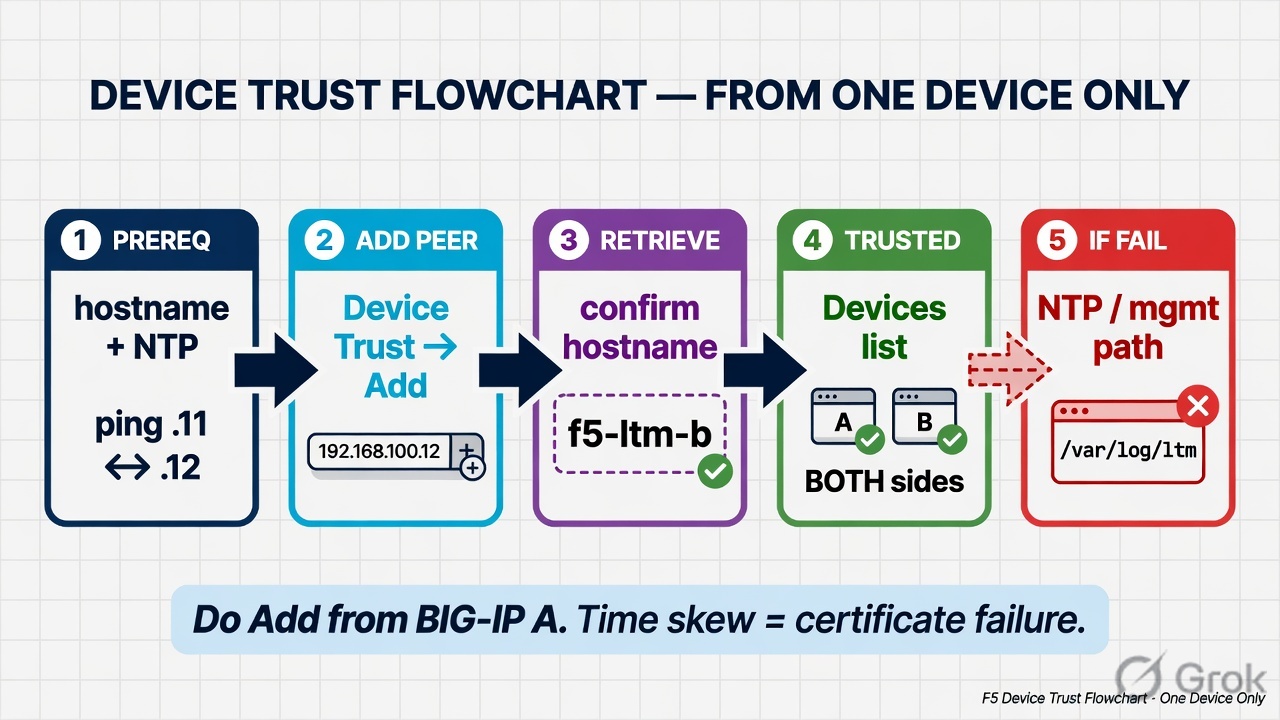
Device Management → Device Trust → Device Trust Members → Add
Add trusted peer
Source: PDF pages 8–9 and Lab 2. Do this from one device only.
- · ConfigSync · Traffic Groups · Failover ·
Connection Mirroring
- Device Trust
- Authenticated peer relationships
- ConfigSync
- Configuration synchronization
- Traffic Groups
- Floating object ownership
- Failover
- Active/Standby coordination
- Mirroring
- Connection state replication
Why High Availability?
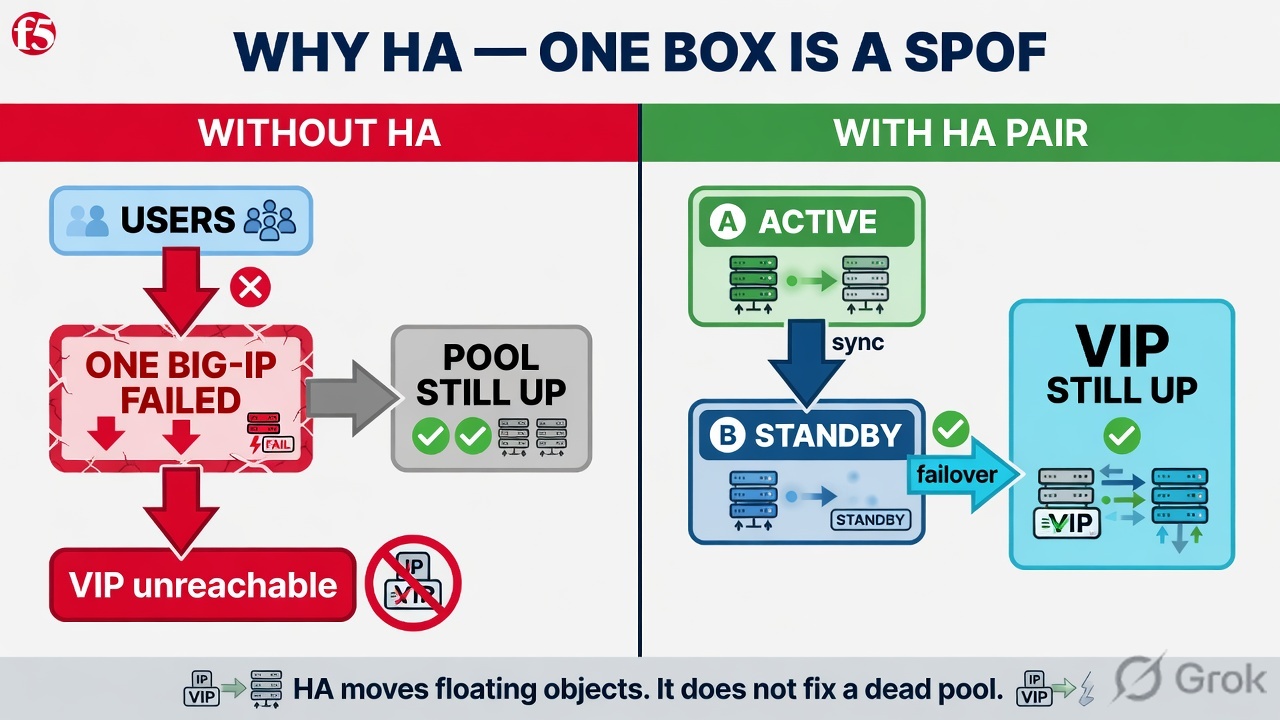
A single BIG-IP device represents a critical single point of failure. If that device fails for any reason, all application traffic it proxies becomes unavailable — regardless of backend server health. High Availability pairs two BIG-IP devices so that if one fails, the other can assume ownership of floating application objects and continue serving traffic.
- Hardware / VM Failure
- Physical failure, hypervisor crash, or storage issues can take a
BIG-IP offline unexpectedly.
- TMM / OS Failure — Traffic Management Microkernel or OS-level faults can cause the device to stop processing traffic.
- Network Interface Failure — Loss of an uplink, trunk failure, or misconfigured VLAN can disrupt traffic paths.
- Planned Maintenance — Upgrades, patching, and configuration changes require controlled failover to minimize downtime. — HA improves availability but does not automatically eliminate every application or network failure. Some connection interruption may still occur depending on configuration, mirroring, and application behavior.
Active/Standby Architecture
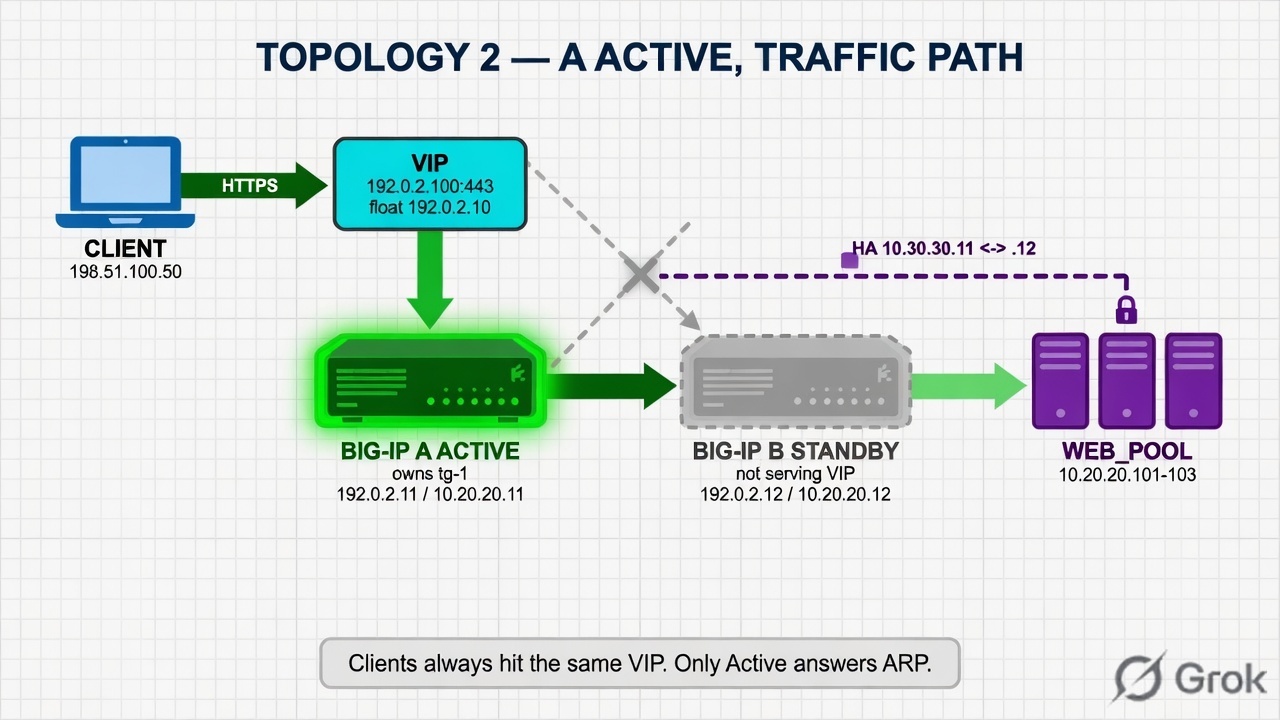
The most common BIG-IP HA design is Active/Standby. One device (Active) owns all floating application objects and processes traffic. The other device (Standby) is synchronized and ready to take over. A shared Floating Self IP (192.0.2.10) travels with the active traffic group — not with either physical device.
- Active Device (BIG-IP A)
- Owns traffic-group-1
- Serves Floating Self IP 192.0.2.10
- Processes all VIP traffic
- Standby Device (BIG-IP B)
- Monitors Active device health
- Holds synchronized configuration
- Ready to assume ownership instantly
What Is Device Service Clustering (DSC)?
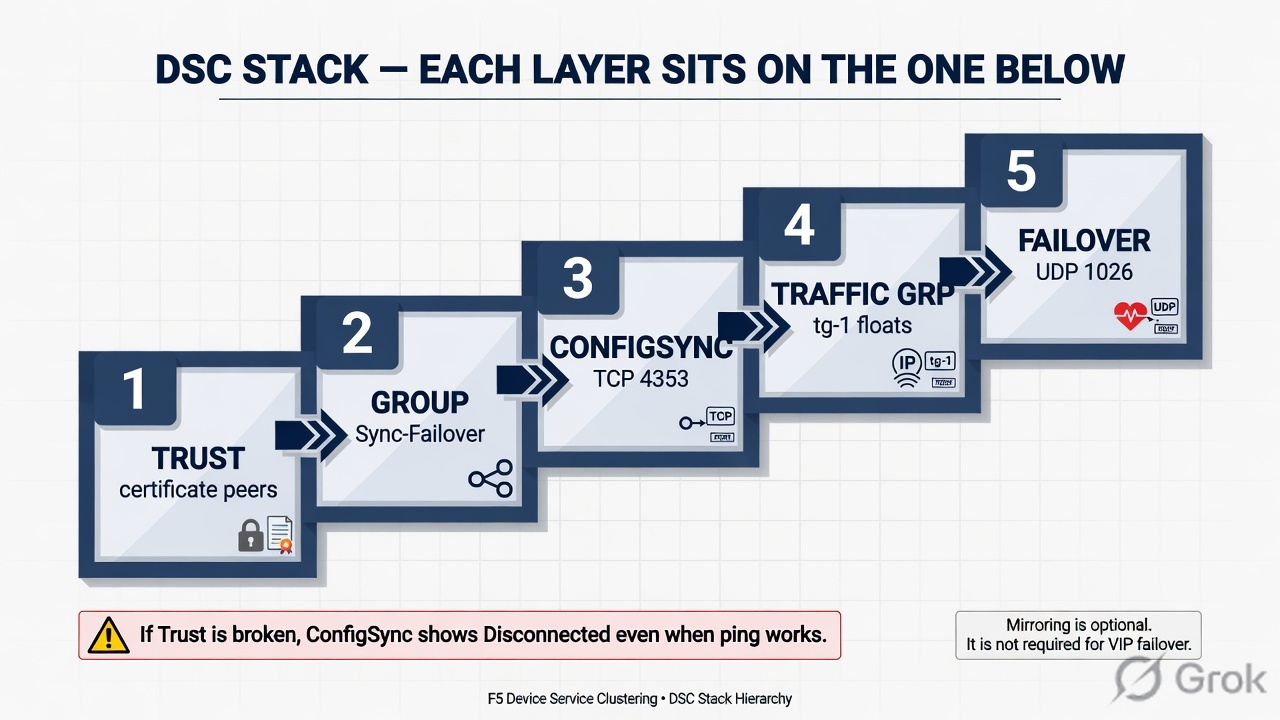
DSC is F5's framework for building BIG-IP High Availability relationships. It provides the underlying mechanisms for device trust, configuration synchronization, traffic-group management, failover coordination, and connection-state mirroring. You cannot build a reliable HA pair without understanding and correctly configuring each DSC component.
- Outer: Traffic Groups
- & Failover
- Traffic ownership and coordinated failover
- Layer: Device Group
- & ConfigSync
- Group membership and synced configurations Core: Device Trust
- Foundation for secure HA relationships — Each layer depends on the one beneath it. Device Trust must be established before a Device Group can function. Device Groups must exist before ConfigSync operates. Traffic Groups define what moves during failover. Understanding this dependency chain prevents common misconfiguration errors.
DSC Components at a Glance
Each DSC component performs a distinct role. Misunderstanding any one of them leads to configuration errors, sync failures, or failover problems. Study this table carefully before beginning lab work.
- Component Purpose — Device Trust Establishes an authenticated, certificate-based relationship between BIG-IP peers before any DSC function can operate. — Device Group Defines which devices synchronize configuration and/or coordinate failover together (Sync-Failover or
Sync-Only).
ConfigSync Replicates eligible BIG-IP configuration between all members of a Device Group to keep them consistent.
Traffic Group Groups floating configuration objects (VIPs, Floating Self IPs, SNAT addresses) that move together during failover.
Network Failover
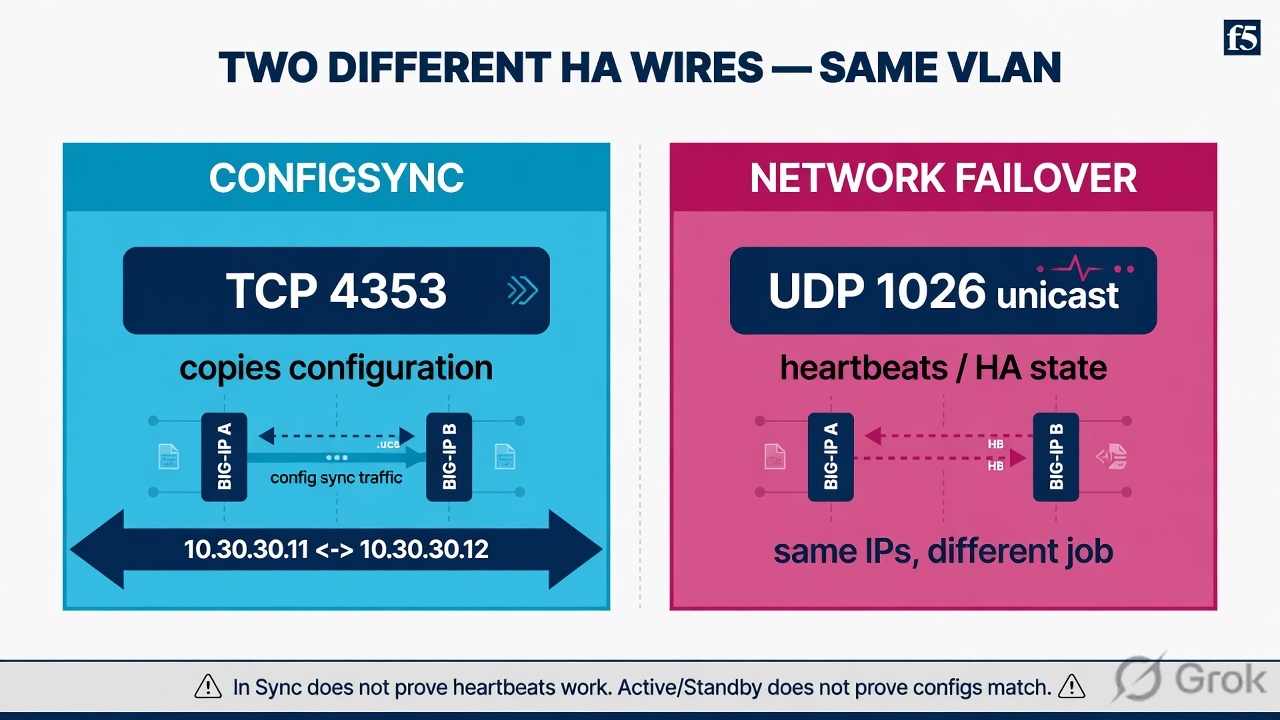
Communicates heartbeat and HA state between peer devices using unicast (or optionally multicast) communication.
Connection Mirroring Replicates selected connection state from active to standby so the standby may continue supported sessions after failover.
Persistence Mirroring
Optionally replicates persistence table entries to the standby device to preserve server affinity across failovers.
- Device Trust — Before two BIG-IP devices can participate in a DSC Device Group, they must establish a trusted peer relationship. Device Trust uses certificatebased authentication to verify that each peer is a legitimate BIG-IP device. Trust is established once — typically during initial HA setup — and must be intact for ConfigSync and failover to function.
- BIG-IP A
- Hostname: f5-ltm-a.example.local
- Management: 192.168.100.11
- BIG-IP B
- Hostname: f5-ltm-b.example.local
- Management: 192.168.100.12 1 Prerequisites to Verify — Correct hostname, management/data network reachability, DNS resolution, — NTP synchronization, and valid admin credentials on the peer device.
- Navigate to Device Management →
- Device Trust → Device Trust Members — → Add. Enter the peer management address and credentials to initiate trust exchange.
2 Establish Trust 3 Verify Trusted Peer
- Confirm the peer appears under — Device Management → Devices with status Trusted.
Device Certificates & Trust
BIG-IP devices use internal certificates to authenticate DSC peers during and after trust establishment. While you do not need deep PKI knowledge for day-to-day administration, you must understand the symptoms of trust problems and how to address them. Broken trust is a frequent root cause of ConfigSync and failover failures.
- Peer Not Discovered — Device Trust discovery fails — check hostname, network reachability, and credentials used during discovery.
- Device Group Problems — Peer is missing from device group or shows as Unknown — often indicates incomplete or broken trust.
- ConfigSync Disconnected — Sync cannot complete because the peer is not recognized as a trusted DSC participant.
- Certificate / Trust Errors
- Log entries referencing certificate validation failures — verify — NTP time, regenerate device certificates if needed. — Production Tip: Always verify device identity, NTP synchronization, and network connectivity before attempting to rebuild Device — Trust. Rebuilding trust unnecessarily can disrupt an otherwise healthy HA pair.
Device Groups: Sync-Failover vs Sync-Only
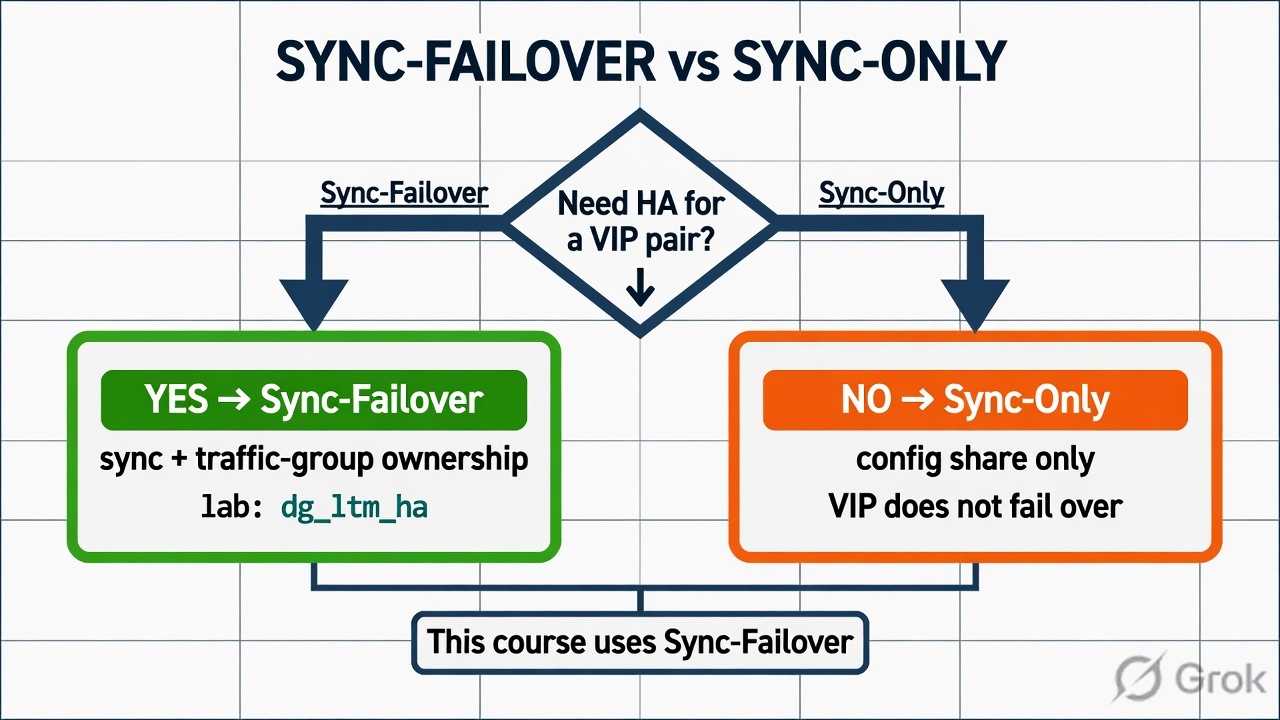
A Device Group defines which BIG-IP devices share configuration and/or coordinate failover. Choosing the wrong group type is a common setup error. For this course and for most Active/Standby production deployments, use a Sync-Failover Device Group.
- Sync-Failover Device Group
- Configuration synchronization between members
- Failover coordination and traffic-group ownership transfer
- Required for Active/Standby application traffic pairs
- Use this type for the lab and most production HA designs
- Sync-Only Device Group
- Configuration synchronization between members
- Does NOT coordinate normal failover ownership behavior — Useful for configuration sharing across devices that do NOT need to fail over together
- Example: Sharing policy objects across geographically separate pairs — Lab Task: Create a Sync-Failover Device Group named dg_ltm_ha with members f5-ltm-a and f5-ltm-b. Sync-Failover is the correct type for the Active/Standby pair in all lab exercises.
Creating a Sync-Failover Device Group
Device Management → Device Groups → Create
New Device Group dg_ltm_ha
Source: F5-BIG-IP-LTM-Module-6.pdf page 11. Automatic Sync can copy a bad config.
After Device Trust is established, create the Sync-Failover Device Group to enable configuration synchronization and failover coordination between peers. Each setting has operational impact — understand them before enabling.
- GUI Path
- Device Management → Device Groups → Create
- Name: dg_ltm_ha
- Group Type: Sync-Failover
- Members: f5-ltm-a, f5-ltm-b
- Key Settings to Understand
- Members: Only add devices with established trust
- Network Failover: Enable for unicast heartbeat communication — Automatic Sync: Use cautiously — automatic sync can propagate errors without administrator review — Full Sync: Forces complete configuration copy rather than incremental delta sync — Common Mistake: Enabling Automatic Sync without understanding sync direction. If a device with incorrect configuration syncs automatically, it may overwrite the correct configuration on its peer. Always prefer manual sync in production until you fully understand the sync state.
What Is ConfigSync?
Pools, VS, profiles, monitors, SNAT, iRules, policies, certs/keys
Management IP, hostname, non-floating Self IPs, ConfigSync address, failover unicast, UCS files
ConfigSync synchronizes eligible BIG-IP configuration between all devices in a Device Group. When you create a pool, virtual server, profile, or SSL certificate on the active device, ConfigSync replicates that configuration to the peer — ensuring both devices can serve the same applications if failover occurs. Not every setting synchronizes; device-specific configuration (management IPs, hostnames, non-floating Self
IPs) remains per-device.
- In Sync
- Trigger Sync
- Pending Changes
- Create Config
- What Typically Synchronizes
- Pools and pool members
- Virtual Servers
- Profiles (SSL, HTTP, TCP, etc.)
- Monitors
- SNAT pools and SNAT translations iRules and Local Traffic Policies
- Certificates and keys
- What Does NOT Synchronize
- Management IP address
- Hostname
- Non-floating Self IP addresses
- ConfigSync address (device-specific)
- Failover unicast address (device-specific)
- UCS backups
ConfigSync Status Indicators
ConfigSync reports the synchronization state between devices in a Device Group. Monitoring this status is a routine operational task. Any status other than In Sync requires administrator attention — do not ignore sync warnings in a production environment.
- ✔ In Sync — All devices in the Device Group share matching, synchronized configuration. No action required.
- ⚠ Changes Pending — Configuration differs between devices. An administrator must review and sync in the correct direction.
- ✖ Disconnected
- Devices cannot communicate for ConfigSync. Check network, Self
IP, VLAN, firewall, and Device Trust.
- ✖ Sync Failure / Error — Synchronization was attempted but failed. Review logs, trust status, and configuration compatibility. — Check ConfigSync status from the GUI at Device Management → Overview or from TMSH using tmsh show cm sync-status. Recheck after every configuration change.
ConfigSync Direction — Critical Risk
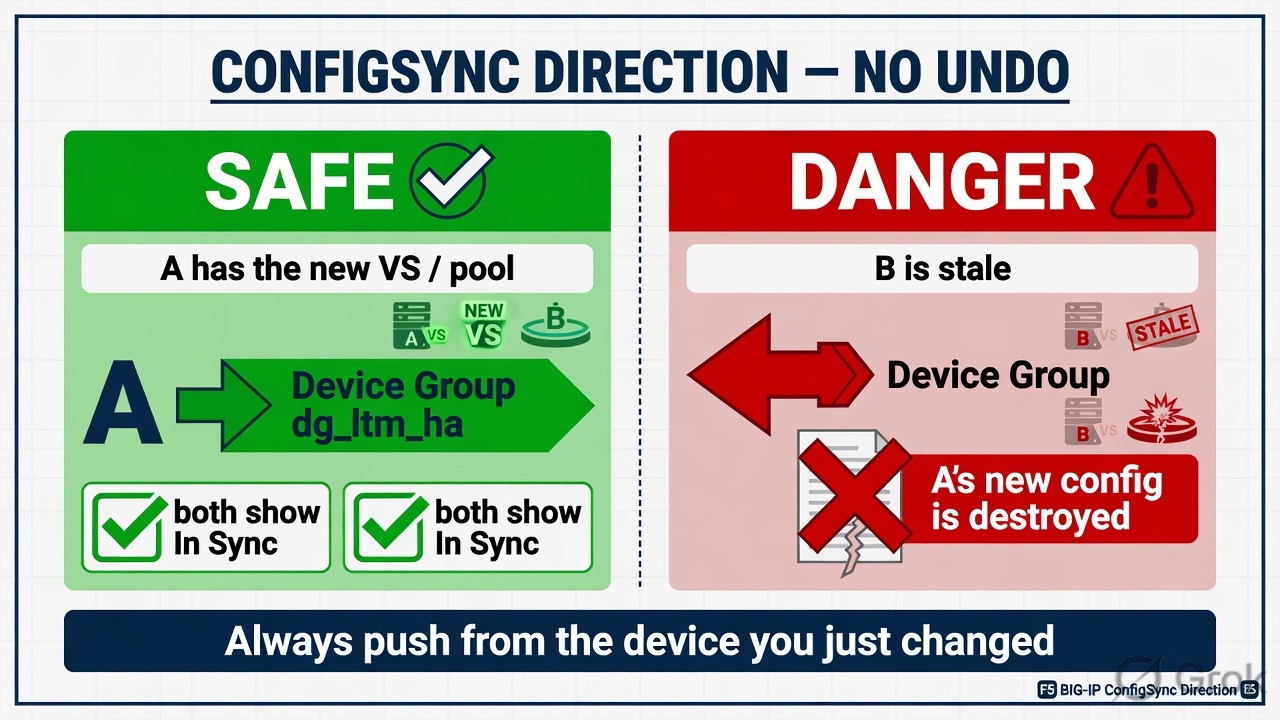
Sync direction is the most dangerous ConfigSync mistake. When you initiate a sync, the source device pushes its configuration to the group. If you sync from the device with the old configuration, you will overwrite the correct, newer configuration on your peer. There is no automatic undo.
NEVER click Sync without first identifying which device holds the authoritative configuration. Syncing in the wrong direction can cause immediate, production-impacting configuration loss.
1 Review Sync Status Open Device Management → Overview and identify which device shows Changes Pending.
2 Identify the Changed Device The device you recently made changes on should be the authoritative source.
3 Review Recent Changes Confirm the changes on that device are correct and intentional before proceeding.
4 Sync Authoritative → Group Select the changed device and sync to the Device Group. BIG-IP A → Device Group, not BIG-IP B → Device Group.
5 Verify In Sync Re-check sync status after completion. Both devices should show In Sync.
ConfigSync Addresses
Each BIG-IP device requires a configured ConfigSync Address — a Self IP that the system uses specifically for synchronization traffic between peers. This address must be reachable from the peer's ConfigSync address. A dedicated HA/Sync VLAN and subnet is the common production design.
- Lab HA Network: 10.30.30.0/24
- BIG-IP A ConfigSync: 10.30.30.11
- BIG-IP B ConfigSync: 10.30.30.12
- GUI Path: Device Management → Devices → (Device Name) →
- ConfigSync
- Design Considerations — Reachability: Peer must be able to reach this address without crossing firewalls that block sync traffic — VLAN: Use a dedicated HA VLAN — keep sync traffic separate from production traffic — Port Lockdown: Self IP port lockdown must permit ConfigSync traffic (TCP 4353)
- Latency: Low-latency, reliable connectivity required — Management IP: Avoid using management IP for ConfigSync unless explicitly designed for it — Trainer Note: ConfigSync address and Failover unicast address are commonly configured on the same HA Self IP in lab environments. — In production, some designs use separate paths for resilience.
- Network Failover — Network failover enables BIG-IP HA peers to continuously exchange heartbeat messages over the network. If a device stops receiving heartbeats from its peer — or detects a condition that warrants failover — the failover logic triggers a traffic-group ownership change. Network failover replaced older serial cable-based failover methods and is the standard approach for modern deployments.
- Unicast Failover (Modern Standard)
- Each device sends heartbeats to peer's configured unicast address
- Precise, predictable communication path
- Recommended for VMware and physical deployments
- Multicast Failover (Legacy/Optional)
- Devices broadcast heartbeats to a multicast group address
- Less commonly used in modern designs
- Requires multicast support in network infrastructure
Failover Unicast Addresses
Each device must have at least one Failover Unicast Address configured so that its peer knows exactly where to send heartbeat traffic. This is a Self IP address associated with the HA/Sync network. Peer reachability is mandatory — if the unicast address is unreachable, the peer may incorrectly assume the device has failed.
- Lab Configuration
- BIG-IP A Failover Address: 10.30.30.11
- BIG-IP B Failover Address: 10.30.30.12
- GUI Path: Device Management → Devices → (Device) → Failover
- Network
- Port used: UDP 1026 (default)
- Production Resilience Options — Configure multiple unicast addresses on different interfaces for path redundancy
- Use dedicated HA VLAN — do not share with production traffic
- Ensure firewall/ACLs permit UDP 1026 between peer addresses
- Test peer reachability with ping before configuring failover — Common Mistake: HA configuration looks correct in the GUI but a firewall rule or missing VLAN/route prevents the peers from actually exchanging heartbeats. Always validate network-level reachability independently of GUI configuration.
Active, Standby & Other HA States
BIG-IP devices in a Device Group report their current HA state. Understanding each state is essential for operational monitoring, controlled maintenance, and troubleshooting. Do not confuse HA state with ConfigSync state — they are separate and both must be checked.
- Active — Device currently owns the traffic group. Floating objects are active. All VIP traffic is processed by this device.
- Standby — Device is healthy, synchronized, and ready to assume ownership. — Does not process application traffic through floating objects.
- Forced Offline — Administrator has intentionally prevented this device from becoming Active. Used during maintenance, testing, or controlled upgrades.
- Unavailable / Offline — Device health check has failed or device is unreachable. — Investigate system health, TMM status, and hardware/VM state immediately. — Forced Offline is a safe administrative tool. Placing a device in Forced Offline before maintenance prevents unexpected failback. Always return the device to Active or Standby intentionally when maintenance is complete.
What Is a Traffic Group?
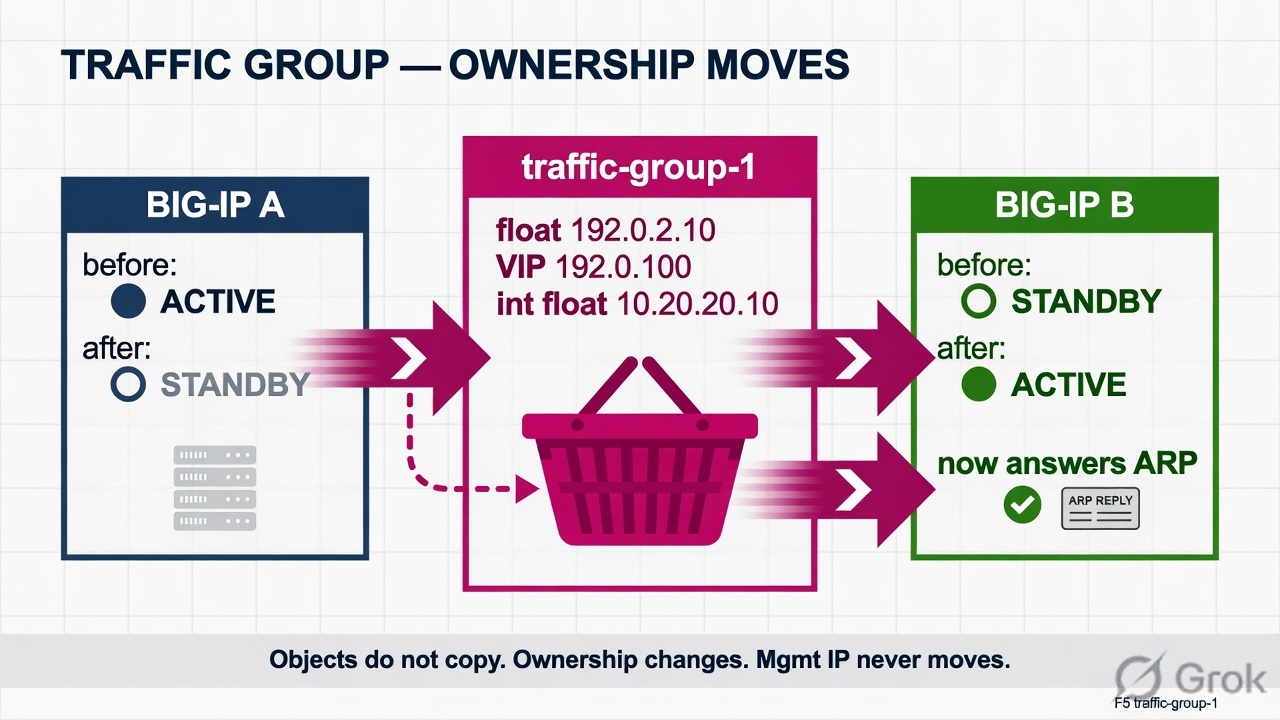
A Traffic Group is a logical collection of floating BIG-IP configuration objects that move together between devices during failover. When a traffic group is active on a device, that device owns and serves all objects associated with that group — including Floating Self IPs, Virtual Server addresses, and floating SNAT addresses.
- traffic-group-1 Contains
- Floating Self IP (e.g., 192.0.2.10)
- Application VIP (e.g., 192.0.2.100)
- Floating SNAT Address (e.g., 10.20.20.10)
- Other floating application objects
- Traffic Group Behavior
- The Active device owns the traffic group
- During failover, ownership transfers to standby
- Objects do not move physically — ownership changes
- Multiple traffic groups can exist for granular failover control — Remember: Assigning a configuration object (like a Self IP or SNAT pool) to the wrong traffic group means it will move with that group — — not necessarily with your application objects. Always verify traffic group assignment when creating floating objects.
traffic-group-1: The Default Floating Group
traffic-group-1 is the default traffic group created on every BIG-IP and is the most commonly used group for floating application objects in Active/Standby designs. When you create a Floating Self IP or assign a Virtual Server to a traffic group without specifying one, it typically associates with traffic-group-1.
- Before
- Failover
- BIG-IP A active,
- BIG-IP B standby
- After Failover
- BIG-IP B active,
- BIG-IP A standby
- Before Failover
- BIG-IP A: traffic-group-1 = ACTIVE
- BIG-IP B: traffic-group-1 = STANDBY
- Floating Self IP 192.0.2.10 → served by A
- VIP 192.0.2.100 → processed by A
- After Failover
- BIG-IP A: traffic-group-1 = STANDBY
- BIG-IP B: traffic-group-1 = ACTIVE
- Floating Self IP 192.0.2.10 → served by B
- VIP 192.0.2.100 → processed by B
Non-Floating vs Floating Self IP
Green and blue stay. Pink moves. If you put a VIP on a local-only Self IP, failover will leave clients pointing at a dead chassis.
Understanding the difference between non-floating and floating Self IPs is fundamental to BIG-IP HA design. Both types exist simultaneously on each device, serving different purposes. Confusing them leads to incorrect failover behavior and connectivity problems.
- Attribute Non-Floating Self IP Floating Self IP
- Traffic Group traffic-group-local-only traffic-group-1 (or other) — Device-specific? Yes — stays on its own BIG-IP No — follows traffic group owner — Moves during failover? No — always remains on same device Yes — logically active on owner — Used for ConfigSync / HA? Often used for HA/sync addresses Used for shared data-plane identity
- Lab Example — External VLAN
- BIG-IP A Non-Floating: 192.0.2.11
- BIG-IP B Non-Floating: 192.0.2.12
- Floating (traffic-group-1): 192.0.2.10 — After Failover to B 192.0.2.11 still answers on BIG-IP A 192.0.2.12 still answers on BIG-IP B 192.0.2.10 now answers on BIG-IP B
What Does NOT Float?
A common beginner misunderstanding is that everything moves during failover. In reality, device-specific configuration always remains on its assigned device, regardless of which device is Active. Knowing what does NOT move prevents serious misconfiguration and incorrect troubleshooting assumptions.
- Management IP — F5-A: 192.168.100.11 · F5-B: 192.168.100.12. These never change.
- SSH and GUI access always uses the device's own management
IP — even after failover.
- Hostname f5-ltm-a.example.local remains f5-ltm-a regardless of — Active/Standby state. Hostname is an identity attribute, not a floating attribute. — Non-Floating Self IPs 192.0.2.11 (BIG-IP A) and 192.0.2.12 (BIG-IP B) are assigned to traffic-group-local-only and remain on their respective devices permanently.
- Device Identity / Certificates — Device serial, trust certificates, ConfigSync address, and failover unicast address are all device-specific — they do not migrate. — Interview Question: Does the Management IP float during BIG-IP failover? Answer: No. The Management IP is device-specific and always remains on the device it was configured on, regardless of Active/Standby state.
Virtual Servers During Failover
Virtual Server configuration exists on both devices in synchronized form. The traffic-group ownership determines which device actively answers for the VIP address. Clients do not need to know which physical device is Active — they always connect to the same VIP address.
- Before
- Failover
- Client -> VIP 192.0.2.100 handled by BIG-IP
- A (Active)
- After Failover
- Client -> same VIP handled by BIG-IP
- B (Active)
- Before Failover
- Client → VIP 192.0.2.100:443 → BIG-IP A (Active) → WEB_POOL — BIG-IP B has identical VIP configuration but is not serving it.
- After Failover
- Client → VIP 192.0.2.100:443 → BIG-IP B (Now Active) → WEB_POOL — BIG-IP A now holds the configuration but is not serving it. — The VIP address never changes. ConfigSync ensures both devices have identical Virtual Server configuration. Traffic-group ownership determines which device actively responds to that address at any moment.
Floating SNAT & Return-Path Considerations
In an HA design, the SNAT (source address translation) address used for server-side connections must remain consistent across failovers. If a backend server sends return traffic to a source address that only existed on the previously-active device, the connection will fail. A floating SNAT address solves this by following the active traffic group.
- HA Internal VLAN Design
- F5-A Non-Floating Internal: 10.20.20.11
- F5-B Non-Floating Internal: 10.20.20.12
- Floating Internal Self: 10.20.20.10 — This floating address provides a stable, shared translation identity for backend server-return paths.
- Why It Matters — Backends may have host routes or ARP entries tied to the SNAT source address — If SNAT Automap uses a floating Self IP, return traffic follows the active device consistently — If Automap translates to a non-floating Self IP, return-path breaks after failover
- Always verify SNAT source addressing in HA designs — Production Tip: Review your SNAT design carefully in HA environments. Automap behavior can vary. Explicitly design your SNAT pool or translation address to use the floating Self IP where consistent return-path behavior is required after failover.
Failover Event Sequence
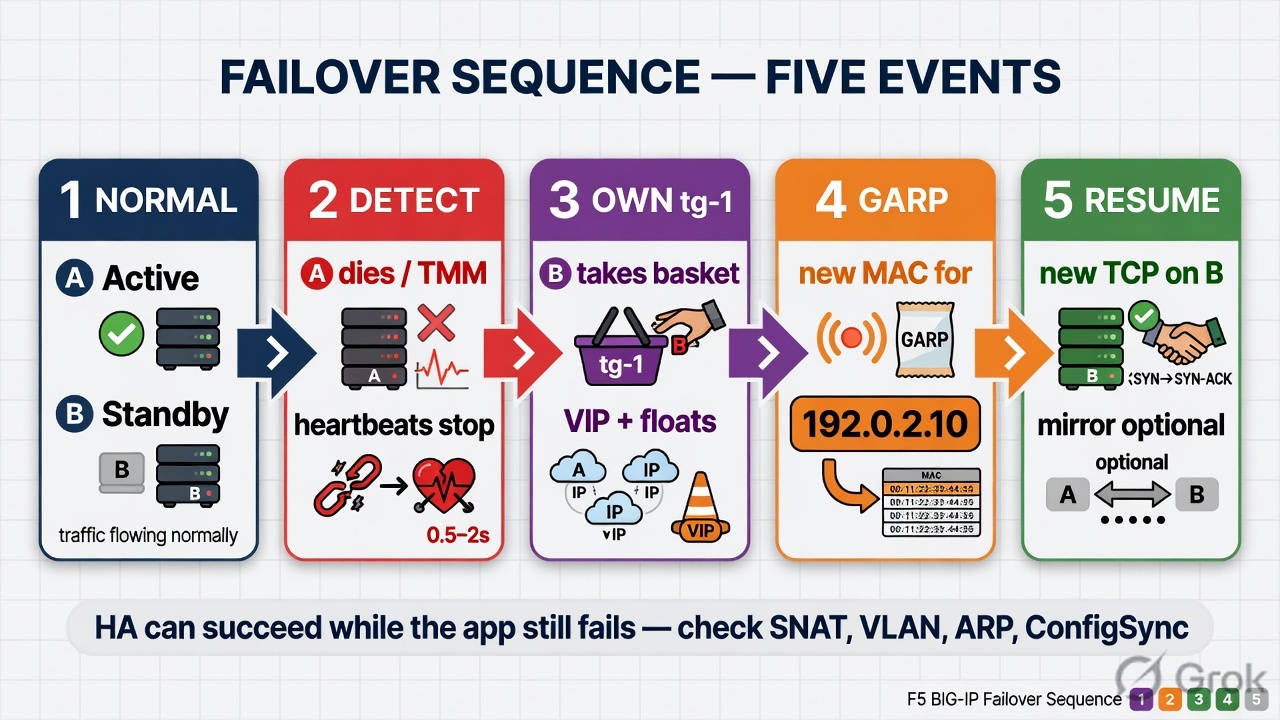
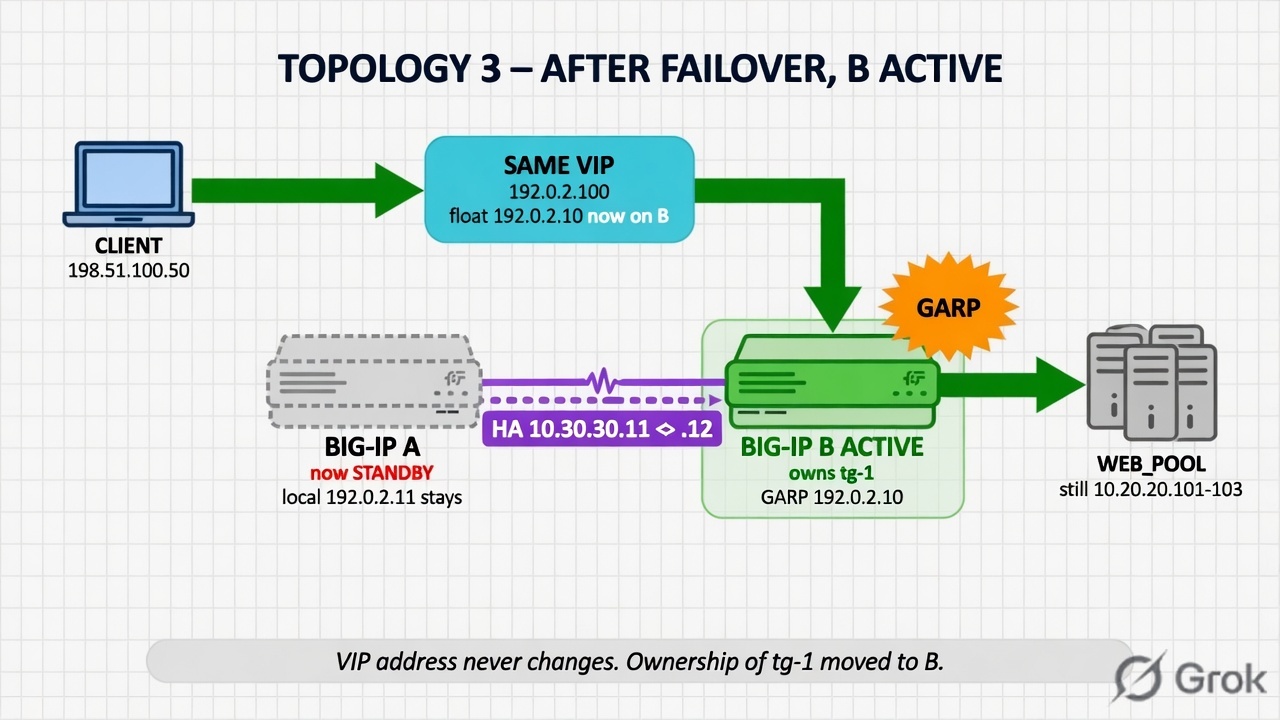
Understanding the precise sequence of events during a failover helps you interpret logs, troubleshoot unexpected behavior, and set accurate expectations with application teams. Some existing sessions may survive if mirroring is configured; others will require reconnection.
1 Normal State BIG-IP A is Active, owns traffic-group-1. BIG-IP B is Standby. VIP 192.0.2.100 is served by A. Heartbeats flow normally between peers.
2 Failure Detected BIG-IP A fails, loses TMM, or administrator forces it offline. BIG-IP B stops receiving heartbeats and detects the failover condition.
3 Ownership Transfer BIG-IP B takes ownership of traffic-group-1. All floating objects (Floating Self IP, VIP, SNAT) become active on BIG-IP B.
4 Network Convergence BIG-IP B sends Gratuitous ARP updates so surrounding switches and routers associate the floating MAC/IP with B's interface path.
5 Traffic Resumes New client connections are processed by BIG-IP B. Mirrored connections may continue; non-mirrored connections must reconnect.
Gratuitous ARP & Network Convergence
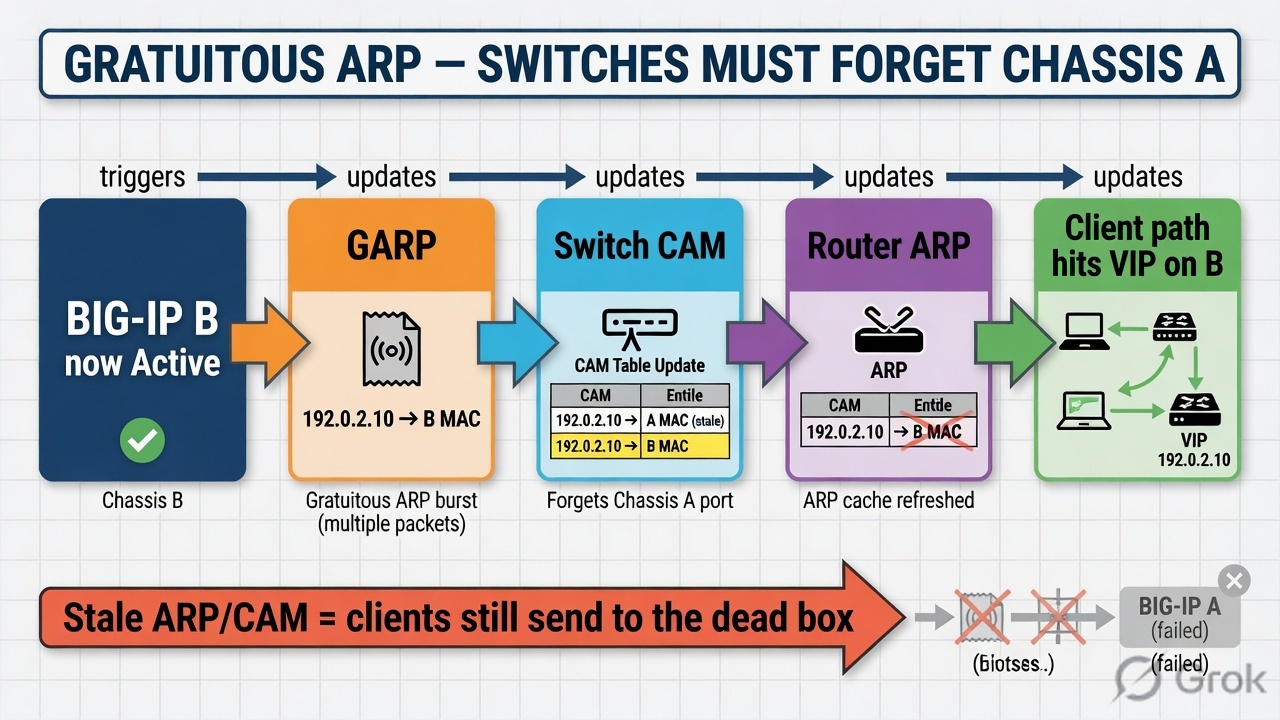
When the newly Active BIG-IP assumes ownership of floating IP addresses, surrounding network devices — switches and routers — may still have stale Layer-2 ARP cache entries pointing to the previous active device's MAC address. The new active device sends Gratuitous ARP (GARP) messages to update these caches and redirect traffic to the correct path.
- What GARP Does
- Announces the floating IP address → new MAC address mapping
- Forces connected switches to update their ARP and MAC tables
- Allows routers to resolve new next-hop MAC for floating subnet
- Happens automatically after traffic-group ownership change
- Convergence Impact
- Network convergence time contributes to perceived failover duration
- Upstream router ARP hold timers can delay traffic restoration
- Spanning Tree topology changes can also affect convergence speed — In VMware environments, vSwitch/DVS port group behavior can affect GARP propagation
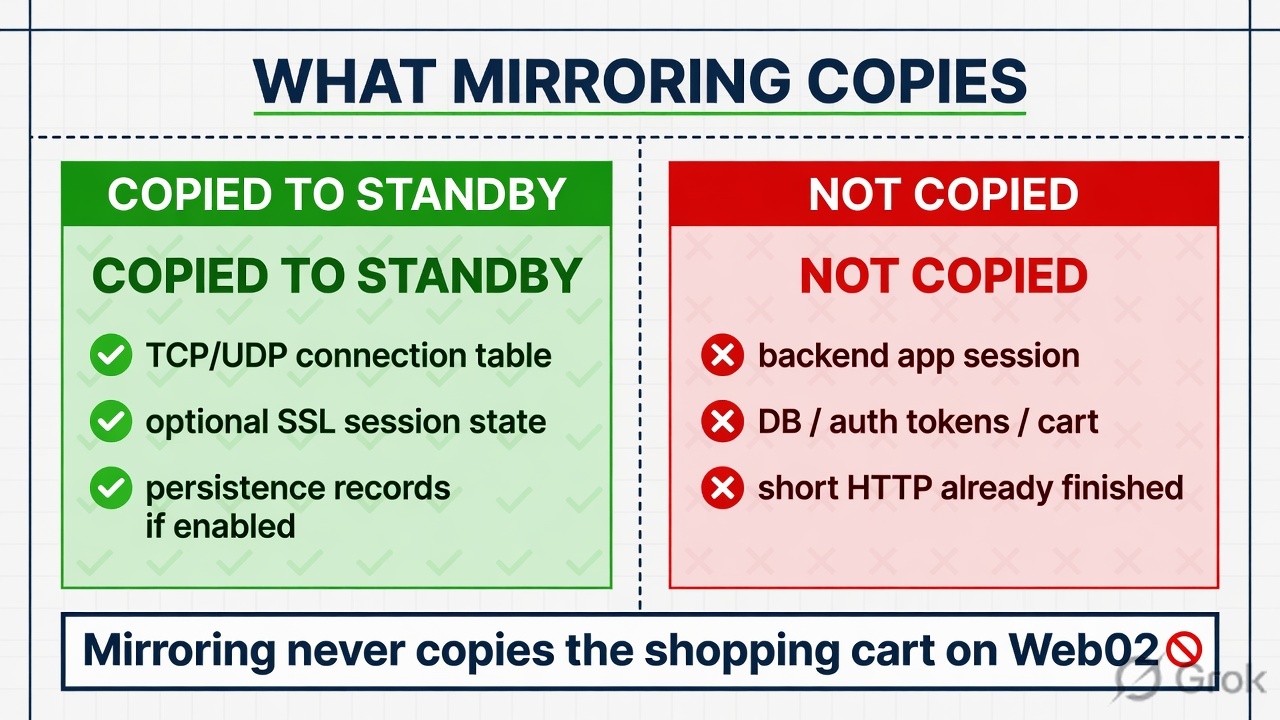
- Connection Mirroring — Connection Mirroring replicates selected BIG-IP connection-state information from the Active device to the Standby device in real time. If the — Active device fails, the Standby device uses this mirrored state to potentially continue supported connections without requiring clients to fully reconnect. Mirroring is configured per-Virtual Server and requires a dedicated mirroring network or address.
- What Can Be Mirrored
- TCP connection state
- UDP connection state (where applicable)
- SSL session state (where configured)
- Selected protocol-specific state
- What Mirroring Does NOT Do
- Does not replicate application-layer session data on backend servers
- Does not replicate database session state
- Does not guarantee all connections survive failover
- Does not replace application-level session replication
Connection Mirroring — Limitations
Mirroring is not free. It consumes HA network bandwidth, CPU cycles on both devices, and adds complexity to the HA configuration. Enabling mirroring indiscriminately for every Virtual Server can degrade performance without meaningful benefit. Design mirroring based on specific business continuity requirements.
- Resource Cost
- Every mirrored connection consumes HA network bandwidth and — CPU on both Active and Standby devices. High-volume VIPs amplify this overhead significantly.
- Protocol Limits — Not all protocols or applications benefit from mirroring. Shortlived HTTP/1.1 requests, ICMP, and many UDP flows typically do not benefit meaningfully.
- Application Dependencies — Even with connection mirroring, application sessions may depend on backend server state, database sessions, authentication tokens, TLS negotiation, and application-level affinity that cannot be mirrored.
- TLS Behavior — TLS sessions may or may not resume transparently after failover depending on TLS version, session ticket support, and application behavior. — Production Tip: Enable connection mirroring only where business requirements clearly justify the overhead. Long-lived TCP connections (FTP data, SSH, database tunnels) are better candidates than short HTTP requests.
- Persistence Mirroring — Persistence Mirroring replicates selected persistence table entries from the Active device to the Standby device. After failover, the new Active device can use mirrored persistence records to maintain server affinity — sending returning clients to the same backend server they were previously mapped to. This is useful for applications with stateful backend servers.
- Before Failover (BIG-IP A Active)
- Client A → Web02 (persistence record)
- Client B → Web01 (persistence record)
- Records mirrored to BIG-IP B continuously
- After Failover (BIG-IP B Active)
- Client A → Web02 (using mirrored record)
- Client B → Web01 (using mirrored record)
- Server affinity preserved without client reconnection — Important Distinction: Persistence mirroring preserves the load-balancing mapping (client → server assignment). It does not replicate actual application session data stored on the backend server (shopping cart contents, authenticated session tokens, database state). — Application-level session persistence must be handled by the application itself.
Failover Triggers
BIG-IP failover is not a single event triggered by a single condition. Multiple configured mechanisms can initiate failover, and exact behavior depends on your HA configuration. Do not assume that every network event automatically triggers failover — only configured and detected conditions do.
- Device / TMM Failure — Hardware failure, VM crash, or TMM process failure causes the device to stop sending heartbeats, triggering peer failover.
- Forced Offline
- Administrator manually places the Active device in Forced — Offline state — a controlled, intentional failover for maintenance.
- Network Failover State Change — Loss of heartbeat communication causes the peer to assume the Active device has failed and initiate failover logic.
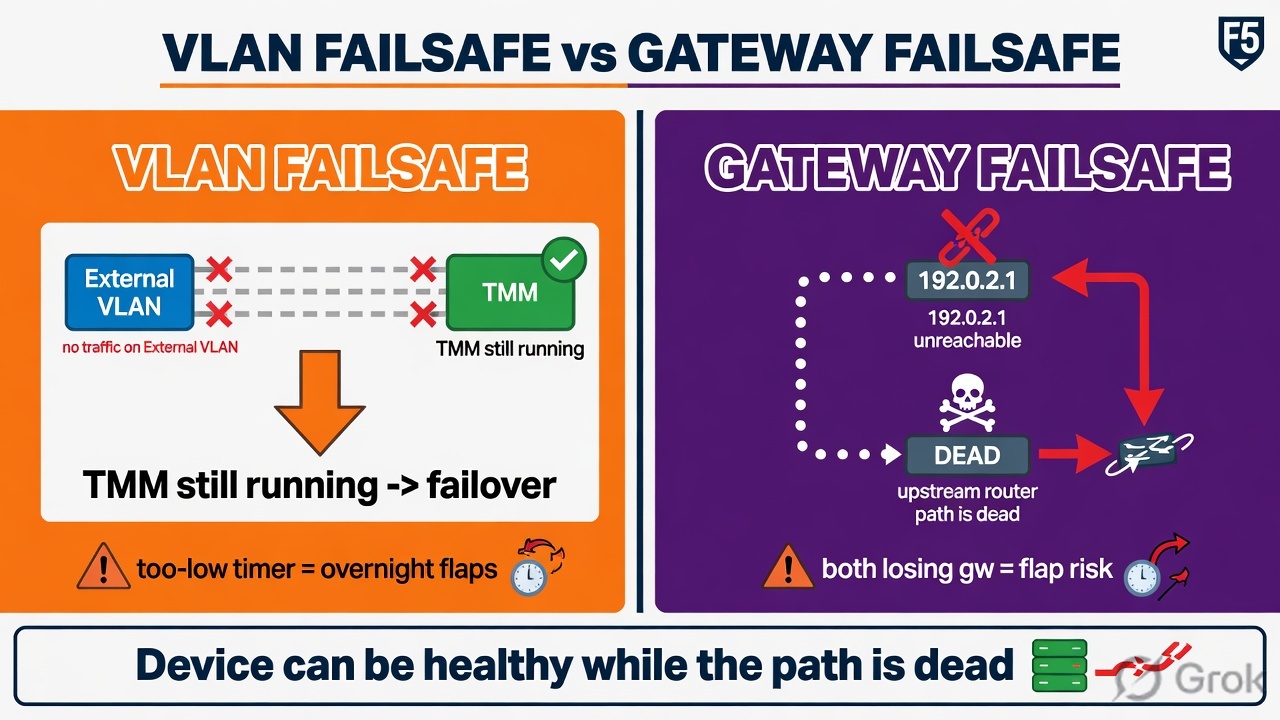
VLAN Failsafe
- /
Gateway Failsafe
Configured failsafe triggers detect loss of traffic or gateway reachability and initiate failover action per design.
- VLAN Failsafe — VLAN Failsafe monitors traffic activity on a specified VLAN. If no traffic is detected within a configured timeout threshold, VLAN Failsafe can trigger a configured action — including failover — to allow the standby device to assume ownership. It is designed to detect scenarios where the device is running but cannot pass traffic on a critical VLAN.
- Scenario
- BIG-IP A is running normally — but the upstream switch port on the — External VLAN has failed. BIG-IP A can no longer pass client traffic on that VLAN, though the device itself is healthy. — VLAN Failsafe detects no traffic on the External VLAN and triggers the configured failover action, allowing BIG-IP B to take over.
- Configuration Considerations
- Configure on VLANs that carry critical application traffic — Set threshold carefully — too low causes false failovers in lowtraffic periods
- Test VLAN Failsafe thresholds before enabling in production — Possible actions include: Failover, Restart All, or Reboot depending on configuration and version — Common Mistake: Misconfigured VLAN Failsafe thresholds that are too aggressive cause repeated unnecessary failovers during lowtraffic windows (e.g., overnight maintenance). Always align thresholds with actual expected traffic patterns.
- Gateway Failsafe — Gateway Failsafe allows BIG-IP to monitor the reachability of a designated gateway (router). If the gateway becomes unreachable, BIG-IP can trigger a configured HA action. This addresses the scenario where the BIG-IP device is healthy and its peer is healthy, but the upstream router has failed — making the currently-active device unable to forward traffic off-subnet.
- Example Scenario
- Gateway (router): 192.0.2.1
- BIG-IP A monitors 192.0.2.1 reachability
- Router 192.0.2.1 becomes unreachable
- Gateway Failsafe triggers failover to BIG-IP B
- BIG-IP B (on separate physical path) may still reach the router
- Design Cautions — Misconfigured gateway monitors can cause failover loops if both devices lose gateway reachability — A symmetric failure (both devices lose gateway) causes both to failover — creating flapping behavior
- Design carefully with realistic failure scenarios in mind
- Test in a controlled environment before production deployment
Split-Brain — A Critical HA Risk
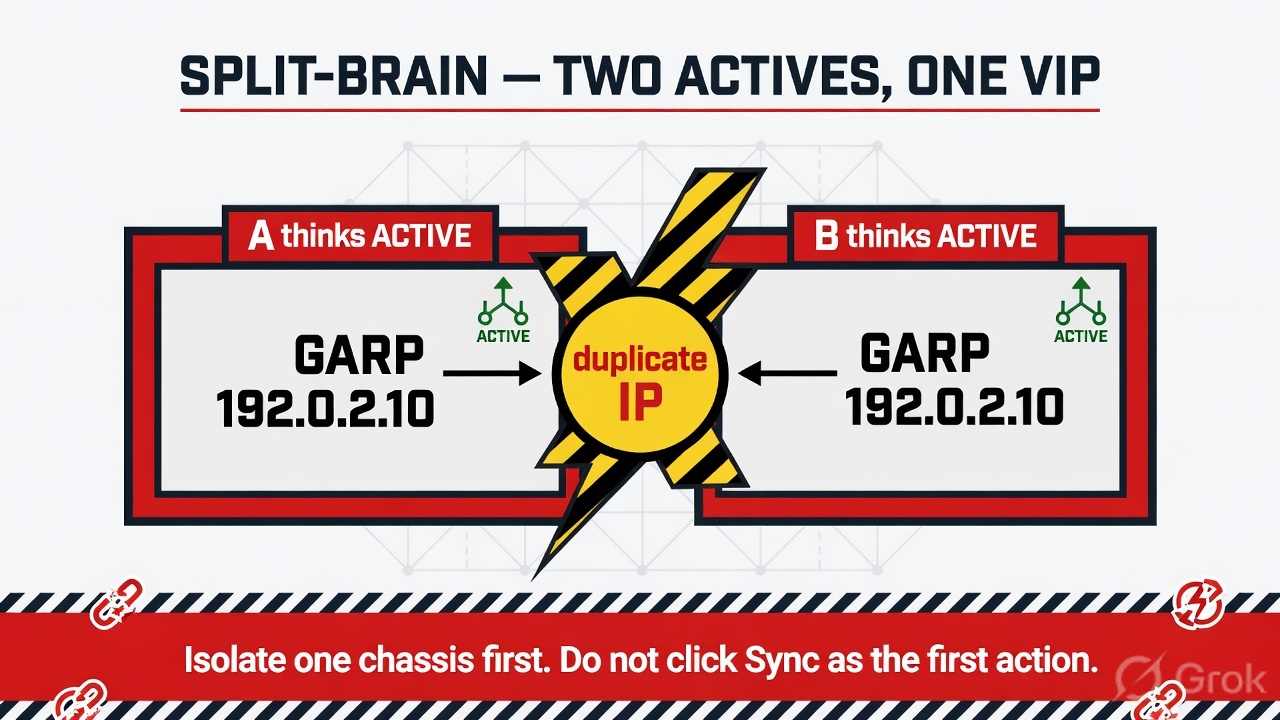
Split-brain is a high-severity condition in which HA peers lose reliable coordination and both devices simultaneously believe they should be Active. Both devices attempt to own and serve the same floating IP addresses and traffic groups, causing severe network conflicts.
- Duplicate IP / MAC — Both devices advertise the same floating IP with different MAC addresses — network switches and clients receive conflicting ARP responses.
- Intermittent Traffic — Client traffic alternates unpredictably between both devices depending on which ARP response arrives last.
- ARP Instability — Constant competing GARP messages cause ARP table thrashing across connected network devices.
- Application Disruption — Connections reset, sessions fail, persistence breaks, and application behavior becomes unpredictable and difficult to diagnose. — Prevention: Use reliable, redundant failover communication paths. Protect HA networks. Monitor HA state continuously. Never intentionally place both devices Active simultaneously outside controlled lab procedures.
ConfigSync vs Failover — Two Separate States

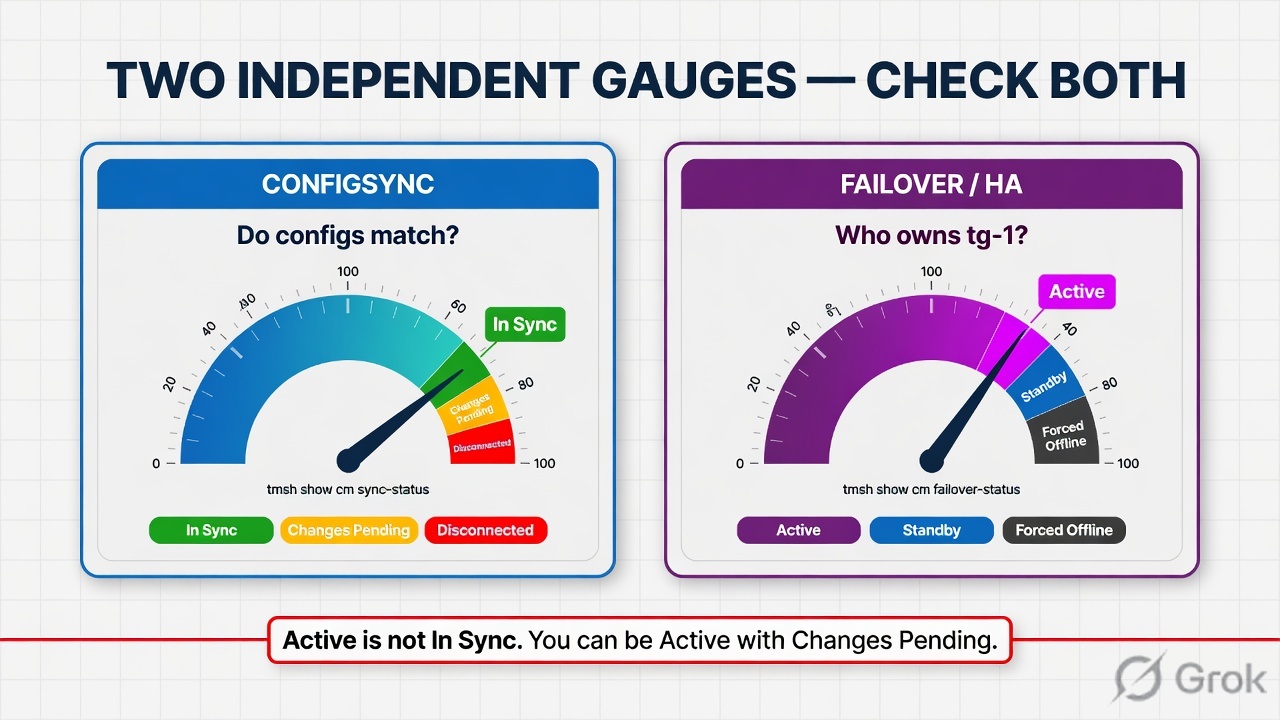
This is one of the most common conceptual errors for BIG-IP beginners: confusing ConfigSync state with failover/HA state. They are independent — a device can be Active while its configuration is out of sync with its peer, or a device can be In Sync while its peer has failed.
Always check both states independently.
ConfigSync Answers:
- "Do both devices have matching configuration?"
- In Sync → Configurations match
- Changes Pending → Configurations differ
- Disconnected → Cannot compare
Failover State Answers:
- "Which device currently owns the traffic group?"
- Active → Owns traffic group, serves VIPs
- Standby → Healthy, waiting to take over
- Forced Offline → Administrator-controlled
Critical Reminder:
- Active / Standby ≠ In Sync — A device can be Active with Changes Pending — meaning it is serving traffic but its peer does not have the same configuration. If that device fails, the peer may fail over with an older configuration. Always verify sync after every change.
GUI Operations for HA Management
The BIG-IP GUI provides a centralized view for monitoring and managing all HA components. Familiarize yourself with each navigation path before your lab. Exact menu labels may vary slightly by BIG-IP software version.
- Device Management → Device Trust — View, establish, and manage peer trust relationships. Inspect trust status and peer device details.
- Device Management → Devices
- View all trusted devices. Check — Active/Standby state, ConfigSync address, and Failover address per device.
- Device Management → Device
- Groups
- Create and manage Sync-Failover and Sync- — Only Device Groups. View member devices and sync settings.
- Device Management → Traffic Groups — View traffic group ownership. Identify which device is Active for each traffic group. Perform manual failover per traffic group.
- Device Management → Overview — Primary HA dashboard. Shows ConfigSync status, device state, and pending changes at a glance. Start here for daily HA health checks.
Essential TMSH Commands for HA
tmsh show cm failover-status
tmsh show cm sync-status
tmsh show cm device
tmsh show cm device-group
tmsh show cm traffic-group
tmsh show sys failover
tmsh list cm device
tmsh list cm device-group
tmsh list cm traffic-group
tmsh list net self
tmsh list net self floating
tmsh run sys failover standby
TMSH (Traffic Management Shell) provides detailed HA state information that is not always visible in the GUI. Master these commands — they are essential for production troubleshooting and are commonly asked in F5 interviews and certification exams. Command output varies slightly by BIG-IP version.
- Shows
- Active/Standby/Forced
Status Commands tmsh show cm failover-status tmsh show cm sync-status tmsh show cm device tmsh show cm device-group tmsh show cm traffic-group tmsh show sys failover Configuration Inspection tmsh list cm device tmsh list cm device-group tmsh list cm traffic-group tmsh list net self tmsh list net self floating failover-status Offline state for the local device.
- sync-status
- Shows In Sync / Changes — Pending / Disconnected with detail on which objects differ.
- cm device — Lists all trusted devices with connectivity, state, and address information.
- cm traffic-group — Shows which device currently owns each traffic group.
ConfigSync Troubleshooting
ConfigSync shows Disconnected. Follow this systematic diagnostic approach. Disconnected means the devices cannot exchange sync communication — this is a network or trust issue, not necessarily a configuration content issue.
- Firewall & Ports
- Check TCP 4353 access
- Self IP & VLAN
- Verify interface and VLAN
- Peer Reachability
- Ping peer devices
- Disconnected
- Sync communication failed
- Layer 1–3 Checks
Ping ConfigSync peer address from CLI1.
Verify VLAN and interface configuration2.
Check routing between HA subnets3.
Verify firewall rules permit TCP 43534.
Verify Self IP port lockdown allows sync5.
- BIG-IP Specific Checks
Verify Device Trust is healthy1.
Check for certificate trust errors in /var/log/ltm2.
Verify NTP is synchronized on both devices3.
Confirm both devices are in the same Device Group4.
Check software version compatibility5.
tmsh show cm sync-status tmsh show cm device tcpdump -ni ha_vlan port 4353
Failover Troubleshooting
Two common and distinct failover failure scenarios require different diagnostic approaches. Always identify which scenario you are facing before beginning diagnostic steps.
- Scenario A: Standby Does Not Become Active — Check peer HA state — is it in Forced Offline?
- Verify network failover unicast addresses are reachable
- Confirm Device Group and Traffic Group configuration
- Check standby device system health (TMM running?)
- Review /var/log/ltm for failover event messages
- Check HA VLAN connectivity independently
- Scenario B: Failover Succeeds but Application Fails
- Confirm traffic-group-1 ownership moved to correct device
- Verify Floating Self IP is active on new Active device
- Check VIP is accessible (ping, curl)
- Verify VLAN and interface are up on new Active device
- Check ARP tables on upstream router/switch
- Verify SNAT addresses and pool member reachability
- Confirm ConfigSync status (does peer have correct config?) — Trainer Note: Scenario B is the more operationally complex case. The HA mechanism worked correctly — the application failure is usually a network or configuration issue on the newly-active device. Methodically verify each layer of the traffic path.
VMware HA Lab Topology
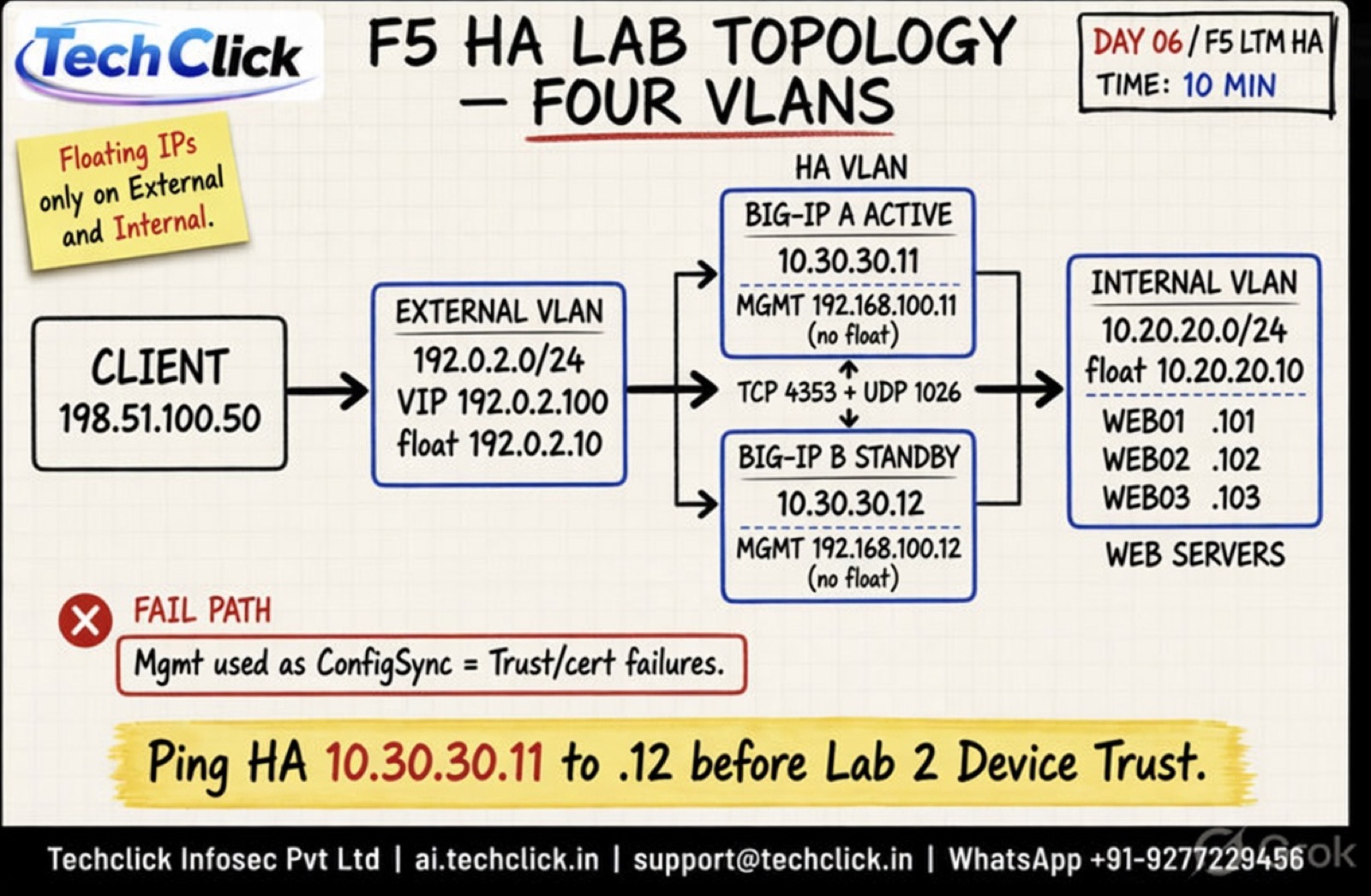
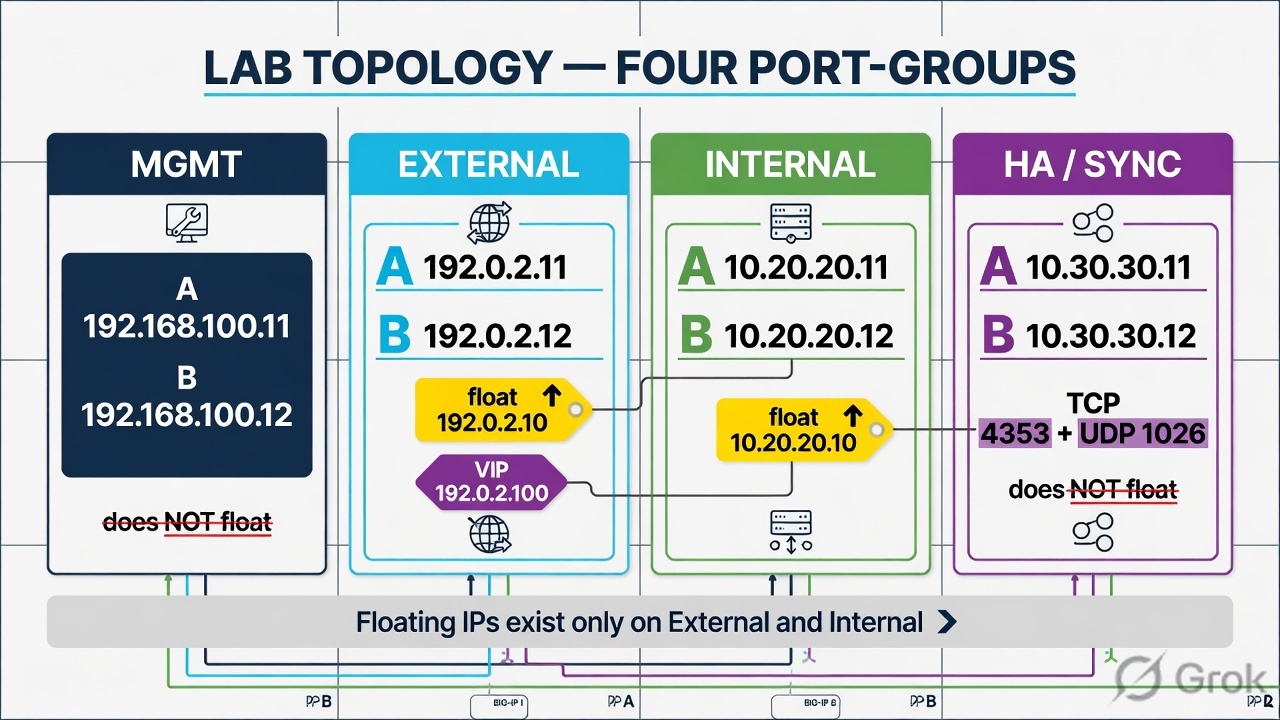
This lab uses two BIG-IP VMs running on VMware vSphere/ESXi. Each device has four separate VMware Port Groups representing distinct network segments. Verify all port group assignments before starting lab tasks.
- VMware Port Group BIG-IP A BIG-IP B
- F5-MGMT 192.168.100.11 192.168.100.12 — F5-External 192.0.2.11 · Floating: 192.0.2.10 192.0.2.12 · Floating: 192.0.2.10 — F5-Internal 10.20.20.11 · Floating: 10.20.20.10 10.20.20.12 · Floating: 10.20.20.10
- F5-HA 10.30.30.11 10.30.30.12
Lab 1: Prepare Both Devices
- LAB TASK — Before establishing HA, both devices must be independently healthy with correct hostnames, IP addresses, NTP, and baseline configuration. — Complete all tasks on both BIG-IP A and BIG-IP B before proceeding to Lab 2.
- Hostname & Identity — Configure unique hostname: f5-ltm-a.example.local and f5-ltm-b.example.local. Verify management IP connectivity from your workstation.
- NTP & Time — Configure NTP servers on both devices. Verify time is synchronized. Time skew between devices causes Device Trust and certificate failures.
1 2 3 Software & Provisioning Verify BIG-IP version is identical on both devices. Confirm LTM module is provisioned. Note version for compatibility reference.
- Self IP Configuration — Configure External Self IP, Internal Self IP, and HA/Sync Self IP per the topology table. Use traffic-group-local-only for all nonfloating Self IPs at this stage.
- Verify Peer Connectivity — From BIG-IP A, ping BIG-IP B on all HA/Sync addresses and vice versa. Confirm reachability on the F5-HA subnet (10.30.30.0/24) before proceeding.
4 5 6
- UCS Backup — Create a UCS backup on each device before beginning HA configuration: System → Archives → Create. Label clearly with date and purpose.
Lab 2: Establish Device Trust
- LAB TASK — Device Trust must be established before creating a Device Group. Perform this procedure from one device only — typically BIG-IP A. BIG-IP A discovers BIG-IP B and the trust exchange is bidirectional once completed.
1 Open Device Trust Navigate to Device Management → Device Trust → Device Trust Members. Click Add to begin peer discovery.
2 Enter Peer Details Enter BIG-IP B's management IP address (192.168.100.12). Provide the admin username and password for BIG-IP B. Click Retrieve Device Information.
3 Complete Trust Exchange Review the peer device information returned. Confirm hostname matches expected value. Click Add Device to complete the trust establishment.
4 Verify Trust on Both Devices On both BIG-IP A and BIG-IP B, navigate to Device Management → Devices. Both devices should appear in each other's device list as Trusted.
5 Troubleshoot If Discovery Fails Check: NTP sync, management network reachability, correct credentials, hostname resolution, and certificate validity. Review /var/log/ltm for specific error messages.
Expected Result: f5-ltm-a.example.local and f5-ltm-b.example.local recognize each other as trusted DSC peers. Both appear under Device Management → Devices on each device.
Lab 3: Create Sync-Failover Device Group
- LAB TASK — Create the Sync-Failover Device Group to enable configuration synchronization and failover coordination. After creating the group, configure — ConfigSync and Failover Unicast addresses on both devices.
- Device Group Creation
- GUI: Device Management → Device Groups → Create
- Name: dg_ltm_ha
- Group Type: Sync-Failover
- Members: Add f5-ltm-a and f5-ltm-b
- Enable: Network Failover
- Per-Device Address Configuration
On BIG-IP A:
- ConfigSync Address: 10.30.30.11
- Failover Unicast: 10.30.30.11
On BIG-IP B:
- ConfigSync Address: 10.30.30.12
- Failover Unicast: 10.30.30.12
- Verify Device Group
- Both members visible under Device
- Management → Device Groups → dg_ltm_ha
- Verify Failover State
- One device shows Active, other shows
- Standby under Device Management →
- Devices
- Verify Sync Readiness
- Check sync status — expect Changes
- Pending after initial group creation
Lab 4: Configure Floating Self IPs
Network → Self IPs → Create
floating_ext
PDF Lab 4. Also create floating_int 10.20.20.10 on Internal, then sync A → group.
- LAB TASK — Floating Self IPs are created on the Active device and synchronized to the peer via ConfigSync. They must be assigned to traffic-group-1 to follow failover. Create both External and Internal Floating Self IPs from BIG-IP A.
- Create Floating External Self IP
- GUI: Network → Self IPs → Create
- Name: floating_ext
- IP Address: 192.0.2.10
- Netmask: 255.255.255.0
- VLAN: External
- Traffic Group: traffic-group-1
- Create Floating Internal Self IP
- GUI: Network → Self IPs → Create
- Name: floating_int
- IP Address: 10.20.20.10
- Netmask: 255.255.255.0
- VLAN: Internal
- Traffic Group: traffic-group-1
- Sync to Group
- After creating floating Self IPs, sync BIG- — IP A → Device Group. Verify floating IPs appear on BIG-IP B after sync.
- Verify Ownership
- Confirm 192.0.2.10 responds only from — BIG-IP A (Active). After controlled failover, it should respond only from BIG-
IP B.
- Compare Non-Floating — Non-floating 192.0.2.11 always answers on BIG-IP A. Non-floating 192.0.2.12 always answers on BIG-IP B. Neither moves.
Lab 5: ConfigSync Practice
- LAB TASK — Practice the complete ConfigSync workflow: create configuration on the Active device, observe the sync status change, identify the authoritative device, sync in the correct direction, and verify the result on the peer device.
1 Create Configuration on BIG-IP A Create pool WEB_POOL with members Web01 (10.20.20.101:443) and Web02 (10.20.20.102:443). Create Virtual Server vs_web_https at 192.0.2.100:443 referencing WEB_POOL.
2 Observe Changes Pending Navigate to Device Management → Overview. Observe that status changes to Changes Pending immediately after creating the new objects.
3 Identify Authoritative Device Confirm BIG-IP A is the authoritative source — it has the new configuration that BIG-IP B does not yet have.
4 Sync BIG-IP A → Device Group From the Overview page, select BIG-IP A and click Sync Device to Group. Monitor progress until completion.
5 Verify on BIG-IP B Log in to BIG-IP B. Navigate to Local Traffic → Pools and Local Traffic → Virtual Servers. Confirm WEB_POOL and vs_web_https are present. Verify sync status shows In Sync.
Lab 6: Failover Test
- LAB TASK — Perform a controlled failover test with active client traffic. This validates HA functionality and allows you to observe application behavior, failover speed, and ARP convergence. Always restore original state carefully after testing.
- Pre-Test Setup
- Confirm BIG-IP A = Active, BIG-IP B = Standby
- Generate continuous HTTP/HTTPS test traffic to VIP 192.0.2.100
- Open tcpdump or capture on external VLAN
- Note current ARP table on test client
- Execute Controlled Failover
- GUI: Device Management → Traffic Groups → traffic-group-1 →
- Force to Standby
- Or: tmsh run sys failover standby
- Observe BIG-IP B transitions to Active
- Record approximate interruption duration
- Verify Ownership
- Confirm traffic-group-1 now owned by BIG-IP B. Floating — Self IP 192.0.2.10 responds from BIG-IP B's MAC.
- Verify VIP — VIP 192.0.2.100:443 continues serving new client connections through BIG-IP
B.
- Observe ARP Behavior — Watch for Gratuitous ARP from BIG-IP B updating floating IP MAC associations.
- Restore State
Return BIG-IP A to Active:
Force BIG-IP B to Standby or adjust traffic group priority.
Verify In Sync before concluding.
Lab 7: Connection Mirroring
- LAB TASK — Enable connection mirroring on a test Virtual Server and compare behavior with and without mirroring during a controlled failover. Results depend on the protocol, application, and lab environment. This lab builds understanding of mirroring's real-world trade-offs.
1 Enable Mirroring on vs_web_https Edit the Virtual Server: Local Traffic → Virtual Servers → vs_web_https → Advanced Properties. Set Connection Mirroring: Enabled.
Sync configuration to group.
2 Establish Long-Lived Connection Initiate a sustained TCP connection or file transfer through the VIP. Confirm the connection is established and active on BIG-IP A.
3 Verify Mirror State On BIG-IP A: tmsh show ltm connection mirror or inspect connection table. Confirm mirrored entries are visible on BIG-IP B.
4 Perform Controlled Failover Force BIG-IP A to Standby while the long-lived connection is active. Observe whether the connection continues on BIG-IP B or requires reconnection.
5 Compare Without Mirroring Disable mirroring, re-run the test. Observe connection reset behavior. Document and compare both results. Discuss protocol and application-layer dependencies.
Lab 8: Break and Fix ConfigSync
- LAB TASK — This advanced lab introduces controlled ConfigSync failures so students can practice identifying, diagnosing, and resolving real-world sync problems. Complete each break-and-fix scenario independently before checking solutions.
- Controlled Break Scenarios
- Change ConfigSync address to a non-existent or unreachable IP
→ Observe Disconnected 1.
- Block TCP 4353 between HA peers using a host firewall →
Observe Disconnected 2.
Remove one device from the Device Group → Observe sync group behavior 3.
- Make a configuration change on BIG-IP B only (without syncing)
→ Observe Changes Pending 4.
- Student Fix Tasks — Identify the sync state using GUI and TMSH1. — Determine the root cause of the failure2. — Restore network communication and correct configuration3. — Identify the authoritative device before syncing4. — Sync in the correct direction and verify In Sync5. — Trainer Note: For Scenario 4, deliberately make the change on BIG-IP B with the intention of having students recognize that BIG-IP A — (the correct authoritative device) must be synced to the group — not BIG-IP B. This reinforces sync direction discipline.
Production Troubleshooting Scenarios
These scenario-based exercises represent real-world HA problems encountered in production BIG-IP environments. Work through each scenario methodically using the diagnostic approach from previous slides.
- Scenario 1: Both Devices Show
- Changes Pending
Which configuration is authoritative?
Review change history on both devices.
Identify which device had the most recent, correct change. Never guess — sync from the wrong device destroys correct config.
- Scenario 2: Active/Standby
- Works, ConfigSync
- Disconnected — Failover and ConfigSync are independent functions. A device can fail over correctly while sync is broken.
- Check HA network reachability, — ConfigSync Self IP, port lockdown, and firewall rules separately from failover path.
- Scenario 3: Config Synced but
- Failover Does Not Occur — Check network failover configuration, failover unicast addresses, device state — (is the peer Forced Offline?), and trafficgroup health. ConfigSync health does not guarantee failover path health.
- Scenario 4: Failover Occurs but
- VIP Does Not Work — Verify floating objects are active on new device, check VLAN/interface, ARP tables on upstream router, SNAT source address behavior, and backend server reachability from new Active device.
- Scenario 5: Both Devices
- Appear Active (Split-Brain) — Treat as critical. Do not attempt normal operations. Isolate one device immediately. Check HA network connectivity, identify the cause of communication loss, restore single- — Active state, verify network stability, then investigate root cause.
Production Best Practices
- Software & NTP
- Keep both devices on the same BIG-IP version and hotfix level
- Configure and verify NTP on every device — time skew breaks trust
- HA Network Design
- Use a dedicated HA VLAN separate from production traffic
- Configure resilient failover paths where possible
- Protect HA networks from external access
- ConfigSync Discipline
- Always verify sync status after every configuration change
- Review direction before every manual sync
- Never perform unsynchronized changes on both devices simultaneously
- Failover Management
- Test failover periodically in a controlled manner
- Create UCS backups before major changes
- Never perform uncontrolled failover during peak production windows
- Monitor Continuously
- Monitor Active/Standby and sync status
— do not rely on manual checks alone.
Integrate with your monitoring platform.
- Document Everything — Document traffic-group assignments, floating Self IPs, ConfigSync addresses, and failover addresses. HA design documentation saves hours during incident response.
- Mirror Selectively — Use connection mirroring only where business requirements clearly justify the performance cost. Over-mirroring degrades device performance.
Interview Questions — F5 BIG-IP HA
- INTERVIEW PREP — These 35 questions cover the core concepts of Module 6. Study the answers thoroughly — these are commonly asked in F5 certification exams, technical interviews, and job assessments for network and security engineers.
Q1: What is BIG-IP High Availability?
An HA design using two or more BIG-IP devices so that if one fails, another can assume ownership of floating application objects and continue serving traffic, reducing single points of failure.
Q2: What is DSC?
Device Service Clustering — F5's framework providing device trust, configuration synchronization, traffic-group management, failover coordination, and connection mirroring between BIG-IP peers.
Q3: What is Device Trust?
A certificate-based authenticated relationship established between BIG-IP devices before they can participate in DSC Device Groups. Required before ConfigSync or failover can function.
Q4: What is a Device Group?
A logical grouping of trusted BIG-IP devices that synchronize configuration (Sync-Only) or synchronize configuration and coordinate failover (Sync-Failover) together.
Q5: Sync-Failover vs Sync-Only?
Sync-Failover groups provide both configuration sync and failover coordination — used for Active/Standby pairs. Sync-Only groups provide sync without failover ownership behavior.
Q6: What is ConfigSync?
The BIG-IP mechanism that replicates eligible configuration objects (pools, VIPs, profiles, iRules, etc.) between all members of a Device Group to keep configurations consistent.
Q7: What does Changes Pending mean?
Configuration differs between devices in the Device Group. An administrator must identify the authoritative device and sync in the correct direction to resolve the discrepancy.
Q8: What does In Sync mean?
All devices in the Device Group have matching synchronized configuration. No sync action is required. This is the desired operational state.
Q9: Why is ConfigSync direction important?
Syncing from the wrong device pushes older or incorrect configuration to all group members, potentially overwriting correct production configuration. There is no automatic undo.
Q10: What is a ConfigSync address?
A Self IP configured on each device specifically for synchronization traffic between DSC peers. Usually on a dedicated HA VLAN. Management IP should not be used unless explicitly designed for it.
Q11: What is network failover?
A mechanism where BIG-IP peers continuously exchange heartbeat messages over the network. If heartbeats stop or a failover condition is detected, traffic-group ownership transfers to the peer.
Q12: What is a failover unicast address?
A Self IP address configured on each device that the peer uses as the destination for unicast heartbeat/failover messages. Must be reachable from the peer at all times.
Q13: Active vs Standby?
Active device owns the traffic group and serves floating application traffic. Standby device is synchronized and ready to assume ownership if the Active device fails or is forced offline.
Q14: What is Forced Offline?
An administrator-controlled HA state that prevents a device from becoming Active. Used during planned maintenance to ensure controlled failover and prevent unintended traffic processing.
Q15: What is a traffic group?
- A logical collection of floating BIG-IP configuration objects — (Floating Self IPs, VIPs, SNAT addresses) that fail over together. — The Active device for that group owns and serves all associated objects.
Q16: What is traffic-group-1?
The default floating traffic group created on every BIG-IP device.
Commonly used for floating application objects in Active/Standby designs. New floating objects are typically associated with trafficgroup-1.
Q17: What is a floating Self IP?
A Self IP associated with a traffic group (not traffic-group-localonly). It is logically active on whichever device currently owns the traffic group and moves with failover.
Q18: Floating vs non-floating Self IP?
Non-floating Self IPs use traffic-group-local-only and always stay on their device. Floating Self IPs use traffic-group-1 and follow the active traffic group owner during failover.
Q19: Does Management IP float?
No. The Management IP is device-specific and always remains on the device it was configured on, regardless of Active/Standby state or failover events.
Q20: What happens to a VIP during failover?
The VIP address itself does not change. Traffic-group ownership transfers to the new Active device, which then responds to the VIP address. Clients connect to the same IP without reconfiguration.
Q21: What happens to floating Self IPs?
- They become logically active on the new Active device. The new — Active device sends GARP messages to update ARP tables so network devices route traffic to the correct physical device.
Q22: What is connection mirroring?
A BIG-IP feature that replicates selected connection-state information from the Active device to the Standby device. After failover, the new Active device may use this state to continue supported connections.
Q23: Does connection mirroring replicate application sessions?
No. It replicates BIG-IP-level connection state only. Backend application session data (database state, authentication tokens, shopping cart contents) is not replicated by BIG-IP mirroring.
Q24: What is persistence mirroring?
Replication of persistence table entries (client-to-server affinity mappings) from Active to Standby. After failover, the new Active device can maintain server affinity from mirrored records.
Q25: What is VLAN failsafe?
A BIG-IP feature that monitors traffic activity on a VLAN. If no traffic is detected within a configured threshold, it triggers a configured action (such as failover) to respond to network path failures.
Q26: What is gateway failsafe?
A BIG-IP feature that monitors the reachability of a configured gateway. If the gateway becomes unreachable, it triggers a configured HA action. Must be designed carefully to avoid failover loops.
Q27: What is split-brain?
A dangerous condition where HA peers lose communication and both simultaneously act as Active, serving the same floating IP addresses and causing duplicate IP conflicts, ARP instability, and application failures.
Q28: Can Active/Standby devices be out of sync?
- Yes. HA state (Active/Standby) and ConfigSync state (In
- Sync/Changes Pending) are independent. A pair can be
- Active/Standby while simultaneously showing Changes Pending or
Disconnected sync status.
Q29: ConfigSync healthy but failover fails?
- Check: Network failover unicast address reachability, device state — (Forced Offline?), Device Group configuration, Traffic Group health, HA VLAN/network connectivity, and system logs for failover events.
Q30: Failover succeeds but application fails?
- Check: Traffic-group ownership on new Active device, Floating — Self IP presence, VIP reachability, VLAN/interface state, ARP on upstream devices, SNAT source addressing, backend server reachability.
Q31: How do you verify failover status from TMSH?
tmsh show cm failover-status — shows Active/Standby/Forced
Offline state. Also use tmsh show cm traffic-group to see pergroup ownership.
Q32: How do you verify ConfigSync status?
tmsh show cm sync-status — shows In Sync, Changes Pending, or
- Disconnected with details. Also available in GUI under Device
Management → Overview.
Q33: Danger of syncing from the wrong peer?
The wrong device's (potentially older or incorrect) configuration is pushed to all group members, immediately overwriting correct configuration on all other devices. Cannot be automatically undone — requires UCS restore.
Q34: Why is NTP important in an HA pair?
Device Trust uses certificate-based authentication. Significant time skew between devices causes certificate validation failures, which breaks Device Trust, ConfigSync, and indirectly affects failover reliability.
Q35: Why might client sessions reset during failover?
If connection mirroring is not configured, the new Active device has no state for existing connections. Even with mirroring, TCP behavior, TLS session resumption, backend server state, and network convergence time all affect whether sessions survive.
Module 6 Summary
You have completed F5 BIG-IP LTM Module 6. Every component of the HA architecture — from Device Trust through ConfigSync to Traffic Groups and Connection Mirroring — works together to reduce the BIG-IP device as a single point of failure. Master the relationships between these components to design, operate, and troubleshoot production BIG-IP HA environments confidently.
- Module 6 Revision Checklist
- HA Active/Standby architecture
- DSC framework components
- Device Trust establishment
- Sync-Failover vs Sync-Only groups
- ConfigSync status and direction
- ConfigSync and Failover addresses
- Traffic groups and traffic-group-1
- Floating vs Non-Floating Self IPs
- Virtual Server behavior during failover
- Connection and Persistence Mirroring
- VLAN Failsafe and Gateway Failsafe
- Split-Brain risk and prevention
- TMSH diagnostic commands
- Failover and ConfigSync troubleshooting
- Coming Next
- Module 7 — Troubleshooting, tcpdump, Logs & Production
- Scenarios — Module 7 builds on everything from Modules 1–6 to develop systematic, production-grade troubleshooting skills using packet captures, log analysis, and real-world problem scenarios. Students will apply tcpdump, tmsh, and structured diagnostic methodology to complex multi-layer issues. — Remember: HA improves availability — it is not a guarantee of zero downtime. Design, test, monitor, and document your — HA configuration to get the maximum benefit from the technology.
- You can draw Active/Standby with floating 192.0.2.10 and VIP 192.0.2.100.
- You can name what ConfigSync copies and what it never copies.
- You refuse to click Sync until you know the authoritative device.
- You can force standby, see GARP, and explain split-brain without guessing.
- You have answered the 35 interview items above from the PDF, not from memory of a diagram.
Knowledge check
Eight judgment items from the Module 6 PDF. Miss one → re-read that PDF section above.
Sources
- Primary: Techclick
F5-BIG-IP-LTM-Module-6.pdf(OneDrive_1_8-26-2026.zip) — all 52 pages. - Official: BIG-IP Device Service Clustering Administration
- Companion: Module 7 troubleshooting · Course hub
Related: Course hub · Syllabus · My Courses