Start here · understand the lesson before the detail
What you are learning
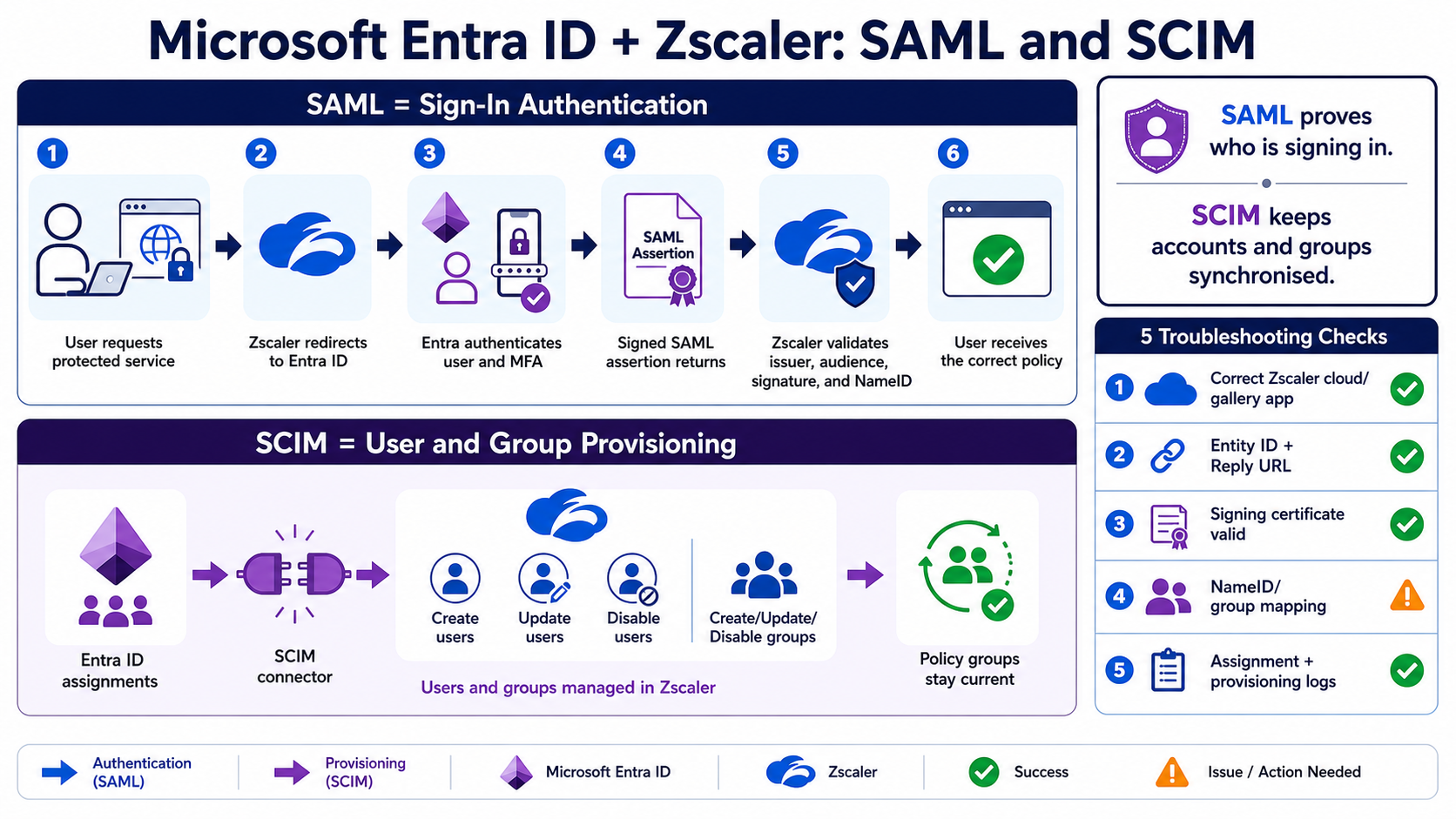
This lesson separates the sign-in path from the identity-lifecycle path. You will configure and troubleshoot SAML authentication without confusing it with SCIM provisioning.
In plain English
For SAML, Zscaler is the service provider and Microsoft Entra ID is the identity provider. Entra authenticates the user and sends a signed assertion; Zscaler validates it and applies identity policy. SCIM is separate: it keeps assigned users and groups created, updated, and disabled.
Real example
A user completes MFA but receives the wrong ZIA rule. Authentication may be healthy while the group claim or SCIM membership is wrong. Conversely, a correctly provisioned user can still fail SAML because the Reply URL, Entity ID, certificate, audience, or NameID does not match.
Follow this flow
- Select the correct Zscaler cloud-specific enterprise application.
- Exchange metadata and configure Entity ID, Reply URL, certificate, and claims.
- Assign a pilot group and test SAML with a break-glass admin available.
- Configure SCIM scope, token, mappings, and create/update/disable behaviour separately.
- Verify sign-in logs, provisioning logs, Zscaler user/group mapping, and policy result.
Evidence to collect
- Correct tenant cloud, Entity ID, Reply URL, and signing certificate
- SAML issuer, audience, NameID, attributes, and signature
- Entra assignment and Conditional Access result
- SCIM provisioning event plus Zscaler user/group state
Common mistake to avoid
Do not expose SCIM bearer tokens in screenshots or tickets. Do not assume SAML will deprovision a user after departure; SCIM or another lifecycle process must disable the account. For PAC/tunnel deployments, ensure the unauthenticated IdP path is reachable to avoid an authentication loop.
Current official source checkpoint
- Zscaler Entra SAML and SCIMcurrent official reference used for this beginner explanation
- Microsoft provisioning guidecurrent official reference used for this beginner explanation

Key terms before you continue
Most engineers think…
"Once I turn on SAML in Zscaler, my users are protected by MFA." It feels true — you connected an enterprise IdP, so surely the strong auth came along for the ride.
Wrong. SAML only delegates who you are to Entra. MFA, Conditional Access, device-compliance checks — all of that lives in Entra policy on the Zscaler app. If you don't attach a Conditional Access policy, you've added SSO, not security. We'll prove this with a before/after diagram in Section 4.
The four words this whole lesson rides on
Tap each card. If these four click, every screen later in the lesson will make sense.
Identity Provider = Microsoft Entra ID. It checks the password and mints the signed assertion. So what: it's the source of truth — break it and every connected app breaks.
Service Provider = Zscaler ZIA / ZPA. It consumes the assertion and never sees the password. So what: the SP only trusts what the certificate proves.
A signed XML statement: "this user is Priya, here are her attributes," passed via the browser. So what: the digital signature is the entire security model.
A provisioning protocol that syncs users + groups before login. So what: SAML says who you are; SCIM says you exist and which groups you're in.
① SAML in 90 seconds: the signed-badge model
Two systems that have never met still need to agree on one thing: "this is really Priya." SAML solves that with three artifacts they exchange once, then trust forever. The IdP (Entra) authenticates the user. The SP (Zscaler) trusts the IdP and lets the user in. The password never touches Zscaler.
Those three trust anchors are the only things you actually configure, on both sides:
- Entity ID / Audience — the SP's unique name. The assertion's Audience field must match it character-for-character.
- ACS / Reply URL — the SP endpoint that catches the assertion the browser POSTs back.
- Signing certificate — the IdP's public key. The SP verifies every assertion's signature against it. This is the single anchor that breaks the most logins.
Pause & Predict
Before SAML, the Zscaler proxy stored each user's password. With SAML on, where does the password live now — and what does Zscaler store instead? Type your guess.
Zscaler's ZIA and ZPA user apps are both SP-initiated: the user lands on Zscaler first, and Zscaler bounces them to Entra. Watch the healthy path, then press Break it to see the most common failure — a certificate mismatch.
▶ SP-initiated SAML login, live
Priya opens the Zscaler portal with no session. Press Play for the healthy path, then Break it to see the failure.
② ZIA user SSO: the gallery flow, end to end
This is the most common job: let employees authenticate to the Zscaler internet-access proxy with their Entra accounts. ZIA SSO is SP-initiated and supports both JIT and SCIM provisioning. You configure two consoles: Entra first, then ZIA.
Step A — the Entra side (the IdP)
Sign in to the Microsoft Entra admin center as at least a Cloud Application Administrator, then:
- Entra ID → Enterprise apps → New application. Add the gallery app that matches your Zscaler cloud — e.g.
Zscaler Internet Access ZSTwofor thezscalertwo.netcloud,ZSThreeforzscalerthree.net, and so on. Picking the wrong cloud's app means nothing will match. - Open Single sign-on → SAML. Edit Basic SAML Configuration. The Identifier (Entity ID) is a fixed string for this app, so only one instance can exist per tenant. Set the Sign-on URL to your cloud's portal (for ZSThree it is
https://login.zscalerthree.net/sfc_sso). - Under Attributes & Claims, confirm the extra claim
memberOf = user.assignedrolesso group/role data rides along. - In SAML Signing Certificate, download Certificate (Base64) — this is the
.pemfile ZIA needs. Copy the Login URL too. - Users and groups → Add user/group — assign the people (or a group) who should get access. Skip this and Entra throws
AADSTS50105at every user.
Step B — the ZIA side (the SP)
In the ZIA Admin Portal go to Administration → Authentication → Authentication Settings, set Authentication Type = SAML, then click Configure SAML and fill the dialog:
Three fields decide whether this works. ① Login Name Attribute must be exactly NameID — it is case-sensitive. ② Public SSL Certificate accepts only the Base64 (.pem) file you downloaded — not the metadata XML, not a DER .cer. ③ Enable SAML Auto-Provisioning if you want ZIA to create users on first login (JIT); then the display-name, group, and department attribute fields tell ZIA which claims to read.
Before you upload, sanity-check the certificate from a shell — a bad or expired cert is the number-one reason ZIA later rejects assertions:
openssl x509 -in ZscalerInternetAccess.cer -noout -subject -issuer -enddate
subject=CN = Microsoft Azure Federated SSO Certificate
issuer=CN = Microsoft Azure Federated SSO Certificate
notAfter=Jun  4 09:15:22 2029 GMT
If openssl errors with "unable to load certificate," you grabbed the wrong format — re-download Certificate (Base64). Note the notAfter date: that is the day this login silently dies unless you re-upload a fresh cert (more on that in Section 4).
NameID, upload the .pem, toggle auto-provisioning. One step left that everyone forgets…Pause & Predict
You finished the ZIA SAML form and clicked Save — but SSO still doesn't work. What single ZIA step did you forget? Type your guess.
Priya's ZIA tenant is on the zscalertwo.net cloud. For ZIA user SSO, which Entra gallery app and which downloaded artifact does she use?
Priya at Infosys faces this
She enabled SAML on ZIA, clicked Activate, but every user now sees "SAML Authentication Failed" and bounces back to the login page.
She uploaded the Federation Metadata XML into the ZIA "Public SSL Certificate" field instead of the Base64 .pem. ZIA can't read the signing key, so every signature check fails.
She uses a SAML-tracer browser add-on to capture the assertion and confirms the signature is valid at Entra — so the break is on the SP side, in the cert upload.
Entra → SSO → SAML Signing Certificate → Certificate (Base64)Re-download Certificate (Base64), re-upload it as the Public SSL Certificate in ZIA, Save, and Activate again.
A test user signs in and lands on the proxy. In Analytics → Web Insights the username now resolves to the real UPN, not "unauthenticated."
③ ZPA user SSO + SCIM: metadata XML and group sync
ZPA (private/ZTNA access) uses the same SAML protocol but a different artifact. Instead of a Base64 cert, ZPA imports the Federation Metadata XML, which bundles the entity ID, endpoints, and the signing cert into one file. On the Entra side the ZPA app's Identifier is https://samlsp.private.zscaler.com/auth/metadata and the Sign-on URL follows https://samlsp.private.zscaler.com/auth/login?domain=<your-domain>.
On the Zscaler side you work in the ZPA Admin Console (admin.private.zscaler.com): Administration → IdP Configuration → Add IdP Configuration. Upload the metadata XML, leave Single Sign-On = User, pick your Domains, and Save. ZPA reads the metadata and fills the rest automatically.
For ZPA user SSO, what do you upload into the ZPA console's "Add IdP Configuration" wizard?
Why SAML alone isn't enough for ZPA: SCIM
ZPA access policies are almost always written against groups ("SOC-Analysts get the jump-box"). SAML proves who the user is at login, but it doesn't reliably pre-load group membership. That's SCIM's job. In the same ZPA IdP wizard, scroll to Enable SCIM Sync, click Generate New Token, and copy the Bearer Token plus the SCIM Service Provider Endpoint. Paste both into Entra's Provisioning tab (Tenant URL + Secret Token) and hit Test Connection.
▶ SCIM provisioning, live
Why a group-based policy works — or silently misses. Press Play, then Break it.
Want to prove the assertion carries the right identity and audience, instead of trusting the GUI? Capture the SAMLResponse with a SAML-tracer add-on, then decode it:
echo "$SAML_RESPONSE_B64" | base64 -d | xmllint --format - | grep -E "Audience|NameID"
<saml:Audience>https://samlsp.private.zscaler.com/auth/metadata</saml:Audience>
<saml:NameID Format="...emailAddress">karthik.r@wipro.com</saml:NameID>
If Audience doesn't match the SP's Entity ID exactly, the SP rejects the assertion — that's an audience mismatch. If NameID is blank or carries the wrong attribute, the SP can't map the user. Reading the assertion beats guessing at the config screen every time.
ZPA users authenticate fine, but their group-based access policy never grants any apps. Most likely cause?
Karthik at Wipro faces this
ZPA users log in successfully, but no one gets their private apps. The access policy keyed on "SOC-Analysts" never fires.
SAML works, but SCIM Sync was never enabled — so the SOC-Analysts group doesn't exist inside ZPA, and the policy match silently fails.
In ZPA he checks for the group and finds it missing. In Entra's Provisioning tab the last sync says "not started."
ZPA → Administration → IdP Configuration → Enable SCIM SyncGenerate a fresh bearer token, paste the SCIM endpoint + token into Entra Provisioning, Test Connection, set scope to "assigned users and groups," and start provisioning.
Entra's provisioning log shows the group created; in ZPA the group appears and the access policy now releases the app on next login.
④ Admin SSO + the five failures that break logins
Letting admins log into the Zscaler portal with Entra is a separate integration — a different gallery app (…Administrator), a different Reply URL, and one critical difference: no Just-in-Time provisioning.
For ZIA admin SSO the Entra app Zscaler Internet Access Administrator uses Identifier https://admin.zscalertwo.net and Reply URL (ACS) https://admin.zscalertwo.net/adminsso.do, with the claim memberOf = user.assignedroles. On the ZIA side you enable it at Administration → Administrator Management → Enable SAML Authentication, upload the Public SSL Certificate, optionally set an Issuer, Save, and Activate. ZPA admin SSO can run IdP-initiated, using Relay State idpadminsso.
A brand-new ZIA admin signs in at Entra successfully, but Zscaler rejects them as "user not found." Why?
Aditya at TCS faces this
A new security admin authenticates at Entra perfectly, returns to Zscaler — and gets a blank error page. Regular users sign in fine.
Admin SSO has no JIT. The user app auto-creates accounts; the Administrator app never does. The admin record simply doesn't exist in ZIA yet.
Users work (JIT on), admins don't — that contrast points straight at the missing admin account, not the certificate or claims.
ZIA → Administration → Administrator Management → Add AdministratorManually create the admin in ZIA with a Login ID that matches the Entra NameID, assign the right role, Save, Activate. Repeat the IdP-initiated test.
The admin signs in via SSO and lands on the dashboard with the correct role scope. No more "user not found."
The five failures, with the symptom you'll actually see
- 1 · AADSTS50105 — symptom: "not assigned to a role for the application." Fix: assign the user/group to the enterprise app in Entra (per-app assignment is on by default).
- 2 · Wrong cert format — symptom: ZIA upload fails, or every login throws "SAML Authentication Failed." Fix: ZIA needs Base64
.pem; ZPA needs metadata XML. Don't cross them. - 3 · NameID misread — symptom: users log in but show as the wrong identity, or auto-provisioning creates junk accounts. Fix: ZIA "Login Name Attribute" must be exactly
NameID. - 4 · Audience mismatch — symptom: SP rejects the assertion outright. Fix: the assertion's
Audiencemust equal the SP Entity ID character-for-character. - 5 · Cert rotation — symptom: logins that worked for years all fail on the same morning. Fix: the Entra signing cert rolled (3-year default); re-upload the new
.pemto ZIA (ZPA's metadata bundles it, so re-importing one file is simpler).
In Entra, set a notification email on the SAML signing certificate. The 3-year expiry feels infinite right up until the morning every login dies. A reminder email turns a P1 outage into a 5-minute planned re-upload.
Enabling auto-provisioning attributes (memberOf, department) on the Zscaler side but never emitting the matching claim from Entra — or vice-versa. Both sides must agree, or groups/departments arrive empty and policies miss silently.
Don't trust the "Save" button — confirm Entra actually issued an assertion to Zscaler. Pull the sign-in logs and read the result code per user.
Connect-MgGraph -Scopes "AuditLog.Read.All"
Get-MgAuditLogSignIn -Filter "appDisplayName eq 'Zscaler Internet Access ZSTwo'" -Top 3 |
Select-Object userPrincipalName, @{n='result';e={$_.Status.ErrorCode}}, ipAddress, createdDateTimeuserPrincipalName result ipAddress createdDateTime priya.sharma@infosys.com 0 203.0.113.24 2026-06-04T08:41:10Z karthik.r@wipro.com 0 203.0.113.51 2026-06-04T08:39:02Z
A result of 0 means success. A non-zero code such as 50105 tells you exactly which failure you hit — assignment, in that case. The log is the truth; the config screen is only your intent.
Pause & Predict
An admin login redirects to Entra, authenticates, and returns — but Zscaler shows an error. The user app works perfectly. What three things are different about admin SSO? Type your guess.
…Administrator), (2) a different Reply URL (/adminsso.do for ZIA), and (3) no JIT — so the admin must already exist in Zscaler. Any one of these missing produces a perfect Entra login and a failed Zscaler entry.🤖 Ask the AI Tutor
Tap any question — instant, scoped to this lesson. No login, no waiting.
Pre-curated from Zscaler docs + community Q&A, scoped to this lesson. For a live prod issue, paste your export into chat.techclick.in.
📝 Wrap-up assessment — six more
You've answered 4 inline. Six left. 70% (7 of 10) marks the lesson complete on your profile. Tap Submit all answers at the end.
🧠 In your own words
Type one line: Why does Zscaler never see the user's password once SAML is on — and what is the one thing it must trust instead? Then compare to the expert version.
🗣 Teach a friend
Best way to lock it in — explain it in one line to a teammate. Tap to generate a paste-ready summary.
📖 Glossary
- IdP (Identity Provider)
- The system that authenticates the user and issues the signed assertion — here, Microsoft Entra ID.
- SP (Service Provider)
- The app that trusts the IdP and consumes the assertion — here, Zscaler ZIA / ZPA. It never sees the password.
- SAML assertion
- A signed XML statement ("this user is X, here are their attributes") passed via the browser from IdP to SP.
- ACS / Reply URL
- Assertion Consumer Service — the SP endpoint that receives the assertion (e.g.
/adminsso.dofor ZIA admin). - Entity ID / Audience
- The unique identifier of the SP; the assertion's Audience must match it exactly or the SP rejects it.
- NameID
- The field carrying the user's identity (usually UPN/email); ZIA's "Login Name Attribute" must read it.
- SCIM
- A provisioning protocol that syncs users and groups from Entra into Zscaler before login.
- JIT provisioning
- Just-in-Time — auto-creating the user on first SSO. ZIA user SSO supports it; admin SSO does not.
- Conditional Access
- Entra policy engine that enforces MFA, device compliance, and location on the app — the actual security layer over SSO.
- Federation Metadata XML
- An XML bundle (entity ID + endpoints + signing cert) that ZPA imports to learn about the IdP in one file.
- Relay State
- A value the IdP echoes back to route the user (ZPA admin uses
idpadminsso).
📚 Sources
- Microsoft Learn — Configure Zscaler Internet Access (ZSTwo / ZSThree / ZSNet) for SSO with Microsoft Entra ID. learn.microsoft.com/entra/identity/saas-apps
- Microsoft Learn — Configure Zscaler Internet Access Administrator for SSO with Microsoft Entra ID. learn.microsoft.com/entra/identity/saas-apps/zscaler-internet-access-administrator-tutorial
- Microsoft Learn — Configure Zscaler Private Access (ZPA) for SSO + automatic user provisioning (SCIM) with Microsoft Entra ID. learn.microsoft.com/entra/identity/saas-apps/zscalerprivateaccess-tutorial
- Zscaler Help Portal — SAML & SCIM Configuration Guide for Microsoft Entra ID + Admin SAML Configuration Guide. help.zscaler.com/zia
- Zscaler Help Portal — Adding Identity Providers (ZIA / ZPA IdP configuration). help.zscaler.com/zia/adding-identity-providers
- SSOJet — Azure Entra ID SAML Troubleshooting: 15 Common Errors and Their Fixes. ssojet.com/blog
- Zscaler Community — Problem with Azure AD SSO (practitioner thread). community.zscaler.com
What's next?
You can prove a user's identity now — next, decide what that identity is allowed to reach. Learn how ZPA turns a verified user + their synced groups into least-privilege access policies.