TTechclick All blogs
Wireshark · Interview Prep
L1 → L2 → L3 ENGINEER

Wireshark Interview Questions & Answers

63 real Wireshark & Packet Analysis interview questions — answered in plain language a student can understand, yet precise enough to say in the room. Covers capture vs display filters, the TCP handshake, retransmissions, the TLS handshake and reading DNS/DHCP/ARP in a capture — with branded whiteboard diagrams for the concepts interviewers ask you to draw.

👤 TechClick · 📅 Jun 3, 2026 · ⏱ 26 min read · 🏷 Wireshark · Packets

63 questions · 18 foundational (L1) · 30 working-knowledge (L2) · 15 design & scenario (L3)

⚡ Quick Answer

63+ real Wireshark & Packet Analysis interview questions with detailed, student-friendly answers covering capture vs display filters, the TCP handshake, retransmissions, the TLS handshake and reading DNS/DHCP/ARP in a capture. Free for network & SOC job seekers.

💡Pro Tip

In a Wireshark interview, structure beats memorisation — when a question stretches you, reason out loud from fundamentals instead of guessing. Use the visual cheat-sheets below to lock in the diagrams interviewers love, and note that every answer ends with a 👉 Interview tip giving the exact line to say.

Visual cheat-sheets — the whiteboard answers

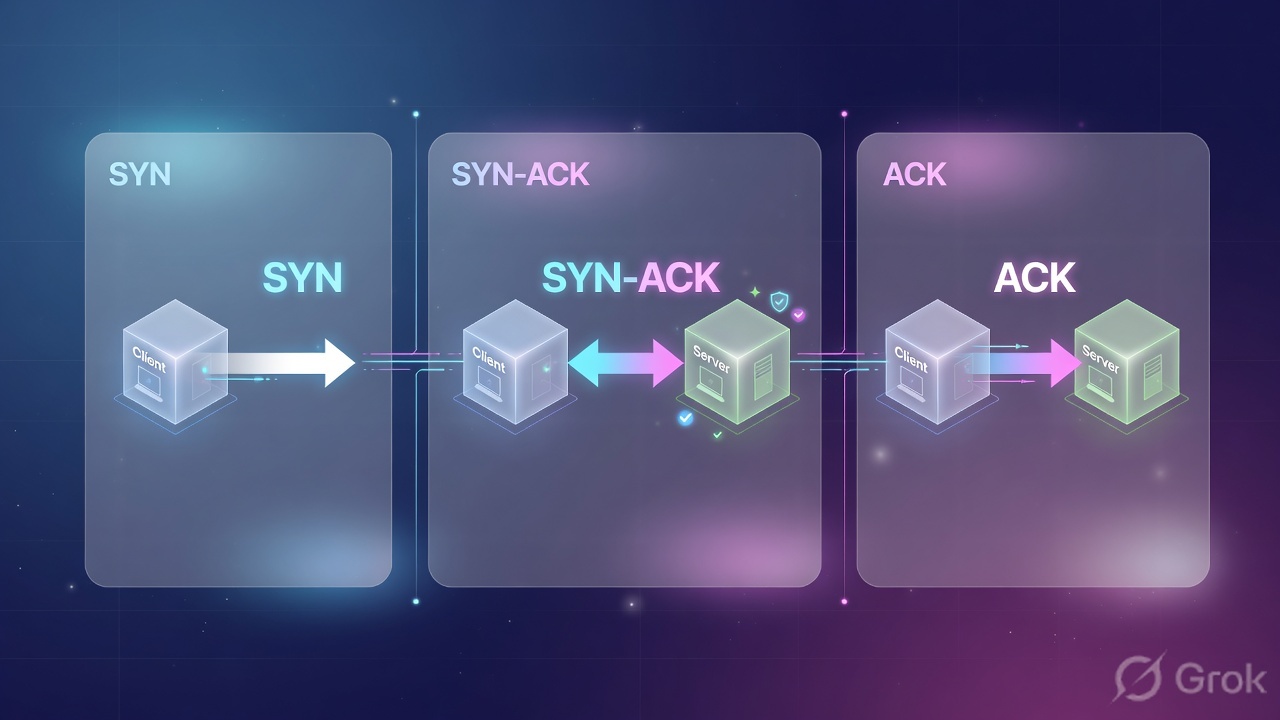
TCP 3-Way Handshake in Wireshark11. Client sends SYNFlags=SYN, Seq=0 (relative), proposes MSS/window scale options22. Server sends SYN, ACKFlags=SYN+ACK, Seq=0, Ack=1, agrees on options33. Client sends ACKFlags=ACK, Seq=1, Ack=1 — connection ESTABLISHED44. Data + PSH flowSeq/Ack increment by bytes; PSH pushes data to the app55. Teardown FIN/ACKEither side FIN, peer ACKs, optional RST aborts instantly
Walk the SYN / SYN-ACK / ACK exchange and the sequence-number math, because reading a handshake live is the first thing a packet interviewer will ask you to do.
Capture Filters vs Display FiltersCapture Filter (BPF)• Applied BEFORE capture starts• Drops packets, they are never saved• BPF syntax: host, port, net, tcp• Example: tcp port 443• Cannot be changed mid-capture• Reduces file size on busy linksDisplay Filter (Wireshark)• Applied AFTER capture, on saved data• Only hides, all packets stay in file• Wireshark syntax: ip.addr, tcp.port• Example: tcp.port == 443• Change anytime, re-filter freely• Color-codes and supports == != && ||
Know that capture filters use BPF syntax before capture while display filters use Wireshark syntax after, because mixing the two up is a classic eliminator question.
TLS 1.3 Handshake Decoded11. ClientHelloOffers TLS versions, cipher suites, SNI, key_share (DH params)22. ServerHelloPicks cipher + key_share; keys now derived, rest is encrypted33. Encrypted Extensions + CertCertificate now sent ENCRYPTED in TLS 1.3 (visible plaintext in 1.2)44. Server FinishedCertificateVerify + Finished prove server owns the key55. Client FinishedClient confirms; 1-RTT complete66. Application DataSymmetric-encrypted payload; decode in WS only with keylog file
Trace ClientHello to encrypted Application Data and note where the cert lives, because modern interviewers test whether you understand the TLS 1.3 1-RTT flow, not the legacy 1.2 one.
Must-Know Wireshark Display Filtersip.addr == 10.0.0.5All traffic to OR from that host (src or dst)tcp.port == 443Match either source or destination port 443tcp.flags.syn==1 && tcp.f…Pure SYNs — find connection attempts / scanstcp.analysis.retransmissi…Retransmits — a top loss/latency indicatorhttp.request.method == "P…Isolate HTTP POST requestsdnsAll DNS queries and responsestcp.flags.reset == 1RST packets — abrupt resets / blocked portsframe contains "password"Byte-search payload for a stringtcp.stream eq 3Isolate one full conversation by stream index!(arp or stp)Hide noisy L2 broadcast chatter
Memorize these field-name filters cold, because being able to type the right one without hesitating is what separates a hands-on analyst from a theory-only candidate.
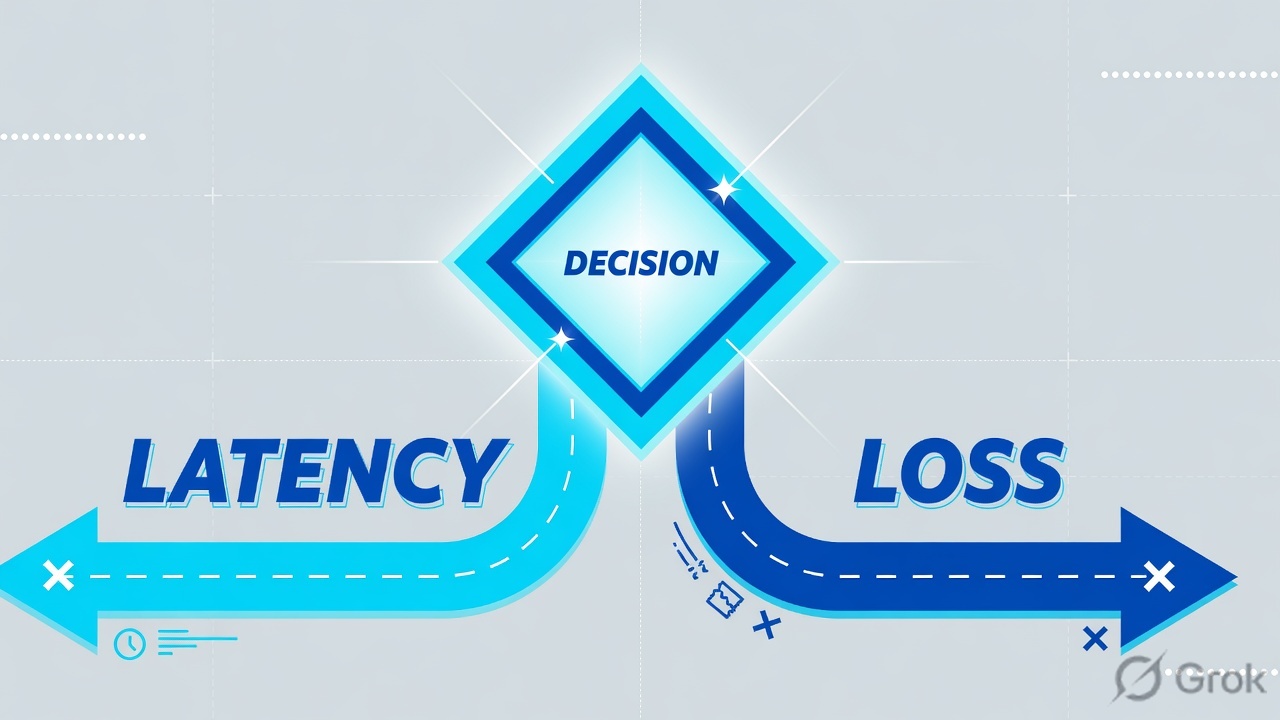
Latency vs Packet Loss vs App SlownessNetwork Problem (latency / loss)• High RTT in tcp.analysis.ack_rtt• Retransmissions + dup ACKs present• Zero window / window full events• Out-of-order packets in the stream• Delays in TCP layer, before the request• Same lag across many connectionsApplication Problem (app slowness)• Handshake is fast, RTT is low• No retransmits, clean TCP transport• Long gap AFTER request before response• Server 'think time' = app/DB is slow• Delays in HTTP/app layer, not TCP• Lag tied to specific endpoints only
Diagnose by symptom — RTT gaps, retransmits, or server think-time — because the interviewer's real test is whether you can blame the right layer from the trace alone.

Fundamentals & Capture Setup (9)

L11. What is Wireshark and what is it primarily used for?

Wireshark is the world's most popular free, open-source network protocol analyzer. It captures packets travelling across a network interface and decodes them into a human-readable view, so you can see the exact bytes of every conversation between hosts.

Think of it as an X-ray machine for the network: traffic that normally rushes by invisibly is frozen, layered, and labelled field-by-field.

It is primarily used for:

  • Troubleshooting slow apps, dropped connections, DNS or TLS handshake failures.
  • Security analysis and incident response (spotting C2 beacons, exfiltration, scans).
  • Learning protocols by watching real TCP, HTTP, and DNS exchanges.
  • Verifying configurations on firewalls, VPNs, and routers.

It ships with thousands of dissectors and uses libpcap (Linux/macOS) or Npcap (Windows) to capture live traffic.

Interview tip: Say it captures AND decodes traffic, and stress it is for analysis, not exploitation.

L12. What is the difference between a frame, a packet, and a segment?

These three words describe the same data at different layers of the network stack. As data travels down for transmission, each layer wraps it in its own header (encapsulation).

  • Segment (Layer 4 / Transport): the unit TCP produces. A TCP segment = TCP header + application data. (UDP calls its unit a datagram.)
  • Packet (Layer 3 / Network): the IP unit. An IP packet = IP header + the segment inside it.
  • Frame (Layer 2 / Data Link): the Ethernet/Wi-Fi unit actually sent on the wire. A frame = Ethernet header + the packet + a trailer (FCS).

Analogy: a letter (segment) goes into an envelope (packet), which goes into a mail truck (frame). Wireshark's packet detail pane shows all three nested, outer frame first.

Interview tip: Map each name to its layer: segment = L4 (TCP), packet = L3 (IP), frame = L2 (Ethernet).

L13. What is promiscuous mode, and how does it differ from monitor mode?

Promiscuous mode tells a network card to keep every frame it receives, even ones not addressed to its own MAC. Normally a NIC drops frames meant for other hosts; in promiscuous mode it passes them all up to Wireshark. This lets you see other devices' traffic only if that traffic actually reaches your port (for example via a hub, SPAN port, or TAP).

Monitor mode is a Wi-Fi-only capability. The wireless card stops associating with one access point and instead listens to all 802.11 frames in the air on a channel, including management and control frames from networks you are not joined to.

Analogy: promiscuous mode is reading every letter that lands in your building's mailroom; monitor mode is overhearing every conversation in the room, even from strangers.

Interview tip: Promiscuous = wired or any NIC, sees frames reaching your port; monitor = Wi-Fi radio, sees raw 802.11 over the air.

L14. What is the difference between Wireshark, tshark, and tcpdump, and when would you reach for each?

All three capture and inspect packets, but differ in interface and footprint:

  • Wireshark: the full GUI analyzer. Best for deep, interactive analysis: colour rules, Follow TCP Stream, IO graphs, Expert Info. Reach for it when you need to explore a capture visually.
  • tshark: Wireshark's command-line twin. It uses the same dissectors but runs in a terminal, so it is ideal for headless servers, scripting, and extracting specific fields (tshark -r file.pcap -T fields -e ip.src).
  • tcpdump: a lightweight, near-universal CLI capturer using libpcap. Tiny and pre-installed on most Unix boxes, so it is perfect for quickly grabbing traffic on a remote server, then analyzing the .pcap later in Wireshark.

Typical flow: tcpdump captures on the server, you copy the file, and open it in Wireshark on your laptop.

Interview tip: GUI = Wireshark, scriptable Wireshark engine = tshark, minimal portable capture = tcpdump.

L25. Why do you only see your own traffic on a switched network, and what do you need (SPAN/mirror port or TAP) to capture other hosts' traffic?

A switch learns which MAC address lives on which port and forwards each unicast frame only to the destination port. So your NIC physically receives just its own traffic plus broadcasts and multicasts; even in promiscuous mode there is nothing extra to see. (A legacy hub flooded every port, which is why captures were easy back then.)

To see other hosts' traffic you must get the frames delivered to your capture port:

  • SPAN / mirror port: configure the switch to copy traffic from chosen ports or VLANs to your monitor port. Easy and cheap, but it can drop frames under load, may not mirror errors or L1 issues, and competes for switch CPU.
  • Network TAP: a hardware device inserted inline on the link that passively copies every bit to a monitor port. Lossless and accurate (sees errors too), but needs physical insertion and a brief link break to install.

Interview tip: Switch = per-port forwarding; use SPAN for convenience, TAP for fidelity and forensics.

L26. What roles do libpcap and Npcap play under Wireshark?

Wireshark itself does not talk to the network card directly. It relies on a packet-capture library/driver that hooks into the OS networking stack, grabs raw frames, and hands them up to Wireshark. This separation lets Wireshark stay cross-platform while the OS-specific capture work is delegated.

  • libpcap: the capture library on Linux, macOS, and BSD. It also defines the BPF capture-filter syntax that tcpdump and Wireshark share. (Note: the modern default save format is pcapng; the older .pcap format originated with libpcap.)
  • Npcap: the modern Windows capture driver (successor to the discontinued WinPcap), maintained by the Nmap project. It adds Windows-specific features like loopback capture, raw 802.11 monitor mode, and admin-only restricted mode.

Analogy: Wireshark is the analyst; libpcap and Npcap are the microphone and cable that actually pick up the sound.

Interview tip: libpcap = Unix capture engine + BPF filters; Npcap = its Windows counterpart driver.

L27. You need to capture on a headless production server for hours without filling the disk. How do you set up tcpdump with ring buffers / file rotation for later Wireshark analysis?

The trick is a ring buffer: write to a fixed set of rotating files so old data is overwritten and the disk never fills. tcpdump does this with -C (size per file) and -W (number of files):

  • tcpdump -i eth0 -w /var/log/cap_%Y%m%d_%H%M%S.pcap -C 100 -W 20 -G 3600 -Z root 'tcp port 443'

What each flag does:

  • -w ...%Y... writes timestamped pcap files; with -G 3600 tcpdump also rotates by time, here every hour.
  • -C 100 rotates after each file hits ~100 MB (the unit is millions of bytes); -W 20 keeps only 20 files, then loops, capping disk at roughly 2 GB.
  • A tight capture filter (tcp port 443) cuts volume; -s can set a snaplen to keep headers only.
  • Run under nohup, screen, or systemd so it survives logout.

Later, open or merge the files in Wireshark (or with mergecap).

Interview tip: Mention -C plus -W = bounded disk, plus a capture filter to control volume.

L38. How do you decide where in the network path to place a capture, and what are the trade-offs between a SPAN port and a physical TAP?

Placement principle: capture as close as possible to the point where the problem manifests, and on the segment that carries the conversation you care about. For a slow app, capture near the client and near the server to compare both ends; for a security event, capture at the egress chokepoint. Always confirm the link will see both directions of the flow.

SPAN / mirror port:

  • Pros: no cabling change, remotely configurable, can mirror VLANs and multiple ports.
  • Cons: can silently drop frames when mirrored bandwidth exceeds the monitor port, may reorder or aggregate, normally strips L1/CRC errors, and burdens switch CPU.

Physical TAP:

  • Pros: lossless, accurate timing, passes errors, no switch load. The gold standard for forensics and performance work.
  • Cons: needs physical insertion (brief outage), costs money, and full-duplex TAPs may need two capture interfaces or an aggregating TAP.

Interview tip: Use SPAN for quick or remote diagnosis; insist on a TAP when accuracy, timing, or evidence integrity matters.

L39. How would you design a capture strategy for environments where you don't own the wire — cloud (AWS VPC Traffic Mirroring), containers, or VXLAN/overlay-encapsulated traffic?

When there is no physical port to TAP, you capture at the virtual equivalent of each layer:

  • Cloud (AWS): use VPC Traffic Mirroring to copy ENI traffic to a monitoring instance or NLB, where a sensor runs tcpdump or Zeek. Note it mirrors at the ENI, has session and bandwidth limits, and arrives VXLAN-encapsulated. Azure offers Virtual Network TAP and GCP offers Packet Mirroring. Lacking those, run agent-based capture on the host itself.
  • Containers / Kubernetes: capture in the right network namespace: nsenter into the pod, use sidecar capture containers, or CNI-level mirroring. Capturing on the host sees veths and overlay traffic, not clean pod flows.
  • VXLAN / overlay: the real payload is wrapped in outer UDP port 4789. In Wireshark use Decode As VXLAN or filter vxlan to peel the outer header and read the inner frame.

Always plan for encryption (TLS) and key access (an SSLKEYLOGFILE) up front.

Interview tip: Capture at the virtual equivalent (ENI mirror, pod netns) and remember to decapsulate VXLAN.

Capture & Display Filters (9)

L110. What is the difference between a capture filter and a display filter?

A capture filter decides which packets Wireshark even writes to disk in the first place. Anything it rejects is gone forever. It uses BPF syntax (the same as tcpdump), e.g. tcp port 443.

A display filter only changes what you see from packets already captured. The full data stays in the file, so you can clear or change the filter anytime. It uses Wireshark's own richer syntax, e.g. tcp.port == 443.

Think of capture filters as the bouncer at the door (controls who gets in) and display filters as search inside the room (everyone's already in, you just spotlight some). Best practice: capture broadly, filter narrowly on display, so you never lose evidence you didn't know you'd need.

Interview tip: Stress that capture filters are lossy and BPF-based, while display filters are non-destructive and use protocol field names.

L111. Which display filter shows only DNS traffic? Which shows only traffic to or from a specific IP?

To see only DNS traffic, use the protocol name as the filter:

  • dns

That matches DNS because Wireshark dissects it by protocol, not just by port, so it also catches DNS running on a non-standard port.

To see all traffic to or from a specific IP (say 10.0.0.5), use:

  • ip.addr == 10.0.0.5

The ip.addr field matches if the address appears as either source or destination, so you capture both directions of the conversation. If you only wanted one direction you'd use ip.src or ip.dst instead.

Remember these are display filters (they use == and field names), not capture filters. Type them in the filter bar; the bar turns green when the syntax is valid.

Interview tip: Choosing dns (not udp.port == 53) shows you trust Wireshark's dissector and catch DNS on non-standard ports too.

L112. Write the BPF capture filter to grab only HTTP traffic on port 80, and contrast it with the equivalent display filter syntax.

The BPF capture filter works at the port level, because BPF doesn't understand application protocols:

  • tcp port 80

This only saves TCP packets with source or destination port 80. You can't say capture HTTP in BPF, because BPF has no idea what HTTP is, it only knows fields like ports and addresses.

The display filter equivalent can go further because Wireshark's dissector understands HTTP:

  • tcp.port == 80 (port match, mirrors the capture filter), or
  • http (true protocol match, actual HTTP messages only)

So tcp port 80 (BPF) and http (display) differ: the first grabs everything on the port even if it isn't HTTP, the second isolates real HTTP. Note the syntax: BPF uses port with a space; display syntax uses tcp.port with a dot and ==.

Interview tip: Call out that BPF can't filter on HTTP, only on ports, which is exactly why display filters exist.

L213. Why can a capture filter not be changed mid-capture while a display filter can be applied and changed on the fly?

A capture filter is compiled into BPF bytecode and pushed down into the kernel (via libpcap/Npcap) before the capture starts. The kernel uses it to decide which packets to copy up to Wireshark at all. Changing it would mean tearing down and reloading the kernel filter, which means stopping and restarting the capture and losing continuity. So it is locked for the session.

A display filter runs entirely in user space against packets Wireshark already holds in memory and on disk. Re-applying it just re-evaluates the existing buffer, so you can change it freely and instantly without touching the live capture.

Analogy: the capture filter is a factory intake gate set before the shift, you can't move it without halting the line. The display filter is sorting items already in the warehouse, rearrange anytime.

Interview tip: Frame it as kernel-level BPF set before capture versus user-space re-evaluation of buffered packets, that contrast is the answer.

L214. Build a compound display filter that shows HTTP requests to a specific host but excludes a particular source IP, using the appropriate operators.

Combine three conditions with logical operators. Example: show HTTP requests to host example.com but exclude source IP 10.0.0.50:

  • http.request && http.host == "example.com" && ip.src != 10.0.0.50

Breaking it down:

  • http.request matches only request packets (not responses), so you see what clients asked for.
  • http.host == "example.com" matches the Host header naming your target site (quote the string).
  • ip.src != 10.0.0.50 drops traffic originating from that one host.

You can use the word operators interchangeably: and for &&, not for !. Wireshark also accepts http.host contains "example" for partial matches. The filter bar turns green for valid syntax and red if malformed.

Interview tip: Using http.request instead of bare http proves you can isolate the client side of a conversation precisely.

L215. What is the difference between the 'contains' and 'matches' display-filter operators, and when would you use each?

contains does a literal substring or byte search inside a field, which is fast and simple. Example: http.user_agent contains "curl" finds any User-Agent with the exact byte sequence curl in it. No wildcards, just is this sequence present.

matches (alias ~) applies a Perl-compatible regular expression (PCRE2), which is far more powerful but slower. Example: dns.qry.name matches "[0-9a-f]{20,}" finds DNS names containing 20 or more hex characters, useful for spotting tunneling or DGA activity.

Use contains when you know the exact string or bytes, it is cheaper and clearer. Use matches when you need patterns: anchors, character classes, length quantifiers, alternation, and so on.

Think of contains as Ctrl-F and matches as a regex engine. Two important nuances: matches is case-insensitive by default for string fields (force case sensitivity with (?-i)), whereas contains is a raw byte comparison, so it is effectively case-sensitive for text.

Interview tip: Mention that matches is PCRE2 and heavier, interviewers like hearing the performance trade-off.

L216. What is the difference between filtering on ip.addr versus ip.src and ip.dst, and what common mistake do people make combining ip.addr with != ?

ip.addr matches if a packet's source OR destination equals the value, which is great for grabbing a whole conversation in both directions. ip.src matches only the sender; ip.dst only the receiver. Use ip.src or ip.dst when direction matters.

The classic mistake is writing ip.addr != 10.0.0.5 expecting it to hide all packets touching 10.0.0.5. It does not work that way. Because ip.addr represents two fields (source and destination), the filter reads as is either field not 10.0.0.5, and in any normal packet at least one side is a different IP, so almost everything still shows.

The correct way to exclude a host entirely is to negate the whole match:

  • !(ip.addr == 10.0.0.5)

That hides any packet where the address appears on either side. Analogy: ip.addr is a two-seat bench; saying a seat isn't Bob is almost always true, so you must say the bench has no Bob.

Interview tip: Always exclude a host with !(ip.addr == X), never ip.addr != X.

L217. Write a display filter that hides all TCP retransmissions and fast retransmissions so you can focus on the rest of the conversation.

Wireshark's TCP dissector flags retransmissions with expert-info fields you can negate. To hide both ordinary and fast retransmissions:

  • tcp && !tcp.analysis.retransmission && !tcp.analysis.fast_retransmission

This is surgical: only retransmissions are hidden, while duplicate ACKs and other events still show. If you instead want a broad sweep of every expert-flagged TCP anomaly (retransmissions, dup ACKs, zero windows, and more), negate the umbrella field:

  • tcp && !tcp.analysis.flags

Be aware that tcp.analysis.flags also covers benign events like window updates, so it can hide a little more than just problems, treat it as a quick baseline broom rather than a precise cut.

These fields are populated by Wireshark's analysis engine, not by the packets themselves, so they depend on the dissector's sequence tracking being enabled (it is by default). Analogy: you are muting the please repeat that lines in a transcript so the real dialogue reads cleanly.

Interview tip: Know that tcp.analysis.retransmission is dissector-generated expert info, not a real header bit.

L318. A BPF capture filter and a Wireshark display filter look superficially similar but use different syntax engines — explain why they exist as two separate systems and the performance implication of each.

They serve different stages. The BPF capture filter runs in the kernel, before packets are copied to user space. It must be brutally fast and minimal, so BPF is a tiny bytecode VM that only understands offsets, ports, and addresses, with no application-protocol awareness. Filtering here is cheap and lets the kernel drop unwanted traffic before it ever hits disk or the analysis CPU, which is critical on high-throughput links to avoid dropped packets.

The display filter runs in user space, after Wireshark has fully dissected each packet into thousands of named fields (http.host, tls.handshake, and so on). That richness is impossible in BPF but costs CPU and memory, because every packet is parsed.

Performance implication: capture filters reduce volume early (preventing loss); display filters give depth late (costing resources on big files). Best practice on busy networks is a lean BPF capture filter to control volume, then expressive display filters for analysis.

Interview tip: Frame it as kernel-cheap-early versus user-space-rich-late, that is the senior-level answer.

TCP Analysis & Connection State (9)

L119. Walk me through the TCP 3-way handshake packet by packet.

The 3-way handshake is how two devices agree to talk before sending data. Think of it like a phone call: you dial, the other person says hello, and you say hello back. Three packets:

  1. SYN — The client sends a packet with the SYN flag set and its starting sequence number (ISN). It says "I want to connect, my counting starts here."
  2. SYN, ACK — The server replies with SYN + ACK set, its own ISN, and acknowledges the client's number (ACK = client ISN + 1). "OK, I'm in, here's my count."
  3. ACK — The client acknowledges the server's number (ACK = server ISN + 1). The connection is now ESTABLISHED and data can flow.

In Wireshark, filter with tcp.flags.syn==1 to spot handshakes fast. The SYN and SYN+ACK packets also carry the key options that shape the whole connection: MSS, window scale, and SACK-permitted.

Interview tip: Mention that the ACK number is always "the next byte I expect", which is why it's the peer's ISN + 1 (the SYN consumes one sequence number even though it carries no data).

L120. Name the main TCP flags (SYN, ACK, FIN, RST, PSH, URG) and what each one signals.

TCP flags are single bits in the header that signal what a packet is for. The main ones:

  • SYN (Synchronize) — Start a connection and exchange initial sequence numbers.
  • ACK (Acknowledge) — "I received your data up to here." Set on almost every packet after the handshake.
  • FIN (Finish) — "I'm done sending; let's close gracefully."
  • RST (Reset) — "Abort now" — an abrupt, ungraceful kill of the connection.
  • PSH (Push) — "Don't buffer; hand this data to the application immediately."
  • URG (Urgent) — Marks data as urgent using the urgent pointer (rarely used today, and often dropped or ignored by modern stacks and middleboxes).

In Wireshark each shows as a bit, e.g. tcp.flags.reset==1. There are also ECE, CWR, and NS flags used by ECN, but those are out of scope for most interviews.

Interview tip: SYN, ACK, FIN, RST come up most; PSH/URG are nice-to-know but rare in modern traffic.

L121. What does a TCP RST packet mean, and how is it different from a FIN?

A RST (reset) packet says "tear this connection down immediately — no goodbye." It's like slamming the phone down mid-sentence. Common causes: connecting to a port with nothing listening (connection refused), a firewall actively blocking, an app crashing, or one side seeing traffic for a connection it doesn't recognize.

A FIN is the polite opposite: "I've finished sending my data, let's close cleanly." The other side acknowledges and finishes its own direction, so all in-flight data is delivered first.

  • FIN = graceful, orderly shutdown; data is preserved.
  • RST = abrupt abort; any unsent/unacked data is discarded.

In Wireshark: tcp.flags.reset==1 vs tcp.flags.fin==1.

Interview tip: Seeing a RST, ACK right after a SYN almost always means "connection refused".

L222. Explain the difference between a graceful 4-way TCP teardown (FIN/ACK) and an abrupt RST reset.

TCP is full-duplex, so each direction is closed independently — that's why a clean shutdown classically takes four packets:

  1. Side A sends FIN, ACK — "I'm done sending."
  2. Side B replies ACK — "Got it."
  3. Side B sends its own FIN, ACK when it's also done.
  4. Side A replies ACK, then waits in TIME_WAIT to absorb stragglers.

All buffered data is flushed and both sides agree before closing — like saying "bye" and waiting for "bye" back before hanging up. In practice you often see only three packets, because if B has no more data to send it can piggyback its FIN onto the ACK, combining steps 2 and 3.

A RST skips all of that: one packet, connection gone, unsent data lost. It's a fire alarm, not a handshake. You'll see RST on errors, refused ports, or apps that abort instead of closing politely.

Interview tip: Note that TIME_WAIT (held by the side that sent the final ACK, for 2x the maximum segment lifetime) exists so delayed duplicate packets don't corrupt a future connection on the same port pair.

L223. How do sequence and acknowledgment numbers get synchronized during connection setup, and what is the ISN?

TCP numbers every byte so nothing is lost or duplicated. Each side picks an Initial Sequence Number (ISN) — a randomized starting count, not zero — chosen unpredictably for security (per RFC 6528, derived from a clock plus a keyed hash of the connection's address/port pair) so an off-path attacker can't guess it and inject data.

During the handshake the two ISNs get synchronized:

  • Client SYN carries Seq = ISN_c.
  • Server SYN+ACK carries Seq = ISN_s and Ack = ISN_c + 1.
  • Client ACK carries Seq = ISN_c + 1 and Ack = ISN_s + 1.

The SYN itself consumes one sequence number, which is why the ACK is ISN+1. After this, each side knows the other's counter and the ack number always means "the next byte I expect". Think of two people numbering pages so they can confirm exactly which page arrived.

Interview tip: Wireshark shows relative sequence numbers by default (starting at 0); turn off Edit > Preferences > Protocols > TCP > "Relative sequence numbers" to see the real ISNs.

L224. A capture shows many Duplicate ACKs followed by a retransmission. What is happening, what's the likely root cause, and how do 3 dup ACKs relate to fast retransmit?

A Duplicate ACK means the receiver keeps acknowledging the same byte number — it's saying "I'm still waiting for the segment after X; you skipped one." Each later packet that arrives out of order triggers another dup ACK.

Likely root cause: a segment was lost or badly delayed in the network (congestion, a flaky link, an overloaded device), so the receiver gets later segments but not the missing one.

Fast retransmit: instead of waiting for the retransmission timer to expire, the sender treats three duplicate ACKs (i.e. the same ACK seen three times after the original) as a strong signal the segment is lost and immediately resends just that segment. This is much faster than waiting for a timeout.

In Wireshark, look for tcp.analysis.duplicate_ack then a tcp.analysis.fast_retransmission (a subset of tcp.analysis.retransmission).

Interview tip: Dup ACKs point to loss; the count and timing tell you how lossy the path is. With SACK enabled, the dup ACKs also tell the sender exactly which blocks arrived, so it retransmits only the true gap.

L225. You see TCP Zero Window messages in a capture. What does that indicate, and is it a network problem or an endpoint problem? Explain your reasoning.

A Zero Window means a receiver advertised Window = 0: "Stop sending — my receive buffer is full, I have no room." The sender must pause until the receiver sends a Window Update announcing free space again (the sender also probes periodically with zero-window probes in case the update is lost).

This is an endpoint (host/application) problem, not a network problem. Reasoning: the window is the receiver's own buffer space. If it hits zero, the receiving application isn't reading data fast enough — a slow consumer, a stalled thread, CPU starvation, disk I/O blocking, or a paused process. The network delivered the data fine; the host just can't drain it.

Like a checkout line where the cashier (network) is fast but the bagger (application) stopped, so the conveyor must halt.

In Wireshark: tcp.analysis.zero_window and tcp.analysis.window_update.

Interview tip: Identify which side sent the zero window — that's the machine to investigate.

L326. Explain the difference between a Retransmission, a Spurious Retransmission, and an Out-of-Order segment as Wireshark's expert system flags them, and what each tells you about the root cause.

Wireshark's expert system labels these by comparing sequence numbers and timing:

  • Retransmission (tcp.analysis.retransmission) — A segment is sent again because it was assumed lost (RTO timeout or fast retransmit on dup ACKs). Root cause: genuine packet loss somewhere on the path.
  • Spurious Retransmission (tcp.analysis.spurious_retransmission) — A retransmission for data the receiver had already ACKed (Wireshark detects this from the ACK stream, typically with SACK). Root cause: the original wasn't lost, just delayed — the sender's timer fired too early (RTO too aggressive, or a latency spike). Wasted bandwidth, not loss.
  • Out-of-Order (tcp.analysis.out_of_order) — A segment arrives with a lower sequence number than one already seen, but soon after (within Wireshark's reordering threshold). Root cause: reordering from multipath routing or load balancing, not loss.

Loss → retransmission; over-eager timer → spurious; path reordering → out-of-order.

Interview tip: Spurious retransmissions are the clue that the problem is latency/jitter, not a dropping link. They're also exactly what RFC mechanisms like Eifel and F-RTO/DSACK are designed to detect and recover from.

L327. How do TCP window scaling, MSS negotiation, and the bandwidth-delay product interact to limit throughput, and how would you prove a window-scaling problem using Wireshark's Stream Graphs?

Three things cap throughput together:

  • MSS — the largest payload per segment, advertised by each side in its SYN options (the effective MSS for the connection is the smaller of the two). Too small (e.g. from PMTU/tunnel issues) means more overhead per byte.
  • Window scaling — a SYN option (RFC 7323) that left-shifts the 16-bit window beyond its 65,535-byte ceiling. It must be offered in both SYNs to take effect; if either side omits it, the receive window stays capped at 64 KB.
  • Bandwidth-Delay Product (BDP) = bandwidth x RTT. This is how much data must be "in flight" to keep a high-latency, high-speed link full.

The killer: if the usable window < BDP, the sender keeps stalling for ACKs and can never fill the pipe — so a fast link feels slow. Window scaling exists precisely to let the window grow large enough to match the BDP. (The actual in-flight data is the smaller of the receive window and the sender's congestion window, so a small cwnd can throttle throughput even when the window is fine.)

Proving it: In Statistics > TCP Stream Graphs > Time/Sequence (tcptrace), a window-limited flow shows the sent-data line repeatedly bumping flat against the receive-window line, then pausing — a staircase that stalls. Confirm in the SYN/SYN+ACK that Window scale is missing or not offered by both sides (it is often stripped by a middlebox), and remember Wireshark can only compute the scaled window if it captured the handshake.

Interview tip: The tell-tale: throughput plateaus far below link capacity and improves only when the window grows, not when bandwidth does.

Protocol Dissection (DNS, DHCP, ARP, TLS) (9)

L128. Which filter shows DHCP traffic, and what are the four steps of the DORA process?

DHCP rides on UDP ports 67 (server) and 68 (client). In modern Wireshark the cleanest display filter is dhcp (older builds used bootp, since DHCP is built on the older BOOTP protocol). To be explicit you can also write udp.port == 67 || udp.port == 68.

A new client gets its IP via DORA — think of it like checking into a hotel:

  • Discover — client broadcasts "any DHCP server out there?" (it has no IP yet, so source is 0.0.0.0 and destination is the broadcast 255.255.255.255).
  • Offer — server replies offering an IP, subnet mask, gateway, DNS, and lease time.
  • Request — client broadcasts "I'll take that one" (formally requesting the offered address, which also lets any other servers withdraw their offers).
  • Acknowledge (ACK) — server confirms the lease; the client may now use the address.

In the capture you read the DHCP Message Type (Option 53) field to identify each step.

Interview tip: DORA is all UDP, and the first three messages are broadcasts (the client has no usable IP yet).

L129. How would you use Follow TCP Stream to reconstruct an HTTP conversation and read its payload?

Right-click any packet in the conversation and choose Follow then TCP Stream (or Ctrl+Alt+Shift+T). Wireshark finds every segment with the same 4-tuple (source IP/port, destination IP/port), reassembles them in TCP sequence-number order, and shows the full byte stream — like stitching torn pages back into one letter.

You'll see the client request (GET /page HTTP/1.1, headers) and the server response (HTTP/1.1 200 OK, headers, then the body). Client-sent bytes are shown in red, server bytes in blue. Use the dropdown to switch direction, and the format selector (ASCII / Hex Dump / Raw) to read text or save binary content.

Behind the scenes Wireshark also applies the matching display filter tcp.stream == N, so you can close the stream window and still see just that one conversation in the packet list.

Interview tip: If the body looks like garbage, it's likely gzip-compressed or HTTPS-encrypted — Follow Stream shows the raw on-the-wire bytes, not decompressed or decrypted ones.

L230. In a DNS capture, how do you pair a query with its response, and how would you spot a query that never got answered?

Every DNS exchange shares a 16-bit Transaction ID (dns.id) plus the same question name and the same client/server port pair — that's the matching key, like a ticket number you redeem. The query has dns.flags.response == 0; the answer has dns.flags.response == 1 with the same ID.

Wireshark does most of this for you: in the response packet it adds a [Request In: N] field and a [Time: x] field (round-trip latency), and the query shows a [Response In: M] field.

To hunt unanswered queries, filter dns.flags.response == 0 && !dns.response_in — these are queries Wireshark never found a reply for (likely packet loss, a dead resolver, or a blocked port). Also check dns.flags.rcode != 0 (for example 3 = NXDOMAIN, 2 = SERVFAIL) where the server did answer but with an error.

Interview tip: Sudden bursts of unanswered queries to long, random-looking hostnames can signal DNS tunneling (data exfiltration) or a failing resolver — flag it, don't dismiss it.

L231. How would you detect ARP spoofing / poisoning in a capture? What does it look like when two MACs claim one IP?

ARP has no authentication, so an attacker sends forged ARP replies mapping the victim's or gateway's IP to the attacker's MAC — like someone forging an address label so your mail goes to them. Start with the filter arp and watch for the tell-tale sign: one IP suddenly resolving to two different MAC addresses, with rapid unsolicited replies.

Wireshark actively flags this. The Expert Info raises a warning like "duplicate IP address configured" and you can jump straight to it with the filter arp.duplicate-address-detected. Other clues: a flood of gratuitous ARPs (replies nobody requested) and an abnormally high reply-to-request ratio.

Confirm by correlating with the real device's known MAC (from a clean baseline, the switch CAM/ARP table, or DHCP records). The MAC's vendor OUI (first 3 bytes) may even reveal a different hardware vendor than expected.

Interview tip: ARP spoofing is the classic precursor to a man-in-the-middle attack — flag it as a security event, not a config glitch.

L232. Walk through the TLS handshake as seen in Wireshark — ClientHello, ServerHello, certificate exchange — and explain where SNI is visible.

Filter on tls.handshake. After the TCP 3-way handshake you'll see:

  1. ClientHello — client offers its supported TLS versions, a random value, cipher suites, and extensions (including, in TLS 1.3, a key share). This is sent in cleartext.
  2. ServerHello — server picks the version and one cipher suite and sends its random; in TLS 1.3 it also sends its key share here, after which the rest of the handshake is encrypted.
  3. Certificate — server sends its certificate chain. In TLS 1.2 this is in cleartext; in TLS 1.3 the Certificate message is encrypted under the handshake keys, so you won't see it in the clear.
  4. Key exchange and Finished messages complete the setup, then application data flows fully encrypted.

SNI (Server Name Indication) lives inside the ClientHello server_name extension — filter tls.handshake.extensions_server_name. It reveals which hostname the client wants (vital when many sites share one IP). In standard TLS 1.2 and TLS 1.3 it is plaintext; only Encrypted ClientHello (ECH) conceals it, and as of 2026 ECH is still rolling out and not yet universal.

Interview tip: The ClientHello and SNI are visible even without decryption — great for passive asset inventory and threat visibility.

L233. How do you decrypt TLS traffic in Wireshark using SSLKEYLOGFILE, and why does the older RSA private-key method fail on TLS 1.3 / PFS connections?

Set the environment variable SSLKEYLOGFILE to a writable file path (for example export SSLKEYLOGFILE=~/keys.log) before launching the browser or app. Chrome, Firefox, and curl write their per-session secrets there. Then in Wireshark go to Preferences then Protocols then TLS then (Pre)-Master-Secret log filename and point it at that file. Wireshark uses the logged secrets to decrypt the session and show the plaintext HTTP inside the TLS.

The old method loaded the server's RSA private key and used it to decrypt the captured pre-master secret. It only works with RSA key-exchange cipher suites. Modern TLS — and all of TLS 1.3 — uses ephemeral Diffie-Hellman (ECDHE) to provide Perfect Forward Secrecy (PFS): the session key is derived from temporary keys that are never sent on the wire and are discarded after the session. So the server's long-term private key alone can't recover them. Only the per-session key log (SSLKEYLOGFILE) works, and it remains the standard, non-deprecated method in 2026.

Interview tip: PFS is exactly why stealing a server's private key can't retroactively decrypt previously captured traffic — each session's key is gone.

L234. How would you diagnose a DHCP lease failure from a capture — no Offer, a NAK, or a wrong-scope address?

Filter dhcp and walk the DORA sequence, reading Option 53 (Message Type) for each packet.

  • Discover but no Offer: client repeatedly broadcasts Discover with no reply — the DHCP server is down or unreachable, the scope is exhausted, or (across subnets) the router's DHCP relay / ip-helper isn't forwarding. Look for retransmitted Discovers with a rising secs field, and check the giaddr (gateway/relay address) field to confirm the relay is involved.
  • DHCP NAK: the server explicitly refuses the client's Request. Common cause: the client tries to renew an old IP that doesn't belong to the current subnet or scope (for example after moving networks). The client must restart DORA from Discover.
  • Wrong-scope address: the Offer carries an IP/subnet that doesn't match the expected network — usually a rogue DHCP server answering first, or a relay pointing at the wrong scope. Check the Offer's source MAC/IP against the legitimate server.

Also inspect Option 50 (requested IP) and Option 54 (server identifier) to confirm exactly which server answered.

Interview tip: A rogue DHCP server is both an outage cause and a man-in-the-middle risk — it can hand clients a malicious gateway or DNS server.

L335. With TLS 1.3 plus ECH/encrypted SNI, 'Follow Stream to read the payload' no longer works on real traffic. How do you analyze an encrypted session without decryption?

When the payload and even the SNI are encrypted, you pivot from content to metadata and behavior — like profiling a sealed parcel by its size, weight, and where it's going.

  • Endpoints and flow: source/destination IP, port, ASN, GeoIP, and reverse DNS of the destination IP. Use Statistics then Conversations for byte/packet counts, duration, and direction ratios.
  • Handshake metadata still in the clear: TLS version, offered cipher suites, supported groups, and ALPN; certificate details are visible in TLS 1.2. Even with ECH, the outer ClientHello fields are still observable.
  • Fingerprinting: JA4 / JA3 (client) and JA4S / JA3S (server) to identify the client stack or known-bad tooling, even over QUIC.
  • Timing and volume: beaconing intervals, jitter, packet-size distributions, and total bytes transferred — strong command-and-control (C2) indicators.
  • Correlation: pair the flow with prior DNS lookups, threat-intel on the destination IP/ASN, and certificate reputation.

Interview tip: Say "encryption hides content, not communication patterns" — encrypted-traffic analysis (ETA) is exactly this metadata-driven approach, and it is the dominant detection method in 2026 as TLS 1.3 and ECH adoption grows.

L336. Explain JA3 versus JA4/JA4+ TLS fingerprinting — why is JA3 being deprecated, and how do these fingerprints help identify malware C2 clients in encrypted traffic?

JA3 (created by John Althouse at Salesforce, 2017) hashes selected ClientHello fields — TLS version, cipher suites, extensions, elliptic curves, and curve formats — into a single MD5. JA3S does the same for the ServerHello. It works because a given client library or piece of malware tends to produce a consistent TLS "accent" that is identifiable even when the payload is encrypted.

JA3 is being deprecated because: (1) it is a single opaque MD5 that is easy to evade — randomizing or reordering extensions (for example Chrome's GREASE) changes the hash; (2) it loses information and produces collisions and instability across versions.

JA4+ (created by the same author, John Althouse, at FoxIO in September 2023) is a suite of fingerprints — JA4 for the TLS client, JA4S for the server, plus JA4H (HTTP), JA4T (TCP), JA4L (latency), JA4X (X.509 certificates), and more. JA4 is human-readable and structured: it records the protocol (including QUIC), counts of ciphers and extensions, ALPN, and crucially it sorts the ciphers/extensions and ignores GREASE values, so reordering and GREASE no longer fool it — making it far more evasion-resistant and easier to pivot on.

For C2 hunting you fingerprint the encrypted ClientHello and match it against threat-intel JA3/JA4 sets for known malware frameworks (Cobalt Strike, Sliver, etc.) without ever decrypting the traffic.

Interview tip: JA3 = one opaque MD5, easily evaded; JA4+ = structured, sorted, multi-protocol (incl. QUIC), GREASE-resistant — and built by the same author who created JA3.

Statistics, IO Graphs & Performance (9)

L137. What does the Protocol Hierarchy statistic show you, and why is it a good first stop on a large capture?

Statistics > Protocol Hierarchy gives a tree breakdown of every protocol in the capture, with the percentage of packets and bytes each one accounts for. It is essentially a table of contents for your pcap.

It is a great first stop because in seconds it answers "what is actually in this file?" without scrolling through thousands of packets:

  • Spot the dominant protocol (for example 80% TLS, or a surprising amount of DNS or ARP).
  • Notice anomalies: unexpected protocols, plaintext where you expected encryption, or a flood of one type.
  • Right-click any row to Apply as Filter and drill straight into that protocol.

Analogy: before reading a 500-page book, you skim the table of contents to see what it is about.

Interview tip: Call it the capture's table of contents; mention right-click then Apply as Filter to pivot in.

L138. What does a packet shown with a black background and red text usually indicate in Wireshark's default colouring?

In Wireshark's default colouring rules, a packet shown with a black background and red text matches the "Bad TCP" rule. This is the most attention-grabbing combination on purpose; it is meant to jump out.

It usually indicates TCP trouble, such as:

  • tcp.analysis.retransmission and fast retransmissions
  • tcp.analysis.lost_segment ("Previous segment not captured")
  • tcp.analysis.duplicate_ack and out-of-order segments
  • zero-window and window-full events

Note that the separate default Checksum Errors rule also uses black and red; on modern hosts those are almost always harmless checksum-offload artefacts (the NIC fills in the checksum after capture), so disable checksum validation rather than chase them.

These flags are symptoms, not always the root cause. A few retransmissions are normal on the Internet; a wall of black-and-red points to packet loss, congestion, or a capture that simply missed segments.

Analogy: it is the network's check-engine light, worth investigating, not automatic panic.

Interview tip: Black + red = Bad TCP (retransmissions, lost segments, dup ACKs); rule out checksum-offload noise, then treat it as a symptom to investigate.

L239. How would you use Statistics > Conversations and Endpoints to find the top talkers in a big capture before applying any filter?

Both windows aggregate the whole capture so you can rank traffic without filtering first:

  • Endpoints lists every unique host (by Ethernet, IPv4, IPv6, TCP, UDP). Sort by Bytes or Packets to instantly see which single IP or port is the heaviest talker.
  • Conversations lists each pair of hosts and their flows, with bytes, packets, duration, and an A-to-B versus B-to-A split, so you see who is talking to whom and how lopsided the traffic is.

Workflow: open Conversations, leave "Limit to display filter" unticked, sort by Bytes descending, and the top rows are your top talkers. Then right-click > Apply as Filter > Selected to pivot straight into that flow's packets.

Analogy: Endpoints is the guest list; Conversations is the seating chart of who chats with whom.

Interview tip: Endpoints = per-host ranking, Conversations = per-pair flows; sort by Bytes, then right-click Apply as Filter.

L240. What is the Expert Information window, and how do the Error / Warning / Note / Chat categories help you triage?

Analyze > Expert Information is Wireshark's built-in triage assistant: dissectors flag noteworthy events (retransmissions, malformed packets, resets, and so on) and group them by severity with counts and click-through to the packet. Instead of reading every packet, you read the summary.

The four severities, from most to least urgent:

  • Error (red): serious problems such as malformed packets and dissector failures. Look here first.
  • Warning (yellow): abnormal-but-handled events such as retransmissions, zero windows, ACKed-lost-segment, and connection resets. The richest triage signal for performance issues.
  • Note (cyan): notable but expected, such as duplicate ACKs, keep-alives, and retransmission recovery.
  • Chat (blue/grey): normal workflow events such as SYN, FIN, GET, and TLS handshake steps.

Analogy: it is the network's log-level view (ERROR / WARN / INFO / DEBUG).

Interview tip: Start at Error and Warning to find pain fast, then expand a group and jump to the offending packet.

L241. How would you use an IO Graph to spot bandwidth saturation, gaps, or microbursts, and what would you put on the Y-axis?

Statistics > I/O Graph plots traffic over time so you can see patterns the packet list hides. The key is choosing the right Y-axis and interval:

  • For saturation, set the Y-axis to Bits/s and compare the plateau against the link speed. A flat line pinned at, say, 1 Gbit/s means the pipe is full.
  • For gaps or stalls, watch for the graph dropping to zero. Traffic that should be continuous but flatlines points to a stall, timeout, or retransmission wait.
  • For microbursts, shrink the interval to 1 ms or 10 ms (not the default 1 s). Bursts that average out over a second appear as tall spikes at fine resolution; these overflow buffers even when average utilization looks low.

You can overlay a second line filtered to tcp.analysis.retransmission to correlate loss with the bursts.

Analogy: it is the network's heart-rate monitor.

Interview tip: Use Bits/s for saturation and a 1 ms interval to reveal microbursts that averaging hides.

L242. How do you measure round-trip time from a capture, and how do you use RTT to distinguish network latency from server-side delay?

Wireshark timestamps every packet, so RTT is measurable directly. The cleanest signals are at the TCP level:

  • SYN to SYN/ACK during the handshake is almost pure network RTT: the server kernel answers immediately, so this delta reflects the path, not the application.
  • The field tcp.analysis.ack_rtt measures how long a data segment took to be ACKed; Statistics > TCP Stream Graphs > Round Trip Time plots it over the flow.

To separate network from server delay: compare the handshake RTT (network) against the gap between the client's request and the server's first response data. If the handshake is 5 ms but the response takes 800 ms to start, the network is fine and the server (app or DB) is slow. If even the SYN/ACK is hundreds of milliseconds, the network or path is the bottleneck.

Analogy: a fast doorbell answer (SYN/ACK) but a long wait for food (response) means the kitchen, not the road, is slow.

Interview tip: Use SYN to SYN/ACK for network RTT; request-to-first-response-byte isolates server-side delay.

L343. Given a 10 GB capture, walk me through your triage workflow using the Statistics menu before you ever type a display filter.

With a huge file, jumping into packets is a waste, so I let aggregated stats narrow the haystack first:

  1. Capture File Properties: confirm time span, packet count, drops, and average rate. A high dropped packets count means the data itself is suspect.
  2. Protocol Hierarchy: get the protocol mix; spot anything dominant, unexpected, or plaintext.
  3. Conversations / Endpoints: sort by Bytes to find top talkers and the most lopsided flows; note suspect IPs and ports.
  4. Expert Information: scan Error and Warning counts for retransmission storms, resets, and malformed packets.
  5. I/O Graph: plot Bits/s to locate the time window where things spike or stall, so I can slice by time.

Only now do I right-click a top conversation and Apply as Filter, or use editcap time-slicing to carve out the relevant minutes. This turns 10 GB into a few thousand packets worth reading.

Analogy: read the index and charts before any single chapter.

Interview tip: Properties, then Hierarchy, then Conversations, then Expert, then IO Graph, then filter into the narrowed slice.

L344. Explain how Nagle's algorithm and delayed ACK can interact to cause throughput problems, and how you would identify it in a TCP Time-Sequence (Stevens) graph.

Nagle's algorithm (sender side) holds small outgoing segments until either a full MSS accumulates or all previously sent data is ACKed; it batches tiny writes to avoid wasteful packets. Delayed ACK (receiver side) holds back the ACK for up to ~200 ms hoping to piggyback it on response data.

They deadlock when an app sends a write smaller than one MSS: Nagle will not send the next chunk until it gets an ACK, but the receiver's delayed-ACK timer will not fire until ~200 ms. The result is a recurring ~200 ms stall on every small transaction, devastating for chatty request/response apps.

In a TCP Time-Sequence (Stevens) graph (Statistics > TCP Stream Graphs), the line normally climbs steadily; with this interaction you see a staircase: a small step up, then a long flat ~200 ms plateau, then the next step, repeating. The flats line up with the delayed-ACK timer.

Fix: set TCP_NODELAY (disable Nagle) on the app, or restructure to fewer, larger writes.

Interview tip: The tell is a ~200 ms staircase in the Stevens graph; the cure is TCP_NODELAY or batching writes.

L345. Where does Wireshark fit versus Zeek, Suricata, and Arkime in a modern detection pipeline, and when would you choose deep-dive packet analysis over at-scale tooling?

These tools sit at different points on the depth-versus-scale spectrum:

  • Suricata: a real-time IDS/IPS that matches signatures and rules against live traffic and fires alerts. The front-line detector.
  • Zeek: turns traffic into rich connection and protocol logs (conn.log, dns.log, http.log) for hunting and correlation at scale. Metadata, not full packets.
  • Arkime (formerly Moloch): full-packet capture-and-index at scale, letting you search and retrieve PCAP for any session days later across huge volumes.
  • Wireshark: the deep-dive microscope for one flow at a time. Single-analyst, interactive, byte-level.

Typical flow: Suricata or Zeek alerts, you pivot in Arkime to pull the exact session's PCAP, then open that small slice in Wireshark to confirm exactly what happened. Choose Wireshark when you have a specific flow to dissect (a handshake, a malformed protocol, decrypted TLS, an exact root cause); choose Zeek, Suricata, or Arkime when you need continuous, network-wide detection and retention.

Interview tip: Big tools detect and store at scale; Wireshark confirms the truth on one flow. They complement, not compete.

Security & Threat Detection in Captures (9)

L146. How would you spot cleartext credentials being transmitted in a capture?

Cleartext credentials appear when a protocol sends login data unencrypted. Classic offenders are HTTP (form POSTs and Basic auth), FTP, Telnet, POP3, IMAP, and SMTP without TLS.

Practical steps:

  • Filter to the risky protocols, e.g. http.request.method == "POST", ftp, or telnet.
  • Right-click a packet, then Follow then TCP Stream, to read the conversation in plain text, where you'll literally see USER and PASS in FTP or form fields like username= and password=.
  • For HTTP Basic auth, look for the Authorization: Basic header, which is just Base64 and trivially decoded (not encryption).
  • Search payloads with frame contains "password".

Analogy: it is like reading a postcard, anyone on the path sees the message. The fix is always TLS, SSH, or SFTP.

Interview tip: Naming FTP, Telnet, and HTTP Basic, plus the Follow TCP Stream trick, instantly signals hands-on experience.

L147. What does a port scan look like in a packet capture (many SYNs, SYN/RST replies)?

A classic TCP SYN (half-open) scan shows one source IP hitting many destination ports on a target in quick succession. Each probe is a lone SYN with no completed handshake.

The replies tell you the port state:

  • Closed port: the target replies with RST, ACK, connection refused.
  • Open port: the target replies with SYN, ACK; the scanner often immediately sends RST to tear down without finishing, which is the half-open tell.
  • Filtered port: no reply at all.

Visually in Wireshark you see a tight burst, incrementing destination ports, many single SYNs, and a wall of RSTs. Filter with tcp.flags.syn == 1 && tcp.flags.ack == 0 to isolate the probes.

Analogy: someone walking down a hallway jiggling every doorknob and noting which open. Statistics then Conversations reveals the one-to-many fan-out clearly.

Interview tip: The SYN/ACK answered then scanner sends RST detail is the signature that proves a half-open scan.

L248. How would you identify a SYN flood versus a normal burst of connections in a capture?

Both produce many SYNs, so look at the completion ratio and source pattern, not just the volume.

SYN flood (attack):

  • A huge number of SYN packets but very few or no matching SYN, ACK back, and almost no final ACK, so handshakes never complete.
  • Source IPs are often spoofed or random (many one-off sources) and no real data follows.
  • You'll see piles of tcp.analysis.retransmission on the server's SYN/ACKs as it waits for ACKs that never arrive.

Normal burst (e.g. a busy page load):

  • SYNs are matched by SYN, ACK then ACK, giving complete three-way handshakes followed by actual data (HTTP or TLS).
  • Traffic comes from a bounded set of real client IPs.

Use Statistics then Conversations and compare tcp.flags.syn == 1 && tcp.flags.ack == 0 against completed sessions. Analogy: a flood is endless ringing doorbells with nobody entering; a busy day is many guests who actually come in.

Interview tip: Lead with handshake completion ratio, that is the discriminator interviewers want.

L249. What signs in DNS traffic would make you suspect DNS tunneling or a DGA — for example unusual TXT queries or high-entropy subdomains?

DNS tunneling smuggles data inside DNS queries and answers. Red flags:

  • Unusually long, high-entropy subdomain labels (random-looking Base32 or hex) under one parent domain, that is encoded payload.
  • Heavy use of TXT, NULL, or CNAME record types, which carry more data than an A record.
  • High query volume to a single domain and large response sizes, often with little or no caching benefit.

DGA (domain generation algorithm, used by malware to find its command-and-control server) shows:

  • Many queries to algorithmically random domains (e.g. x7f2qz9k.com) with a high NXDOMAIN rate, because most generated names are not registered.

In Wireshark use dns.qry.type == 16 (TXT), or dns.qry.name matches a long-hex regex, plus Statistics then DNS for response-code and volume skew. Analogy: normal DNS is asking for a few known addresses; tunneling is shouting paragraphs of gibberish at the directory.

Interview tip: Pair high-entropy labels plus TXT abuse (tunneling) with NXDOMAIN spike plus random domains (DGA).

L250. You're given a malware PCAP. Walk through your triage to extract IOCs and use File > Export Objects to pull out a transferred file.

A calm, repeatable triage:

  1. Get the lay of the land: open Statistics then Conversations and Statistics then Protocol Hierarchy to see top talkers, protocols, and odd ports.
  2. Pull network IOCs: note suspicious destination IPs, domains (Statistics then DNS), URLs and Host headers, and User-Agents (http.user_agent), these become your indicators.
  3. Find the payload: filter http.request or look for executable downloads, then use Follow then HTTP Stream or TCP Stream to read the context.
  4. Carve the file: use File then Export Objects then HTTP (or SMB, FTP-DATA, TFTP, IMF), pick the transferred object, and Save it to disk.
  5. Fingerprint safely: compute its hash (sha256sum) without executing it, then check threat intelligence such as VirusTotal.

Always work on a copy, inside an isolated VM. Analogy: you are a crash investigator pulling the black box, not flying the plane again. Document every IOC (IP, domain, hash, User-Agent) for the report.

Interview tip: Saying hash, never detonate, scores big, handling extracted malware safely matters.

L251. How would ARP spoofing show up in a capture, and what does it tell you about a possible man-in-the-middle?

ARP spoofing is an attacker sending forged ARP replies to bind their MAC address to someone else's IP, often the gateway. In a capture it looks like:

  • Two different MAC addresses claiming the same IP, the classic tell. Wireshark even flags it with arp.duplicate-address-detected.
  • A burst of unsolicited or gratuitous ARP replies (replies with no matching request), often repeating to keep the victim's cache poisoned.
  • The attacker's MAC suddenly mapped to the gateway's IP.

What it means: if the attacker's MAC equals the gateway IP in victims' ARP tables, traffic destined for the gateway now flows through the attacker first, a textbook man-in-the-middle that enables sniffing, credential theft, or tampering.

Filter with arp.opcode == 2 (replies) and watch for IP-to-MAC conflicts. Analogy: someone re-labels the office mailroom slots so all your mail routes through them before delivery.

Interview tip: One IP, two MACs, plus gratuitous replies is the signature, say it explicitly.

L352. In the encrypted-by-default era, how do you detect C2 beaconing via timing regularity and jitter analysis in Statistics > Conversations rather than payload content?

When payloads are encrypted you pivot from content to behavior. Command-and-control (C2) beacons phone home on a schedule, so the metadata gives them away.

Approach:

  • Statistics then Conversations: find a host repeatedly talking to one external endpoint over a long Duration, with many small, similarly-sized flows, beacons are low-volume but persistent.
  • Timing regularity: export the per-packet or per-flow timestamps and look at inter-arrival deltas (frame.time_delta). A near-constant interval (e.g. every 60 seconds) is highly suspicious; humans and normal apps are bursty and irregular.
  • Jitter: modern malware adds randomization, so check whether intervals still cluster tightly around a mean (low variance) even with small jitter, a fixed base period plus or minus a few percent.
  • Size uniformity: repeated near-identical byte counts on each check-in.

Analogy: a delivery van that passes your house every 60 seconds, rain or shine, isn't a neighbor, it is surveillance.

Interview tip: Stress metadata over payload, interval, variance, and flow size, to show modern TLS-aware thinking.

L353. Walk me through investigating suspected encrypted C2 across a 10 GB capture when you cannot decrypt the traffic.

At 10 GB, the Wireshark GUI will struggle, so scope first, drill later:

  1. Triage with the CLI: use capinfos for an overview and tshark to mine metadata fast (e.g. export conversation stats with tshark -r cap.pcap -q -z conv,tcp). Slice the file by time with editcap so the GUI becomes usable.
  2. Find candidates by behavior: rank long-duration, low-volume, repetitive external talkers; pull the TLS handshake metadata you can see unencrypted, such as the SNI (tls.handshake.extensions_server_name), the certificate issuer and CN, and the JA4 (or legacy JA3) client fingerprint, which can match known malware families even on encrypted streams.
  3. Confirm beaconing: check inter-arrival regularity and uniform flow sizes (timing and jitter), and watch for odd ports or self-signed and short-lived certificates.
  4. Enrich: correlate the destination IPs, domains, and JA4/JA3 hashes with threat intelligence.

Analogy: you can't open the sealed envelopes, but the postmarks, the sender's handwriting, and how clockwork the mail arrives still convict.

Interview tip: Mention tshark and editcap for scale and JA4/JA3 plus SNI for encrypted-traffic fingerprinting, that is the L3 differentiator.

L354. QUIC and HTTP/3 run encrypted over UDP/443 and break TCP-stream-based analysis. How does that change your security analysis approach, and how does Wireshark dissect QUIC?

QUIC rides on UDP/443 and encrypts not just the payload but most of the transport headers too (it folds TLS 1.3 inside the transport and applies header protection). So all your familiar TCP tricks, Follow TCP Stream, SYN/ACK analysis, and the tcp.analysis.* fields, simply do not apply, there is no plaintext TCP handshake to read.

What you can still see and lean on:

  • The initial QUIC handshake is protected with well-known, version-specific keys derived from the connection ID, so Wireshark can decrypt the Initial packet and expose the SNI (server name) and version negotiation in the ClientHello, no secrets required.
  • Connection IDs, packet timing, and flow volumes, behavioral metadata for beacon or exfiltration detection.
  • Filter with quic and inspect the quic.tls.* handshake fields.

To read application data you need the TLS session keys (via an SSLKEYLOGFILE). So the approach shifts to metadata plus SNI plus JA4 (or JA3) fingerprinting plus timing, exactly like other encrypted C2.

Analogy: the letters are sealed and even the envelope routing is coded, but the sender's name on the first page and the delivery rhythm still tell a story.

Interview tip: Know that Wireshark decrypts QUIC's Initial packet (using the version-specific keys) to reveal the SNI, but application data needs an SSLKEYLOGFILE.

Troubleshooting & Real Scenarios (9)

L155. A user can't reach a website. How would you use a capture to prove whether the problem is DNS, TCP, or the application?

Work the layers bottom-up and let the capture point to the broken stage:

  1. DNS first — Filter dns. Did the name resolve? No response, SERVFAIL, or NXDOMAIN means it's a DNS problem; you never even got an IP.
  2. TCP next — Filter tcp.flags.syn==1. If DNS worked, did the SYN get a SYN+ACK? No reply = blocked/unreachable; a RST = connection refused. Both are network/transport problems.
  3. Application last — If the handshake completed, filter http or tls. Did the request go out and get a sane reply? A 500, a TLS alert/handshake failure, or long silence after a healthy TCP handshake points to the application/server.

Like checking if you dialed the right number (DNS), the call connected (TCP), then whether the person made sense (app).

Interview tip: Always say "bottom-up" — resolve, connect, converse — so you isolate the layer methodically. Note that most modern sites use HTTPS, so above TCP you'll usually see an encrypted TLS handshake rather than plaintext HTTP.

L156. A connection is refused immediately. What would you expect to see in the capture (SYN followed by RST/ACK), and what does that tell you?

An immediate "connection refused" has a textbook signature in a capture:

  1. The client sends a SYN to the target port.
  2. The server instantly replies with RST, ACK instead of SYN, ACK.

That RST,ACK means the host is reachable and alive — something answered — but nothing is listening on that port, so the OS rejects the connection outright. The service is down, not started, bound to a different port/interface, or a firewall is sending an active reject.

This is very different from a timeout: a timeout shows a SYN with no reply at all (the client retries with exponential backoff), meaning the host is unreachable or a firewall is silently dropping. Refused = fast RST; dropped = silence.

Filter: tcp.flags.syn==1 || tcp.flags.reset==1.

Interview tip: "Got a RST means the host is up but the port's closed" is the line interviewers want. Note a firewall can also forge a RST, so RST means refused at the IP you reached, not necessarily by the real server.

L257. Walk me through troubleshooting a slow application with Wireshark — how do you localize the delay to the network, the server, or the app?

The strategy is to measure where the time goes using TCP timing:

  1. Network delay — Measure RTT from the handshake (SYN to SYN+ACK, which Wireshark labels tcp.analysis.initial_rtt) and from data-to-ACK gaps. High, consistent RTT = a slow/long network path. Also check tcp.analysis.retransmission — loss adds delay.
  2. Server delay — Look at the gap between the client's request and the first byte of the server's response ("time to first byte"). A fast, immediate TCP ACK but slow actual data = the server is slow to process.
  3. Application delay — If data flows fine but the app waits between requests, or makes many tiny serialized round-trips, the bottleneck is app design/logic, not the wire.

Use Statistics > Conversations, the tcp.time_delta column (time since the previous frame in this TCP stream), and Follow > TCP Stream to spot the big gaps quickly.

Like timing a restaurant: slow waiter walking (network), slow kitchen (server), or you re-reading the menu (app).

Interview tip: Fast ACK + slow data = server; slow ACK = network. That one rule isolates most cases.

L258. Users report intermittent slowness on a file transfer. The capture shows retransmissions and out-of-order packets. How do you decide whether it's real packet loss versus a capture-point artifact?

Retransmissions and out-of-order packets can be real network trouble or just an artifact of where you captured. To decide:

  • Check for the ACK evidence of loss. Real loss shows the full pattern: missing segment, then duplicate ACKs (or SACK blocks pointing at the gap), then a retransmission. If you see retransmissions without preceding dup ACKs and a clean ACK stream, the original probably arrived and you're seeing a capture quirk.
  • Look at where you tapped. Capturing on an endpoint vs. a mid-path SPAN/mirror changes what "out of order" means — a mid-path tap may legitimately see reordering that the endpoint never cares about.
  • Compare both directions. If only one side looks lossy, suspect the capture; genuine loss affects the data/ACK flow consistently.
  • Watch timing. True retransmissions occur after a realistic RTO or after three dup ACKs; capture artifacts (e.g. duplicated frames) cluster with near-zero time deltas.

Interview tip: "Retransmission with no dup ACKs and a healthy ACK stream usually means the segment wasn't really lost" shows real depth.

L259. How would you find out who is hogging the bandwidth on a saturated link using a capture?

Wireshark has built-in statistics that rank talkers by traffic volume — no manual counting needed:

  1. Open Statistics > Conversations, go to the IPv4 tab, and sort by Bytes (or enable the Bits/s columns). The top rows are your bandwidth hogs.
  2. Use Statistics > Endpoints to see total bytes per host — quickly spots the one machine sending/receiving the most.
  3. Open Statistics > Protocol Hierarchy to see what kind of traffic dominates (e.g. a backup, video stream, or file sync).
  4. Right-click the heavy conversation and Apply as Filter to drill into exactly what it's doing.

Like checking which guests at a buffet keep refilling their plates — sort by who took the most.

Interview tip: Mention checking bytes not packets — many small packets can look busy but move little data, while a few large flows quietly saturate the link. Be aware a single capture point only sees the traffic crossing it, so for a whole link you may also want interface counters or flow data (NetFlow/sFlow/IPFIX).

L260. An application 'hangs' mid-transfer. The capture shows Zero Window then Window Update from the receiver. Explain what the application or endpoint is doing and how you'd confirm it.

This sequence is a textbook "receiver fell behind" story:

  • Zero Window — The receiver advertised Window = 0: "My receive buffer is full, stop sending." The sender pauses, so the transfer appears to hang.
  • Window Update — Later the receiver advertises a non-zero window: "I freed up space, resume." Transfer continues.

What's happening: the receiving application isn't reading data out of its socket buffer fast enough — it's busy on CPU, blocked on disk/database I/O, single-threaded, or paused (think a slow writer to disk). The network is fine; the consumer stalled. Like a printer that stops accepting pages until it finishes printing the ones queued.

To confirm: identify which host sent the zero window, then check that machine: CPU, memory, disk I/O, and the app's read loop/thread state. Reproduce and watch the buffer drain. In Wireshark measure the stall duration between tcp.analysis.zero_window and tcp.analysis.window_update, and watch for zero-window probes from the sender during the gap.

Interview tip: Stress that it's a host/app bottleneck on the receiver side, never the network.

L261. A web page loads slowly only for some users. Using RTT, retransmissions, and inter-packet gaps, how do you systematically localize the fault?

Capture from an affected user and a healthy user, then compare three signals:

  1. RTT — Measure round-trip time (SYN to SYN+ACK, and ACK timing). If the slow users have much higher RTT, the issue is path/distance/last-mile latency (e.g. a far region, congested ISP, Wi-Fi). Latency hits every round-trip, so chatty pages feel slow.
  2. Retransmissions — High tcp.analysis.retransmission for slow users points to packet loss on their path — a bad link, congestion, or overloaded device. Loss + latency together is the worst case.
  3. Inter-packet gaps — Use tcp.time_delta. A big gap before the server's data = slow server/app; gaps between the client's requests = client-side or browser rendering; uniform gaps everywhere = latency.

If healthy users show none of these, the fault is specific to the slow users' network path, not the server.

Interview tip: Always baseline against a fast user — the difference localizes the fault instantly.

L362. You suspect the retransmissions you're seeing are actually duplicates introduced by the capture point (SPAN port seeing both directions). How do you prove or rule out a capture artifact versus genuine loss?

A SPAN/mirror port can copy the same packet twice (e.g. it sees the frame ingress and egress, or aggregates two member links), making Wireshark flag false "retransmissions". To tell artifact from real loss:

  • Compare IP ID and timing. A true duplicate frame has the identical IP identification field, same TTL, and a near-zero time delta — it's the literal same packet copied. A genuine retransmission has a new IP ID, possibly a different TTL, and arrives roughly one RTT later. (Caveat: many modern stacks set IP ID to 0 on DF packets, so use it alongside TTL and delta, not alone.)
  • Look for the loss signature. Real loss is preceded by duplicate ACKs or a timeout. Capture-duplicate "retransmissions" have no dup ACKs and don't disturb the ACK stream.
  • Check both directions on the SPAN. If the mirror aggregates two links, capture on a single direction or use a TAP instead.
  • Dedup the file with editcap -d (or --dup-window) and see if the "retransmissions" vanish — if they do, it was a capture artifact.

Interview tip: "Same IP ID + same TTL + near-zero delta = capture artifact, not loss" is the precise, senior-level answer.

L363. An intermittent latency problem only reproduces in production at scale. Design an end-to-end approach: where to capture, how to capture long enough to catch it, and how to correlate the eventual capture back to the user-reported symptom.

Where to capture: Tap at multiple points simultaneously — client edge, server NIC, and a key hop in between (TAP or SPAN). Multi-point capture lets you see where the delay enters by comparing timestamps for the same flow across taps.

How to capture long enough: Use dumpcap with a ring buffer (-b filesize:... -b files:...) so it rolls old files and runs for hours/days without filling disk. Apply a capture filter (host/port) to cut volume, and slice payloads (-s snaplen) to keep only headers. This is how you catch a rare event without drowning in data.

How to correlate: Capture with precise, synchronized clocks (NTP/PTP) across taps. When a user reports the symptom, grab the exact timestamp, source IP, and the 5-tuple, then filter all captures to that window and flow. Match the high tcp.time_delta / RTT spike to the user's complaint time. Pairing the capture with application logs or request IDs makes that correlation far tighter.

Like security cameras always rolling — you only review the clip when an incident is reported. A trigger (e.g. capturing only when latency exceeds a threshold) can keep the volume even smaller.

Interview tip: Stress ring buffers + capture filters + synced clocks — that trio is the whole answer.

Quick Prep Drill

20-minute drill: Pick one question from each section, set a 90-second timer, and answer out loud. If you can sketch the key Wireshark diagram from memory and land each 👉 Interview tip, you’re interview-ready.