Connections answers “did this 5-tuple become a session on this NSa?” MONITOR | Logs > System Logs (operators still say Log > Monitor) answers “which Access Rule Name wrote the event?” Access Rule traffic statistics answers “did that named rule actually increment?” Currently Active VPN Tunnels answers “is this site-to-site in the active table — and is the subnet in Local / Destination Networks?” Capture ATP answers “is the file still waiting on a verdict, or already judged?” A green tile is not a session. An Allow is not a hit. An IPsec SA in the list is not the printer subnet.
1. Why “is it working?” is five questions
Concept: Operators collapse five failures into one sentence. The packet never became a connection. A Deny (or Discard) wrote a log. The rule you are staring at has zero traffic statistics since Restore. The tunnel is in Currently Active VPN Tunnels while 10.50.0.0/24 is missing from Destination Networks. Capture ATP is holding the download until a verdict returns. Those are five first clicks.
Path: Write the 5-tuple + UTC. Then pick the tile: Connections → System Logs → Access Rule hits → Currently Active VPN Tunnels → Capture ATP. The factory taught the stamps (X-port, zone, access rule, NAT, ARP, DPI-SSL, proxy ID). Here you learn the five SonicOS tools you actually open when someone asks you to prove the firewall is working.
Do: Quote one official field before you change POLICY | Capture ATP, bounce IKE, or add a second LAN→WAN Allow. Lab identities below are RFC 5737 / example.com only.
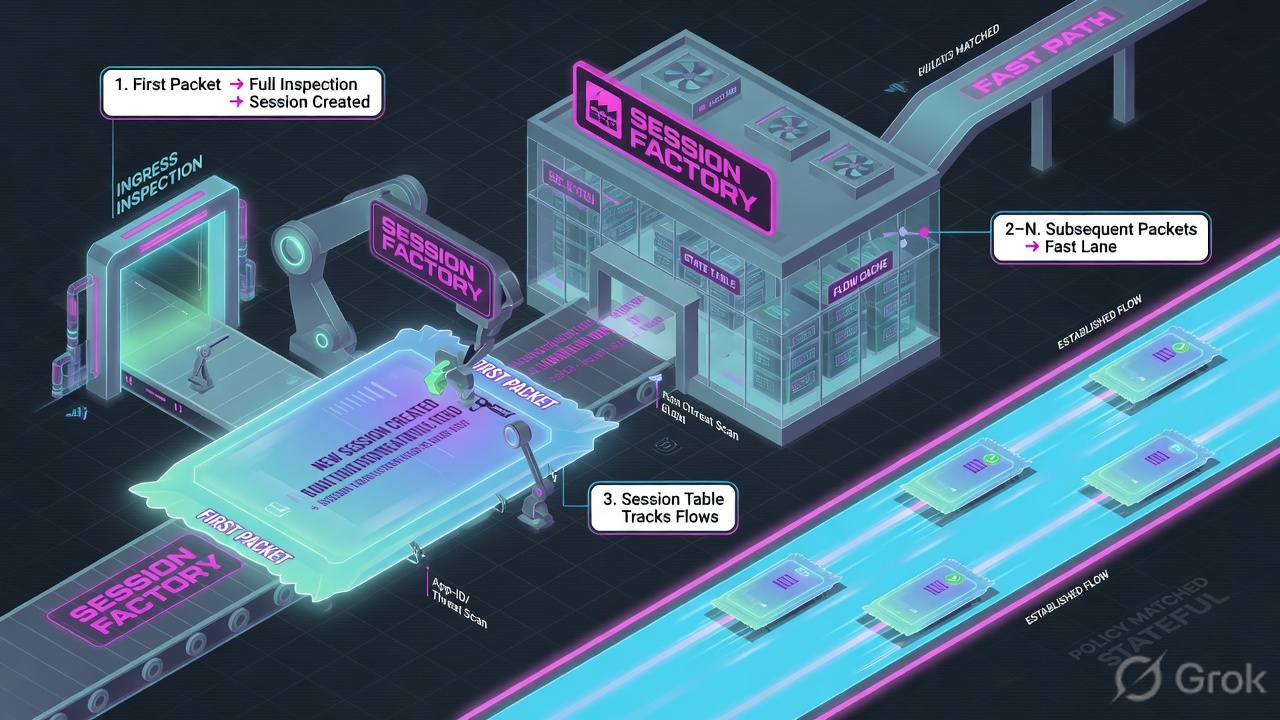
If they say “prove SonicWall is working,” do not say “I opened the Management Interface.” Say: “I prove the session on MONITOR | Tools & Monitors > Connections with Src IP + Src Port, the event with System Logs Access Rule Name, the rule with Access Rule traffic statistics, the tunnel with Currently Active VPN Tunnels plus Local / Destination Networks, and the file with Capture ATP verdict / Block until verdict.”
Night-shift veterans still say Connection Monitor and Log > Monitor — those are the SonicOS 6 labels. SonicOS 7 / 8 technical documentation titles the same work MONITOR | Tools & Monitors > Connections and MONITOR | Logs > System Logs. This desk uses both names on purpose. The fields did not move; the left-nav did.
2. Mental model — five proof tools
Memorise five named objects before you click. Each tool is allowed to prove one thing. Over-claiming a field is how you disable Capture ATP at 02:00 for a SYN that never left X0.
1 · Connection Monitor / session
SonicOS 7/8: MONITOR | Tools & Monitors > Connections. IPv4 or IPv6. Official columns include Src IP, Src Port, Dst MAC, Dst Vendor. Filter the table. Proves the appliance built (or never built) a connection. Does not prove which Access Rule wrote the log.
2 · Log > Monitor
SonicOS 7/8: MONITOR | Logs > System Logs. Official column: Access Rule Name — “Name of the Access Rule triggering the event, if any.” Also Access and IDP Rules. Filter icon + Grid Settings. One event. Not a hit counter.
3 · Access Rule hit
POLICY | Rules and Policies > Access Rules. Display traffic statistics from Settings > Grid Settings. Restore restarts the counts. Zone Matrix / From Zone–To Zone first. Action is Allow, Deny, or Discard. A written Allow with zero stats is not a hit.
4 · VPN status
NETWORK | IPSec VPN > Rules and Settings. Proof object: Currently Active VPN Tunnels (Refresh at the top). Policy Type Site to Site. Then open the policy Network tab: Local Networks / Destination Networks. Active ≠ that subnet.
5 · Capture ATP
POLICY | Capture ATP > Settings plus Dashboard | Capture ATP. Official hold: Block file download until a verdict is returned. Files can sit in Files Blocked Until Completely Analyzed. GAV + Cloud Gateway Anti-Virus must be on or Capture ATP stops.
Hard words, once
Connection = the session row, not the cable. Access Rule Name = the log column. Traffic statistics = the hit counter. Currently Active VPN Tunnels = the live table. Verdict = Capture ATP’s clean / malicious / still-analyzing answer. Classic Mode uses Access Rules; Policy Mode uses a unified Security Policy table — same isolate idea.
Read left → right. Each box is allowed one claim. If you cannot name the official field, you are not proving — you are guessing.
I prove the session, then the log row, then the hit counter, then the active tunnel plus proxy ID, then the ATP verdict. I do not disable Capture ATP, bounce IKE, or add Any-Any until I can quote the field that made me do it.
3. Decision flow — ticket → first tool
Flowchart first. Do not open POLICY | Capture ATP until a diamond says the file is the question.
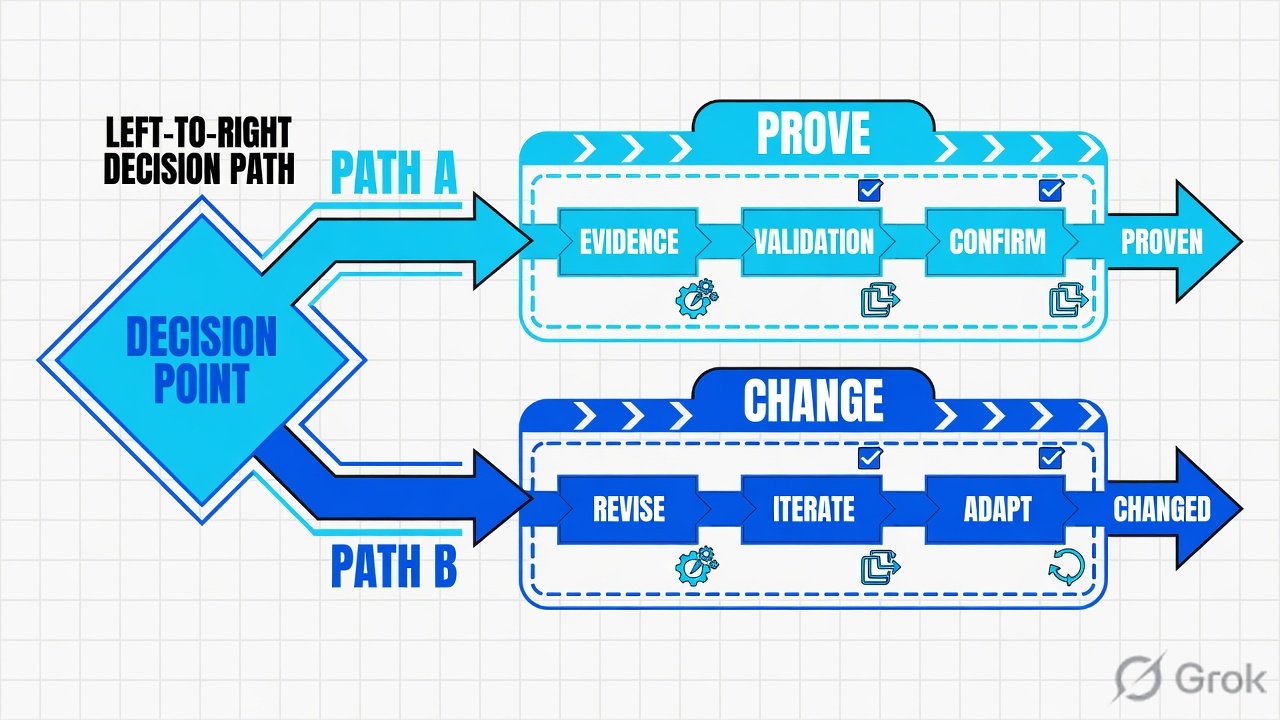
Read the diamond first. A hung download never starts on Access Rules. A dead printer /24 never starts on Capture ATP. Empty Connections never starts on a new Allow.
4. How to choose — first tool + proof field
Print this next to the SonicOS tab. If you cannot recite the proof field, you are not ready to change anything.
| If the ticket says… | First tool (official path) | Proof field | Do not open first |
|---|---|---|---|
| Laptop / “is the firewall even working?” / HTTPS stuck | MONITOR | Tools & Monitors > Connections (Connection Monitor). IPv4 or IPv6. Use Filter. | A row for this 5-tuple: official Src IP + Src Port (plus Dst MAC / Dst Vendor when L2 matters) |
POLICY | Capture ATP |
| One flow denied or discarded after a policy change | MONITOR | Logs > System Logs (Log > Monitor). Filter icon. | Access Rule Name of the Access Rule triggering the event (+ Access and IDP Rules) |
A second LAN→WAN Allow |
| “Rule 14 already allows” / “that rule never hits” | POLICY | Rules and Policies > Access Rules → Settings > Grid Settings → traffic statistics | Traffic statistics on that named rule since last Restore. Action = Allow / Deny / Discard | Disable GAV |
| Site-to-site “up”, one remote subnet dead | NETWORK | IPSec VPN > Rules and Settings → Currently Active VPN Tunnels (Refresh) | Tunnel present in Currently Active VPN Tunnels, then Local Networks / Destination Networks on the policy | Bounce IKE / change Phase 1 |
| Download hung; “disable Capture ATP” | POLICY | Capture ATP > Settings and Dashboard | Capture ATP | Block file download until a verdict is returned / Files Blocked Until Completely Analyzed / the verdict | A new Access Rule, or unchecking GAV |
If Connections is empty, you are not on this desk’s ticket 2–5 yet. You are back in the factory: name the X-port and zone on Network | Interfaces, then the zone-pair Access Rule, then NAT, then ARP on the egress X-port. Lesson: SonicOS speaks X0 and X1. Allow is not a session. Incomplete ARP ends the policy debate.
5. Runbook Side A → B → C
Side A proves the session and the Access Rule hit. Side B proves the log store. Side C proves the overlay — IPsec and Capture ATP. On a messy Sev-2, do them in this order until a field lights up. Every step cites SonicWall technical documentation.
Side A — Session + Access Rule hit
-
Open Connections, not Capture ATP
Path: MONITOR | Tools & Monitors > Connections. Official: Viewing Connections — click IPv4 or IPv6. The appliance “maintains a connections log for tracking all active connections.” Use Filter so the table shows only the ticket 5-tuple. Source: SonicOS 7.0 / 7.3 / 8 Monitor — Connections.
-
Quote the official columns that close a session ticket
Documented Viewing Connections columns include
Src IP(IP address of the source device),Src Port(port number of the source device),Dst MAC,Dst Vendor. Match10.10.8.22(lab) to the destination you were given. A matching row means SonicOS built a connection. An empty filtered table means the packet never became a session — stop. Do not hunt a verdict. -
If someone claims “the rule allows,” open traffic statistics
Path: POLICY | Rules and Policies > Access Rules. Use the Zone Matrix Selector or From Zone / To Zone. Open Settings > Grid Settings and display traffic statistics. Official: to restart the counts, click Restore. Quote the named rule’s statistics after a reproduce. Action values on the rule are Allow, Deny, or Discard. Source: SonicOS 7.1 Rules and Policies for Classic Mode — Display Traffic Statistics.
-
Empty session + zero statistics = factory, not ATP
If Connections has no row and the intended rule’s traffic statistics did not increment, the packet never reached that rule. Confirm X-port / Zone on Network | Interfaces, then the first-match Access Rule for that zone pair. That is the factory, not this desk’s Capture ATP ticket.
MONITOR / Tools & Monitors / Connections / IPv4
Connections
| Src IP | Src Port | Dst MAC | Dst Vendor |
|---|---|---|---|
| 10.10.8.22 | 51844 | 00:53:00:11:22:33 | Lab-ISP |
| 10.10.8.40 | 44312 | 00:53:00:aa:bb:cc | Lab-Core |
Official Viewing Connections columns shown. Empty filtered table = no session. Training mock · RFC 5737 / lab MACs only.
Source: SonicOS 7.0 Tools & Monitors — Viewing Connections; SonicOS 7.3 / 8 Monitor — Connections (Src IP, Src Port, Dst MAC, Dst Vendor; IPv4 / IPv6; Filter). Lab identities only.
Side B — Log > Monitor (System Logs)
-
Open System Logs, not the policy editor
Path: MONITOR | Logs > System Logs. Operators: Log > Monitor. Official: navigate to MONITOR | Logs > System Logs, then use the Filter icon. Grid Settings chooses which columns display. Source: SonicOS 7.3 Monitor — System Logs display options / filter view / functions.
-
Read Access Rule Name — that is the ticket
Official column:
Access Rule Name— “Name of the Access Rule triggering the event, if any.” Also documented under Access and IDP Rules. Filter source10.10.8.22(lab) + the UTC window. Quote the name, not “a deny somewhere.” -
Empty System Logs is not “SonicWall is down”
If Connections already showed a session and System Logs has no row, check Grid Settings, the Filter, and the time window. Logging can be off on that Access Rule. That is a Track / logging problem — not a reason to add Any-Any “so we get a log.” Packet Monitor (MONITOR | Tools & Monitors > Packet Monitor) is a different isolate tool; it is not one of this desk’s five first tiles.
MONITOR / Logs / System Logs
System Logs
| Time (UTC) | Priority | Category | Access Rule Name |
|---|---|---|---|
| 01:41:08 | Inform | Network Access | LAN WAN HTTPS Allow |
| 01:42:11 | Warning | Network Access | LAN WAN Cleanup Deny |
Source: SonicOS 7.3 Monitor — System Logs (display options, filter view, functions). Official column Access Rule Name — name of the Access Rule triggering the event, if any. Lab identities only.
Path:              MONITOR | Logs > System Logs   (aka Log > Monitor)
Filter:            Source 10.10.8.22 + UTC window
Quote:             Access Rule Name = LAN WAN Cleanup Deny
If empty + session: Grid Settings / Filter / logging on that rule
Do not:            add Any-Any “to generate a log”
Side C — VPN status + Capture ATP
-
Prove the tunnel from Currently Active VPN Tunnels
Path: NETWORK | IPSec VPN > Rules and Settings. Official: a list of currently active VPN tunnels is displayed; Refresh the active tunnels at the top of the Policies view. Policy Type on the General screen includes Site to Site. Source: SonicOS/X 7 IPSec VPN — Currently Active VPN Tunnels; site-to-site policies.
-
Then open Local Networks / Destination Networks
Active in the table is not the printer subnet. Open the VPN Policy → Network. Quote Local Networks and Destination Networks (the proxy ID / interesting traffic). Official: when adding VPN Policies, SonicOS auto-creates non-editable Access Rules so traffic can traverse Trusted Zones and the VPN Zone — those auto-rules are not a substitute for listing 10.50.0.0/24. Do not bounce IKE first.
-
If the ticket is a hung download, prove the verdict
Path: POLICY | Capture ATP > Settings. Official enable set: Capture ATP, Gateway Anti-Virus (GAV), and Cloud Gateway Anti-Virus. Official hold: Block file download until a verdict is returned — “ensures no packets get through until the file is completely analyzed.” Dashboard: Dashboard | Capture ATP (status of files sent to the backend). Files can remain in Files Blocked Until Completely Analyzed. Capture ATP stops working when GAV or Cloud GAV is disabled — unchecking GAV is not isolate. Source: SonicOS 7.0 / 7.1 / 8 Capture ATP; SonicOS 7.3 Monitor Dashboard — Capture ATP.
POLICY / Capture ATP / Settings
Capture ATP
Files Blocked Until Completely Analyzed: 1
file=finance-q4.xlsx src=10.10.8.22 state=analyzing
Do not uncheck GAV — Capture ATP stops when GAV or Cloud GAV is disabled.
Source: SonicOS 7.0.1 / 7.1 / 8 Capture ATP (enable GAV + Cloud GAV; Block file download until a verdict is returned; Files Blocked Until Completely Analyzed); SonicOS 7.3 Monitor Dashboard — Capture ATP. Training mock · not live.
- Side A session: Connections Filter returns the ticket
Src IP+Src Port. Side A hit: the named Access Rule’s traffic statistics incremented after Restore + reproduce. - Side B: System Logs
Access Rule Namematches the rule you intend to change (or the Deny you must own). - Side C tunnel: the policy is in Currently Active VPN Tunnels and the dead subnet is listed under Destination Networks — or you quoted that it is missing.
- Side C file: Dashboard | Capture ATP shows a verdict, or you quoted Block until verdict / Files Blocked Until Completely Analyzed as the hold.
6. Five tickets as full stories
These five land every quarter. Memorise first tool + proof field. Times and identities below are lab-only.
| Ticket | Symptom | First tool | Proof field |
|---|---|---|---|
| SWEVD-01 | “Is the firewall even working?” Finance HTTPS stuck | MONITOR | Tools & Monitors > Connections | Src IP + Src Port row — or an empty Filter |
| SWEVD-02 | After a cleanup, one host cannot reach SaaS | MONITOR | Logs > System Logs | Access Rule Name on that event |
| SWEVD-03 | “Rule 14 already allows” but the app never loads | POLICY | Rules and Policies > Access Rules | Traffic statistics since Restore (zero vs increment) |
| SWEVD-04 | IPsec “up”, printers on 10.50.0.0/24 dead | NETWORK | IPSec VPN > Rules and Settings | Currently Active VPN Tunnels + Destination Networks |
| SWEVD-05 | Download hung; L1 wants Capture ATP off | POLICY | Capture ATP + Dashboard | Capture ATP | Block until verdict / Files Blocked Until Completely Analyzed / verdict |
SWEVD-01 — Prove the session (Connections)
01:42 · P2. Priya: Finance HTTPS to 198.51.100.80:443 is stuck. Someone pasted a green HOME / System Status screenshot. L1 already drafted “disable Capture ATP.”
First tool: MONITOR | Tools & Monitors > Connections → IPv4 → Filter Src IP = 10.10.8.22 (lab host).
If empty: SonicOS never built a connection. Quote the empty Filter. Next station is the factory — X-port / zone / first-match Access Rule / ARP on the egress X-port — not POLICY | Capture ATP. The factory dummy lab would then print state=SYN_SENT and bytes=…/0; that is isolate language for “forward done, return not done.” Official Connections proof is still the row (or its absence) with Src IP + Src Port.
If a row exists: you proved a session. You are now allowed to open System Logs for Access Rule Name, or Capture ATP if the symptom is a hung file. The Connections row is not a verdict.
Do not trust a colleague’s Connections tab from a different NSa or the idle HA peer. Official HA: retest on the current active unit. Empty tables on standby are expected.
SWEVD-02 — Prove the event (System Logs)
02:05 · P2. A cleanup change shipped at 01:18. Outlook on the Web opens from some desks. Priya’s host cannot reach 198.51.100.80. Someone wants “another LAN→WAN Allow at the top.”
First tool: MONITOR | Logs > System Logs. Filter Source = 10.10.8.22, last hour.
Proof field: Access Rule Name = LAN WAN Cleanup Deny (lab). That name is the ticket. Change that one rule — or the object it missed — then reproduce and re-read the same column. If Category points at an IDP / security-service event under Access and IDP Rules, you are not in a missing-Allow story.
I would not add a second LAN→WAN Allow. I would quote Access Rule Name on the failing 5-tuple. A saved rule is not proof until the same Filter returns the intended name after reproduce.
SWEVD-03 — Prove the hit (Access Rule traffic statistics)
02:20 · P2. L1: “Rule 14 already Allows HTTPS. SonicWall is broken.” They are looking at the Action column, not the counters.
First tool: POLICY | Rules and Policies > Access Rules. Zone pair LAN → WAN. Settings > Grid Settings → display traffic statistics. Note the counts. Click Restore if you need a clean window. Reproduce once. Re-read the same rule.
Proof field: traffic statistics still zero after reproduce → this rule never saw the packet (wrong zone pair, shadowed by a higher-priority rule, or the session never started — go back to Connections). Statistics increment and Action = Allow → the rule is doing its job; the next station is ARP / NAT / DPI-SSL (factory) or Capture ATP if the file is the hold.
Allow is permission. Traffic statistics are the hit. I would paste the rule name + Action + statistics since Restore. I would not add Any-Any on top of a rule that already Allows and already increments.
SWEVD-04 — Prove the tunnel (Currently Active VPN Tunnels)
02:40 · P2. DC printers on 10.50.0.0/24 are dead. The channel screenshot shows the site-to-site policy Enabled. L1 wants IKE bounced.
First tool: NETWORK | IPSec VPN > Rules and Settings. Refresh. Confirm the policy is in Currently Active VPN Tunnels.
Proof field: the tunnel is in the active table, and Destination Networks does not list 10.50.0.0/24. Active ≠ the subnet. Official Network objects on the VPN Policy are Local Networks and Destination Networks. Auto-added Access Rules between Trusted Zones and the VPN Zone only pass what the policy’s networks include. Do not bounce IKE. Do not change Phase 1.
Restarting a healthy IKE SA is change-control, not isolate. A missing Destination Network is a Network-tab ticket. Quote the object list.
SWEVD-05 — Prove the file (Capture ATP)
03:00 · P3. Finance cannot download finance-q4.xlsx. Connections already shows Src IP 10.10.8.22. System Logs Access Rule Name is the HTTPS Allow. L1 typed “disable Capture ATP” in the channel.
First tool: POLICY | Capture ATP > Settings and Dashboard | Capture ATP.
Proof field: Block file download until a verdict is returned is On, and the file is in Files Blocked Until Completely Analyzed (or the dashboard shows analyzing / the later verdict). Official: that option holds packets until analysis finishes. Official: Capture ATP stops when GAV or Cloud Gateway Anti-Virus is disabled — unchecking GAV to “make the download work” turns the sandbox off. Wait for the verdict, or use a documented exclusion after change-control — do not disable the service from a Sev-3 download.
I would leave Access Rules alone. I would paste Block until verdict + the dashboard file state. A session + an Allow + a hold is Capture ATP doing what you asked.
7. Traps + close-the-ticket proof
Weak closes reuse a screenshot. Strong closes reuse a named SonicOS field.
| You see | Weak close | Strong close |
|---|---|---|
| Green HOME / System Status tile | “SonicWall is working” | Connections row for the 5-tuple: Src IP + Src Port |
| Empty Connections Filter | Disable Capture ATP | Quote the empty table; factory: X-port / zone / rule / ARP |
| Access Rule Action = Allow | “Policy is fine” | Traffic statistics since Restore — Allow ≠ hit |
| System Logs empty, session exists | Any-Any “to get a log” | Grid Settings + Filter + logging on that rule; quote Access Rule Name when it appears |
Access Rule Name = Cleanup Deny | Second LAN→WAN Allow at the top | Change that named rule; re-read the same column |
| VPN policy Enabled | Bounce IKE | Currently Active VPN Tunnels + Local / Destination Networks |
| Tunnel in Currently Active, one /24 dead | “IPsec is down” | Quote the missing Destination Network object |
| Download hung, session + Allow exist | Uncheck GAV / Capture ATP | Block until verdict / Files Blocked Until Completely Analyzed / verdict |
| Idle HA peer, empty Connections | “The pair is down” | Retest the current active unit — idle standby is expected |
| Capture ATP “not working” | Reboot the NSa | Official: it stops when GAV or Cloud GAV is disabled. Re-read Settings. |
- UTC window written next to the tool you opened.
- Unit proved: current active NSa, not the idle HA peer.
- Session proved when the ticket is “is the firewall even working?”: Connections
Src IP+Src Port(or the empty Filter). - One transaction quoted: System Logs
Access Rule Name, or Access Rule traffic statistics since Restore, or Currently Active VPN Tunnels + Destination Networks, or Capture ATP verdict / hold. - Factory station named if Connections is empty (X-port / zone / rule / ARP).
- Next tool named — or change-control owner named. No Any-Any, no GAV uncheck, no IKE bounce without residual control.
I name the question, then the first tool, then one official field. Connections proves the session. System Logs proves Access Rule Name. Access Rule traffic statistics prove the hit. Currently Active VPN Tunnels plus Local / Destination Networks prove the site-to-site. Capture ATP proves the file hold / verdict. I do not disable Capture ATP, bounce IKE, or add Any-Any until that field is on the ticket. Factory model: SonicOS speaks X0 and X1.
Knowledge check
Six night-shift judgments. Each maps to a first tool or a proof field. Check answers, then Reset if you picked the wrong surface.
Sources
- SonicOS 7.0 Tools & Monitors — Viewing Connections (
Src IP,Src Port,Dst MAC; IPv4 / IPv6) - SonicOS 7.0 Tools & Monitors — Filtering the Connection Log (Filter the Connections table)
- SonicOS 7.3 Monitor — Connections (
Src Port,Dst MAC,Dst Vendor) - SonicOS 8 Monitor — Connections (connections log for all active connections)
- SonicOS 7.3 Monitor — System Logs display options (
Access Rule Name; Access and IDP Rules; Grid Settings) - SonicOS 7.3 Monitor — System Logs filter view (MONITOR | Logs > System Logs · Filter icon)
- SonicOS 7.3 Monitor — System Logs functions
- SonicOS 7.1 Rules and Policies (Classic) — Display Traffic Statistics (Settings > Grid Settings; Restore restarts counts)
- SonicOS 7.1 Rules and Policies (Classic) — Access Rules settings
- SonicOS 7.0 Rules and Policies (Classic) — Access Rules create (Zone Matrix Selector)
- SonicOS/X 7 IPSec VPN — Currently Active VPN Tunnels (Refresh)
- SonicOS/X 7 IPSec VPN — Site-to-site VPNs
- SonicOS/X 7 IPSec VPN — Create site-to-site (Policy Type Site to Site) (NETWORK | IPSec VPN > Rules and Settings)
- SonicOS/X 7 IPSec VPN — Auto-added Access Rules (Trusted Zones ↔ VPN Zone)
- SonicOS 7.0 Capture ATP
- SonicOS 7.1 Capture ATP — Enable (POLICY | Capture ATP > Settings; GAV + Cloud GAV)
- SonicOS 7.0 Capture ATP — Files blocked until a verdict
- SonicOS 7.0 Capture ATP — Disabling GAV (ATP stops when GAV or Cloud GAV is disabled)
- SonicOS 7.3 Monitor Dashboard — Capture ATP
- SonicOS 8 Capture ATP — Config
- SonicOS 7 About SonicOS — Capture ATP dashboard
Related: Blog 1 · SonicWall session factory · SonicWall interview hub · Dummy lab (simulator key sonicwall) · Access rules and NAT · DPI-SSL deep dive