Device page answers “did this sensor check in?” Timeline answers “what parent launched what child, under which MITRE technique?” Alert / Incident answers “what severity, in what status, with what classification?” Action center answers “did Isolate device / collect / live response land?” ASR / next-generation protection answers “was this host even allowed to block?” High risk level is not Isolated. Audit is not a miss. A green Windows Security icon is not Last seen.
1. Why “is MDE working?” is five questions
Operators collapse five failures into one sentence. The sensor is Inactive. The device page Last seen is days old. The Office-child ASR rule is in Audit. The alert is still New while the laptop sits on the LAN. Isolate device is Pending because the host is dark. Those are five first clicks.
This page is the night-shift desk for proof. The factory taught ASR Audit versus Block, risk versus isolate, and why a living-off-the-land alert is not a patch ticket. Here you learn the five Microsoft Defender portal surfaces you actually open, in order, when someone asks you to prove MDE is working — or to explain why it did not block.
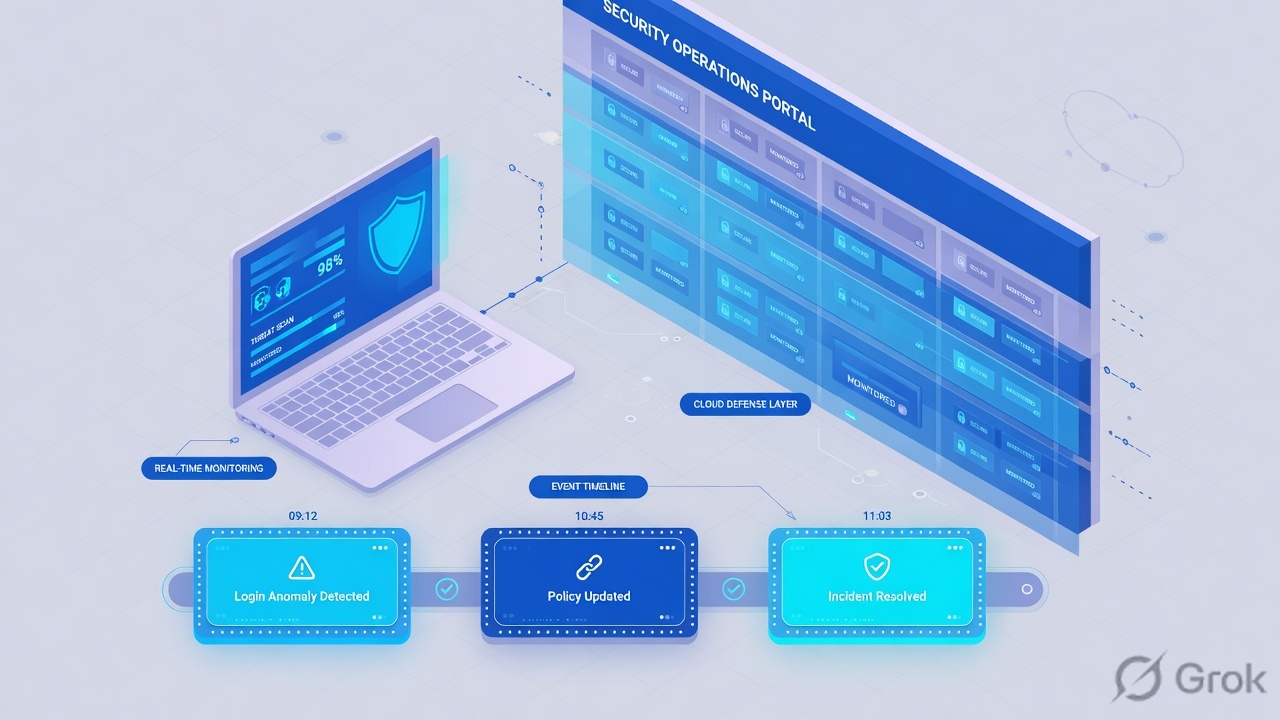
If they say “prove Defender is working,” do not say “I opened security.microsoft.com.” Say: “I prove the sensor with Device page Sensor health state and Last seen, the chain with Timeline process tree + MITRE, the case with Alert Severity / Status, the click with Action center, and the block decision with ASR mode or Defender Antivirus Active versus Passive.”
2. Mental model — five proof tools
Memorise five named objects before you click. Each tool is allowed to prove one thing. Over-claiming a field is how you isolate a leftover renamed device or flip ASR tenant-wide at 02:00.
1 · Device page
Assets → Devices (security.microsoft.com/machines), then the device. Proves the sensor: Sensor health state, Last seen, Onboarding status, Risk level. Does not prove a MITRE technique or an isolate click.
2 · Timeline
Device page → Timeline. Proves parent → child, command line, MITRE ATT&CK technique, event time. A filename in Slack is not the tree. Empty Timeline on an Inactive sensor is expected.
3 · Alert / Incident
Incidents & alerts → Alerts (security.microsoft.com/alerts), or the device Incidents and alerts tab. Proves Severity, Status (New / In progress / Resolved), Classification. High is not Isolated.
4 · Action center
Action center (security.microsoft.com/action-center), or the Action center button on the device. Proves Isolate device / Collect investigation package / Live response / Run antivirus scan — Success, Pending, Failed, or Skipped. The button is not the proof.
5 · ASR / next-gen protection
Device Effective settings, or Endpoint security policies at security.microsoft.com/policy-inventory, or Reports → Attack surface reduction rules. Proves Audit versus Block, and Defender Antivirus Active versus Passive. A Detect/Audit mode is configuration, not a miss.
Hard words, once
Sensor health state = Active / Inactive / Misconfigured. Last seen = last connection on the device page (may lag Timeline). Isolate device = response action (needs Active remediation actions). Contain device = different action for unmanaged hosts. ASR = attack surface reduction. NGP = next-generation protection (Defender Antivirus).
Read left → right. Each box is allowed one claim. If you cannot name the field, you are not proving — you are guessing.
I prove the sensor, then the timeline, then the alert, then the Action center row, then the assigned ASR / antivirus mode. I do not isolate, exclude, or flip Audit → Block until I can quote the field that made me do it.
3. Decision flow — ticket → first tool
Flowchart first. Do not open Endpoint security policies or click Isolate device until a diamond says so.
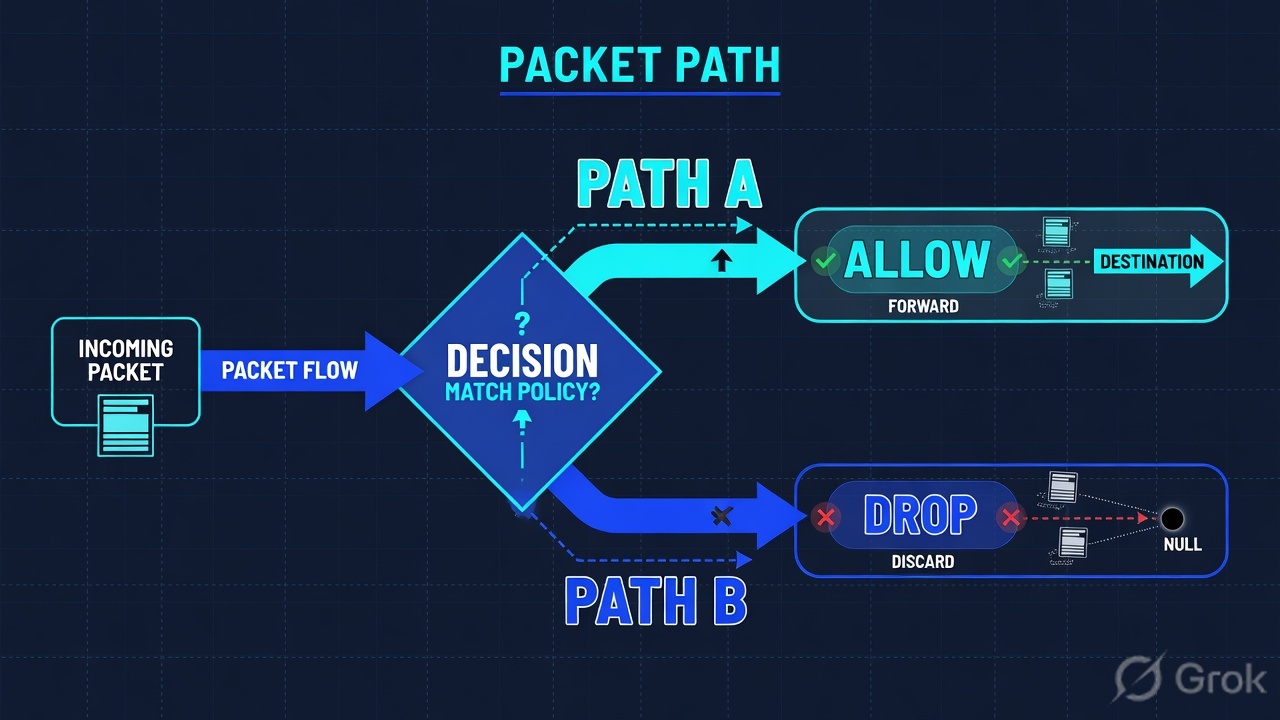
Read the diamond first. “Why didn’t it block?” never starts in Action center. A dark Last seen never starts in Endpoint security policies. A blocked demo can be policy success.
4. How to choose — first tool + proof field
Print this next to the Microsoft Defender portal. If you cannot recite the proof field, you are not ready to isolate or change a rule.
| If the ticket says… | First tool (official path) | Proof field | Do not open first |
|---|---|---|---|
| Laptop / hotel / “is Defender even working?” | Assets → Devices → device Overview (security.microsoft.com/machines) |
Sensor health state (Active / Inactive / Misconfigured) + Last seen + Onboarding status |
A new ASR Block, or Isolate device |
| “Why didn’t it block?” after Word spawned PowerShell | Device Effective settings, or Reports → Attack surface reduction rules, or security.microsoft.com/policy-inventory |
ASR rule mode Audit (not Block), or Defender Antivirus Passive on the Device health status card | Tenant-wide ASR flip |
| Need the process chain / who launched whom | Device page → Timeline (from inventory, an alert, or an incident) | Event time + parent → child + MITRE technique (and Additional information) | The filename argument in Slack |
| High alert, still New, “just isolate it” | Incidents & alerts → Alerts, then device Overview isolation state | Severity + Status + Classification. High risk is not Isolated. |
Waiting for risk to self-contain |
| Did Isolate / collect / live response land? | Action center (security.microsoft.com/action-center) · Pending / History |
Action type + status (Success / Pending / Failed / Skipped) + submitting user + time | Click Isolate twice. Isolate a host Last seen days ago and call it done. |
Microsoft documents a product constraint: the device profile does not consider all cyber evidence when it computes Last seen. The Device page clock can show an older time even when newer alerts or Timeline rows exist. If Last seen looks stale but Timeline is fresh, quote both. Do not declare the sensor dead from Last seen alone when Timeline is still writing events.
5. Runbook Side A → B → C
Side A proves the sensor is on the wire. Side B proves what MDE saw and whether policy was allowed to block. Side C proves the response click landed. On a messy Sev-2, do them in this order until a field lights up.
Side A — Device page (sensor health / last seen)
-
Open Assets → Devices, not the alert editor
Path: Assets → Devices, or go directly to security.microsoft.com/machines. Search the hostname. If two rows appear after a reinstall or rename, Microsoft documents that a new device entity is created and the previous one stays Inactive — work the live name. Source: Explore devices in the device inventory; Fix unhealthy sensors.
-
Read the three sensor columns that close “is MDE working?”
Sensor health state— Active (reporting), Inactive (no report for more than seven days in the past month), or Misconfigured (impaired communications / no sensor data).Last seen— last connection on the device page.Onboarding status— onboarded versus discovered / can be onboarded. Source: Check the device health; Device inventory columns. -
If Inactive or Last seen is days, stop. This is a sensor ticket
Do not start live response. Do not isolate and call it contained (a dark host retries isolate for up to three days, then gives up). Do not call it a miss. Check Sense / WinHTTP / proxy to Defender URLs, a rename leftover, or offboarding. Then come back.
-
If Misconfigured, quote the subtype before you hunt a “miss”
Impaired communications = limited talk to the service. No sensor data = the device talks but only reports partial data. Official next checks: Internet + WinHTTP, service URLs, diagnostic data service, Defender Antivirus ELAM not disabled by policy. Empty Timeline is expected until that is fixed.
Assets / Devices / All devices
Device inventory
| Device | Onboarding | Sensor health | Last seen | Risk | Isolation |
|---|---|---|---|---|---|
| DEVICE-LAB-17 | Onboarded | Active | 22s ago | High | Not isolated |
| DEVICE-LAB-17-OLD | Onboarded | Inactive | 12 days ago | No known | Not isolated |
Source: Microsoft Learn — Explore devices in the device inventory (security.microsoft.com/machines); Check sensor health state (Active / Inactive / Misconfigured); Fix unhealthy sensors (rename leftover stays Inactive). Two names, one desk — work the 22s row. Lab identities only. Training mock · not live.
Side B — Alert / Incident, Timeline, ASR / next-gen protection
-
Open the alert, not Slack’s filename
Path: Incidents & alerts → Alerts (security.microsoft.com/alerts), or the device Incidents and alerts tab. Official columns: short description,
Severity(high / medium / low / informational),Status(New / In progress / Resolved),Classification(not set / false alert / true alert), investigation state, category, assignee, last activity. Source: Investigate devices; Investigate alerts in Microsoft Defender XDR. -
Open Timeline before you type live response
Device page → Timeline. Select the event → side panel with process tree. Quote parent, child, command line, and the MITRE technique (bold + blue icon). Additional information can say Remediation successful / unsuccessful, Suspicious script detected, or the alert category. Timeline is historical telemetry. Live response is live. Do not skip the tree to collect a file you already have in the graph.
-
If the ticket is “why didn’t it block?”, open Effective settings — then the ASR report
Device page → Configuration management → Effective settings. Official: setting name, policy type, effective value, source (Defender / Intune / Group Policy / registry), last report time. Complex settings such as ASR rules break down each rule, its source, and exclusions. Then confirm detections: Reports → Endpoints → Attack surface reduction rules and the
Blocked/Audited?column. -
Also read Defender Antivirus mode. ASR needs Active
Device health status card (highest-priority message includes Defender Antivirus not active). ASR rules require Microsoft Defender Antivirus in Active mode with real-time protection on — not Passive, not Limited periodic scanning, not Off. If AV is Passive, Audit/Block on an ASR policy will not do what the ticket expects. That is configuration, not a product miss. Source: ASR rules overview — Requirements.
Assets / Devices / DEVICE-LAB-17 / Timeline
Device timeline
| Time (UTC) | Action type | Process / MITRE | Additional information |
|---|---|---|---|
| 10:41:02 | FileOpened | winword.exe · invoice.docm | — |
| 10:41:08 | ProcessCreated | powershell.exe · T1059.001 | Suspicious script detected |
| 10:41:12 | ConnectionSuccess | rundll32.exe → 203.0.113.88 | Alert category · Command and Control |
Source: Microsoft Learn — Investigate devices (Timeline tab; process tree; MITRE techniques; Additional information). Lab command lines and 203.0.113.88 only. Training mock · not live.
Path:            Incidents & alerts → Alerts   (or device Incidents and alerts)
Quote:           Severity + Status + Classification
Then:            Device → Timeline  (parent → child → MITRE + Additional information)
If “no block”:   Device → Effective settings   and/or
                 Reports → Endpoints → Attack surface reduction rules
Quote:           ASR rule mode Audit vs Block   ·  Blocked/Audited?
Also quote:      Device health status · Defender Antivirus Active / Passive
If empty queue: Assets → Devices · Sensor health state / Last seen firstDEVICE-LAB-17 / Configuration management / Effective settings
Effective settings
ASR rule 9e6c4e1f-7d60-472f-ba1a-a39ef669e4b2: Block (code 1)
Reports → ASR rules → Blocked/Audited?: Audited for the Office-child event
Product did what this host is configured to do. Promote under change control.
Source: Microsoft Learn — Investigate devices (Effective settings); ASR rules overview (modes Off 0 / Block 1 / Audit 2 / Not configured 5 / Warn 6; Office-child GUID); ASR rules report (Blocked/Audited?); Endpoint security policies at security.microsoft.com/policy-inventory. Lab policy names only. Training mock · not live.
Side C — Action center (isolate / collect / live response)
-
Isolate a live egress host from the device page — prove it in Action center
Response actions sit along the top of the device page: Isolate device, Restrict app execution, Run antivirus scan, Collect investigation package, Initiate live response session, Action center. Official isolate: type a comment → Confirm. Isolation disconnects the device from the network while it stays connected to the Defender service. You need the Active remediation actions role and device-group access. Isolation is automatically lifted after seven days. Microsoft’s word on the device is Isolate device (Contain device is a different action for unmanaged hosts). Source: Take response actions on a device.
-
Do not trust the button. Open Action center
Path: device → Action center, or security.microsoft.com/action-center. Tabs: Pending (approve / reject) and History. Quote action type, submission time, submitting user, and whether it succeeded or failed. If the host was offline, Microsoft retries isolate for up to three days — Pending is not Isolated.
-
Live response and collect only after Last seen is seconds
Initiate live response session needs a talking sensor. Collect investigation package can fail on low battery or a metered link — the zip is downloaded from Action center when the package is available. Both are change-control in most shops. A dark Inactive device does not collect tonight.
Action center / History / Isolate device
Action center
comment: ALR-1042 egress 203.0.113.88 — IR-LAB-17
Release from isolation is the undo. Isolation auto-lifts after 7 days.
Source: Microsoft Learn — Take response actions on a device; Overview of the Action center; View and manage actions (security.microsoft.com/action-center). Isolation success is evidence. Do not isolate twice. Lab identities only. Training mock · not live.
- Side A: Device page
Sensor health state= Active andLast seenis seconds on the hostname you named; you stated which leftover Inactive row you ignored. - Side B: Alert quotes
Severity+Status+Classification; Timeline names parent → child + MITRE; “no block” quotes ASR Audit or Antivirus Passive. - Side C: Action center shows Isolate device Success (or you documented Pending / Failed); Last seen still increments after isolate.
6. Five tickets as full stories
These five land every quarter. Memorise first tool + proof field. Times and identities below are lab-only.
| Ticket | Symptom | First tool | Proof field |
|---|---|---|---|
| MDE-ED-01 | WFH laptop: “Defender is down, icon looks installed” | Assets → Devices | Sensor health state + Last seen — or the 12-day Inactive leftover |
| MDE-ED-02 | Word spawned PowerShell; process still running; “why no block?” | Effective settings / ASR report | Office-child rule = Audit · Blocked/Audited? = Audited |
| MDE-ED-03 | Need the chain / who launched the child | Device → Timeline | Parent → child + MITRE T1059.001 + event time |
| MDE-ED-04 | High / New; user still on the laptop | Incidents & alerts → Alerts | Severity + Status = New · risk High is not Isolated |
| MDE-ED-05 | “I clicked Isolate — is it isolated?” | Action center | Isolate device · Success / Pending / Failed + submitting user |
MDE-ED-01 — Prove the sensor (Device page)
01:42 · P2. Priya on a hotel network. Phone photo of a Windows Security shield. L1 already drafted “Defender missed the malware.” Timeline for her hostname is empty.
First tool: Assets → Devices at security.microsoft.com/machines. Search DEVICE-LAB-17.
If Sensor health state is Inactive / Misconfigured, or Last seen is days: quote that pair. Empty Timeline is expected. Next check is sensor — WinHTTP / proxy to service URLs, Sense, rename leftover, offboarding — not a new ASR Block.
If Active and Last seen is seconds: the sensor is talking. Now you are allowed to open Timeline and Alerts for that device and UTC window. A tray icon is not Last seen.
Two rows after a reinstall. Microsoft keeps the old entity Inactive. Isolating DEVICE-LAB-17-OLD does not touch the laptop on the desk. Sort Last seen. Work the Active row.
MDE-ED-02 — Prove why it did not block (ASR / next-gen protection)
02:05 · P2. winword.exe started powershell.exe. The process is still running. Someone typed “Defender failed” and wants every ASR rule set to Block for Finance so this never happens again tonight.
First tool: device Effective settings, then Reports → Endpoints → Attack surface reduction rules. Confirm Defender Antivirus mode on the Device health status card.
Proof field: rule Block all Office applications from creating child processes (GUID d4f940ab-401b-4efc-aadc-ad5f3c50688a) = Audit (code 2). ASR report Blocked/Audited? = Audited. Antivirus = Active — so the rule could have blocked if it were in Block. That is the ticket. MDE did what this host is configured to do. Isolate if Timeline shows live egress. Flip Audit → Block under change control on a ring. Do not call it a miss and do not save a tenant-wide policy at 02:10.
I would not call this a miss. I would quote Audit on that one rule, isolate the live host if egress is on the Timeline, and open a change to move that ring to Block. If the health card said Defender Antivirus not active, I would quote Passive first — ASR requires Active.
MDE-ED-03 — Prove the chain (Timeline)
02:20 · P1. ALR-1042. User still in Outlook. L1 wants to argue whether the file is named invoice.docm or Invoice (1).docm.
First tool: device page → Timeline (from the alert, the incident, or Assets → Devices). Select the 10:41Z ProcessCreated row → process tree.
Proof field: 10:41:02 winword.exe opened the document → 10:41:08 powershell.exe (MITRE T1059.001, Additional information: Suspicious script detected) → 10:41:12 rundll32.exe to 203.0.113.88. Last seen 22s, not isolated. Isolate first. Filename later. Hunt siblings with advanced hunting after the tree names the account.
Quote event time + parent → child + MITRE. Isolate the live device. Do not spend the bridge on the attachment name. Source: Investigate devices — Timeline, process tree, MITRE techniques.
MDE-ED-04 — Prove the case (Alert / Incident)
02:40 · P1. Queue shows Suspicious PowerShell, Severity High, Status New. Chat says “risk is High so it must already be isolated.”
First tool: Incidents & alerts → Alerts, then the device Overview cards.
Proof field: Severity = High, Status = New, Classification = not set. Device Risk level = High. Isolation = Not isolated. Microsoft’s risk field is for prioritisation (and optional Intune compliance). Isolate device is a separate response action. Assign the alert. Do not leave New while the laptop sits on the LAN.
Exposure level is posture (pending recommendations). Risk level is alert-driven. Neither is Isolate device. Waiting for auto-isolate because risk is High is how egress continues.
MDE-ED-05 — Prove the click (Action center)
03:00 · P2. Someone already clicked Isolate device. The channel asks “are we contained?” A second person is about to click it again.
First tool: Action center → History, filtered to that device. Also re-read the device page isolation state.
Proof field: Isolate device · Success · submitting user · 10:52Z. If the row is Pending and Last seen is hours, you have a sensor ticket — Microsoft will retry isolate for up to three days, then stop. If Failed, quote the failure and fix reachability; do not click Isolate a third time. Release from isolation is the undo (comment + Confirm).
I would paste the Action center row, not a second isolate. If Success, hunt siblings. If Pending on a dark host, treat it as a sensor ticket. Isolation auto-lifts after seven days — put a calendar note on the IR ticket.
7. Traps + close-the-ticket proof
| You see | Weak close | Strong close |
|---|---|---|
| Empty Timeline / empty Alerts | “Defender missed it” | Assets → Devices · Sensor health state + Last seen first |
| Tray icon on a phone photo | “MDE is working” | You only proved a bitmap. Quote Last seen on that device |
| Office-child event, process still running | “Defender failed” | Effective settings: that ASR rule = Audit · Blocked/Audited? = Audited |
| Risk level High | Wait for auto-isolate | High is not Isolated. Timeline, then Isolate device, then Action center |
| Two device rows after a rename | Isolate both / live-response the old one | Inactive leftover. Work the Active Last seen |
| Last seen 8 days / Inactive | Start live response / isolate and close | Sensor ticket. Isolate retries then stops. Collect will not land |
| Device page Last seen older than Timeline | “Sensor is dead” | Official Last seen caveat. Quote both clocks |
| Defender Antivirus not active | Flip every ASR rule to Block | ASR requires AV Active. Quote the health-card mode first |
| Isolate button clicked | Click it again | Action center History · Success / Pending / Failed |
| CVE list pasted into the IR chat | Convert the ticket to patching | Stay on Timeline + ASR. Vuln is a follow-up ticket (factory) |
- UTC window written next to the tool you opened.
- Sensor proved:
Sensor health state+Last seen+Onboarding statuson the device you named. - One behaviour quoted: Timeline parent→child + MITRE, or Alert
Severity/Status, or Action center isolate status, or one ASR Audit/Block (or AV Active/Passive). - If isolated: Action center Success and Last seen still incrementing.
- If ASR change: ring, owner, change number. No tenant-wide Audit → Block at 02:00.
- Live response / collect only with a live sensor and a change number.
I name the question, then the first tool, then one official field. Device page proves the sensor. Timeline proves the chain. Alert proves the case. Action center proves the click. ASR / next-generation protection proves whether MDE was allowed to block. I isolate a live host. I do not start with “Defender missed it.” Factory model: ASR audit vs block.
Knowledge check
Six night-shift judgments. Each maps to a first tool or a proof field. Check answers, then Reset if you picked the wrong surface.
Sources
- Microsoft Learn — Explore devices in the device inventory (
security.microsoft.com/machines; onboarding status, sensor health state, risk, exposure) - Microsoft Learn — Check the device health / sensor health state (Active, Inactive, Misconfigured)
- Microsoft Learn — Fix unhealthy sensors (Inactive after seven days; rename leftover; impaired communications; no sensor data)
- Microsoft Learn — Investigate devices in Microsoft Defender for Endpoint (Last seen caveat; Timeline; Incidents and alerts; Effective settings; Device health status card)
- Microsoft Learn — Device entity page in Microsoft Defender (Overview cards; Timeline columns; Isolate device; Action center)
- Microsoft Learn — Investigate alerts in Microsoft Defender XDR (
security.microsoft.com/alerts; Severity, Status) - Microsoft Learn — Investigate incidents in the Microsoft Defender portal
- Microsoft Learn — Take response actions on a device (Isolate device; live response; collect investigation package; Action center; Active remediation actions; 7-day auto-lift)
- Microsoft Learn — Overview of the Action center (
security.microsoft.com/action-center) - Microsoft Learn — View and manage actions in the Action center (Pending / History; undo Isolate device)
- Microsoft Learn — ASR rules overview (modes Off / Block / Audit / Warn; Office-child GUID; AV must be Active)
- Microsoft Learn — Attack surface reduction in Microsoft Defender for Endpoint (Audit mode does not block)
- Microsoft Learn — ASR rules report (
Blocked/Audited?; Reports → Endpoints → Attack surface reduction rules) - Microsoft Learn — Configure ASR rules and exclusions (
security.microsoft.com/policy-inventory) - Microsoft Learn — Device health Microsoft Defender Antivirus health report (Last seen; Antivirus mode Active / Passive)
- Microsoft Learn — Investigate entities on devices using live response
Related: Blog 1 · Session factory — ASR audit vs block · Defender practice dashboard · Dummy lab · MDE interview Q&A