CyberArk Privilege Cloud is a privileged-session factory. The Vault stores the secret. A Safe is the ACL. Official Access permissions decide the next stamp: List accounts lets the row appear, Use accounts lets the operator click Connect through PSM without seeing the password, Retrieve accounts lets them click Show / Copy. PSM (RDP / HTML5 from the Portal) or PSM for SSH (native SSH client) brokers and records the session. CPM then verifies the Vault copy still matches the target — and only reconciles when those two truths drifted. A green Vault with a missing Safe member is not an outage.
I do not start with a rebuild. I ask whether the user is a Safe member, whether they have Use or Retrieve, whether Connect or Show is the designed path, whether PSM or PSM for SSH is the broker, and whether Last Verified is recent. I do not Change a healthy secret because a session failed to start.
1. Why Vault up is not a session
Every other briefing starts with “is the Vault up?” That is why night shift reboots a healthy Primary and still has a contractor who cannot see the Safe. The real object is the privileged session. Vault health is only the factory floor being powered. The ticket is printed by Safe membership. The stamp is Use or Retrieve. The broker is PSM or PSM for SSH. CPM is the after-shift inspector, not the door.
Official Privilege Cloud wording: users who have access to Safes are Safe members. Each member gets a unique set of permissions on accounts in that Safe. Official Connect docs: you need Use account and List account in the Safe to connect to a target. Official retrieve docs: Show on the account menu displays the password for a limited time — that is a different permission and a different design.
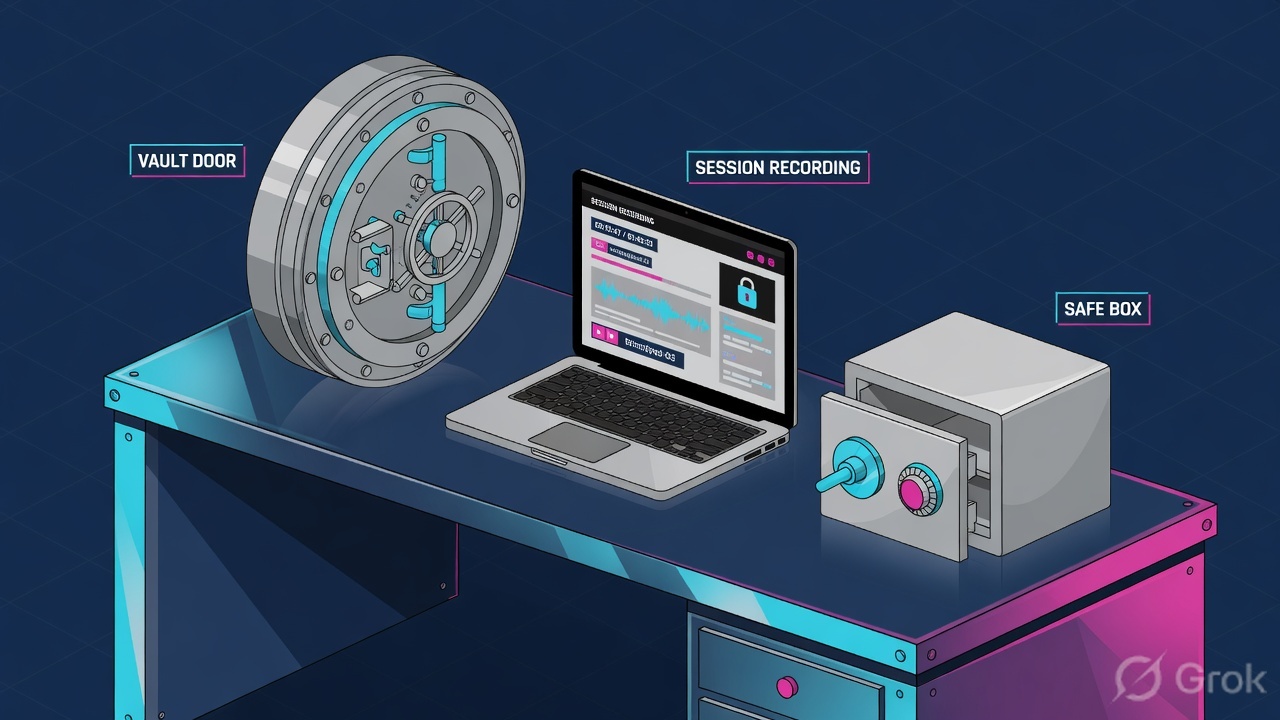
What the ticket asked
“CyberArk is down — Finance cannot RDP.” That sentence is a hypothesis. The factory may already be green and still refuse the member.
What you prove first
Safe members on Policies → Safes, then Use vs Retrieve, then Connect vs Show, then Last Verified. Night-shift field order lives in the evidence desk.
“The Vault is green, so we restart the connector and rotate the local admin.” A green Vault only means the store is up. If the user is missing from the Safe, or has List without Use, Connect will never appear. Rotating after that just gives you two problems.
2. Mental model — four factory stations
Hold four parts. Interviews fail when people mix the store, the ACL, the broker, and the rotator.
1. The store is the Vault
Privilege Cloud holds the secret. Necessary. Never sufficient. A healthy Primary with a missing member still denies.
2. The ACL is the Safe
Official: Policies → Safes. Members tab. Permissions are per member. List / Use / Retrieve are Access permissions — not “owner.”
3. The broker is PSM or PSMP
PSM = Portal Connect, RDP file or HTML5 remote, video + text in Monitoring. PSM for SSH = native SSH client, no Portal session window required.
4. The inspector is CPM
Verify proves Vault and target still match. Change rotates both together. Reconcile uses a linked reconcile account when they drifted.
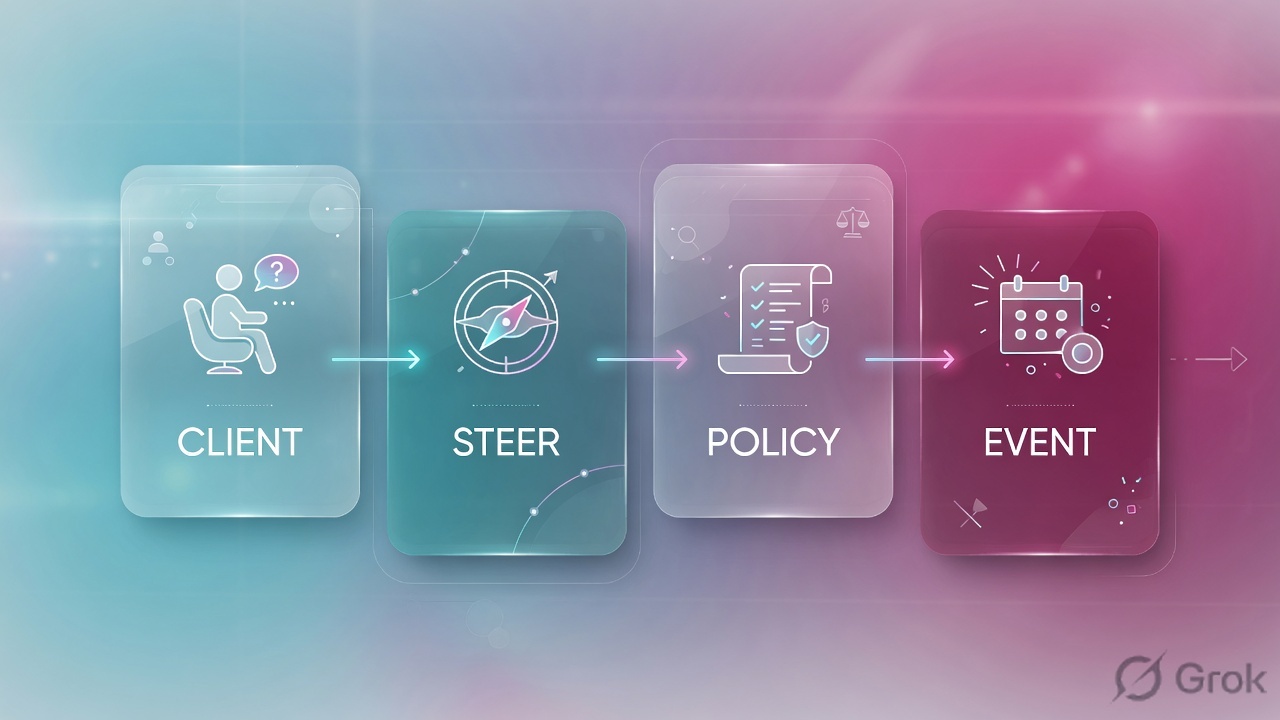
Read left → right. Station 2 is a fork, not a synonym. Use and Retrieve are two official Access permissions with two different buttons.
Use accounts answers “may this person launch a brokered session?” Official: log on to a remote machine through PSM from the Accounts List (Connect with account) or from Account Details / Versions (Connect). The password stays hidden. Platforms can be configured so the value is never displayed and only transparent connection is allowed.
Retrieve accounts answers “may this person see the secret?” Official: Show on the account menu, then reason (if Master Policy Require users to specify reason for access is Active), then Copy. The password is displayed for a limited time. That is checkout-style retrieve — not the PSM path.
PSM answers “who sits between the human and the target?” Official Connect: from inside the network an RDP file is downloaded and becomes invalid once the session begins. Remote (no VPN) uses the Remote Connection toggle and HTML5. PSM for SSH answers the same question for Unix: a standard SSH client to the PSMP proxy, syntax User@targetuser#DomainAddress@targetmachine@proxyaddress.
CPM answers “do the two copies still match?” Official: Overview → Last Verified → Verify. If they do not match, Overview → Compliance Status → Reconcile (needs a linked reconcile account). Change is a third button. It is not the first move after a dead Connect.
3. Decision flow — name the station
Draw this before you open Privilege Cloud Portal. The first diamond is not “is CyberArk down?” It is “which factory station failed?”
Read top → bottom. Amber = change-control (member, permission). Green = isolate the broker. Red = CPM only after Last Verified failed.
Operators keep asking for Show because they think the password is how PSM logs on. Official Connect does not require Retrieve. PSM injects the Vault secret. Granting Retrieve so “Connect appears” is how standing passwords leak onto laptops. If Connect is missing, check Use accounts and List accounts, then dual control, then the platform connection component — not Show.
4. How to choose Use, Retrieve, PSM, CPM
You are not choosing a product. You are choosing which stamp the factory is allowed to write, and which broker carries the session.
| Choice | Use when | Do not use when | Proof you were right |
|---|---|---|---|
| List + Use only | Production operators. Designed path is Portal Connect (PSM) or PSM for SSH. Password must stay hidden. | You also need the human to paste a password into a tool that cannot go through PSM. That is a documented Retrieve exception. | Member can see the account and Connect. Show is absent or fails. Recording appears in Monitoring. |
| List + Retrieve | Break-glass or a designed Show path. Master Policy reason rule is Active. Exclusive access if the account must lock while displayed. | You grant it “so PSM works.” Official Connect does not need it. | Show → reason → Copy. Activity log has the retrieve. Password display times out. |
| Confirm requests | Approver group on a Safe that is under dual control. Pair with List so they can open request details. | You put it on the operator group. Operators request; confirmers confirm. | Accounts → Request List moves off waiting. Operator can then Connect. |
| Access Safe without confirmation | A break-glass identity that must skip dual control. Named, monitored, tiny membership. | You add it to the whole operator group to close a P2. That is silently turning dual control off. | Only that member Connects without a request. Everyone else still requests. |
| PSM (Portal Connect) | Windows / RDP / apps that need video recording, live Monitor / Suspend / Terminate. | The user is on a Unix jump with a native SSH client and you force them through an RDP file. | RDP file or HTML5 session starts. Monitoring row exists. Recording Safe (default PSMRecordings after first session) has the file. |
| PSM for SSH | Unix / network devices from PuTTY, plink, SecureCRT, or automation. Admin has enabled PSMP. | The account needs a logon account — official PSMP remote-command and SFTP paths do not support that. | SSH to the proxy using official syntax. Text recording in the Vault. Session closes after a remote command if you used that flow. |
| Verify | First CPM move. You need to know whether Vault and target still match. | You skip it and click Change because Connect failed. | Overview → Last Verified updates. Compliance status follows. |
| Change (CPM rotate) | Password expired (Master Policy require-change-every-X-days), exclusive / one-time after use, approved dual-control timeframe ended, or you intend a rotate. | Last Verified is recent and the failure is PSM / NLA / connector. | CPM cycle completes. New Last Verified. Target accepts the new secret. |
| Reconcile | Verify failed. Two truths. Linked reconcile account exists (account-level Associate, or platform ReconcileAccountSafe / Folder / Name). | No reconcile account and you enabled RCAutomaticReconcileWhenUnsynched. Official: retries error and can disable the account. |
Compliance Status updates after the next CPM cycle. Vault and target match again. |
Official Safe create wizard assigns a CPM on the Safe (Assign to CPM). It does not assign a PSM server as a Safe checkbox. PSM / PSMP are connection components on the platform (Administration → Platform Management / Configuration Options → Connection Components). Mixing those two is how students invent a menu that is not there.
5. Runbook Side A → B → C
Goal: one lab Windows local admin in Safe Finance-Windows, platform WinServerLocal, operator group can Connect through PSM without seeing the password, CPM assigned, Last Verified and a Monitoring recording exist after the pilot.
Lab values only. Safe Finance-Windows (≤ 28 characters, official limit). Account username finance_admin, address 192.0.2.18, platform WinServerLocal (official default name for Windows local). Operator group LAB-Finance-Operators. Confirmer group LAB-Finance-Approvers. Nothing here is a live tenant.
Side A — Policies → Safes (print the ACL)
Primary source: Create and manage Safes for access control + Manage Safe members + Assign Safe member permissions.
-
Create the Safe and assign CPM
Policies → Safes → Create Safe. Wizard: Define properties → Select members → Set permissions. Safe name
Finance-Windows. Assign to CPM = the lab CPM that will manage this Safe’s password policy. Description is optional. Advanced: save account versions for N days / save latest N versions. A Safe with no CPM never rotates. -
Add the operator group as members
Policies → Safes → select
Finance-Windows→ Members tab → Add Members. Official wizard: Select Safe members (search Privilege Cloud or LDAP, User or Group, ≥ 3 characters) → Next → Set Permissions. Maximum 64 members including predefined users. Add up to ten at a time. -
Set Access permissions — smallest set that matches the design
Operators: List accounts + Use accounts. Add Retrieve accounts only if Show is designed. Confirmers are a different group with Confirm requests (authorize account requests) plus List. You can only grant permissions you yourself have. Membership expiration is Off by default — click Set if this is a contractor.
Policies › Safes › Finance-Windows › Members › Add Members
Add member to Safe
Lab values only. Operators get List + Use. Confirmers are LAB-Finance-Approvers with Confirm requests. Retrieve is off on purpose.
Source: Manage Safe members — Policies → Safes → Members → Add Members. Official Access: List / Use / Retrieve. Next click: Accounts View → Add account on platform WinServerLocal.
Side B — Accounts View + platform contract (print the ticket, choose the broker)
Primary source: Add individual accounts manually + Connect from the Privilege Cloud Portal + Configure automatic account management.
Accounts View › Add account
Add account
If you skip the initial password, official next step is a reconcile. Maximum password length 2300. Dummy lab only.
Source: Add individual accounts manually — system type, Assign to platform, Store in Safe, Address, Username, Password, Allow automatic password management. Next: associate PSM-RDP on the platform, then pilot Connect.
-
Add the account on WinServerLocal
Accounts View → Add account. Official order: Select system type → Assign to platform → Store in Safe (only Safes you can add to, and Safes defined for that platform) → Define properties. Address
192.0.2.18, Usernamefinance_admin, enter an initial password. Leave Allow automatic password management On so CPM can rotate, verify, and reconcile. Deactivating that toggle blocks all CPM management. -
Confirm the platform broker and CPM contract
Administration → Platform Management on
WinServerLocal. Associate connection component PSM-RDP for Portal Connect. For Unix siblings you would associate PSMP-SSH. Automatic account management: Password Change (interval +HeadStartInterval), Password Verification (VFPerformPeriodicVerification/VFVerificationPeriod), Password Reconciliation (linkReconcileAccountSafe/ReconcileAccountFolder/ReconcileAccountName, or a dynamic rule). EnableRCAutomaticReconcileWhenUnsynchedonly when a reconcile account exists. Limit blast radius withAllowedSafesif you use reconcile. -
Decide dual control in Master Policy — do not invent a Safe toggle
Policies → Master Policy → Require dual control password access approval. Official default is Inactive. To scope it: Rule Preview → Add Exception → pick platform
WinServerLocal→ set the rule Active → Finish. Confirmers must be Safe members with Authorize account requests (same permission as Confirm requests). Do not enable Only direct manager can approve together with multi-level or more than one confirmer — official: requests will never complete. Changing confirmer settings invalidates existing requests; delete and re-create them. -
Pilot Connect — or Request Connection
Accounts View → locate
finance_admin→ Connect. If dual control is Active, the button is Request Connection: Reason, Request Timeframe, Multiple access is required, then OK. Review from Accounts → Request List. After confirmation, Connect downloads an RDP file (in-network) or use Remote Connection for HTML5. The RDP file becomes invalid when the session begins — that is official, not a bug.
ssh ops@lab.example@finance_admin#example.lab@192.0.2.18@psmp.lab.example
# User @ targetuser # DomainAddress @ targetmachine @ proxyaddress
# Prompt: Privilege Cloud password, then optional reason if Master Policy requires it
Parameters are separated by @. Optional pieces use #. Default SSH port is 22. Official: the username may contain one @; additional @ characters are not supported. Remote command execution closes the session after the command — and is not supported when the account requires a logon account.
Side C — prove Last Verified and the recording
Primary source: Manage and reconcile account passwords + Monitor sessions.
-
Pilot user can list the account
A user in
LAB-Finance-Operatorsopens Accounts View and seesfinance_admin. If the row is missing, you are still on Side A membership / List — not CPM and not PSM. -
Connect (or Show) matches the permission you granted
Operators with Use: Connect succeeds, Show is not the path. If you designed Retrieve instead: account menu → Show → reason → Copy. Exclusive accounts lock from display until Release or until automatic rotation after
MinValidityPeriod. -
Read Overview — Last Verified is a field, not a feeling
Accounts View → the account → Overview. Last Verified shows when CPM last proved the two copies match, and when the next automatic verify is due. Click Verify only if you have Initiate CPM account management operations — that marks the account for the next CPM cycle; it is not instant magic.
-
Open Monitoring only after a session existed
Monitoring appears after at least one recording or session exists. Official: session monitoring requires a PSM connector — SIA-only estates do not get this menu. Play Video is an embedded HTML5 player. Active Sessions: Monitor / Suspend / Resume / Terminate if you are in Auditors (or the terminate group) or have the granular Safe permissions on the account Safe and the recording Safe.
Accounts View → finance_admin → Overview
Account overview
Last Verified recent + Connect fail = do not press Change. Compliance Status is where Reconcile lives after a failed verify.
Click next: Monitoring → Recordings, filter User = ops@lab.example and Target Address = 192.0.2.18. A missing recording after a failed Connect means the session never started. Source: Manage and reconcile account passwords + Monitor sessions.
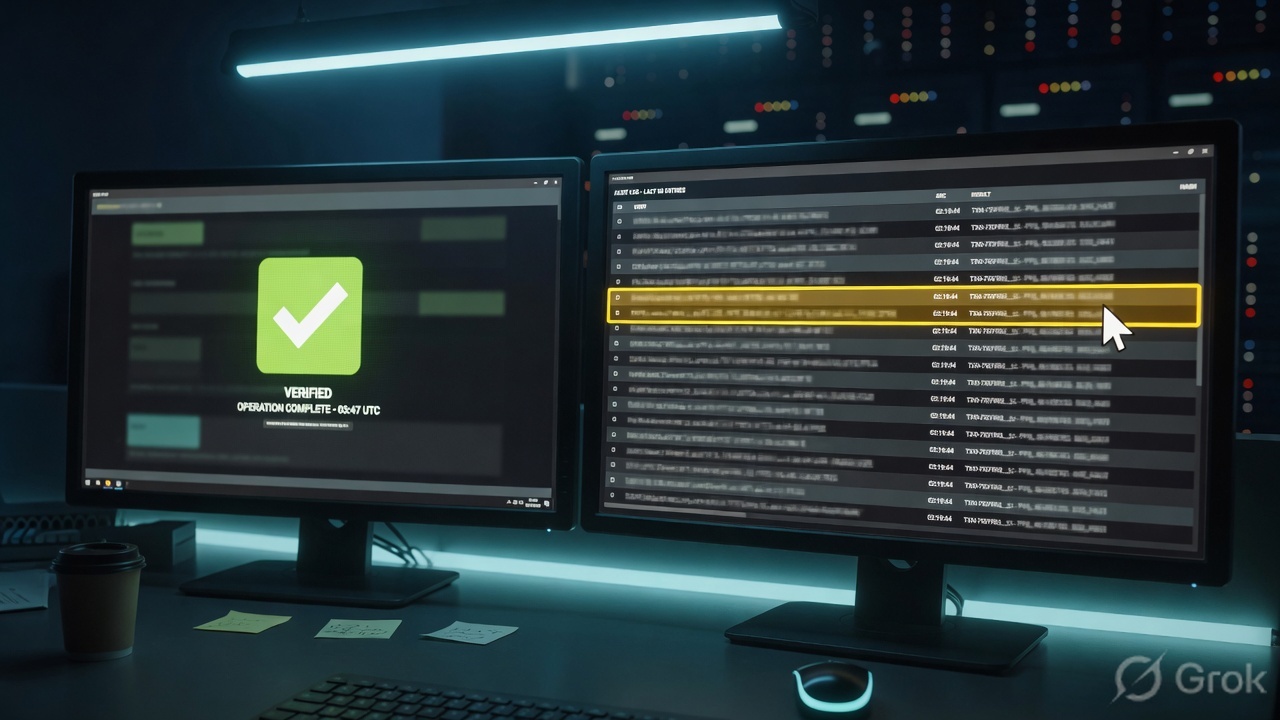
safe=Finance-Windows members=LAB-Finance-Operators
  perms=List+Use retrieve=off confirmers=LAB-Finance-Approvers
account=finance_admin address=192.0.2.18 platform=WinServerLocal
  auto-manage=on last-verified=2026-08-16T02:05Z next=26h
  compliance=Compliant reconcile=linked
session=psm-2048 user=ops@lab.example state=ended
  recording=PSMRecordings play=html5
Pilot is a member with List + Use. Connect (or approved Request Connection) starts a PSM session. Show is not required. Overview Last Verified is recent and Compliance is not drifting. Monitoring has a recording for that user and target. That is working. A green Vault widget with no member and no recording is not.
6. Runtime — request, broker, rotate
After go-live the human path is: authenticate to Privilege Cloud → Accounts View → (optional dual-control request) → Connect or Show → target. CPM is not on that path. CPM walks the same account later, on the platform schedule.
Read the top row as the human session. The blue bar is a different clock. Do not merge them because the ticket is loud.
Scenario 1 — Safe exists, user is not a member
A new Windows admin lives in Finance-Windows. CPM is assigned. Platform is WinServerLocal. The contractor is not in LAB-Finance-Operators. Vault is up. Accounts View is empty for that user. Official first move: Policies → Safes → Members → Add Members. Restarting a connector will not add a member. This is change-control.
Granting Vault Admins to “just let them in” bypasses the factory. Safe membership is the ACL. Quote the Members tab, not the health widget. Field-by-field proof is on the evidence desk.
Scenario 2 — Member listed, Connect missing
The group is on the Safe. The account row is visible (List works). Connect does not launch. Official Connect requires Use account and List account. If they only have Retrieve, they can Show and still cannot broker. Edit the member: More options → Manage Permissions → check Use accounts. You can only assign permissions you have.
Scenario 3 — Request Connection sits waiting
Master Policy exception set Require dual control password access approval Active on WinServerLocal. Status is a waiting request. That is a people queue. Confirmers need Confirm requests (authorize account requests) and List to see request details. Official request death: timeframe passed, single-access already used, Safe request retention expired, Safe or password deleted, or confirmer settings changed. Changing confirmer settings makes all existing requests obsolete — delete and re-create. Do not silently set the Master Policy rule back to Inactive to close a P2.
Scenario 4 — Connect failed, Last Verified is recent
User cannot RDP through PSM. Overview shows Last Verified a few hours ago, Compliance = Compliant. Recording is missing because the session never started. Official next move is the broker: PSM connection component, target NLA, HTML5 popup blocker, in-network RDP file vs Remote Connection toggle — not Change. Change after a healthy verify desynchronizes a working secret and manufactures a reconcile ticket.
“Works in native mstsc, fails in Connect” is almost always platform connector / logon account / NLA — not a bad Vault password. PSM for SSH has the same shape: wrong @ / # syntax, extra @ in the username, or a logon-account account on a flow that officially does not support one.
Scenario 5 — Last Verified failed, two truths
Official: if the password on the target is no longer synchronized with Privilege Cloud, users cannot access the target when connecting through the Portal. First click is still Verify if you are not sure. Then Reconcile on Compliance Status. Reconcile replaces the unsynchronized password in the Vault and on the remote device with a new platform-generated password. It uses the linked reconcile account (Associate on the account, or the platform-level names). If Change already wrote the Vault and the target plugin failed, do not Change again — Reconcile is the designed recovery.
Chasing an approver is isolate (people). Adding a confirmer group or flipping Master Policy is change-control. Clicking Reconcile without a linked reconcile account is how official IgnoreReconcileOnMissingAccount skips and disables. Read the platform before you enable auto-reconcile.
Scenario 6 — Exclusive, one-time, and the dual-control clock
Official automatic Change is not only “every X days.” Exclusive check-in/check-out changes on Release (or after MinValidityPeriod if they forget). One-time access changes after use. An approved dual-control timeframe can trigger Change when the window ends (PasswordLevelRequestTimeframe, overrides MinValidityPeriod, not for group platforms). You can enforce that timeframe on the live PSM session: Administration → Configuration Options → Privileged Session Management → General Settings → Session Settings → EnforceDualControlTimeframeOnPSMConnections = Yes. The session dies at timeframe end or MaxSessionDuration, whichever is sooner. That is the factory shutting the ticket on purpose — not a PSM crash.
7. Traps + Accounts View proof
| Symptom | Looks like | Actually | First move |
|---|---|---|---|
| Vault widget green, Accounts View empty | Outage / connector | Not a Safe member, or no List | Policies → Safes → Members |
| Row visible, Connect missing | Need Retrieve / Show | Missing Use accounts | Manage Permissions → Use + List |
| Request Connection waiting | Vault hung | Dual control people queue | Confirm requests on the confirmer group |
| Connect fail, Last Verified recent | Bad password — Change it | PSM / NLA / HTML5 / RDP file | Do not Change. Fix the broker. |
| Works in mstsc, fails in Connect | App-ID of PAM is broken | Platform connection component / logon account | WinServerLocal + PSM-RDP association |
| Verify failed, Change already clicked | Click Change again | Two truths | Reconcile with a linked reconcile account |
| Reconcile retries, account disabled | CPM is down | No reconcile account | Associate ReconcileAccount* before auto-reconcile |
| Monitoring menu missing | Permission bug | No session yet, or SIA-only (no PSM connector) | Official: menu hides until a recording exists; PSM required |
| Recording = none after fail | Recorder Safe full | Session never started | Same as Connect-fail row — not a rotate |
| PSMP auth loop / extra @ | Proxy is down | Syntax: one @ in username max; @ and # separators | Official User@targetuser#domain@target@proxy |
| Existing requests all died | Vault replication | Confirmer settings changed | Official: delete and re-create requests |
| Direct-manager dual control never completes | LDAP broken | Combined with multi-level or >1 confirmer | Official: those combinations never confirm |
- Policies → Safes → Finance-Windows → Members lists
LAB-Finance-Operatorswith List + Use. Confirmers listed separately with Confirm requests. - Account is in that Safe, platform
WinServerLocal, Allow automatic password management On, Safe Assign to CPM is set. - Pilot sees the row in Accounts View. Connect is the designed button (or Show, if you granted Retrieve on purpose).
- If dual control is Active: Request List shows an approved request, not a forever-waiting one.
- Overview Last Verified is recent. Compliance is not silently failed. Reconcile account is linked if you rely on auto-reconcile.
- Monitoring has a recording (or an Active Session you can Monitor) for that user and target. Default recording Safe after first PSM session is
PSMRecordings. - The same operator can complete the same Connect you used as the test. Night-shift field names: evidence desk.
CyberArk is a privileged-session factory. The Vault stores the secret. The Safe is the ACL. Use accounts launches Connect through PSM without showing the password; Retrieve accounts is Show and Copy. PSM or PSM for SSH brokers and records. CPM verifies the two copies, and only reconciles when they drifted. I prove it on Members, Overview Last Verified, and Monitoring — not on a green Vault widget. I do not Change after a PSM fail when Last Verified is ok.
Related: The evidence desk — first tool + proof field · PSM & PSMP deep dive · PAM foundations · CyberArk hub
Knowledge check
Six judgment questions. Map each miss back to the section named in the reason.
Sources
- Create and manage Safes for access control — Policies → Safes → Create Safe; Assign to CPM; name ≤ 28 characters
- Manage Safe members — Members tab, Add Members wizard, 64-member cap
- Assign Safe member permissions — List / Use / Retrieve, Confirm requests, Initiate CPM operations
- Add individual accounts manually — Accounts View → Add account; platform; Safe; Allow automatic password management
- Connect to a target device — Use + List required
- Connect from the Privilege Cloud Portal — Connect / Request Connection; RDP file; HTML5 Remote Connection
- Retrieve (display) the account password — Show → reason → Copy
- Manage and reconcile account passwords — Last Verified, Verify, Reconcile, Change
- Configure automatic account management — change / verify / reconcile parameters, AllowedSafes, logon accounts
- Monitor sessions — Monitoring menu, Play Video, Active Sessions, PSM connector required
- Set up dual control for connecting to a target device — Master Policy exception, confirmer permission, request lifecycle
- Connect to Unix machines (using PSM for SSH) — official command syntax
Related: CyberArk evidence desk · PSM & PSMP session management · PAM foundations · Privilege Cloud implementation · CyberArk practice hub