Accounts View / Safe members answers “is this identity even allowed to List or Retrieve this account?” Monitoring answers “did a PSM session start, and for which user + target?” User and Safe Activities answers “what Action hit this Safe — Retrieve password 295, PSM Connect 300, or Connect Failure 301?” Last Verified / Compliance Status answers “is the Vault password still the target password?” System Health answers “is this CPM / PSM connector Connected or Disconnected?” A green Vault is not a retrieve. A recording that never started is not “PSM is down.” A Change is not a reconcile.
1. Why “is it working?” is five questions
Operators collapse five failures into one sentence. The contractor is not a Safe member. Dual control is waiting on a confirmer. PSM never reached the target. The password on the box drifted from the Vault. The Privilege Cloud Connector dropped. Those are five first clicks.
This page is the night-shift desk for proof. The factory taught the objects — Safe, platform, CPM rotate versus reconcile, PSM, dual control. Here you learn the five tools you actually open, in order, when someone asks you to prove CyberArk is working — or why they cannot check out the password.
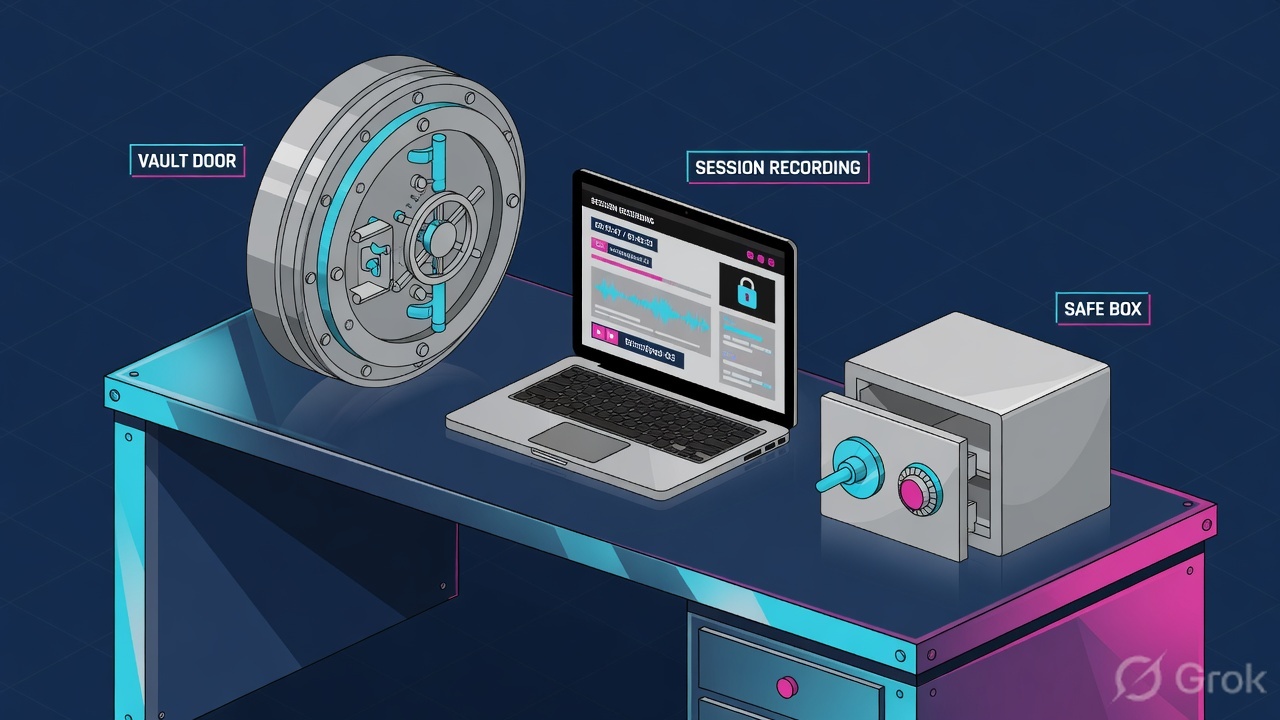
If they say “prove CyberArk is working,” do not say “I opened PVWA.” Say: “I prove the ACL with Safe members Retrieve accounts, the session with Monitoring user + target, the action with Activity log User / Safe / Action, the secret with Last Verified, and the plane with System Health Connectivity Status.”
2. Mental model — five proof tools
Memorise five named objects before you click. Each tool is allowed to prove one thing. Over-claiming a field is how you Change a healthy secret at 02:00.
1 · Accounts / Safe ACL
Privilege Cloud Portal Accounts View, then Policies → Safes → Members. Proves List / Retrieve / Use. Does not prove the password on the target, or that PSM reached it.
2 · PSM recordings
Portal Monitoring. Proves a privileged session: User, Target Address, Connection Type, start, duration. Empty Monitoring often means no session ever started — not “PSM is down.”
3 · Vault / Privilege Cloud audit
Reports → Generate Report → Activity log (User and Safe Activities). Official output fields include Time, User, Action, Safe, Target, Reason, Alert.
4 · CPM verify / reconcile
Accounts View → account → Overview. Proves Last Verified and Compliance Status. Verify checks sync. Reconcile resets both sides. Change is a third verb.
5 · Connector health
System Health → CPM and Accounts Discovery / PSM. Proves App-user Connectivity Status Connected or Disconnected, plus active PSM sessions. A Connected CPM is not a retrieve.
Hard words, once
Retrieve = Show / Copy the password (needs Retrieve accounts). Use = Connect through PSM without viewing the secret. Check-out = exclusive lock. People say “check out” for all three — you name which one.
Read left → right. Each box is allowed one claim. If you cannot name the field, you are not proving — you are guessing.
I prove the ACL, then the session, then the Action code, then Last Verified, then the connector. I do not Change, Reconcile, or reset a connector App user until I can quote the field that made me do it.
3. Decision flow — ticket → first tool
Flowchart first. Do not open Change / Reconcile until a diamond says so.
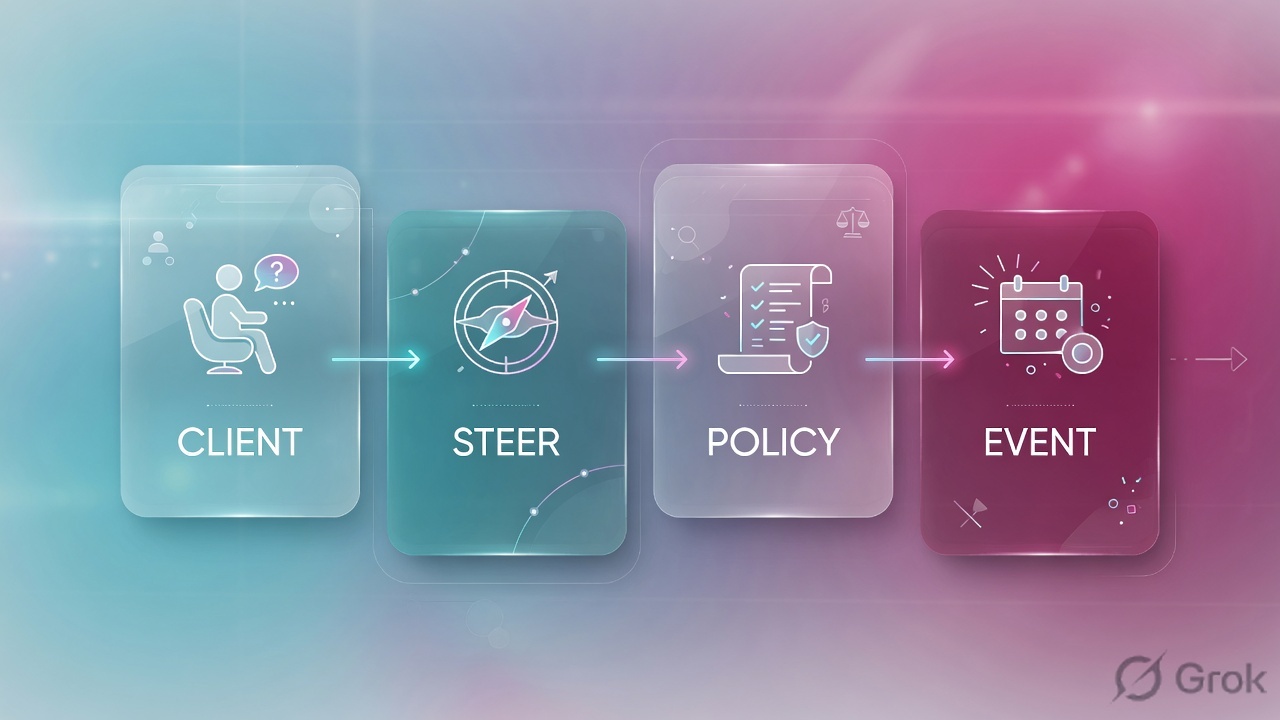
Read the diamond first. An invisible Safe never starts in System Health. A drifted password never starts in Monitoring. “Whole site dead” never starts in Retrieve accounts.
4. How to choose — first tool + proof field
Print this next to the Privilege Cloud Portal. If you cannot recite the proof field, you are not ready to Change anything.
| If the ticket says… | First tool (official path) | Proof field | Do not open first |
|---|---|---|---|
| Cannot see the Safe / “can’t check out the password” | Portal Accounts View, then Policies → Safes → Members | Member present? List accounts / Retrieve accounts / Use accounts. Access request column if dual control. |
A manual Change, or System Health |
| PSM / RDP “CyberArk is down” for one user or one target | Portal Monitoring (Recordings / Active Sessions) | User + Target Address + Connection Type + start / duration. No row → session never started. |
A password Change |
| Who retrieved / connected / failed — audit or Sev-2 timeline | Reports → Generate Report → Activity log (User and Safe Activities) | Time, User, Action, Safe, Target, Reason, Alert (295 / 300 / 301) |
A Safe member add |
| Show works yesterday, Connect fails with a bad password / drift | Accounts View → account → Overview | Last Verified + Compliance Status (+ Status = Failed / Scheduled for Verification/Reconciliation) |
A connector reboot |
| Whole site / every PSM session dead after a network change | Portal System Health → CPM and Accounts Discovery / PSM | Component Connectivity Status Connected or Disconnected + active session count |
A Cloud / URL Allow, or a Safe ACL edit |
People say “check out the password.” Official Privilege Cloud has three different controls. Retrieve is Show / Copy and needs Retrieve accounts. Use is Connect through PSM and needs Use accounts (the platform can hide the value). Check-out is exclusive access — the account shows Locked / lands in the Checked-out filter until the user checks it in or the minimum validity period expires and CPM rotates. Quote which verb failed. Do not disable exclusive access to “unstick” a retrieve.
5. Runbook Side A → B → C
Side A proves the person is allowed to see and retrieve the secret. Side B proves the session and the Action that hit the Safe. Side C proves the password still matches the target and the Connector is still talking. On a messy Sev-2, do them in this order until a field lights up.
Side A — Accounts View + Safe ACL (can they even retrieve?)
-
Open Accounts View as the failing identity’s authorized list
Path: Privilege Cloud Portal → Accounts View (this is the default after sign-in). Official: View accounts and account details. Filter All accounts. If the contractor cannot see
Finance-Windows/18_finance_admin, they do not haveList accountson that Safe. There is no password to Change. -
Read the grid columns that close an ACL ticket
Status(dash = operational; icons = Disabled for passwords rotation, Locked, Platform inactive/deleted, Failed password management).Safe.Access request— a request waiting is dual control, not an outage.AddressandPlatform IDconfirm you have the right object. -
Open the Safe Members tab, not the Vault widget
Path: Policies → Safes → select the Safe → Members. Official: Manage Safe members. You need
View Safe Membersto read this. Quote whether the user or their AD group is a member, and whetherList accounts,Retrieve accounts, andUse accountsare checked. Use without Retrieve is a legal Connect that still cannot Show. -
If Access request is populated, chase the confirmer
Master Policy dual control + Safe permission
Confirm requests.Access Safe without confirmationoverrides the wait — that is a design exception, not a night-shift toggle. Audit codes 109 Get File Request, 37 Confirm Get File, 119 Reject Get File Request are the official trail.
Policies / Safes / Finance-Windows / Members
Safe members
| Member | Type | List | Retrieve | Use | Confirm |
|---|---|---|---|---|---|
| Finance-Admins | Group | Yes | Yes | Yes | L1 |
| contractor@lab.example | User | — | — | — | — |
Source: CyberArk Docs — Manage Safe members; Safe permissions (List accounts, Use accounts, Retrieve accounts, Confirm requests). Lab identities only. Training mock · not live.
Side B — Monitoring + Activity log (did a session happen, what Action?)
-
Open Monitoring, not Change
Path: Privilege Cloud Portal → Monitoring. Official: Monitor sessions. The menu is hidden if there are zero recordings and zero sessions — that itself is data. Filter User + Target Address + date range. Session monitoring requires a PSM connector; SIA-only tenants do not get this grid.
-
Read the session properties that close a PSM ticket
Administrator-configured columns typically include the user who initiated, start time, duration, Target Address, Connection Type. Play Video is the recording. No row + user swears they clicked Connect → look at audit 301 PSM Connect Failure, not a password Change.
-
Generate the Activity log and quote User, Safe, Action
Path: Reports → Generate Report → Activity log (docs also call the same store User and Safe Activities). Default output fields:
Time,User,Action,Safe,Target(account),Target Platform,Reason,Alert,RequestID,ClientID. Filter User + Safe + period. -
Memorise the three night-shift Action codes
295 Retrieve password. 300 PSM Connect. 301 PSM Connect Failure (Alert). Sibling CPM codes you will meet on Side C: 22 Verify, 38 Verify Failure, 24 Change, 57 Change Failure, 31 Reconcile, 60 Reconcile Failure. Unauthorized retrieve is 42 / 43 Retrieve File (Unauthorized).
Reports / Generate Report / Activity log
User and Safe Activities
| Time | User | Action | Safe | Target | Alert |
|---|---|---|---|---|---|
| 01:38Z | ops@lab.example | 295 Retrieve password | Finance-Windows | 18_finance_admin | — |
| 01:39Z | ops@lab.example | 301 PSM Connect Failure | Finance-Windows | 18_finance_admin | Alert |
Source: CyberArk Docs — Generate and view reports; Configure report settings (Activity log fields Time, User, Action, Safe, Target); Audit action codes 295 / 300 / 301. Lab identities only.
Path:            Reports → Generate Report → Activity log
Filter:          User + Safe + period
Quote:           Time + User + Action + Safe + Target + Reason + Alert
Night codes:     295 Retrieve password
                 300 PSM Connect · 301 PSM Connect Failure
                 22 / 38 Verify · 24 / 57 Change · 31 / 60 Reconcile
If no 295:       they never retrieved — go back to Safe members
Side C — CPM Overview + System Health (is the secret true, is the Connector up?)
-
Read Last Verified before you touch Change
Path: Accounts View → click the account → Overview. Official: Manage and reconcile account passwords.
Last Verifiedis whether the password on the target equals the password in Privilege Cloud. Click Verify (needsInitiate CPM account management operations). CPM verifies in the next management cycle; the compliance indicator updates when it finishes. -
Reconcile is the unsynchronized verb
If Verify fails, the next official step is Reconcile on the same Overview
Compliance Statuspane — not a hopeful Change, and not “Change password only in the vault” unless you intend to split-brain the target. Reconcile uses the linked reconcile account. Change / Reconcile / Verify stay disabled until CPM finishes a reconcile. Operational Views filter: Scheduled for Change/Verification/Reconciliation, Successfully reconciled, Failed. -
Then — and only then — open System Health
Path: Privilege Cloud Portal → System Health → CPM and Accounts Discovery or PSM. Official: Monitor system health. Proof field is component user
Connectivity StatusConnected or Disconnected, plus (for PSM) the count of currently active sessions. Disconnected is usually network or App-user sync, not a Safe ACL. Restoring CPM uses the SyncComponentUsers utility; restoring PSM needs Support to reset the App user — you cannot do that from the dashboard tile.
Accounts View / 18_finance_admin / Overview
Account overview
Source: CyberArk Docs — View accounts and account details (Overview: Compliance Status, Last Verified, Activities); Manage and reconcile account passwords. Lab identities only.
- Side A: Accounts View lists the account for that user. Members shows
List+ the verb they need (Retrievefor Show,Usefor Connect). Access request is empty or confirmed. - Side B: Monitoring has a session (or audit 301 names the fail). Activity log quotes
User+Safe+Actionon the UTC minute. - Side C:
Last Verifiedsucceeds after Verify or Reconcile. System HealthConnectivity Status= Connected for the CPM / PSM that serves this Safe.
6. Five tickets as full stories
These five land every quarter. Memorise first tool + proof field. Times and identities below are lab-only: ops@lab.example, contractor@lab.example, Safe Finance-Windows, account 18_finance_admin, target 10.20.0.18.
| Ticket | Symptom | First tool | Proof field |
|---|---|---|---|
| CEVD-01 | Contractor: “I can’t check out the finance password.” Vault widget green. | Accounts View + Policies → Safes → Members | Member missing · List / Retrieve / Use accounts |
| CEVD-02 | Show is grey; Access request sitting since 18:00. “Portal is stuck.” | Accounts View Access request + dual-control confirmer | Access request + audit 109 / 37 / 119 |
| CEVD-03 | PSM RDP to 10.20.0.18 fails; L1 wants a Change. | Monitoring, then Activity log | No recording row · Action 301 PSM Connect Failure |
| CEVD-04 | Connect fails after a local admin reset on the box. Yesterday worked. | Accounts View → Overview | Last Verified failed · Compliance Status · code 38 |
| CEVD-05 | Every PSM session in the site died after a 02:00 firewall change. | System Health → PSM / CPM | Connectivity Status = Disconnected |
CEVD-01 — Prove the ACL (Accounts / Safe members)
01:42 · P2. New contractor authenticates to lab.privilegecloud.cyberark.cloud. Finance-Windows is invisible. Someone already “checked the Vault.” L1 drafted a Change on 18_finance_admin.
First tool: Accounts View as that user — empty for that Safe. Then Policies → Safes → Finance-Windows → Members.
Proof field: contractor@lab.example is not a member. Finance-Admins holds List + Retrieve + Use. The contractor was never added to the group. That is change-control — add the group (Manage Safe Members), do not Change the secret, do not reboot a Connector.
A colleague’s Accounts View is not proof. List accounts is per member. Predefined component users on the Safe (CPM, PSM) are not the contractor. Maximum 64 members including predefined users — do not “just add everyone.”
CEVD-02 — Prove the request (dual control, not a hang)
02:05 · P2. ops@lab.example can see the account. Show is waiting. Channel says “PVWA is stuck.” Someone wants Access Safe without confirmation flipped on the Safe.
First tool: Accounts View → Access request column, then the request details. Confirmers are Safe members with Confirm requests (level 1 / level 2 per Master Policy).
Proof field: request still open; audit 109 Get File Request at 18:04Z; no 37 Confirm Get File and no 115 Last Required Confirmation. That is a people queue. Chase the L1 confirmer. Disabling dual control is Master Policy / exception change-control, not isolate.
I would not grant Vault Admins. I would quote the open request and the missing 37. After confirm, Show works for the request timeframe — then exclusive / one-time rules may rotate on check-in. That rotation is expected, not a second incident.
CEVD-03 — Prove the session (Monitoring + 301)
02:20 · P1. Finance on-call cannot RDP through PSM to 10.20.0.18. Vault tile green. L1 wants the password Changed “so PSM will work.”
First tool: Monitoring. Filter User = ops@lab.example, Target Address = 10.20.0.18, last hour. Grid is empty — or a zero-duration row. Session monitoring needs a PSM connector; if the tenant is SIA-only, this menu will not save you.
Proof field: Activity log 01:39Z · User ops@lab.example · Safe Finance-Windows · Action 301 PSM Connect Failure · Alert. There is a 295 one minute earlier — they retrieved, so the ACL is fine. A 301 after a 295 is a target / PSM path (NLA, AppLocker, connector) — not a Change. Factory lesson: Vault up ≠ authorized, and authorized ≠ connected.
I would leave the password alone. I would paste User + Safe + Action 301 and the empty Monitoring row. Next isolate is the target RDP/NLA and the PSM connector, not Overview → Change.
CEVD-04 — Prove the secret (Last Verified / Reconcile)
02:40 · P2. Yesterday Connect worked. A local admin reset the password on 10.20.0.18 during a break-glass. Show still displays a value. Connect fails. L1 clicks Change twice.
First tool: Accounts View → 18_finance_admin → Overview.
Proof field: Last Verified failed at 01:12Z. Compliance Status = Failed password management. Activities show CPM Verify Password Failure (38). Status filter Failed lists the same object. Official next click is Reconcile (linked reconcile account 18_finance_reconcile), not another Change, and not “Change password only in the vault” — that writes a new Vault value and leaves the target still drifted.
Verify / Change / Reconcile stay disabled until the in-flight reconcile finishes. Clicking Change again is not faster. No linked reconcile account → that is a platform / account-link gap, not a night-shift improvisation. You need Initiate CPM account management operations to press the button.
CEVD-05 — Prove the Connector (System Health)
03:00 · P1. Every PSM session in the Pune site died after a 02:00 firewall change. Accounts View still lists accounts. Someone typed Sev-1 “Vault is down.”
First tool: System Health → PSM (and CPM and Accounts Discovery on the same dashboard).
Proof field: PSM App user Connectivity Status = Disconnected since 02:01Z. Active sessions = 0. CPM on the same Connector may also show Disconnected. Official restore is not a Safe member add and not a password Change. CPM: SyncComponentUsers on the Connector. PSM: Technical Support resets the App user; you rebuild psmapp.cred / psmgw.cred with CreateCredFile, then confirm the tile returns Connected. Also confirm 443 to *.privilegecloud.cyberark.cloud is not TLS-inspected — the Connector pins the CyberArk chain.
I would leave every Safe ACL alone. I would paste Connectivity Status + the 02:00 firewall change. After Connected returns, I want one Monitoring session and one 300, not a tenant-wide Change.
7. Traps + close-the-ticket proof
| You see | Weak close | Strong close |
|---|---|---|
| Green Vault / green Portal login | “CyberArk is working” | You proved authentication. Open Accounts View + Members for that Safe. |
| Empty Accounts View for the user | Change the password / restart CPM | Quote missing member or missing List accounts. Add the group via change-control. |
| Use = Yes, Retrieve = No | “Show is broken” | By design they can Connect and cannot view. Quote the two permissions. |
| Access request sitting | Disable dual control / grant Vault Admins | Quote the open request + missing 37. Chase the confirmer. |
| Empty Monitoring | “PSM is down” / Change the secret | Empty often means the session never started. Read Action 301. |
| 295 then 301 | Change, because retrieve “worked” | ACL is fine. Isolate target / PSM path. Factory: authorized ≠ connected. |
| Last Verified failed | Change, or Change only in the vault | Reconcile with the linked account. Quote 38 then 31. |
| System Health Disconnected | Add everyone to the Safe | Quote Connectivity Status. Restore the Connector App user. Recheck the tile. |
| Locked / Checked-out | Unlock for the whole Safe | Exclusive access. Check-in, or wait MinValidityPeriod. Unlock accounts is a specific permission — treat it as change-control. |
- UTC window written next to the tool you opened.
- User + Safe + account named. Colleague’s session is not the failing session.
- One field quoted: Members
Retrieve accounts, or Monitoring User/Target, or Activity logUser+Safe+Action, or OverviewLast Verified, or System HealthConnectivity Status. - The verb they said (“check out”) mapped to Retrieve / Use / exclusive Check-out.
- Next tool named — or change-control owner named. No Change without residual control.
- After a Reconcile or connector restore: one successful Verify or one 300, not a screenshot of the Portal home.
I name the question, then the first tool, then one official field. Safe members prove the retrieve. Monitoring proves the session. Activity log proves User, Safe, Action. Last Verified proves the secret. System Health proves the Connector. I do not Change, Reconcile, or reset an App user until that field is on the ticket. Factory model: Vault up ≠ authorized.
Knowledge check
Six night-shift judgments. Each maps to a first tool or a proof field. Check answers, then Reset if you picked the wrong surface.
Sources
- CyberArk Docs — View accounts and account details (Accounts View; Status; Overview Compliance Status, Last Verified, Activities; Operational state filters)
- CyberArk Docs — Retrieve (display) the account password (Show / Copy; exclusive lock until release or MinValidityPeriod)
- CyberArk Docs — Manage Safe members (Policies → Safes → Members; List / Use / Retrieve accounts; Confirm requests; Access Safe without confirmation)
- CyberArk Docs — Create and manage Safes for access control
- CyberArk Docs — Manage and reconcile account passwords (Verify on Last Verified; Reconcile / Change on Compliance Status; vault-only Change)
- CyberArk Docs — Account check-out and check-in (exclusive access; Unlock accounts)
- CyberArk Docs — Release a checked-out account
- CyberArk Docs — Monitor sessions (Portal → Monitoring; User, Target Address, Connection Type; PSM connector required)
- CyberArk Docs — Configure session recording and audits
- CyberArk Docs — Generate and view reports (Reports → Generate Report)
- CyberArk Docs — Privilege Cloud report types (Activity log / User and Safe Activities)
- CyberArk Docs — Report filters (User, Safe, period)
- CyberArk Docs — Configure report settings (Activity log fields: Time, User, Action, Safe, Target, Reason, Alert, RequestID, ClientID)
- CyberArk Docs — Audit action codes (22/38 Verify, 24/57 Change, 31/60 Reconcile, 295 Retrieve, 300/301 PSM Connect)
- CyberArk Docs — View audits
- CyberArk Docs — Monitor system health (Connectivity Status; CPM / PSM App users; restore notes)
- CyberArk Docs — Check Privilege Cloud Connector functionality (Verify on Overview; System Health; PSM service)
- CyberArk Docs — Switch between the primary and DR CPMs (Portal → System Health → CPM and Accounts Discovery)
Related: Blog 1 · CyberArk session factory — Vault up ≠ authorized · Privilege Cloud implementation · CyberArk practice dashboard