TTechclick ⚡ XP 0% All lessons
Zscaler · ZPA · Scenario QuestionsInteractive · L1 / L2 / L3

ZPA Scenario-Based Questions - Private App Issues, Evidence and Fixes

This blog covers the ZPA scenarios students and engineers face in real tickets and interviews: app not visible, access denied, connector green but app down, no healthy connector, DNS failures, wrong app segment, Browser Access, App Protection, PRA, posture-gated access, performance and SIEM evidence.

📅 2026-06-22 · ⏱ 40 min · 14 deep scenarios · 4 image infographics · 🏷 10-Q assessment + AI Tutor inline

⚡ Quick Answer

ZPA scenario troubleshooting should follow the user-to-app chain: user identity, posture, access policy, app segment, service edge, app connector, server group, connector-side DNS and backend reachability.

🎯 By the end you will be able to

Read as:

Pick where you want to start

1

Find layer

Map symptom to the product control point.

2

Answer scenarios

Use model Q&A and solution path.

3

Collect proof

Logs, policy reason, connector/tunnel evidence.

4

Fix and verify

Small change, original user retest.

🧠 Warm-up — 3 questions, no score

Just notice which ones make you pause. We answer all three inside the lesson.

1. What should you do before changing policy?

Answered in Scenario map.

2. What makes a scenario answer strong?

Answered in Scenario question bank.

3. When can you close the ticket?

Answered in Closeout answer.

Weak answer vs production answer

A weak answer says: 'Open network access like a VPN because one user cannot reach an app.'

A strong answer collects proof first: ZCC private access status, user/group and SAML claim, SCIM sync, posture result, access policy rule, application segment domain and port, segment/server/connector group binding, connector health, connector-side DNS, private access session status code, Browser Access or PRA logs, SIEM event. Then it applies the smallest safe fix and retests the same user flow.

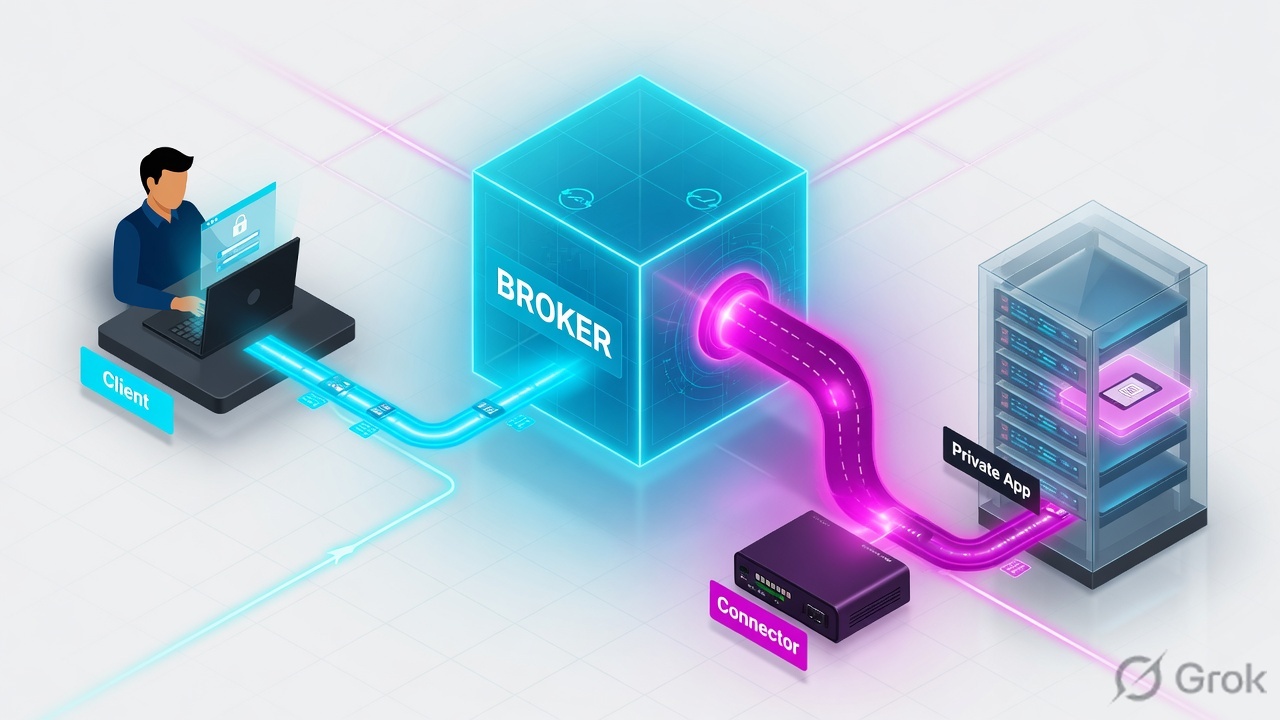
Infographic 1 - ZPA user-to-app flow
ZPA user to private app flow showing ZCC, access policy, service edge, app connector and private app.
ZPA is a brokered app path, not a full network tunnel.

1. Scenario map - where does ZPA break?

ZPA is a brokered user-to-app path. A user never gets the whole network; they get access to a specific app only after policy, posture, app segment and connector checks pass.

Production rule: a green connector means it can reach Zscaler, not that every backend app, DNS name, port and policy is correct.

Figure 1 — ZPA Scenario-Based Questions troubleshooting path
Trace one complaint from user symptom to verified result.ZPA Scenario-Based Questions troubleshooting pathUser/ZCCrequestPolicyallow/denyService EdgebrokerConnectorinside-outPrivate Appbackend
Trace one complaint from user symptom to verified result.
Start with one failing flow

Use one user, one app, one timestamp and one expected result. Wide scope hides the break point.

Quick check · Q1 of 10 · Understand

Why should you map the failed layer first?

Correct: a. Layer mapping keeps the fix narrow and reversible.
👉 So far: The fastest fix is usually the smallest proven fix, not the broadest bypass.
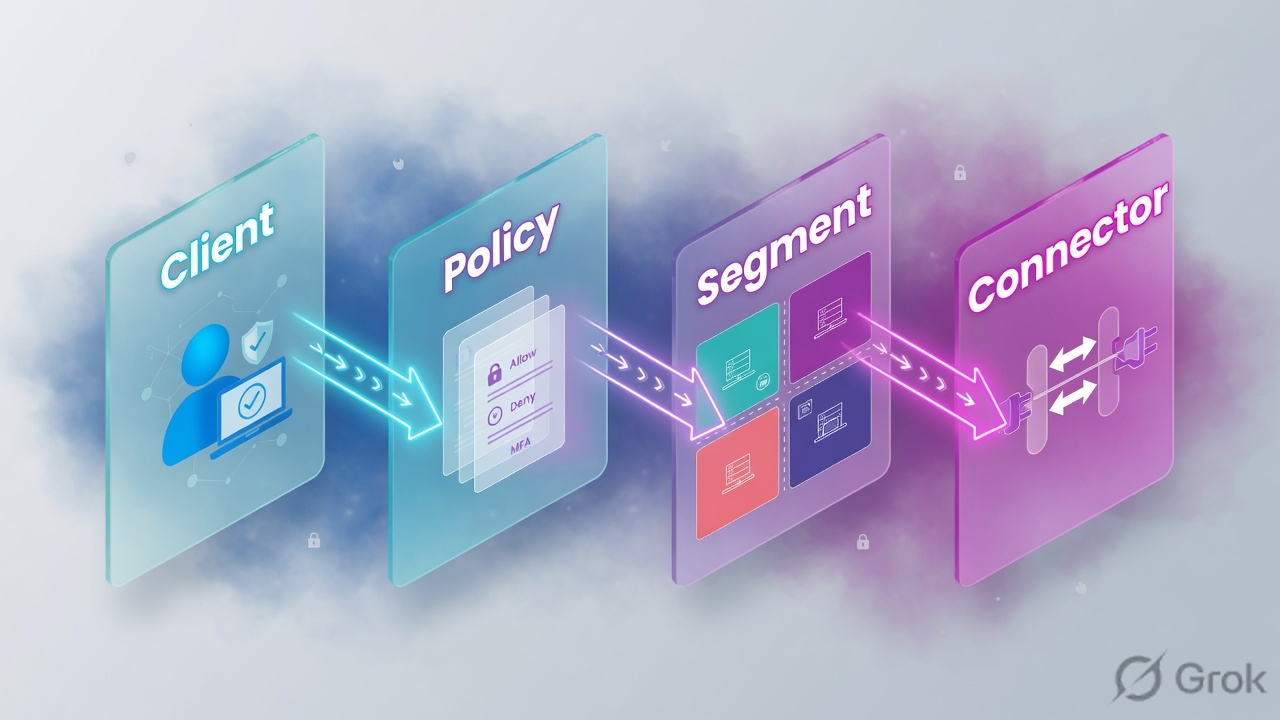
Infographic 2 - ZPA access decision board
ZPA access decision board for user identity, posture, app segment, service edge, connector and backend.
Most ZPA questions are solved by proving the failed link in this chain.

2. Scenario-based questions and solutions

Use the quick triage cards as a map. Then open the detailed question bank below: each scenario is written like a real support bridge and interview answer, with the user story, evidence, solution path, safe fix and verification.

1App not visible

User-facing symptom

User cannot see private app in ZCC or app portal

Solution path

Check access policy match, SCIM group, application segment, segment group and user/device posture conditions.

2Access denied

User-facing symptom

User reaches ZPA but gets denied for one app

Solution path

Read policy evaluation, SAML attributes, IdP group, posture result, rule order and default-deny outcome.

3Connector green, app down

User-facing symptom

Dashboard says connector healthy but private app fails

Solution path

Check server group, connector group, application segment port, backend reachability and connector-to-app latency.

4No healthy connector

User-facing symptom

ZPA reports no connector path for the app

Solution path

Validate provisioning key, connector registration, outbound 443, NTP, DNS, firewall, update health and connector group binding.

5Works by IP, not FQDN

User-facing symptom

User can reach an IP path but not the app name

Solution path

Remember connector-side DNS resolution; check DNS server, split DNS, domain entry, wildcard and app discovery.

6Wrong port or wildcard

User-facing symptom

One app works but another app on same host fails

Solution path

Tighten app segment domain and TCP/UDP ports; avoid broad wildcards and overlapping segments.

7Browser Access fails

User-facing symptom

Clientless web app shows certificate, CNAME or auth problem

Solution path

Check public hostname, certificate chain, browser access app settings, IdP redirect and cookies.

8PRA session fails

User-facing symptom

RDP/SSH privileged session portal opens but connection fails

Solution path

Check PRA app, privileged portal cert, server reachability, protocol policy, recording and admin entitlement.

9ZPA entitlement missing

User-facing symptom

ZCC is logged in, but ZPA apps never appear for the user

Solution path

Check ZCC app profile, ZPA entitlement, forwarding profile, tenant mapping, client version and user group assignment.

10SCIM group delay

User-facing symptom

User was added to the right group but access still fails

Solution path

Check IdP group claim, SCIM sync status, nested group support, policy cache, user re-authentication and rule match.

11Slow private app

User-facing symptom

App opens but feels slower than VPN

Solution path

Check service edge choice, connector location, backend latency, MTU, app chattiness and ZDX/diagnostic metrics.

12Posture-gated access fails

User-facing symptom

Managed laptop works, BYOD or weak device is blocked

Solution path

Check posture profile result, OS/EDR/disk checks, policy condition and user-facing remediation message.

13Overlapping segments

User-facing symptom

User lands on wrong app or policy behaves randomly

Solution path

Find segment precedence, wildcard overlap, port overlap and server group binding before changing access rules.

14SIEM handoff weak

User-facing symptom

SOC cannot explain who accessed what private app

Solution path

Enable and map ZPA logs: user, app segment, policy rule, connector, status code, device posture and session result.

Deep scenario question bank with model answers

Each question row is clickable. Use the blue Click to open full answer button to expand the complete troubleshooting answer.
Q1. Private app not visible to a valid userClick to open full answerFull answer open

Question: A user logs into ZCC successfully but cannot see the finance private app in ZCC or the app portal. Other users in the same department can see it. What is the deeper ZPA answer?

Direct answer: Start with entitlement and policy match: user identity, SCIM group, ZPA app profile/entitlement, application segment, segment group and access policy criteria.

Why it matters: If the app is not visible, the user may not be entitled before any connector or backend test matters.

Evidence to collect:

  • User identity and SCIM group membership in ZPA
  • Application segment and segment group linked to the finance app
  • Access policy rule criteria, rule order and default-deny behavior
  • ZCC app profile and ZPA entitlement assigned to the user

Hands-on troubleshooting path

Commands / tests to run
  • Scope: Record user, device, ZCC Private Access status, app FQDN, port, timestamp, IdP group and expected app segment
  • Endpoint DNS/port: nslookup <app-fqdn> && Test-NetConnection <app-fqdn> -Port <port>
  • macOS/Linux endpoint: dig <app-fqdn>; nc -vz <app-fqdn> <port>; curl -vk https://<app-fqdn>
  • Identity compare: Compare affected user versus working user: IdP groups, SCIM groups, ZCC app profile and ZPA entitlement
  • Only after entitlement: From connector network, nslookup <app-fqdn> and nc -vz <app-fqdn> <port> to prove backend path
Zscaler log path and fields
  • ZPA Admin Portal -> Logs > Insights > Diagnostics -> User Activity: check user, app segment, policy rule, posture, status code, connector and timestamp.
  • Use Logs -> Insights -> Live Logs for real-time user activity, user status, application activity and App Connector status during retest.
  • Use User Status Diagnostics for authentication/app visibility state, then User Activity only after the user actually launches the app.
Decision path
  • If User Activity shows deny, fix policy/identity/posture first; do not troubleshoot backend.
  • If User Activity allows but session fails, move to app segment, connector DNS and connector-to-backend path.
  • If app is invisible, fix entitlement/access policy/app segment assignment before connector or DNS tests.

Step-by-step solution:

  • Compare the affected user with a working user group-by-group.
  • Confirm the app segment is included in an access policy allowing that group.
  • Check posture/location criteria that may silently exclude the user.
  • Force re-authentication or client refresh after group changes.

Safe fix: Force re-authentication or client refresh after group changes.

Verification: The finance app appears for the user and User Activity Diagnostics shows an access policy allow for the correct app segment.

Weak answer to avoid: Do not restart connectors first when the app is not even visible to the user.

Q2. Access denied after the app appearsClick to open full answerFull answer open

Question: The private app tile appears, but when the user clicks it, ZPA returns access denied. The app owner says the server is up. How do you answer in an interview?

Direct answer: Read policy evaluation before testing the backend. The most likely layer is access policy criteria: user, group, posture, device, IdP attribute, location or rule order.

Why it matters: ZPA is default-deny. Seeing the app does not guarantee the final access rule permits the session.

Evidence to collect:

  • User Activity Diagnostics status, policy rule name and deny reason
  • SAML attributes, SCIM group and nested group behavior
  • Posture profile result and device trust state
  • Access policy rule order and whether a deny rule matches earlier

Hands-on troubleshooting path

Commands / tests to run
  • Scope: Record user, device, ZCC Private Access status, app FQDN, port, timestamp, IdP group and expected app segment
  • Endpoint DNS/port: nslookup <app-fqdn> && Test-NetConnection <app-fqdn> -Port <port>
  • macOS/Linux endpoint: dig <app-fqdn>; nc -vz <app-fqdn> <port>; curl -vk https://<app-fqdn>
  • Policy compare: Export/screenshot matched deny and intended allow criteria: user, group, posture, location, app segment
  • Fresh auth: Force ZCC re-authentication after group/posture change, then launch app with exact timestamp
Zscaler log path and fields
  • ZPA Admin Portal -> Logs > Insights > Diagnostics -> User Activity: check user, app segment, policy rule, posture, status code, connector and timestamp.
  • Use Logs -> Insights -> Live Logs for real-time user activity, user status, application activity and App Connector status during retest.
  • In User Activity Diagnostics, read deny reason/status code and matched access policy rule; compare SAML/SCIM group claims.
Decision path
  • If User Activity shows deny, fix policy/identity/posture first; do not troubleshoot backend.
  • If User Activity allows but session fails, move to app segment, connector DNS and connector-to-backend path.
  • If deny is policy-matched, change only that rule/condition; connector health is irrelevant until policy allows.

Step-by-step solution:

  • Open the denied session and identify which policy rule matched or failed.
  • Compare criteria against the intended access design.
  • Fix the group/posture/rule order mismatch narrowly.
  • Retest after user re-authentication if identity or posture changed.

Safe fix: Retest after user re-authentication if identity or posture changed.

Verification: The session changes from denied to allowed for the same app and the policy log shows the intended rule.

Weak answer to avoid: Do not change the application segment or connector when the access policy is explicitly denying the user.

Q3. Connector is green but the app is still downClick to open full answerFull answer open

Question: The ZPA dashboard shows the App Connector is healthy, but users get timeout when opening one private app. Why is 'connector green' not enough?

Direct answer: A green connector proves control-plane health, not necessarily backend app reachability. Validate server group, connector group, app segment port and connector-to-app network path.

Why it matters: The connector can be registered and healthy while DNS, firewall, route, port or backend listener fails behind it.

Evidence to collect:

  • Application segment FQDN/IP and TCP/UDP ports
  • Server group and connector group binding
  • Connector-side DNS resolution and TCP connect to backend
  • Private access session status code or timeout reason

Hands-on troubleshooting path

Commands / tests to run
  • Scope: Record user, device, ZCC Private Access status, app FQDN, port, timestamp, IdP group and expected app segment
  • Endpoint DNS/port: nslookup <app-fqdn> && Test-NetConnection <app-fqdn> -Port <port>
  • macOS/Linux endpoint: dig <app-fqdn>; nc -vz <app-fqdn> <port>; curl -vk https://<app-fqdn>
  • Connector DNS: nslookup <app-fqdn> <corp-dns-ip> # run from connector-side network
  • Connector port: nc -vz <app-fqdn> <port> && curl -vk https://<app-fqdn>
  • Connector logs: sudo tail -n 200 /var/log/messages | grep -i zpa
Zscaler log path and fields
  • ZPA Admin Portal -> Logs > Insights > Diagnostics -> User Activity: check user, app segment, policy rule, posture, status code, connector and timestamp.
  • Use Logs -> Insights -> Live Logs for real-time user activity, user status, application activity and App Connector status during retest.
  • Check App Connector status/logs plus User Activity status code; green connector means cloud reachability, not backend reachability.
Decision path
  • If User Activity shows deny, fix policy/identity/posture first; do not troubleshoot backend.
  • If User Activity allows but session fails, move to app segment, connector DNS and connector-to-backend path.
  • If connector cannot resolve/connect to backend, fix DNS/firewall/server listener, not ZPA access policy.

Step-by-step solution:

  • From the connector network, resolve the app FQDN and test the required port.
  • Check server group membership and whether the app segment points to the right hosts.
  • Validate data-center firewall allows connector-to-app traffic.
  • Fix backend DNS/routing/firewall before editing access policy.

Safe fix: Fix backend DNS/routing/firewall before editing access policy.

Verification: Connector-side test reaches the backend and the user session opens with an allowed status.

Weak answer to avoid: Do not assume ZPA policy is wrong just because the connector status is green.

Q4. No healthy connector for one applicationClick to open full answerFull answer open

Question: Users receive 'no healthy connector' for a single app, while other private apps work. What should you check in order?

Direct answer: Check whether that app segment is bound to a connector group/server group that has an available connector path. Then validate connector registration, outbound connectivity, DNS, NTP and upgrades.

Why it matters: No healthy connector is often a binding or connector-group availability issue, not a global ZPA outage.

Evidence to collect:

  • Application segment to server group and connector group mapping
  • Connector status, version, provisioning key and last seen time
  • Outbound TCP 443 from connector to ZPA cloud and local firewall/proxy path
  • NTP/time sync and DNS resolution from the connector

Hands-on troubleshooting path

Commands / tests to run
  • Scope: Record user, device, ZCC Private Access status, app FQDN, port, timestamp, IdP group and expected app segment
  • Endpoint DNS/port: nslookup <app-fqdn> && Test-NetConnection <app-fqdn> -Port <port>
  • macOS/Linux endpoint: dig <app-fqdn>; nc -vz <app-fqdn> <port>; curl -vk https://<app-fqdn>
  • Connector health: timedatectl status; systemctl status zpa-connector # if shell access is available
  • Outbound path: Ask firewall team to confirm connector outbound TCP/443 to ZPA cloud; check proxy/NAT logs
  • Connector logs: sudo tail -f /var/log/messages | grep -i 'zpa\|connector'
Zscaler log path and fields
  • ZPA Admin Portal -> Logs > Insights > Diagnostics -> User Activity: check user, app segment, policy rule, posture, status code, connector and timestamp.
  • Use Logs -> Insights -> Live Logs for real-time user activity, user status, application activity and App Connector status during retest.
  • Check App Connector Status Diagnostics, connector group binding, provisioning key, last-seen time and version.
Decision path
  • If User Activity shows deny, fix policy/identity/posture first; do not troubleshoot backend.
  • If User Activity allows but session fails, move to app segment, connector DNS and connector-to-backend path.
  • If only one app fails, inspect connector group/server group binding; if all apps fail, inspect connector outbound path and registration.

Step-by-step solution:

  • Identify which connector group the failing app uses.
  • Compare with an app that works and note connector-group differences.
  • Restore or add connector capacity in that group.
  • Check outbound firewall/proxy and time sync if connectors are offline.

Safe fix: Check outbound firewall/proxy and time sync if connectors are offline.

Verification: The app no longer reports no healthy connector and User Activity Diagnostics shows a connector selected for the session.

Weak answer to avoid: Do not move the app into a broad connector group without understanding segmentation and locality.

Q5. Works by IP but not by FQDNClick to open full answerFull answer open

Question: A user can reach an internal app by IP through ZPA, but the FQDN fails. DNS works on the user's laptop outside ZPA. What is the correct explanation?

Direct answer: In ZPA, connector-side DNS matters. The connector must resolve the application FQDN to the right private address, and the app segment must include the correct domain.

Why it matters: The user's local DNS success does not prove the connector can resolve the same private name from the data center or cloud network.

Evidence to collect:

  • Connector-side DNS server and lookup result for the FQDN
  • Application segment domain, wildcard and port definition
  • Split-DNS suffix handling and internal DNS zone reachability
  • Session status showing DNS or connect failure

Hands-on troubleshooting path

Commands / tests to run
  • Scope: Record user, device, ZCC Private Access status, app FQDN, port, timestamp, IdP group and expected app segment
  • Endpoint DNS/port: nslookup <app-fqdn> && Test-NetConnection <app-fqdn> -Port <port>
  • macOS/Linux endpoint: dig <app-fqdn>; nc -vz <app-fqdn> <port>; curl -vk https://<app-fqdn>
  • Connector DNS: nslookup <app-fqdn> <corp-dns-ip>; dig @<corp-dns-ip> <app-fqdn>
  • Compare endpoint: nslookup <app-fqdn> on endpoint, then compare with connector-side answer
Zscaler log path and fields
  • ZPA Admin Portal -> Logs > Insights > Diagnostics -> User Activity: check user, app segment, policy rule, posture, status code, connector and timestamp.
  • Use Logs -> Insights -> Live Logs for real-time user activity, user status, application activity and App Connector status during retest.
  • In User Activity Diagnostics, look for DNS/connect failure status and the application segment that matched the request.
Decision path
  • If User Activity shows deny, fix policy/identity/posture first; do not troubleshoot backend.
  • If User Activity allows but session fails, move to app segment, connector DNS and connector-to-backend path.
  • If endpoint DNS works but connector DNS fails, fix connector resolver/split-DNS, not the user's laptop.

Step-by-step solution:

  • Run DNS lookup from the connector network, not just the endpoint.
  • Confirm app segment includes the exact FQDN or appropriate wildcard.
  • Fix connector DNS forwarder/split-DNS zone or application segment domain.
  • Avoid replacing FQDN with broad IP ranges unless the design requires it.

Safe fix: Avoid replacing FQDN with broad IP ranges unless the design requires it.

Verification: The FQDN resolves correctly from the connector and the app opens by name with a clean session log.

Weak answer to avoid: Do not blame user DNS when ZPA uses the connector path to reach private applications.

Q6. Wrong port or wildcard causes partial app failureClick to open full answerFull answer open

Question: An app suite has login on 443, API on 8443 and reports on 9443. Login works but reports fail. The app segment uses a broad wildcard. What should be improved?

Direct answer: Validate ports and segment scope precisely. Define the required FQDNs and TCP/UDP ports without overlapping or overly broad wildcards.

Why it matters: ZPA grants access to defined app segments. Missing ports or broad overlaps cause partial failures and confusing policy matches.

Evidence to collect:

  • App owner port matrix and destination hostnames
  • Application segment domain/IP and port entries
  • Overlapping segment definitions and segment group membership
  • Session logs showing which segment and port matched

Hands-on troubleshooting path

Commands / tests to run
  • Scope: Record user, device, ZCC Private Access status, app FQDN, port, timestamp, IdP group and expected app segment
  • Endpoint DNS/port: nslookup <app-fqdn> && Test-NetConnection <app-fqdn> -Port <port>
  • macOS/Linux endpoint: dig <app-fqdn>; nc -vz <app-fqdn> <port>; curl -vk https://<app-fqdn>
  • Port matrix: Test-NetConnection <app-fqdn> -Port 443; Test-NetConnection <app-fqdn> -Port 8443
  • Connector port matrix: nc -vz <app-fqdn> 443; nc -vz <app-fqdn> 8443; nc -vz <app-fqdn> 9443
Zscaler log path and fields
  • ZPA Admin Portal -> Logs > Insights > Diagnostics -> User Activity: check user, app segment, policy rule, posture, status code, connector and timestamp.
  • Use Logs -> Insights -> Live Logs for real-time user activity, user status, application activity and App Connector status during retest.
  • Check User Activity Diagnostics for matched app segment and port; audit overlapping/wildcard app segments and multimatch behavior.
Decision path
  • If User Activity shows deny, fix policy/identity/posture first; do not troubleshoot backend.
  • If User Activity allows but session fails, move to app segment, connector DNS and connector-to-backend path.
  • If one function fails, add the missing exact port/FQDN; do not publish all ports or a broad wildcard.

Step-by-step solution:

  • Collect every required hostname and port from the app owner.
  • Add missing ports to the right app segment or split functions into clearer segments.
  • Remove dangerous wildcard overlap that can catch unrelated apps.
  • Retest each workflow: login, API, reports and admin pages.

Safe fix: Retest each workflow: login, API, reports and admin pages.

Verification: Each function logs against the intended app segment and no unrelated internal hostname is exposed.

Weak answer to avoid: Do not solve missing ports by publishing an entire domain wildcard with all ports.

Q7. Browser Access certificate or CNAME failureClick to open full answerFull answer open

Question: A contractor uses Browser Access for a clientless web app. The tile opens, but the browser shows certificate or hostname errors after IdP login. What is the deep answer?

Direct answer: Troubleshoot the Browser Access publishing layer: public hostname/CNAME, certificate chain, Browser Access app definition, IdP redirect URI and cookie behavior.

Why it matters: Browser Access adds a clientless access front end. A certificate or CNAME failure can happen before the private backend is even reached.

Evidence to collect:

  • Browser Access public hostname and DNS CNAME target
  • Certificate common name/SAN, expiry and full chain
  • IdP redirect URL and application callback settings
  • Browser Access app mapped to the correct private application segment

Hands-on troubleshooting path

Commands / tests to run
  • Scope: Record user, device, ZCC Private Access status, app FQDN, port, timestamp, IdP group and expected app segment
  • Endpoint DNS/port: nslookup <app-fqdn> && Test-NetConnection <app-fqdn> -Port <port>
  • macOS/Linux endpoint: dig <app-fqdn>; nc -vz <app-fqdn> <port>; curl -vk https://<app-fqdn>
  • Public DNS: dig <browser-access-hostname> CNAME +short
  • Certificate: openssl s_client -connect <browser-access-hostname>:443 -servername <browser-access-hostname> -showcerts
  • HTTP trace: curl -vk https://<browser-access-hostname>
Zscaler log path and fields
  • ZPA Admin Portal -> Logs > Insights > Diagnostics -> User Activity: check user, app segment, policy rule, posture, status code, connector and timestamp.
  • Use Logs -> Insights -> Live Logs for real-time user activity, user status, application activity and App Connector status during retest.
  • Check Browser Access app config, IdP redirect/callback, User Activity and Live Logs for the same contractor session.
Decision path
  • If User Activity shows deny, fix policy/identity/posture first; do not troubleshoot backend.
  • If User Activity allows but session fails, move to app segment, connector DNS and connector-to-backend path.
  • If public hostname/cert fails, fix Browser Access publishing before connector/backend troubleshooting.

Step-by-step solution:

  • Check public DNS and certificate trust from an external browser.
  • Validate IdP redirect/callback configuration for the Browser Access URL.
  • Confirm Browser Access app maps to the correct private web app and port.
  • Use a clean browser session to remove stale cookies during retest.

Safe fix: Use a clean browser session to remove stale cookies during retest.

Verification: The contractor reaches the app without certificate warnings and session logs show Browser Access authentication plus app connection.

Weak answer to avoid: Do not troubleshoot RDP/SSH or connector capacity first when the public Browser Access hostname itself is broken.

Q8. PRA RDP/SSH session fails after portal opensClick to open full answerFull answer open

Question: A vendor can open the Privileged Remote Access portal, but RDP to a jump host fails or SSH never starts recording. What do you validate?

Direct answer: Separate portal access from privileged protocol access. Validate PRA app definition, entitlement, target reachability, RDP/SSH protocol policy, certificate and recording/approval settings.

Why it matters: PRA has extra controls beyond normal ZPA access: privileged portal, specific targets, protocols, approvals and audit recording.

Evidence to collect:

  • PRA application and privileged portal configuration
  • User/admin entitlement and approval workflow
  • Target server reachability from connector and RDP/SSH port status
  • Session recording/audit policy and failure status

Hands-on troubleshooting path

Commands / tests to run
  • Scope: Record user, device, ZCC Private Access status, app FQDN, port, timestamp, IdP group and expected app segment
  • Endpoint DNS/port: nslookup <app-fqdn> && Test-NetConnection <app-fqdn> -Port <port>
  • macOS/Linux endpoint: dig <app-fqdn>; nc -vz <app-fqdn> <port>; curl -vk https://<app-fqdn>
  • Port matrix: Test-NetConnection <app-fqdn> -Port 443; Test-NetConnection <app-fqdn> -Port 8443
  • Connector port matrix: nc -vz <app-fqdn> 443; nc -vz <app-fqdn> 8443; nc -vz <app-fqdn> 9443
Zscaler log path and fields
  • ZPA Admin Portal -> Logs > Insights > Diagnostics -> User Activity: check user, app segment, policy rule, posture, status code, connector and timestamp.
  • Use Logs -> Insights -> Live Logs for real-time user activity, user status, application activity and App Connector status during retest.
  • Check User Activity Diagnostics for matched app segment and port; audit overlapping/wildcard app segments and multimatch behavior.
Decision path
  • If User Activity shows deny, fix policy/identity/posture first; do not troubleshoot backend.
  • If User Activity allows but session fails, move to app segment, connector DNS and connector-to-backend path.
  • If one function fails, add the missing exact port/FQDN; do not publish all ports or a broad wildcard.

Step-by-step solution:

  • Confirm the vendor is entitled to the PRA app, not just the portal.
  • Test connector-to-target RDP/SSH reachability.
  • Check protocol policy, jump host mapping and certificate trust.
  • Validate recording storage/retention settings if the session starts but audit fails.

Safe fix: Validate recording storage/retention settings if the session starts but audit fails.

Verification: A test session connects to the right host, records successfully and logs the vendor, target, time and action.

Weak answer to avoid: Do not grant full ZPA network access to a vendor just because a PRA session failed.

Q9. ZPA entitlement missing in Client ConnectorClick to open full answerFull answer open

Question: ZCC is authenticated and ZIA works, but the user has no ZPA apps and no Private Access status. What is the likely issue?

Direct answer: Check whether the user is actually entitled to ZPA in the ZCC app profile and tenant mapping. ZIA success does not prove ZPA entitlement.

Why it matters: Client Connector can be connected for internet security while Private Access is not enabled, not assigned or not refreshed for that user.

Evidence to collect:

  • ZCC app profile assigned to the user
  • Private Access/ZPA entitlement and forwarding profile state
  • Client Connector version and tenant cloud mapping
  • ZPA logs showing whether the user ever requested private access

Hands-on troubleshooting path

Commands / tests to run
  • Scope: Record user, device, ZCC Private Access status, app FQDN, port, timestamp, IdP group and expected app segment
  • Endpoint DNS/port: nslookup <app-fqdn> && Test-NetConnection <app-fqdn> -Port <port>
  • macOS/Linux endpoint: dig <app-fqdn>; nc -vz <app-fqdn> <port>; curl -vk https://<app-fqdn>
  • Client state: Capture ZCC Private Access status, app profile, cloud name and client version from the user's endpoint
  • Identity compare: Compare user with a working user in IdP group, SCIM group, ZCC profile and ZPA entitlement
Zscaler log path and fields
  • ZPA Admin Portal -> Logs > Insights > Diagnostics -> User Activity: check user, app segment, policy rule, posture, status code, connector and timestamp.
  • Use Logs -> Insights -> Live Logs for real-time user activity, user status, application activity and App Connector status during retest.
  • Use User Status Diagnostics and Live Logs to confirm whether the user ever receives Private Access entitlement or launches an app.
Decision path
  • If User Activity shows deny, fix policy/identity/posture first; do not troubleshoot backend.
  • If User Activity allows but session fails, move to app segment, connector DNS and connector-to-backend path.
  • If entitlement is missing, fix ZCC profile/ZPA entitlement; access policy changes will not help.

Step-by-step solution:

  • Compare ZCC profile assignment between working and affected users.
  • Enable or assign Private Access entitlement if missing.
  • Refresh/re-authenticate ZCC after profile change.
  • Upgrade client if the profile requires features unsupported by the installed version.

Safe fix: Upgrade client if the profile requires features unsupported by the installed version.

Verification: ZCC shows Private Access enabled and the expected app list appears after refresh.

Weak answer to avoid: Do not change access policy until the client is actually entitled to use ZPA.

Q10. SCIM group change not reflected in accessClick to open full answerFull answer open

Question: A user was added to the correct IdP group for an app, but access still fails. The helpdesk says the policy is wrong. What is the detailed answer?

Direct answer: Validate identity propagation: IdP group membership, SCIM sync status, nested group behavior, ZPA user record, policy cache and user re-authentication.

Why it matters: Access policy depends on the group ZPA sees, not the group someone just changed in the IdP UI.

Evidence to collect:

  • IdP group membership and SAML claims
  • SCIM sync status, last sync time and group object in ZPA
  • Whether nested groups are supported or flattened for this integration
  • User Activity Diagnostics showing current group/policy match

Hands-on troubleshooting path

Commands / tests to run
  • Scope: Record user, device, ZCC Private Access status, app FQDN, port, timestamp, IdP group and expected app segment
  • Endpoint DNS/port: nslookup <app-fqdn> && Test-NetConnection <app-fqdn> -Port <port>
  • macOS/Linux endpoint: dig <app-fqdn>; nc -vz <app-fqdn> <port>; curl -vk https://<app-fqdn>
  • IdP proof: Check IdP audit log for group add time and SAML claim sent at next login
  • Refresh: Force user sign-out/sign-in and retest; compare SCIM group in ZPA with IdP group
Zscaler log path and fields
  • ZPA Admin Portal -> Logs > Insights > Diagnostics -> User Activity: check user, app segment, policy rule, posture, status code, connector and timestamp.
  • Use Logs -> Insights -> Live Logs for real-time user activity, user status, application activity and App Connector status during retest.
  • Use User Status Diagnostics and User Activity to confirm current group/policy match after re-authentication.
Decision path
  • If User Activity shows deny, fix policy/identity/posture first; do not troubleshoot backend.
  • If User Activity allows but session fails, move to app segment, connector DNS and connector-to-backend path.
  • If ZPA still sees old group, wait/repair SCIM sync; do not duplicate per-user policies.

Step-by-step solution:

  • Confirm the user is in the expected group in the IdP and ZPA.
  • Trigger or wait for SCIM sync according to the integration process.
  • Ask the user to re-authenticate or refresh ZCC if cached identity is stale.
  • Only edit policy after proving the identity object is correct.

Safe fix: Only edit policy after proving the identity object is correct.

Verification: User Activity Diagnostics shows the expected group and the app policy allows the same session.

Weak answer to avoid: Do not duplicate access rules for a user when the real issue is group propagation.

Q11. Private app feels slower than VPNClick to open full answerFull answer open

Question: Users say a legacy private app is slower through ZPA than through VPN. The app is chatty and hosted in one data center. How should an architect answer?

Direct answer: Measure each leg: user to service edge, service edge to connector, connector to app and application transaction behavior. Then adjust connector locality, service edge path or app design expectations.

Why it matters: ZPA brokers per-app access. A very chatty legacy app may expose latency that VPN users previously ignored because of network proximity.

Evidence to collect:

  • User location, selected service edge and connector location
  • Connector-to-app latency and backend response time
  • MTU/fragmentation symptoms and retransmits
  • Application transaction count per user action and ZDX/path diagnostics if available

Hands-on troubleshooting path

Commands / tests to run
  • Scope: Record user, device, ZCC Private Access status, app FQDN, port, timestamp, IdP group and expected app segment
  • Endpoint DNS/port: nslookup <app-fqdn> && Test-NetConnection <app-fqdn> -Port <port>
  • macOS/Linux endpoint: dig <app-fqdn>; nc -vz <app-fqdn> <port>; curl -vk https://<app-fqdn>
  • Transaction timing: curl -w 'dns:%{time_namelookup} connect:%{time_connect} tls:%{time_appconnect} ttfb:%{time_starttransfer} total:%{time_total}\n' -o /dev/null -s https://<app-fqdn>
  • Path check: mtr <app-fqdn> # or pathping <app-fqdn> on Windows
  • Connector leg: From connector-side network, curl -vk https://<app-fqdn> and compare backend response time
Zscaler log path and fields
  • ZPA Admin Portal -> Logs > Insights > Diagnostics -> User Activity: check user, app segment, policy rule, posture, status code, connector and timestamp.
  • Use Logs -> Insights -> Live Logs for real-time user activity, user status, application activity and App Connector status during retest.
  • Compare User Activity selected service edge, connector, status code, connector location and backend latency indicators where available.
Decision path
  • If User Activity shows deny, fix policy/identity/posture first; do not troubleshoot backend.
  • If User Activity allows but session fails, move to app segment, connector DNS and connector-to-backend path.
  • If connector-to-app is slow, move connector closer/fix backend path; if user-to-edge is slow, inspect user network/service edge path.

Step-by-step solution:

  • Benchmark the same transaction from VPN, ZPA and local network.
  • Place connectors closer to the app or use appropriate private service edge design where required.
  • Tune MTU/path and remove unnecessary hairpinning.
  • Escalate app redesign/caching if the protocol is inherently latency-sensitive.

Safe fix: Escalate app redesign/caching if the protocol is inherently latency-sensitive.

Verification: Transaction timing improves or the residual delay is documented with per-leg measurements and accepted by the app owner.

Weak answer to avoid: Do not promise ZPA will make every legacy chatty app faster than VPN without measurement.

Q12. Posture-gated access blocks BYODClick to open full answerFull answer open

Question: Managed laptops can access the app, but BYOD users are blocked. The business wants all users allowed temporarily. How do you answer safely?

Direct answer: Check posture profile results and policy intent. If the policy requires managed device posture, BYOD denial may be correct and should be remediated through an approved access path.

Why it matters: Zero trust access is supposed to evaluate user plus device. Bypassing posture for convenience can expose private apps to unmanaged endpoints.

Evidence to collect:

  • Posture profile result for OS, disk encryption, EDR, certificate, firewall or compliance checks
  • Access policy condition requiring posture
  • User/device ownership and approved BYOD access model
  • User-facing remediation instructions

Hands-on troubleshooting path

Commands / tests to run
  • Scope: Record user, device, ZCC Private Access status, app FQDN, port, timestamp, IdP group and expected app segment
  • Endpoint DNS/port: nslookup <app-fqdn> && Test-NetConnection <app-fqdn> -Port <port>
  • macOS/Linux endpoint: dig <app-fqdn>; nc -vz <app-fqdn> <port>; curl -vk https://<app-fqdn>
  • Device proof: Collect OS version, disk encryption, EDR status, certificate and ZCC posture result screenshot/log
  • Retest: Fix the failed posture item, refresh ZCC posture, then launch the same app with timestamp
Zscaler log path and fields
  • ZPA Admin Portal -> Logs > Insights > Diagnostics -> User Activity: check user, app segment, policy rule, posture, status code, connector and timestamp.
  • Use Logs -> Insights -> Live Logs for real-time user activity, user status, application activity and App Connector status during retest.
  • In User Activity Diagnostics, read posture profile result and matched access rule; compare managed versus BYOD device.
Decision path
  • If User Activity shows deny, fix policy/identity/posture first; do not troubleshoot backend.
  • If User Activity allows but session fails, move to app segment, connector DNS and connector-to-backend path.
  • If posture correctly fails, use managed device/VDI/Browser Access or scoped exception; do not remove posture from main rule.

Step-by-step solution:

  • Confirm the failed posture check and explain it in plain language to the user.
  • Offer approved remediation: enroll device, use managed VDI/Browser Access, or request temporary exception with risk acceptance.
  • Scope any exception by group, app and time window.
  • Keep default-deny for high-risk private apps.

Safe fix: Keep default-deny for high-risk private apps.

Verification: The managed/remediated device passes posture and logs show the intended allow condition.

Weak answer to avoid: Do not remove posture from the main production rule for all users.

Q13. Overlapping app segments send users to the wrong appClick to open full answerFull answer open

Question: Users sometimes land on the wrong internal app or the wrong access policy fires. Multiple segments use overlapping wildcards and ports. How do you cleanly diagnose it?

Direct answer: Audit segment precedence, domain overlap, port overlap, segment group mapping and policy binding before changing user access.

Why it matters: Overlapping segments make troubleshooting unpredictable and can accidentally expose more applications than intended.

Evidence to collect:

  • All application segments matching the requested FQDN/IP/port
  • Wildcard patterns and port ranges
  • Segment group and server group binding
  • Session log showing matched segment and policy

Hands-on troubleshooting path

Commands / tests to run
  • Scope: Record user, device, ZCC Private Access status, app FQDN, port, timestamp, IdP group and expected app segment
  • Endpoint DNS/port: nslookup <app-fqdn> && Test-NetConnection <app-fqdn> -Port <port>
  • macOS/Linux endpoint: dig <app-fqdn>; nc -vz <app-fqdn> <port>; curl -vk https://<app-fqdn>
  • Segment audit: List every app segment matching <fqdn> and <port>; include wildcard domains and port ranges
  • Port proof: nc -vz <fqdn> <port> from connector side and correlate with matched segment in logs
Zscaler log path and fields
  • ZPA Admin Portal -> Logs > Insights > Diagnostics -> User Activity: check user, app segment, policy rule, posture, status code, connector and timestamp.
  • Use Logs -> Insights -> Live Logs for real-time user activity, user status, application activity and App Connector status during retest.
  • Use User Activity Diagnostics for matched segment/policy where visible; use application segment multimatch review when overlaps exist.
Decision path
  • If User Activity shows deny, fix policy/identity/posture first; do not troubleshoot backend.
  • If User Activity allows but session fails, move to app segment, connector DNS and connector-to-backend path.
  • If multiple segments match, clean wildcard/port overlap first; adding more priority rules usually makes drift worse.

Step-by-step solution:

  • List every segment that could match the hostname and port.
  • Replace broad wildcards with precise hostnames where possible.
  • Split apps by business function and owner.
  • Retest with session logs to confirm the intended segment wins.

Safe fix: Retest with session logs to confirm the intended segment wins.

Verification: Each app request maps to one intended segment and policy, with no unintended wildcard match.

Weak answer to avoid: Do not keep adding higher-priority rules on top of messy overlapping segments.

Q14. SIEM cannot explain who accessed which private appClick to open full answerFull answer open

Question: The SOC receives ZPA events but cannot answer who accessed which app, through which connector, and whether it was allowed or denied. What should the engineer fix?

Direct answer: Fix telemetry mapping, not access policy. Ensure ZPA logs include user, app segment, rule, status, connector, device posture and session outcome, then map them cleanly in the SIEM.

Why it matters: Private access without explainable logs weakens incident response and audit readiness.

Evidence to collect:

  • ZPA log feed health and event type coverage
  • Fields for user, application segment, connector, policy rule, status code and device posture
  • SIEM parser mapping and dashboards for allow/deny/session failure
  • Sample event from a known test user and app

Hands-on troubleshooting path

Commands / tests to run
  • Scope: Record user, device, ZCC Private Access status, app FQDN, port, timestamp, IdP group and expected app segment
  • Endpoint DNS/port: nslookup <app-fqdn> && Test-NetConnection <app-fqdn> -Port <port>
  • macOS/Linux endpoint: dig <app-fqdn>; nc -vz <app-fqdn> <port>; curl -vk https://<app-fqdn>
  • Controlled events: Generate one allowed and one denied ZPA session for a test user and record timestamp/app/connector
  • SIEM search: Search user=<user> app=<segment> connector=<connector> action/status=<allow-or-deny> over the test window
Zscaler log path and fields
  • ZPA Admin Portal -> Logs > Insights > Diagnostics -> User Activity: check user, app segment, policy rule, posture, status code, connector and timestamp.
  • Use Logs -> Insights -> Live Logs for real-time user activity, user status, application activity and App Connector status during retest.
  • Compare raw ZPA Live Logs/User Activity fields with SIEM parsed fields: user, app segment, policy, connector, status code, posture, timestamp.
Decision path
  • If User Activity shows deny, fix policy/identity/posture first; do not troubleshoot backend.
  • If User Activity allows but session fails, move to app segment, connector DNS and connector-to-backend path.
  • If raw ZPA has fields but SIEM lacks them, fix parser/index mapping; do not call it a ZPA access issue.

Step-by-step solution:

  • Generate a controlled allow and deny test session.
  • Confirm raw ZPA log contains the required fields.
  • Fix SIEM parser/index mapping and dashboard labels.
  • Document analyst queries for user-to-app investigation.

Safe fix: Document analyst queries for user-to-app investigation.

Verification: SOC can search one user and see app, policy, connector, status and outcome for the test session.

Weak answer to avoid: Do not say ZPA is deployed successfully if SOC cannot explain access during an incident.

Figure 2 — Control points to validate
Name the exact object or log field that proves the answer.Control points to validateAccess policyDefault-deny app access based on user, group, posture and context.App segmentThe private app definition: FQDN/IP and exact TCP/UDP ports.Service EdgeThe broker that joins user-side and connector-side tunnels.App ConnectorOutbound-only connector near the private app; it never exposes inbound app ports.Connector DNSThe connector resolves private app names, so DNS breaks can hide behind a healthy connector.Browser Access/PRAClientless access paths that add certificate, portal and protocol-specific checks.
Name the exact object or log field that proves the answer.

A student is asked this in an L2/L3 SASE interview

App not visible: User cannot see private app in ZCC or app portal

Likely cause

The visible user symptom does not identify the exact control point. The failure can live in identity, policy, forwarding, DNS, inspection, connector path or logging.

Diagnosis

Collect: ZCC private access status, user/group and SAML claim, SCIM sync, posture result, access policy rule, application segment domain and port, segment/server/connector group binding, connector health, connector-side DNS, private access session status code, Browser Access or PRA logs, SIEM event. Compare expected rule/path with actual policy reason or status code.

Admin console + endpoint/connector status + logs + original user retest
Fix

Check access policy match, SCIM group, application segment, segment group and user/device posture conditions.

Verify

Retest the same user and app, confirm expected action in logs and document the exact root cause.

Do not answer with definitions

Scenario questions need what you check, why it matters, what proves it and how you fix safely.

Quick check · Q2 of 10 · Analyze

Which answer style is strongest in an interview?

Correct: b. Scenario questions test production judgment, not memorization.
👉 So far: Every scenario answer should include symptom, evidence, decision point, fix and verification.

3. App not visible, access denied and posture-gated access

These scenarios are policy-first. Check user identity, SAML/SCIM group, policy rule order, posture result, app segment assignment and default-deny behavior.

Figure 3 — Scenario evidence hub
Every answer needs at least one strong evidence point.Scenario evidence hubScenarioevidence -> fixAccess policyApp segmentService EdgeApp ConnectorConnector DNSBrowser Access/PRA
Every answer needs at least one strong evidence point.
1
Symptom
tap to flip

Start with the exact user, app, time, location, device and error page or status code.

2
Evidence
tap to flip

Use product proof: ZCC private access status, user/group and SAML claim, SCIM sync, posture result, access policy rule, application segment domain and port, segment/server/connector group binding, connector health, connector-side DNS, private access session status code, Browser Access or PRA logs, SIEM event.

3
Fix
tap to flip

Change the smallest object that matches the proven break point.

4
Verify
tap to flip

Retest the same flow and confirm expected logs before closing.

Infographic 3 - No healthy connector triage
ZPA no healthy connector triage map covering registration, outbound 443, NTP, DNS, connector group and backend reachability.
Connector green is not the same as application reachable.

4. Connector, DNS, app segment and backend scenarios

These scenarios are path-first. The user may be authorized, but the connector cannot resolve, route or connect to the private app.

Safe approach: validate segment domain/port, connector group, server group, connector-side DNS, backend listener and private access session status before changing access policy.

Infographic 4 - Browser Access and PRA troubleshooting
ZPA Browser Access and PRA troubleshooting board covering public hostname, certificate, IdP redirect, RDP SSH policy and recording.
Clientless and privileged access need certificate, portal and protocol proof.

5. Browser Access, PRA, App Protection and performance scenarios

Clientless and privileged access add their own moving parts: public hostname, certificates, IdP redirect, browser cookies, portal configuration, RDP/SSH policy, session recording and AppProtection controls.

Performance issues need location evidence: user-to-service-edge path, service-edge-to-connector choice, connector-to-app latency, app chattiness and MTU.

Figure 4 — Weak vs strong scenario response
The strong answer narrows scope before changing production.Weak vs strong scenario responseWeak VPN-style answerGive network subnet accessIgnore default denyAssume connector green means appUse broad wildcard segmentSkip logsStrong ZPA answerCheck policy and postureValidate app segment and portsTest connector-to-app pathFix DNS or bindingVerify status code and logs
The strong answer narrows scope before changing production.
Logs are part of the fix

A fix without log proof is only an assumption. Confirm the expected rule, status or policy reason.

Watch a ZPA private app request

Play the normal path, then break it at connector-side DNS to see why 'works by IP, not by name' happens.

① UserZCC requests the private app.
② PolicyAccess rule permits this user.
③ Service EdgeBroker prepares app path.
④ ConnectorConnector resolves and reaches app.
⑤ Private AppBackend answers only to authorized user.
Press Play to step through the healthy path. Then press Break it.
Quick check · Q3 of 10 · Apply

What should you include in the evidence note?

Correct: c. The closeout needs proof, action and validation.
👉 So far: If the logs do not prove the action, your answer is not ready for production.

6. Closeout answer for interviews and real incidents

Close with a precise chain: user identity, policy result, app segment, connector group, connector DNS, backend reachability, fix and verification.

Interview framing: I would not treat ZPA like VPN. I would prove which app-specific layer failed, then fix the narrow policy, segment, DNS, connector or backend issue.

Figure 5 — Fix and verify loop
Close only after the original user flow is clean.Fix and verify loopSymptomcaptureEvidenceprove layerFixscopedRetestsame flowDocumentclose
Close only after the original user flow is clean.
Write a closure note

Symptom, evidence, root cause, exact change, verification and rollback note are enough.

Quick check · Q4 of 10 · Evaluate

What is the unsafe shortcut?

Correct: c. Broad bypasses create hidden risk and usually do not prove root cause.

🤖 Ask the AI Tutor

Tap any question — instant, scoped to this lesson. No login, no waiting.

Pre-curated from vendor docs + community Q&A, scoped to this lesson. For a live prod issue, paste your export into chat.techclick.in.

📝 Wrap-up assessment — six more

You've answered 4 inline. Six left. 70% (7 of 10) marks the lesson complete on your profile. Tap Submit all answers at the end.

Q5 · Remember

What five parts should a scenario answer include?

Correct: b. Scenario questions test operational reasoning.
Q6 · Understand

Why is a broad bypass risky?

Correct: a. Broad bypasses can create blind spots and still miss root cause.
Q7 · Apply

A user reports one app failing. What do you collect first?

Correct: d. Specific context lets you find the correct rule/path.
Q8 · Analyze

Which proof is strongest?

Correct: b. Strong proof connects product evidence with user validation.
Q9 · Evaluate

When should you change production policy?

Correct: b. Evidence and rollback reduce operational risk.
Q10 · Create

What is the best closeout note?

Correct: c. A closeout note must be reusable by operations and students.
Lesson complete — saved to your profile.
Almost! You need 70% (7 of 10) — re-read the path that tripped you up and tap "Try again".

🧠 In your own words

Type one scenario answer in this format: symptom -> evidence -> fix -> verify.

Expert version: A strong answer names the product layer, one console/log field, the narrow fix and the same-user verification.

🗣 Teach a friend

Best way to lock it in — explain it in one line to a teammate. Tap to generate a paste-ready summary.

📖 Glossary

Access policy
Default-deny app access based on user, group, posture and context.
App segment
The private app definition: FQDN/IP and exact TCP/UDP ports.
Service Edge
The broker that joins user-side and connector-side tunnels.
App Connector
Outbound-only connector near the private app; it never exposes inbound app ports.
Connector DNS
The connector resolves private app names, so DNS breaks can hide behind a healthy connector.
Browser Access/PRA
Clientless access paths that add certificate, portal and protocol-specific checks.

📚 Sources

  1. Zscaler - Zscaler Internet Access. https://www.zscaler.com/products-and-solutions/zscaler-internet-access
  2. Zscaler - Zscaler Private Access. https://www.zscaler.com/products-and-solutions/zscaler-private-access
  3. Zscaler - Zscaler Client Connector. https://www.zscaler.com/products-and-solutions/zscaler-client-connector
  4. Zscaler Help - SSL/TLS Inspection. https://help.zscaler.com/zia/about-ssl-inspection
  5. Zscaler Help - Managing the QUIC Protocol. https://help.zscaler.com/zia/managing-quic-protocol
  6. Zscaler Help - URL Filtering. https://help.zscaler.com/zia/policies/url-filtering
  7. Zscaler Help - ZIA Policy Leading Practices Guide. https://help.zscaler.com/zscaler-deployments-operations/zia-policy-leading-practices-guide
  8. Zscaler Help - Internet & SaaS TLS and SSL Inspection Leading Practices Guide. https://help.zscaler.com/zscaler-deployments-operations/zia-ssl-inspection-leading-practices-guide
  9. Zscaler Help - Web Insights Logs: Filters. https://help.zscaler.com/zia/web-insights-logs-filters
  10. Zscaler Help - Web Insights Logs: Columns. https://help.zscaler.com/zia/web-insights-logs-columns
  11. Zscaler Help - DNS Insights Logs: Filters. https://help.zscaler.com/zia/dns-insights-logs-filters
  12. Zscaler Help - DNS Insights Logs: Columns. https://help.zscaler.com/zia/dns-insights-logs-columns
  13. Zscaler Help - Firewall Insights Logs: Columns. https://help.zscaler.com/zia/firewall-insights-logs-columns
  14. Zscaler Help - Tunnel Insights Logs: Columns. https://help.zscaler.com/zia/tunnel-insights-logs-columns
  15. Zscaler Help - About App Connectors. https://help.zscaler.com/zpa/about-connectors
  16. Zscaler Help - Troubleshooting App Connectors. https://help.zscaler.com/zpa/troubleshooting-app-connectors
  17. Zscaler Help - About Access Policy. https://help.zscaler.com/zpa/about-access-policy
  18. Zscaler Help - Configuring Access Policies. https://help.zscaler.com/zpa/configuring-access-policies
  19. Zscaler Help - About Applications. https://help.zscaler.com/zpa/about-applications
  20. Zscaler Help - Configuring Defined Application Segments. https://help.zscaler.com/zpa/configuring-application-segments
  21. Zscaler Help - Using Application Segment Multimatch. https://help.zscaler.com/zpa/using-app-segment-multimatch
  22. Zscaler Help - About Browser Access. https://help.zscaler.com/zpa/about-browser-access
  23. Zscaler Help - About Privileged Remote Access Applications. https://help.zscaler.com/zpa/about-privileged-remote-access-applications
  24. Zscaler Help - Accessing User Activity Diagnostics. https://help.zscaler.com/zpa/accessing-user-activity-diagnostics
  25. Zscaler Help - Accessing Live Logs. https://help.zscaler.com/zpa/accessing-live-logs
  26. Zscaler Help - Private Access Session Status Codes. https://help.zscaler.com/zpa/understanding-private-access-session-status-codes

What's next?

Pick one private app failure and prove which layer failed: user, policy, segment, edge, connector, DNS, backend or logs.