Weak answer vs production answer
A weak answer says: 'Create a bypass for the website because one user says it is blocked.'
A strong answer collects proof first: ZCC status, app and forwarding profile, tunnel mode, Web Insights policy reason, URL category lookup, SSL inspection reason, DLP incident, DNS Control log, cloud firewall log, NSS/SIEM event, affected user/group and exact timestamp. Then it applies the smallest safe fix and retests the same user flow.
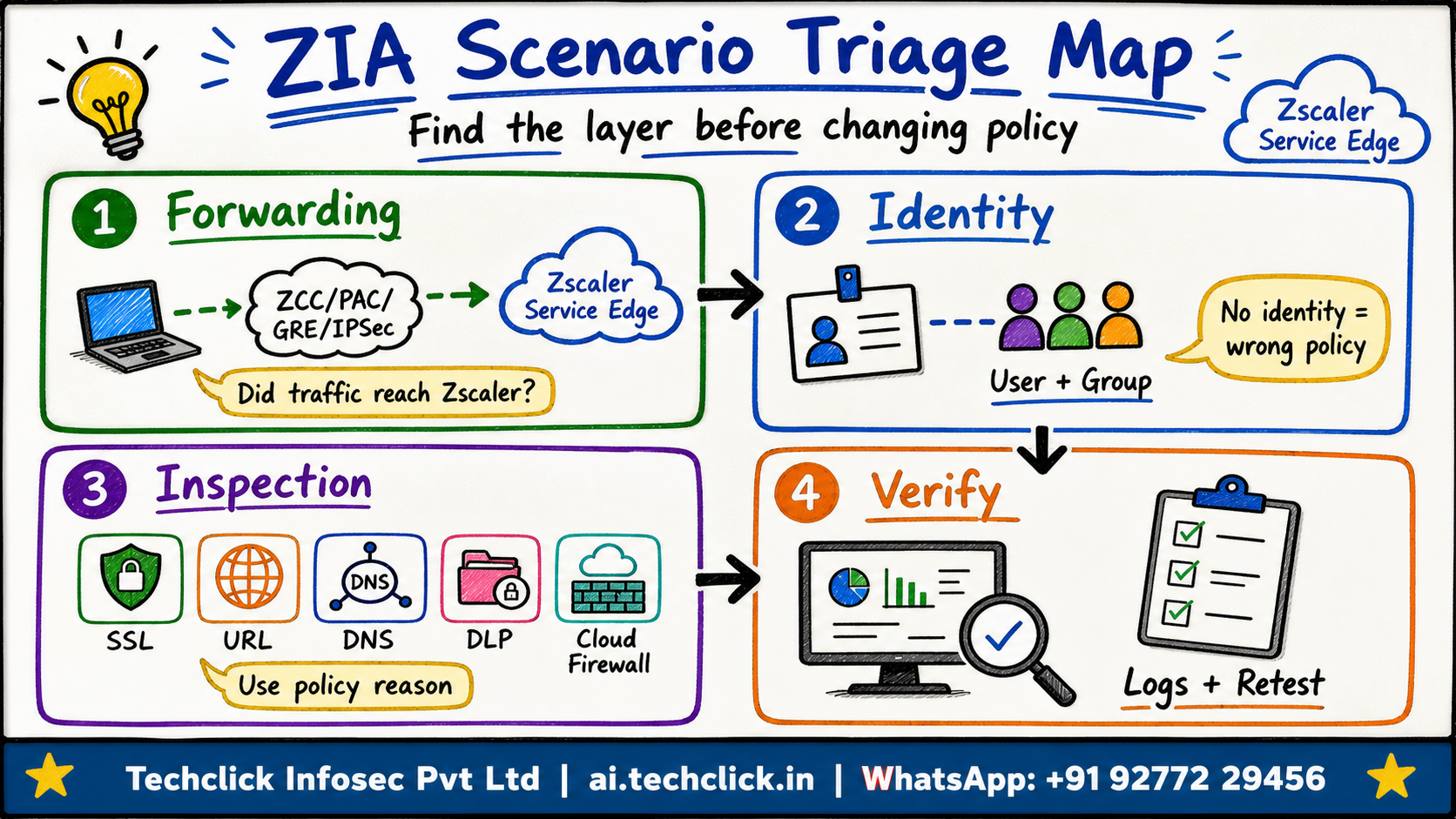
1. Scenario map - what layer can break?
ZIA is not one checkbox. A single user complaint can come from forwarding, service edge selection, identity, SSL inspection, URL filtering, cloud app control, DLP, DNS Control, cloud firewall or logging delay.
Production rule: map the symptom to one layer before editing policy. A bypass should be the last step, not the first answer.
Use one user, one app, one timestamp and one expected result. Wide scope hides the break point.
Why should you map the failed layer first?
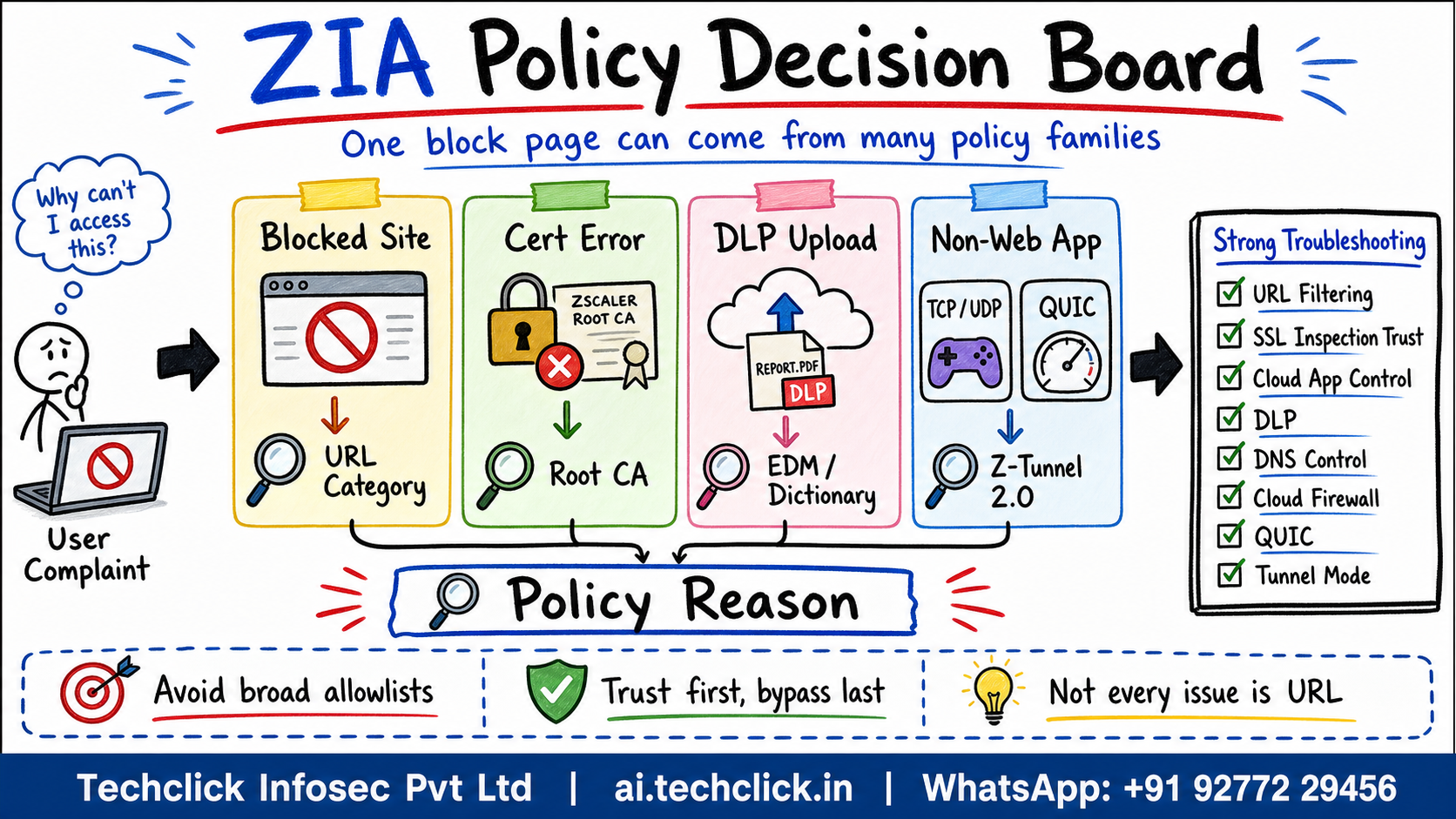
2. Scenario-based questions and solutions
Use the quick triage cards as a map. Then open the detailed question bank below: each scenario is written like a real support bridge and interview answer, with the user story, evidence, solution path, safe fix and verification.
1ZCC tunnel down
User has internet direct or no internet; Z-Tunnel never forms
Check app profile, forwarding profile, tunnel mode, driver/service health, captive portal and ZCC logs.
2SSL inspection certificate error
Browser says certificate not trusted after ZIA policy
Verify Zscaler root/intermediate CA distribution, Firefox trust store, MDM/GPO scope and SSL bypass for pinned apps.
3Site blocked unexpectedly
User sees Zscaler block page for business site
Check URL category, custom URL category, cloud app rule, user/group match, rule order and web insight policy reason.
4DLP upload block
Upload to SaaS fails or user sees data protection page
Check SSL inspection, DLP engine/dictionary/EDM match, cloud app control action, file type and incident logs.
5Non-web app not working
TCP/UDP app fails while browsing works
Confirm Z-Tunnel 2.0, cloud firewall policy, port/protocol, bypass list and endpoint route capture.
6QUIC visibility gap
Google/YouTube traffic is fast but web logs miss detail
Block or control UDP/443 QUIC with firewall/browser policy so HTTPS falls back to inspectable TCP.
7DNS issue
Domain resolves wrong, not at all, or is blocked
Check DNS Control rule, DNS gateway, DoH policy, category verdict, local DNS bypass and web/DNS logs.
8Branch tunnel down
Whole office loses ZIA protection or source location
Check GRE/IPSec status, public source IP, location object, tunnel health, NAT, firewall allow list and failover path.
9SaaS allowlist issue
SaaS vendor only trusts fixed source IP, users vary by edge
Use stable egress design such as source IP anchoring or agreed Zscaler egress ranges with documented exceptions.
10Internal app steered to ZIA
Intranet, RFC1918 or split-DNS app breaks after internet security rollout
Check bypass policy, private IP/domain steering, PAC/ZCC route capture, ZPA ownership and DNS suffix handling.
11Sandbox download delay
User says a business file download is stuck, delayed or blocked
Check file type control, sandbox action, threat verdict, SSL inspection, patient-zero settings and file reputation logs.
12Slow internet
Pages open but latency is high after ZIA rollout
Check service edge selection, path MTU, tunnel protocol, bypass misuse, SSL inspection cost and ZDX/user path evidence.
13Logs missing
Admin cannot prove why request was allowed or blocked
Check Web Insights filters, Nanolog/NSS delay, user identity, SSL inspection reason, log columns and SIEM mapping.
14Authentication loop
User is repeatedly prompted or mapped as unknown
Check IdP/SAML claim, SCIM group sync, auth cache, location auth method, cookie handling and browser isolation edge cases.
Deep scenario question bank with model answers
Q1. ZCC tunnel never forms after rolloutClick to open full answerFull answer open
Question: A remote user says internet access worked yesterday, but today ZCC shows connected to the IdP while the Z-Tunnel never forms. Some websites open directly and some do not open at all. How do you troubleshoot without immediately bypassing the user?
Direct answer: Treat it as a forwarding and client-state problem first, not a URL filtering problem. Prove whether traffic is reaching the Zscaler Service Edge through the intended app profile, forwarding profile and tunnel mode.
Why it matters: If the tunnel is not formed, web policy, SSL inspection and DLP may never see the flow. Changing URL policy at this stage only hides the real issue.
Evidence to collect:
- ZCC status, user identity, app profile and forwarding profile assigned to the user
- Tunnel mode, tunnel health, service edge chosen and recent ZCC log bundle
- Local route/proxy state, captive portal behavior, driver/service status and VPN conflict
- Web Insights entry for the same timestamp to confirm whether the request reached ZIA
Hands-on troubleshooting path
Commands / tests to run
- Scope:
Record user, device, source network, exact URL/FQDN, timestamp, error text, and ZCC state before changing policy - Windows endpoint:
ipconfig /all && route print && nslookup <fqdn> && Test-NetConnection <fqdn> -Port 443 - macOS/Linux endpoint:
scutil --dns; netstat -rn; dig <fqdn>; nc -vz <fqdn> 443; curl -vk https://<fqdn> - ZCC service check:
Collect ZCC logs, confirm app profile and forwarding profile, then retest with curl -vk https://<known-test-url> - Tunnel proof:
Compare route print / netstat -rn before and after ZCC connects; check whether traffic is direct or tunnelled
Zscaler log path and fields
- ZIA Admin Portal -> Logs > Insights -> Web Insights: filter by user, URL/host, action, rule, policy reason, SSL inspection, location and timestamp.
- If Web Insights has no entry, pivot to Tunnel Insights, Firewall Insights or DNS Insights based on whether the flow is tunnel, non-web port or DNS.
- Use Tunnel Insights for tunnel status and Web Insights for the same test URL; absence in both points back to forwarding/profile/client state.
Decision path
- No ZIA log for the same timestamp means first prove forwarding/ZCC tunnel/bypass before editing security policy.
- Log shows block or inspect action means fix the exact rule/object, not the whole category or tenant.
- If tunnel never forms, fix ZCC profile/client/captive portal/VPN conflict first; URL policy is not the root layer.
Step-by-step solution:
- Confirm the user is in the expected IdP/SCIM group and received the right ZCC app profile.
- Check whether tunnel mode matches the design, such as Z-Tunnel 2.0 for non-web visibility.
- Temporarily test from a clean network to remove captive portal, ISP DNS or local VPN interference.
- If the profile is wrong, fix assignment; if the client is unhealthy, repair/reinstall ZCC after collecting logs.
Safe fix: If the profile is wrong, fix assignment; if the client is unhealthy, repair/reinstall ZCC after collecting logs.
Verification: Retest the same URL from the same laptop, confirm tunnel formed, and confirm a matching Web Insights or firewall log entry appears with the correct user.
Weak answer to avoid: Do not add a website bypass before proving traffic reached the Zscaler cloud.
Q2. SSL inspection certificate warning after enabling policyClick to open full answerFull answer open
Question: After enabling SSL inspection for a finance group, Chrome shows a certificate warning on common SaaS sites. The helpdesk wants to disable SSL inspection globally because users are blocked. What is the deeper answer?
Direct answer: Separate certificate trust from policy scope. First confirm the Zscaler root/intermediate CA chain is installed and trusted on the endpoint and browser, then check whether the SSL inspection rule should inspect or bypass that application.
Why it matters: A certificate warning usually means the endpoint does not trust the inspection certificate or the application uses certificate pinning. It does not automatically mean SSL inspection is broken for the tenant.
Evidence to collect:
- Endpoint certificate store and browser-specific trust store, especially Firefox or unmanaged browsers
- SSL inspection policy rule name, action, user/group/location match and any bypass object
- Web Insights SSL inspection reason and Client SSL/TLS handshake failure reason when available
- Application behavior: normal browser SaaS traffic versus pinned desktop/mobile client
Hands-on troubleshooting path
Commands / tests to run
- Scope:
Record user, device, source network, exact URL/FQDN, timestamp, error text, and ZCC state before changing policy - Windows endpoint:
ipconfig /all && route print && nslookup <fqdn> && Test-NetConnection <fqdn> -Port 443 - macOS/Linux endpoint:
scutil --dns; netstat -rn; dig <fqdn>; nc -vz <fqdn> 443; curl -vk https://<fqdn> - Certificate chain:
openssl s_client -connect <fqdn>:443 -servername <fqdn> -showcerts - Browser proof:
curl -vk https://<fqdn> and compare issuer/common name with the expected Zscaler inspection certificate
Zscaler log path and fields
- ZIA Admin Portal -> Logs > Insights -> Web Insights: filter by user, URL/host, action, rule, policy reason, SSL inspection, location and timestamp.
- If Web Insights has no entry, pivot to Tunnel Insights, Firewall Insights or DNS Insights based on whether the flow is tunnel, non-web port or DNS.
- In Web Insights, add/check SSL Inspection action/reason and policy rule; compare managed browser versus unmanaged browser trust store.
Decision path
- No ZIA log for the same timestamp means first prove forwarding/ZCC tunnel/bypass before editing security policy.
- Log shows block or inspect action means fix the exact rule/object, not the whole category or tenant.
- If curl/browser does not trust the Zscaler CA, fix CA deployment; if only one pinned app fails, create a scoped SSL bypass.
Step-by-step solution:
- Validate CA deployment through MDM/GPO and test in a managed browser.
- Check whether the failing app is a pinned client or unsupported for inspection.
- Create a narrow SSL bypass only for the confirmed pinned app or category, not for all HTTPS.
- Communicate to users only after the same site works and logs show the expected inspect or bypass decision.
Safe fix: Communicate to users only after the same site works and logs show the expected inspect or bypass decision.
Verification: Reload the exact site, inspect the certificate chain shown by the browser, and confirm Web Insights shows the intended SSL rule/action.
Weak answer to avoid: Do not turn off SSL inspection for an entire department just because one app shows a trust warning.
Q3. Business website blocked unexpectedlyClick to open full answerFull answer open
Question: The sales team says a customer portal is blocked by Zscaler with a block page, but the same URL works from a personal hotspot. Management asks for an immediate allowlist. How should an L2/L3 engineer answer?
Direct answer: Use the block page and Web Insights to identify the exact policy decision: URL category, custom URL category, Cloud App Control, user/group match, location and rule order. Then decide whether the fix is category correction, narrow allow, or user coaching.
Why it matters: The visible block page is only the symptom. The decision may come from URL filtering, cloud app control, advanced threat protection, file type control or a custom object.
Evidence to collect:
- Block page reason code, support ID, user, timestamp and URL path
- URL category lookup and custom URL category membership
- Web Insights columns for rule name, policy reason, action, location and department
- Whether Cloud App Control allowed or blocked before URL Filtering is evaluated
Hands-on troubleshooting path
Commands / tests to run
- Scope:
Record user, device, source network, exact URL/FQDN, timestamp, error text, and ZCC state before changing policy - Windows endpoint:
ipconfig /all && route print && nslookup <fqdn> && Test-NetConnection <fqdn> -Port 443 - macOS/Linux endpoint:
scutil --dns; netstat -rn; dig <fqdn>; nc -vz <fqdn> 443; curl -vk https://<fqdn> - Reproduce:
curl -I https://<fqdn>/<path> and capture block-page support ID, category and timestamp - DNS sanity:
nslookup <fqdn> && dig <fqdn>
Zscaler log path and fields
- ZIA Admin Portal -> Logs > Insights -> Web Insights: filter by user, URL/host, action, rule, policy reason, SSL inspection, location and timestamp.
- If Web Insights has no entry, pivot to Tunnel Insights, Firewall Insights or DNS Insights based on whether the flow is tunnel, non-web port or DNS.
- In Web Insights, check URL category, custom category, cloud app rule, rule order, action, user/group and location.
Decision path
- No ZIA log for the same timestamp means first prove forwarding/ZCC tunnel/bypass before editing security policy.
- Log shows block or inspect action means fix the exact rule/object, not the whole category or tenant.
- If category/custom object caused the block, fix that object; if threat/DLP caused it, do not solve with URL allowlist.
Step-by-step solution:
- Reproduce with the same user and capture the support ID/timestamp.
- Check whether the domain or path sits inside a custom block category.
- If business-approved, create the narrowest object possible, ideally exact host/path where supported.
- If categorization is wrong, submit/vendor-correct the category and use a temporary scoped allow with expiry.
Safe fix: If categorization is wrong, submit/vendor-correct the category and use a temporary scoped allow with expiry.
Verification: The same user opens the portal, and Web Insights shows the expected allow rule, not a broad catch-all rule.
Weak answer to avoid: Do not allow the entire top-level domain when only one customer portal path is required.
Q4. DLP blocks SaaS upload during month-endClick to open full answerFull answer open
Question: Finance users cannot upload a spreadsheet to a sanctioned SaaS app. The block page says data protection policy, but the manager says it is a business-critical month-end task. What is the right scenario answer?
Direct answer: Confirm whether the DLP engine matched sensitive content, whether SSL inspection was active, and whether Cloud App Control or SaaS tenant policy changed the action. Then apply a controlled exception only if business risk accepts it.
Why it matters: DLP is often the correct control doing its job. The engineer must prove the match and avoid silently weakening data protection for all uploads.
Evidence to collect:
- DLP incident ID, matched dictionary/EDM/IDM/classifier and file type
- Web Insights URL, user, SaaS app, action and SSL inspection state
- Cloud App Control rule and tenant restriction rule if the SaaS app is sanctioned
- Data owner approval, exception expiry and incident note
Hands-on troubleshooting path
Commands / tests to run
- Scope:
Record user, device, source network, exact URL/FQDN, timestamp, error text, and ZCC state before changing policy - Windows endpoint:
ipconfig /all && route print && nslookup <fqdn> && Test-NetConnection <fqdn> -Port 443 - macOS/Linux endpoint:
scutil --dns; netstat -rn; dig <fqdn>; nc -vz <fqdn> 443; curl -vk https://<fqdn> - File fingerprint:
shasum -a 256 <file> # or Get-FileHash <file> -Algorithm SHA256 - Controlled upload:
Upload a clean test file first, then the approved file, and compare DLP incident IDs
Zscaler log path and fields
- ZIA Admin Portal -> Logs > Insights -> Web Insights: filter by user, URL/host, action, rule, policy reason, SSL inspection, location and timestamp.
- If Web Insights has no entry, pivot to Tunnel Insights, Firewall Insights or DNS Insights based on whether the flow is tunnel, non-web port or DNS.
- Check DLP incidents plus Web Insights for URL, cloud app, user, SSL inspection state, file type and matched dictionary/EDM/IDM.
Decision path
- No ZIA log for the same timestamp means first prove forwarding/ZCC tunnel/bypass before editing security policy.
- Log shows block or inspect action means fix the exact rule/object, not the whole category or tenant.
- If DLP matched real sensitive data, get data-owner approval and create time/user/app-scoped exception only.
Step-by-step solution:
- Open the DLP incident and identify the exact rule and matched content type.
- Check whether the app upload requires a sanctioned tenant or approved destination.
- If legitimate, create a scoped DLP exception for that user/group/app/time window or use a secure approved transfer method.
- Notify the data owner and SOC so the exception is not mistaken for evasion.
Safe fix: Notify the data owner and SOC so the exception is not mistaken for evasion.
Verification: Upload a non-sensitive test file and the approved business file, then confirm DLP logs show the intended allow/exception with a documented approval.
Weak answer to avoid: Do not disable the whole DLP policy or SSL inspection for the SaaS category.
Q5. Non-web TCP application fails while browsing worksClick to open full answerFull answer open
Question: A trading client or thick ERP tool fails on TCP 8443 while normal browser traffic works through ZIA. A junior engineer checks URL filtering and finds nothing blocked. What should the detailed answer include?
Direct answer: Classify the flow as non-web or non-standard-port traffic and validate forwarding plus Cloud Firewall policy. URL filtering alone is not enough.
Why it matters: Many enterprise clients use custom ports or protocols. If the endpoint is only steering web ports, or if Cloud Firewall blocks the port, the app fails while browsers look healthy.
Evidence to collect:
- ZCC forwarding profile and whether Z-Tunnel 2.0 captures the port/protocol
- Cloud Firewall logs with destination IP/FQDN, port, protocol, action and rule name
- Endpoint packet test such as TCP connect to the destination and port
- Bypass list and PAC rule review to ensure the app is not accidentally sent direct
Hands-on troubleshooting path
Commands / tests to run
- Scope:
Record user, device, source network, exact URL/FQDN, timestamp, error text, and ZCC state before changing policy - Windows endpoint:
ipconfig /all && route print && nslookup <fqdn> && Test-NetConnection <fqdn> -Port 443 - macOS/Linux endpoint:
scutil --dns; netstat -rn; dig <fqdn>; nc -vz <fqdn> 443; curl -vk https://<fqdn> - Port test:
Test-NetConnection <app-fqdn> -Port <port> # Windows - Port test:
nc -vz <app-fqdn> <port> # macOS/Linux
Zscaler log path and fields
- ZIA Admin Portal -> Logs > Insights -> Web Insights: filter by user, URL/host, action, rule, policy reason, SSL inspection, location and timestamp.
- If Web Insights has no entry, pivot to Tunnel Insights, Firewall Insights or DNS Insights based on whether the flow is tunnel, non-web port or DNS.
- Use Firewall Insights, not only Web Insights: filter destination IP/FQDN, port, protocol, action and firewall rule.
Decision path
- No ZIA log for the same timestamp means first prove forwarding/ZCC tunnel/bypass before editing security policy.
- Log shows block or inspect action means fix the exact rule/object, not the whole category or tenant.
- If Firewall Insights blocks the port, fix Cloud Firewall policy; if no log exists, check Z-Tunnel 2.0 capture/bypass.
Step-by-step solution:
- Confirm destination, port and protocol with the application owner.
- Check whether the traffic is captured by ZCC or sent direct.
- Create or adjust a narrow Cloud Firewall allow rule for the required destination/port if approved.
- Avoid URL-filter changes unless the app is truly HTTP/S and appears in Web Insights.
Safe fix: Avoid URL-filter changes unless the app is truly HTTP/S and appears in Web Insights.
Verification: The client connects successfully and Cloud Firewall logs show the expected allow rule for that user and destination.
Weak answer to avoid: Do not say 'ZIA is fine because websites work'; prove the actual port and policy family.
Q6. QUIC creates visibility gap for Google trafficClick to open full answerFull answer open
Question: YouTube and Google services are fast, but the security team says web logs miss detail and SSL inspection is inconsistent. Browser traffic uses UDP/443. What is the scenario-based answer?
Direct answer: Identify QUIC over UDP/443 and decide whether the organization wants to block/control QUIC so traffic falls back to inspectable TLS over TCP.
Why it matters: QUIC can bypass traditional HTTP/S proxy visibility if not controlled. The answer is not performance tuning first; it is a visibility and policy-design decision.
Evidence to collect:
- Firewall logs showing UDP/443 to Google or QUIC-capable services
- Browser policy state for QUIC and ZIA Cloud Firewall rule action
- Web Insights gap compared with expected user activity
- Business exception list for apps where blocking QUIC causes issues
Hands-on troubleshooting path
Commands / tests to run
- Scope:
Record user, device, source network, exact URL/FQDN, timestamp, error text, and ZCC state before changing policy - Windows endpoint:
ipconfig /all && route print && nslookup <fqdn> && Test-NetConnection <fqdn> -Port 443 - macOS/Linux endpoint:
scutil --dns; netstat -rn; dig <fqdn>; nc -vz <fqdn> 443; curl -vk https://<fqdn> - UDP proof:
tcpdump -nn udp port 443 # or use endpoint packet capture during YouTube/Google test - Browser check:
Verify browser QUIC policy and retest after disabling/controlling QUIC
Zscaler log path and fields
- ZIA Admin Portal -> Logs > Insights -> Web Insights: filter by user, URL/host, action, rule, policy reason, SSL inspection, location and timestamp.
- If Web Insights has no entry, pivot to Tunnel Insights, Firewall Insights or DNS Insights based on whether the flow is tunnel, non-web port or DNS.
- Use Firewall Insights for UDP/443 and Web Insights to confirm HTTP/S detail returns after fallback to TCP/443.
Decision path
- No ZIA log for the same timestamp means first prove forwarding/ZCC tunnel/bypass before editing security policy.
- Log shows block or inspect action means fix the exact rule/object, not the whole category or tenant.
- If traffic is UDP/443 and web detail is missing, enforce QUIC control before blaming SSL inspection.
Step-by-step solution:
- Prove the traffic is UDP/443 and not normal TCP/443.
- Apply browser management or Cloud Firewall policy to block/control QUIC where inspection is required.
- Test affected Google services after fallback to TCP.
- Document any exceptions for apps that need QUIC for approved reasons.
Safe fix: Document any exceptions for apps that need QUIC for approved reasons.
Verification: After control is applied, the same traffic appears in Web Insights with expected policy/SSL details and user experience remains acceptable.
Weak answer to avoid: Do not ignore missing logs just because users say the service is fast.
Q7. DNS Control blocks or misroutes a business domainClick to open full answerFull answer open
Question: Users report that a vendor domain sometimes resolves incorrectly and sometimes returns a block page. Security suspects DNS Control, but network says DNS is local. What should you check?
Direct answer: Trace where DNS resolution happens and whether DNS Control, DoH handling, local DNS bypass or split-DNS policy made the decision.
Why it matters: DNS issues can happen before the browser request reaches URL filtering. Mixing local resolver behavior, DoH and DNS Control creates confusing symptoms.
Evidence to collect:
- Endpoint DNS server, DoH browser setting and ZCC DNS steering behavior
- DNS Control log action, category/verdict and rule name
- Web Insights entry for the same domain after DNS resolution
- Split-DNS or internal suffix list that should not go to internet DNS
Hands-on troubleshooting path
Commands / tests to run
- Scope:
Record user, device, source network, exact URL/FQDN, timestamp, error text, and ZCC state before changing policy - Windows endpoint:
ipconfig /all && route print && nslookup <fqdn> && Test-NetConnection <fqdn> -Port 443 - macOS/Linux endpoint:
scutil --dns; netstat -rn; dig <fqdn>; nc -vz <fqdn> 443; curl -vk https://<fqdn> - DNS compare:
nslookup <fqdn> <corporate-dns-ip> && nslookup <fqdn> 8.8.8.8 - Resolver path:
ipconfig /all # Windows DNS server; scutil --dns # macOS DNS resolver order
Zscaler log path and fields
- ZIA Admin Portal -> Logs > Insights -> Web Insights: filter by user, URL/host, action, rule, policy reason, SSL inspection, location and timestamp.
- If Web Insights has no entry, pivot to Tunnel Insights, Firewall Insights or DNS Insights based on whether the flow is tunnel, non-web port or DNS.
- Use DNS Insights: filter domain, user, action, rule, category/verdict and timestamp; compare with Web Insights after resolution.
Decision path
- No ZIA log for the same timestamp means first prove forwarding/ZCC tunnel/bypass before editing security policy.
- Log shows block or inspect action means fix the exact rule/object, not the whole category or tenant.
- If DNS Insights blocks before HTTP, fix DNS Control/DoH/split-DNS, not URL filtering.
Step-by-step solution:
- Run DNS lookup from the affected endpoint and compare with a known-good resolver path.
- Check DNS Control logs for the exact domain and user.
- Disable uncontrolled DoH through browser/endpoint policy if it bypasses intended controls.
- Fix split-DNS or internal-domain steering if a private name is being sent to ZIA.
Safe fix: Fix split-DNS or internal-domain steering if a private name is being sent to ZIA.
Verification: The domain resolves to the expected IP, the page opens or blocks for the intended reason, and DNS/Web logs agree.
Weak answer to avoid: Do not change URL filtering when the DNS decision happened before the HTTP request.
Q8. Branch GRE/IPSec tunnel down for one officeClick to open full answerFull answer open
Question: All users in one branch suddenly lose ZIA protection or show the wrong source location. Remote users are fine. What is the deeper production runbook?
Direct answer: Treat this as a branch forwarding and location-health issue. Check GRE/IPSec tunnel status, source public IP, NAT, location object, failover tunnel and firewall path to the Zscaler edge.
Why it matters: Branch tunnels define source location and policy context. If the tunnel or source IP changes, users may hit the wrong location policy or bypass ZIA entirely.
Evidence to collect:
- Tunnel health for primary and secondary GRE/IPSec tunnels
- Branch public NAT IP and whether it matches the ZIA location object
- Router/firewall logs for tunnel negotiation and keepalive failure
- Web Insights location field for a test user in the branch
Hands-on troubleshooting path
Commands / tests to run
- Scope:
Record user, device, source network, exact URL/FQDN, timestamp, error text, and ZCC state before changing policy - Windows endpoint:
ipconfig /all && route print && nslookup <fqdn> && Test-NetConnection <fqdn> -Port 443 - macOS/Linux endpoint:
scutil --dns; netstat -rn; dig <fqdn>; nc -vz <fqdn> 443; curl -vk https://<fqdn> - Branch reachability:
ping <zia-edge-or-test-dest>; traceroute <test-dest>; verify NAT public IP from branch - Tunnel device:
Check GRE/IPSec status, crypto/SA counters, keepalive and failover tunnel on the branch firewall/router
Zscaler log path and fields
- ZIA Admin Portal -> Logs > Insights -> Web Insights: filter by user, URL/host, action, rule, policy reason, SSL inspection, location and timestamp.
- If Web Insights has no entry, pivot to Tunnel Insights, Firewall Insights or DNS Insights based on whether the flow is tunnel, non-web port or DNS.
- Use Tunnel Insights for tunnel status/source IP and Web Insights location field for a branch test user.
Decision path
- No ZIA log for the same timestamp means first prove forwarding/ZCC tunnel/bypass before editing security policy.
- Log shows block or inspect action means fix the exact rule/object, not the whole category or tenant.
- If source IP no longer matches the Location object, fix NAT/location/tunnel mapping before user policy.
Step-by-step solution:
- Confirm whether the branch tunnel is down or simply using failover.
- Validate ISP/NAT change, crypto parameters and firewall allow rules.
- Check if users are falling back to direct internet or another location.
- Restore tunnel or update location object only after confirming the source IP ownership.
Safe fix: Restore tunnel or update location object only after confirming the source IP ownership.
Verification: A branch test user appears under the correct location in Web Insights and tunnel monitoring is healthy on both primary and failover paths.
Weak answer to avoid: Do not troubleshoot one user browser first when every branch user changed behavior at the same time.
Q9. SaaS vendor allowlist fails because egress IP changesClick to open full answerFull answer open
Question: A SaaS vendor only allows traffic from fixed public IPs. Users behind ZIA are denied because their source IP varies by service edge. What is the correct design answer?
Direct answer: Solve it as an egress design problem, not a user policy problem. Use a stable approved egress approach such as source IP anchoring or documented Zscaler egress ranges depending on the tenant design and vendor requirements.
Why it matters: Cloud security edges are distributed. If a SaaS app requires fixed source IPs, the design must intentionally control or document egress identity.
Evidence to collect:
- SaaS vendor logs showing rejected source IP
- Zscaler logs showing service edge and egress source IP for affected users
- Location/user group needing this SaaS access
- Approved architecture for source IP anchoring or vendor allowlist maintenance
Hands-on troubleshooting path
Commands / tests to run
- Scope:
Record user, device, source network, exact URL/FQDN, timestamp, error text, and ZCC state before changing policy - Windows endpoint:
ipconfig /all && route print && nslookup <fqdn> && Test-NetConnection <fqdn> -Port 443 - macOS/Linux endpoint:
scutil --dns; netstat -rn; dig <fqdn>; nc -vz <fqdn> 443; curl -vk https://<fqdn> - Source IP proof:
Ask SaaS vendor for rejected source IP and timestamp; compare with ZIA egress/source fields in logs - User test:
curl https://ifconfig.me from affected path only as a quick clue, then rely on vendor/ZIA logs for proof
Zscaler log path and fields
- ZIA Admin Portal -> Logs > Insights -> Web Insights: filter by user, URL/host, action, rule, policy reason, SSL inspection, location and timestamp.
- If Web Insights has no entry, pivot to Tunnel Insights, Firewall Insights or DNS Insights based on whether the flow is tunnel, non-web port or DNS.
- Use Web Insights or Firewall Insights to capture service edge, user/location, destination SaaS host and egress/source IP fields when available.
Decision path
- No ZIA log for the same timestamp means first prove forwarding/ZCC tunnel/bypass before editing security policy.
- Log shows block or inspect action means fix the exact rule/object, not the whole category or tenant.
- If vendor needs stable source, design source IP anchoring or documented egress ranges; do not bypass inspection broadly.
Step-by-step solution:
- Collect rejected IPs from the SaaS vendor and match them to ZIA egress logs.
- Decide whether the app needs source IP anchoring or a vendor-maintained allowlist.
- Scope the design to the SaaS app or user group, not the whole tenant.
- Document owner and review cycle for any vendor allowlist.
Safe fix: Document owner and review cycle for any vendor allowlist.
Verification: The SaaS vendor sees the expected source IP and users authenticate without bypassing ZIA inspection controls unnecessarily.
Weak answer to avoid: Do not bypass ZIA for the SaaS app just to satisfy an IP allowlist quickly.
Q10. Internal app accidentally steered to ZIAClick to open full answerFull answer open
Question: After internet security rollout, an intranet URL or RFC1918 destination stops working. Users say Zscaler broke the internal app. What should the answer prove?
Direct answer: Determine whether a private/internal flow is being incorrectly steered to ZIA instead of staying local or going through ZPA. Fix steering, bypass or private-app ownership, not internet URL policy.
Why it matters: ZIA is for internet and SaaS access. Private app traffic needs local routing, split DNS or ZPA depending on the design.
Evidence to collect:
- Destination IP range, FQDN suffix and whether it is private/RFC1918
- ZCC forwarding profile, PAC rules, bypass lists and route capture
- DNS answer returned on corporate versus external networks
- ZPA application segment ownership if the private app should use ZPA
Hands-on troubleshooting path
Commands / tests to run
- Scope:
Record user, device, source network, exact URL/FQDN, timestamp, error text, and ZCC state before changing policy - Windows endpoint:
ipconfig /all && route print && nslookup <fqdn> && Test-NetConnection <fqdn> -Port 443 - macOS/Linux endpoint:
scutil --dns; netstat -rn; dig <fqdn>; nc -vz <fqdn> 443; curl -vk https://<fqdn> - Private destination proof:
nslookup <internal-fqdn>; route print # Windows; netstat -rn # macOS/Linux - Path check:
tracert <internal-ip> # Windows; traceroute <internal-ip> # macOS/Linux
Zscaler log path and fields
- ZIA Admin Portal -> Logs > Insights -> Web Insights: filter by user, URL/host, action, rule, policy reason, SSL inspection, location and timestamp.
- If Web Insights has no entry, pivot to Tunnel Insights, Firewall Insights or DNS Insights based on whether the flow is tunnel, non-web port or DNS.
- If private IP/FQDN appears in ZIA logs, review ZCC forwarding profile, PAC/bypass and whether the app belongs in ZPA.
Decision path
- No ZIA log for the same timestamp means first prove forwarding/ZCC tunnel/bypass before editing security policy.
- Log shows block or inspect action means fix the exact rule/object, not the whole category or tenant.
- If RFC1918/private suffix is sent to ZIA, fix steering/bypass/ZPA app ownership, not internet URL policy.
Step-by-step solution:
- Confirm whether the destination is internal by IP, DNS suffix and app owner.
- Check if ZCC captures it because of a broad forwarding rule.
- Move the destination into the correct bypass/private-app steering object.
- If using ZPA, confirm the app segment exists and ZIA bypass does not conflict.
Safe fix: If using ZPA, confirm the app segment exists and ZIA bypass does not conflict.
Verification: The internal app opens through the intended path, and ZIA logs no longer show the private destination as internet-bound traffic.
Weak answer to avoid: Do not create an internet URL allow rule for an internal private application.
Q11. Sandbox delays a business file downloadClick to open full answerFull answer open
Question: A user downloads a file from a vendor portal and says it is stuck. Security sees sandbox analysis pending. The business asks to bypass sandbox for that vendor. What is the deeper response?
Direct answer: Check file type control, sandbox policy, threat verdict, patient-zero behavior and the vendor trust level before changing action.
Why it matters: Sandbox delay can be an intentional protection against unknown files. The right answer balances productivity with malware risk.
Evidence to collect:
- File type, hash, URL, user, verdict and sandbox submission status
- Policy action for unknown or suspicious files
- Whether the portal is sanctioned and whether the file is expected business content
- Threat logs or sandbox report after detonation
Hands-on troubleshooting path
Commands / tests to run
- Scope:
Record user, device, source network, exact URL/FQDN, timestamp, error text, and ZCC state before changing policy - Windows endpoint:
ipconfig /all && route print && nslookup <fqdn> && Test-NetConnection <fqdn> -Port 443 - macOS/Linux endpoint:
scutil --dns; netstat -rn; dig <fqdn>; nc -vz <fqdn> 443; curl -vk https://<fqdn> - Hash and file type:
file <downloaded-file>; shasum -a 256 <downloaded-file> - Retest:
Download a known-clean small file from the same portal and compare action/verdict
Zscaler log path and fields
- ZIA Admin Portal -> Logs > Insights -> Web Insights: filter by user, URL/host, action, rule, policy reason, SSL inspection, location and timestamp.
- If Web Insights has no entry, pivot to Tunnel Insights, Firewall Insights or DNS Insights based on whether the flow is tunnel, non-web port or DNS.
- Check Web Insights and threat/sandbox verdict details: URL, file type, hash, user, action, pending/clean/malicious verdict.
Decision path
- No ZIA log for the same timestamp means first prove forwarding/ZCC tunnel/bypass before editing security policy.
- Log shows block or inspect action means fix the exact rule/object, not the whole category or tenant.
- If verdict is pending, wait or use approved exception; if malicious, block and hand IOCs to SOC.
Step-by-step solution:
- Confirm if the file is delayed, blocked or convicted malicious.
- Check whether the same hash has a known verdict.
- If business-critical and trusted, create a narrow exception for the vendor/file type with approval.
- If malicious or suspicious, keep block and escalate with IOC details.
Safe fix: If malicious or suspicious, keep block and escalate with IOC details.
Verification: The allowed file downloads only under the approved condition, while unknown/malicious files still trigger sandbox policy.
Weak answer to avoid: Do not bypass sandbox for an entire vendor domain without file-risk evidence.
Q12. Slow internet after ZIA rolloutClick to open full answerFull answer open
Question: Users complain that websites are slow after ZIA rollout. No block page appears and policy allows the traffic. How do you avoid blaming Zscaler generically?
Direct answer: Break the path into endpoint, tunnel, service edge, inspection, destination and user network. Measure each leg before changing policy.
Why it matters: Performance complaints can come from MTU, tunnel protocol, wrong service edge, SSL inspection overhead, local ISP, destination slowness or app chattiness.
Evidence to collect:
- ZCC service edge selection, tunnel protocol and latency
- Endpoint network type, ISP and local packet loss
- Web Insights timing fields if available and repeated test timestamps
- ZDX or path diagnostics where deployed, plus comparison with direct path if approved
Hands-on troubleshooting path
Commands / tests to run
- Scope:
Record user, device, source network, exact URL/FQDN, timestamp, error text, and ZCC state before changing policy - Windows endpoint:
ipconfig /all && route print && nslookup <fqdn> && Test-NetConnection <fqdn> -Port 443 - macOS/Linux endpoint:
scutil --dns; netstat -rn; dig <fqdn>; nc -vz <fqdn> 443; curl -vk https://<fqdn> - Timing:
curl -w '@curl-format.txt' -o /dev/null -s https://<fqdn> # capture DNS/connect/TLS/TTFB timings - Path:
ping <fqdn>; mtr <fqdn> # or pathping <fqdn> on Windows
Zscaler log path and fields
- ZIA Admin Portal -> Logs > Insights -> Web Insights: filter by user, URL/host, action, rule, policy reason, SSL inspection, location and timestamp.
- If Web Insights has no entry, pivot to Tunnel Insights, Firewall Insights or DNS Insights based on whether the flow is tunnel, non-web port or DNS.
- Compare ZCC selected service edge, Web Insights timing/action, SSL/DLP applied controls and ZDX/path diagnostics if deployed.
Decision path
- No ZIA log for the same timestamp means first prove forwarding/ZCC tunnel/bypass before editing security policy.
- Log shows block or inspect action means fix the exact rule/object, not the whole category or tenant.
- If only inspected traffic is slow, compare inspect versus scoped bypass test under change control; if all traffic is slow, check ISP/edge/path.
Step-by-step solution:
- Test one URL from one user and compare another user/location.
- Check service edge selection and tunnel health.
- Review whether SSL inspection or DLP is applied to heavy download/upload flows.
- Adjust tunnel/edge/routing or scoped policy only when measurements prove the bottleneck.
Safe fix: Adjust tunnel/edge/routing or scoped policy only when measurements prove the bottleneck.
Verification: Before/after timings improve for the same URL and user, while security logs still show intended inspection.
Weak answer to avoid: Do not disable inspection globally to solve a performance complaint without path evidence.
Q13. Logs missing during incident investigationClick to open full answerFull answer open
Question: The SOC asks why a user accessed a risky URL, but the admin cannot find logs in Web Insights or SIEM. What is the detailed troubleshooting answer?
Direct answer: Validate logging pipeline, log family, filters, delay and identity mapping. Missing logs may mean wrong query, traffic bypass, NSS/SIEM delay or the flow never reached ZIA.
Why it matters: Incident response depends on evidence. A missing log is itself a troubleshooting signal, not the end of investigation.
Evidence to collect:
- Exact user, timestamp, URL, public IP, device and location
- Web Insights filters/columns and whether the log family is web, firewall, DNS or DLP
- NSS/SIEM feed health, parser mapping and ingestion delay
- Forwarding proof that the endpoint actually sent traffic to ZIA
Hands-on troubleshooting path
Commands / tests to run
- Scope:
Record user, device, source network, exact URL/FQDN, timestamp, error text, and ZCC state before changing policy - Windows endpoint:
ipconfig /all && route print && nslookup <fqdn> && Test-NetConnection <fqdn> -Port 443 - macOS/Linux endpoint:
scutil --dns; netstat -rn; dig <fqdn>; nc -vz <fqdn> 443; curl -vk https://<fqdn> - Reproduce with timestamp:
date -u; curl -vk https://<fqdn>/<path>; note user, source IP and exact UTC/IST time - Log search keys:
Search user, source IP, destination host, URL path and action across Web/DNS/Firewall/DLP logs
Zscaler log path and fields
- ZIA Admin Portal -> Logs > Insights -> Web Insights: filter by user, URL/host, action, rule, policy reason, SSL inspection, location and timestamp.
- If Web Insights has no entry, pivot to Tunnel Insights, Firewall Insights or DNS Insights based on whether the flow is tunnel, non-web port or DNS.
- Check Web Insights, DNS Insights, Firewall Insights, DLP incidents and NSS/SIEM ingestion delay before declaring no evidence.
Decision path
- No ZIA log for the same timestamp means first prove forwarding/ZCC tunnel/bypass before editing security policy.
- Log shows block or inspect action means fix the exact rule/object, not the whole category or tenant.
- If no product log exists but packet reached internet, go back to forwarding/bypass; if portal log exists but SIEM lacks it, fix NSS/parser mapping.
Step-by-step solution:
- Search with a wider time window and multiple identifiers: user, IP, URL and host.
- Check the correct log family; non-web traffic may be in firewall logs, DNS in DNS logs.
- Verify NSS feed delivery and SIEM parser fields.
- If no ZIA log exists, return to forwarding and bypass investigation.
Safe fix: If no ZIA log exists, return to forwarding and bypass investigation.
Verification: SOC receives a reproducible query with mapped fields such as user, action, rule, URL/host, category and timestamp.
Weak answer to avoid: Do not close as 'no logs found' without proving whether the flow reached ZIA.
Q14. Authentication loop or unknown user mappingClick to open full answerFull answer open
Question: A user is repeatedly prompted for authentication or appears as unknown in logs. Policy should apply by group, but the user gets the default rule. What should the answer include?
Direct answer: Troubleshoot identity flow: IdP claim, SAML assertion, SCIM group sync, auth cache, location authentication method and browser cookie behavior.
Why it matters: If identity is wrong, the best policy design will still match the wrong rule. User mapping must be proven before policy tuning.
Evidence to collect:
- SAML/IdP sign-in event and attributes sent to Zscaler
- SCIM user and group membership in the Zscaler admin portal
- Web Insights user field, department/group mapping and auth method
- Browser cookie handling, incognito behavior and location auth settings
Hands-on troubleshooting path
Commands / tests to run
- Scope:
Record user, device, source network, exact URL/FQDN, timestamp, error text, and ZCC state before changing policy - Windows endpoint:
ipconfig /all && route print && nslookup <fqdn> && Test-NetConnection <fqdn> -Port 443 - macOS/Linux endpoint:
scutil --dns; netstat -rn; dig <fqdn>; nc -vz <fqdn> 443; curl -vk https://<fqdn> - Identity proof:
Use SAML tracer/browser dev tools to confirm NameID and group claims sent by the IdP - Client refresh:
Sign out/in ZCC after SCIM/group change and retest one URL with a fresh timestamp
Zscaler log path and fields
- ZIA Admin Portal -> Logs > Insights -> Web Insights: filter by user, URL/host, action, rule, policy reason, SSL inspection, location and timestamp.
- If Web Insights has no entry, pivot to Tunnel Insights, Firewall Insights or DNS Insights based on whether the flow is tunnel, non-web port or DNS.
- In Web Insights, verify user field, department/group/location and auth method; compare with IdP sign-in and SCIM group state.
Decision path
- No ZIA log for the same timestamp means first prove forwarding/ZCC tunnel/bypass before editing security policy.
- Log shows block or inspect action means fix the exact rule/object, not the whole category or tenant.
- If user appears unknown/wrong group, fix identity/SCIM/auth cache before cloning policy rules.
Step-by-step solution:
- Confirm the user exists and belongs to the intended group in both IdP and Zscaler.
- Check whether the SAML attribute or NameID changed.
- Clear stale auth cache or force re-authentication after group changes.
- Fix the group/claim mapping before editing security rules.
Safe fix: Fix the group/claim mapping before editing security rules.
Verification: The same user appears with the correct identity/group in logs and matches the intended policy rule.
Weak answer to avoid: Do not clone policy rules for 'unknown user' instead of fixing identity.
A student is asked this in an L2/L3 SASE interview
ZCC tunnel down: User has internet direct or no internet; Z-Tunnel never forms
The visible user symptom does not identify the exact control point. The failure can live in identity, policy, forwarding, DNS, inspection, connector path or logging.
Collect: ZCC status, app and forwarding profile, tunnel mode, Web Insights policy reason, URL category lookup, SSL inspection reason, DLP incident, DNS Control log, cloud firewall log, NSS/SIEM event, affected user/group and exact timestamp. Compare expected rule/path with actual policy reason or status code.
Admin console + endpoint/connector status + logs + original user retestCheck app profile, forwarding profile, tunnel mode, driver/service health, captive portal and ZCC logs.
Retest the same user and app, confirm expected action in logs and document the exact root cause.
Scenario questions need what you check, why it matters, what proves it and how you fix safely.
Which answer style is strongest in an interview?
3. SSL, URL filtering, DLP and DNS scenarios
These are the most common user-facing escalations because they create visible block pages, certificate warnings or SaaS upload failures.
- Certificate warning: verify root CA deployment, browser trust store and SSL inspection policy reason.
- Business site blocked: check URL category, custom category, cloud app control and rule order before allowing the whole domain.
- DLP block: inspect DLP incident, matched dictionary/EDM/IDM, file type, SaaS action and user coaching text.
- DNS failure: check DNS Control, DoH rule, local DNS bypass and whether the event appears in DNS or web logs.
Start with the exact user, app, time, location, device and error page or status code.
Use product proof: ZCC status, app and forwarding profile, tunnel mode, Web Insights policy reason, URL category lookup, SSL inspection reason, DLP incident, DNS Control log, cloud firewall log, NSS/SIEM event, affected user/group and exact timestamp.
Change the smallest object that matches the proven break point.
Retest the same flow and confirm expected logs before closing.
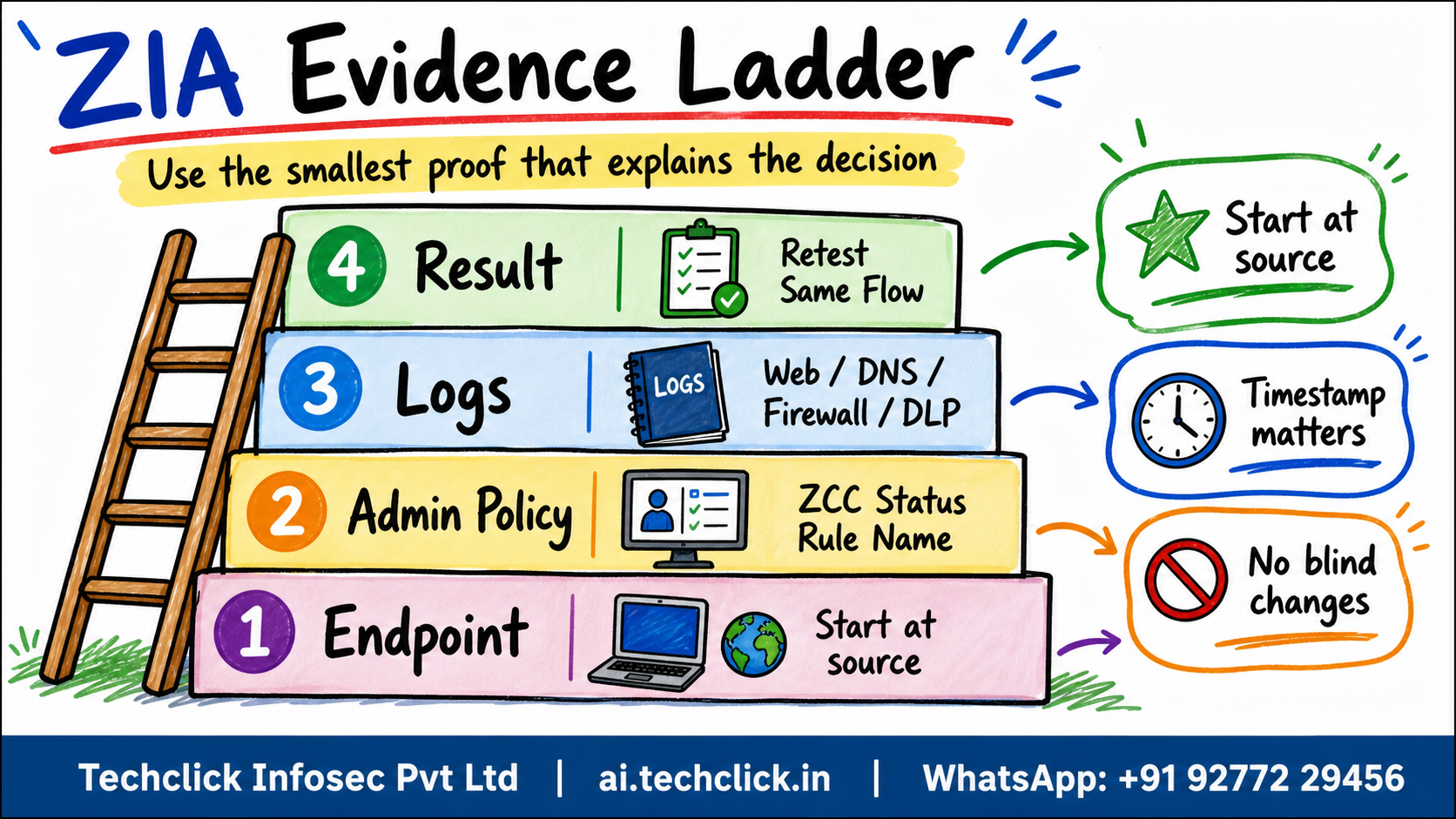
4. Branch, non-web, QUIC, SaaS allowlist and performance scenarios
When web browsing works but another business flow fails, check whether the flow is truly web traffic. Non-web ports, QUIC, branch tunnels and SaaS egress design often live outside a basic browser-only test.
Safe approach: confirm tunnel type, port/protocol, branch location, source IP, service edge path and log family before changing URL filtering.
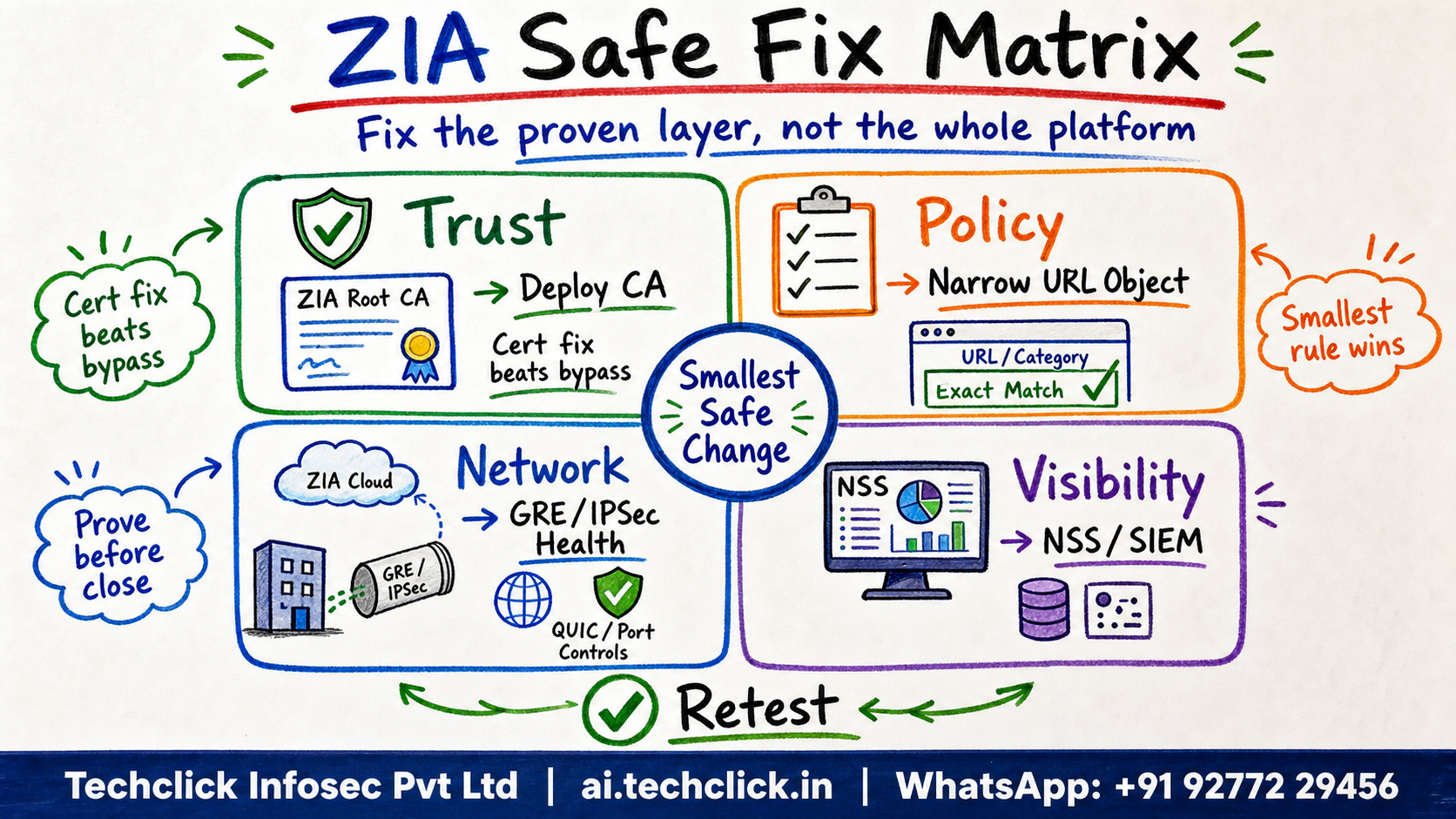
5. Evidence ladder - what to collect before changing production
ZCC: status, tunnel mode, service edge, forwarding profile
Admin: user, group, location, app profile, forwarding profile
Web Insights: URL, policy reason, SSL reason, rule name, action
Firewall/DNS/DLP logs: port, protocol, DNS action, DLP dictionary, incident
Branch: GRE/IPSec health, source IP, location object, failover tunnel
Verify: same user, same URL/app, same timestamp, expected log action
A good answer says what evidence proves the layer. A great answer also says what not to change.
A fix without log proof is only an assumption. Confirm the expected rule, status or policy reason.
Watch a ZIA request find its policy decision
Play the normal path, then break it at SSL trust to see why certificate rollout matters.
What should you include in the evidence note?
6. Closeout answer for interviews and real incidents
Close the ticket with a short engineering note: symptom, affected users, ZIA layer, evidence, root cause, exact scoped change and verification result.
Interview framing: I would not start with a global bypass. I would prove forwarding, identity, policy reason, SSL/DNS/DLP/firewall decision and logs, then make the smallest safe change.
Symptom, evidence, root cause, exact change, verification and rollback note are enough.
What is the unsafe shortcut?
🤖 Ask the AI Tutor
Tap any question — instant, scoped to this lesson. No login, no waiting.
Pre-curated from vendor docs + community Q&A, scoped to this lesson. For a live prod issue, paste your export into chat.techclick.in.
📝 Wrap-up assessment — six more
You've answered 4 inline. Six left. 70% (7 of 10) marks the lesson complete on your profile. Tap Submit all answers at the end.
🧠 In your own words
Type one scenario answer in this format: symptom -> evidence -> fix -> verify.
🗣 Teach a friend
Best way to lock it in — explain it in one line to a teammate. Tap to generate a paste-ready summary.
📖 Glossary
- Forwarding
- ZCC, PAC, GRE, IPSec or Cloud Connector must send the flow to Zscaler before policy can apply.
- Identity
- User, group, department, location and device context decide which rule is evaluated.
- SSL inspection
- HTTPS visibility depends on certificate trust and policy scope.
- DNS Control
- DNS can be a security decision point, not just name resolution.
- DLP and CASB
- Outbound content and SaaS activity can be blocked after SSL inspection.
- Logs
- Web, firewall, DNS and DLP logs prove the policy reason and rule match.
📚 Sources
- Zscaler - Zscaler Internet Access. https://www.zscaler.com/products-and-solutions/zscaler-internet-access
- Zscaler - Zscaler Private Access. https://www.zscaler.com/products-and-solutions/zscaler-private-access
- Zscaler - Zscaler Client Connector. https://www.zscaler.com/products-and-solutions/zscaler-client-connector
- Zscaler Help - SSL/TLS Inspection. https://help.zscaler.com/zia/about-ssl-inspection
- Zscaler Help - Managing the QUIC Protocol. https://help.zscaler.com/zia/managing-quic-protocol
- Zscaler Help - URL Filtering. https://help.zscaler.com/zia/policies/url-filtering
- Zscaler Help - ZIA Policy Leading Practices Guide. https://help.zscaler.com/zscaler-deployments-operations/zia-policy-leading-practices-guide
- Zscaler Help - Internet & SaaS TLS and SSL Inspection Leading Practices Guide. https://help.zscaler.com/zscaler-deployments-operations/zia-ssl-inspection-leading-practices-guide
- Zscaler Help - Web Insights Logs: Filters. https://help.zscaler.com/zia/web-insights-logs-filters
- Zscaler Help - Web Insights Logs: Columns. https://help.zscaler.com/zia/web-insights-logs-columns
- Zscaler Help - DNS Insights Logs: Filters. https://help.zscaler.com/zia/dns-insights-logs-filters
- Zscaler Help - DNS Insights Logs: Columns. https://help.zscaler.com/zia/dns-insights-logs-columns
- Zscaler Help - Firewall Insights Logs: Columns. https://help.zscaler.com/zia/firewall-insights-logs-columns
- Zscaler Help - Tunnel Insights Logs: Columns. https://help.zscaler.com/zia/tunnel-insights-logs-columns
- Zscaler Help - About App Connectors. https://help.zscaler.com/zpa/about-connectors
- Zscaler Help - Troubleshooting App Connectors. https://help.zscaler.com/zpa/troubleshooting-app-connectors
- Zscaler Help - About Access Policy. https://help.zscaler.com/zpa/about-access-policy
- Zscaler Help - Configuring Access Policies. https://help.zscaler.com/zpa/configuring-access-policies
- Zscaler Help - About Applications. https://help.zscaler.com/zpa/about-applications
- Zscaler Help - Configuring Defined Application Segments. https://help.zscaler.com/zpa/configuring-application-segments
- Zscaler Help - Using Application Segment Multimatch. https://help.zscaler.com/zpa/using-app-segment-multimatch
- Zscaler Help - About Browser Access. https://help.zscaler.com/zpa/about-browser-access
- Zscaler Help - About Privileged Remote Access Applications. https://help.zscaler.com/zpa/about-privileged-remote-access-applications
- Zscaler Help - Accessing User Activity Diagnostics. https://help.zscaler.com/zpa/accessing-user-activity-diagnostics
- Zscaler Help - Accessing Live Logs. https://help.zscaler.com/zpa/accessing-live-logs
- Zscaler Help - Private Access Session Status Codes. https://help.zscaler.com/zpa/understanding-private-access-session-status-codes
What's next?
Pick one user complaint, identify the ZIA layer, collect logs, apply the smallest safe change and verify with the same user flow.