Start here · understand the lesson before the detail
What you are learning
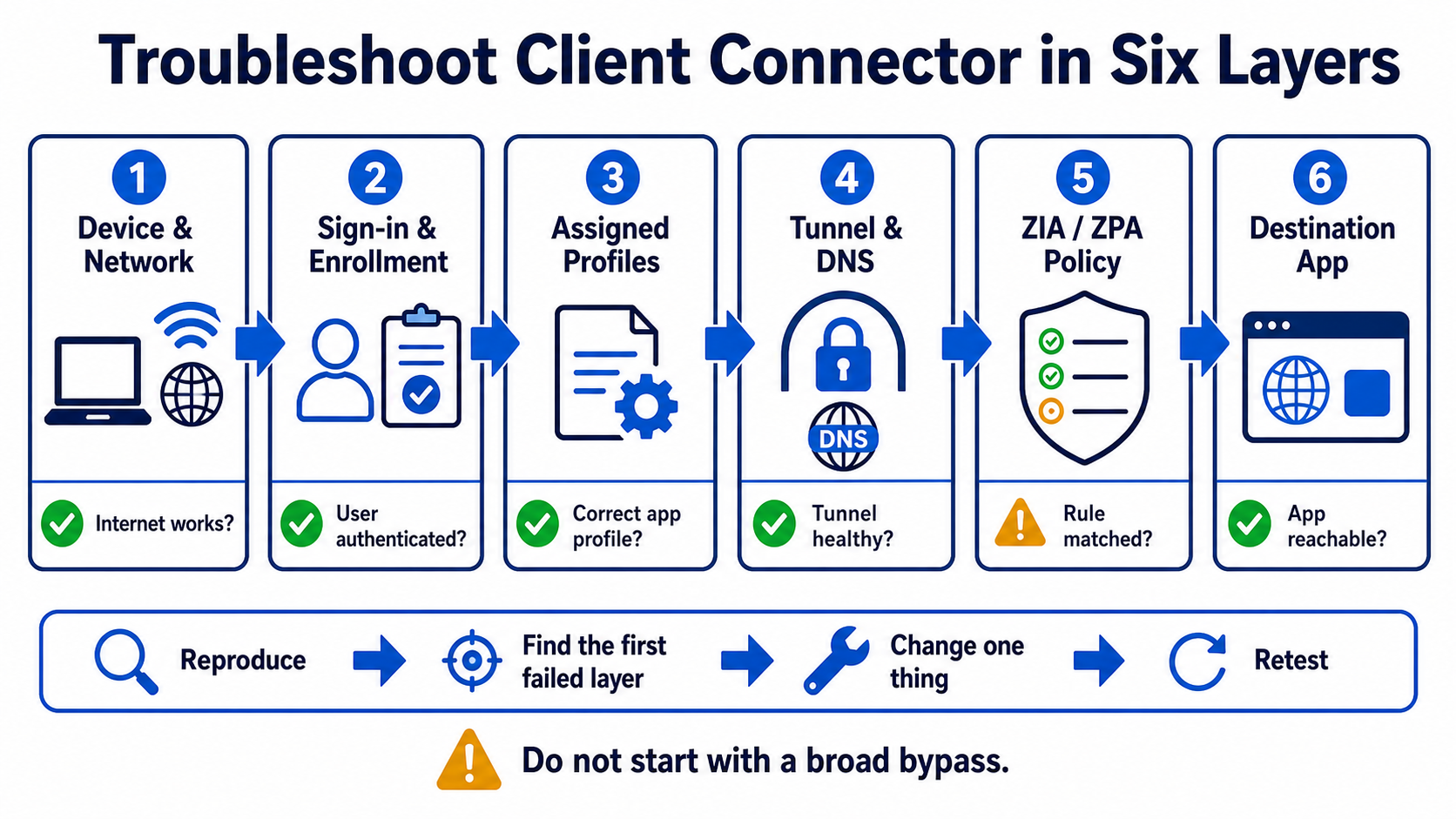
This lesson replaces random fixes with a six-layer method. Start at the device, follow the expected request path, stop at the first failed layer, change one safe variable, and retest the same request.
In plain English
“Zscaler is not working” is a symptom, not a root cause. The failure may be local connectivity, enrollment, profile assignment, trusted network detection, tunnel or DNS, ZIA/ZPA policy, or the destination itself. Checking the layers in order prevents risky guesswork.
Real example
One user cannot open a private HR app. Internet access works, sign-in is healthy, and the correct profile is assigned. ZPA selected the application, but the App Connector cannot resolve its server name. A client reinstall or ZIA bypass would not fix that DNS failure.
Follow this flow
- Record exact user, device, network, destination, time, error, and last known success.
- Reproduce once and capture Client Connector status and diagnostics.
- Confirm authentication, assigned profiles, network detection, tunnel, and DNS.
- Find the ZIA or ZPA transaction and the rule or application decision.
- Test the destination from the correct connector/path, fix one cause, and repeat the original test.
Evidence to collect
- Device network, clock, version, and Client Connector service state
- Enrollment, authentication, assigned app/forwarding profile, and network type
- Tunnel transport, Service Edge, DNS, packet capture, and connector status
- Matched rule, action, error, destination reachability, and post-fix result
Common mistake to avoid
Do not reinstall the client, delete profiles, or add a broad bypass before locating the failed layer. A green tunnel does not prove DNS, policy, connector, or application health. Preserve timestamps so endpoint and cloud evidence can be correlated.
Current official source checkpoint
- Client Connector troubleshooting runbookcurrent official reference used for this beginner explanation
- Client Connector errorscurrent official reference used for this beginner explanation

Key terms before you continue
The wrong belief that wastes your first hour
Most engineers open a ZCC ticket and immediately blame the Zscaler cloud. Wrong — and that reflex burns your first hour on the one thing least likely to be broken. The Zscaler cloud is a globally redundant platform. Your problem is almost always closer to the user: the device, the local Wi-Fi, the IdP, or one mis-set toggle in the forwarding profile.
The Zscaler Digital Transformation Administrator (ZDTA) blueprint teaches this as the first move: localize the fault. There are seven places a ZCC flow can die — end-user device, local network, corporate firewall, the IdP, the Zero Trust Exchange, between Zscaler and the internet, and the Zscaler service itself. Knowing the chain turns a 3-hour guessing game into a 10-minute walk.
Your two best friends: the More menu and connection status
Before any scenario, learn these two. They appear in every fix below.
The 3-dots menu (top-right of ZCC). Holds Start/Stop Packet Capture, Restart Service, Repair App, Update Policy. So what: 80% of fixes start here.
Bundles a ZIP into %ProgramData%\Zscaler\. So what: this is what Zscaler support asks for first — collect it before you restart anything.
Per-service ON/OFF on the ZCC home tab: Internet Security (ZIA), Private Access (ZPA), Digital Experience (ZDX). So what: tells you which service is down, not just "ZCC is broken".
Shows Authenticated vs Authenticating vs a login prompt. So what: distinguishes an IdP/SAML problem from a tunnel problem in one glance.
Quick gut-check before we dive — you'll see the real answers as you read. 1. Z-Tunnel 2.0 prefers which transport? 2. Where does ZCC save its log ZIP? 3. If "Internet Security" shows OFF but the user has internet, is the user protected?
%ProgramData%\Zscaler\, (3) usually NO — OFF often means fail-open let them straight onto the internet, unprotected.① Enrollment & Authentication failures
This is where new ZCC rollouts spend most of their pain. The agent installs fine, then can't prove who the user is. The tell is the Authentication Status — if it never reaches Authenticated, the tunnel will never come up, no matter what you do downstream.
ZCC stuck on "Authenticating…" — endless login / registering loop
- Stale device token or corrupt local enrollment cache after an OS reimage or clone.
- System clock skew > 5 minutes — SAML assertions fail signature validation.
- An SSL-inspecting middlebox (school/hotel proxy, another security agent) breaking the auth TLS.
On the ZCC home tab, the Authentication Status cycles Authenticating → Registering → back. Open More → Troubleshoot → Export Logs and grep the bundle for the auth handshake.
w32tm /query /status
Leap Indicator: 0(no warning)
Stratum: 3 (secondary reference)
Source: time.windows.com
Last Successful Sync Time: 11/05/2026 09:41:55
Phase Offset: 412.7s   <-- 6+ min skew = SAML will reject
- Fix time:
w32tm /resync /force(offset must be < ~5 min). - Clear the stale enrollment:
More → Troubleshoot → Restart Service; if it persists,More → Logoutthen re-authenticate. Last resort:Repair App. - If a middlebox is in the path, allowlist the Zscaler auth domains so they bypass third-party inspection.
Authentication Status reads Authenticated and the username is correct. Service Status for Internet Security flips ON within ~10 seconds.
A user is cloned from a golden image and 40 laptops all show the SAME device in the portal, flapping Authenticating. What single property is shared that shouldn't be?
SAML / IdP redirect never completes — blank page or "page can't be displayed"
- Embedded browser vs system browser mismatch — the IdP requires a modern browser ZCC's embedded view doesn't satisfy (common with Conditional Access / device-bound MFA).
- The user's domain doesn't map to the right IdP (multi-IdP tenant).
- IdP-side certificate expired — affects all users at once.
If only some users fail, it's domain→IdP mapping. If everyone fails simultaneously at the same minute, it's an IdP cert/outage. In the ZCC Portal, use the IdP SAML attribute test link to confirm the assertion is returned and well-formed.
curl -I https://<your-org>.okta.com/app/zscaler/sso/saml
HTTP/2 200
content-type: text/html; charset=utf-8
strict-transport-security: max-age=31536000
x-okta-request-id: Yc8a...   <-- reachable; if 5xx/timeout, IdP-side
- Switch the ZCC app profile to browser-based authentication (system browser) so Conditional Access and passkeys work.
- Multi-IdP: verify the user's UPN domain maps to the correct IdP, or pre-assign with the installer's
--userDomainoption. - Expired IdP cert → rotate it in the IdP and re-import metadata into the ZCC Portal.
The SAML round-trip lands back in ZCC as Authenticated; the SAML attribute test shows the expected NameID and group claims.
ZPA "Unable to validate device certificate" — Private Access won't authenticate
- An intermediate device is doing SSL inspection on ZCC's own traffic, so the cert ZPA sees isn't the cert Zscaler issued.
- Faulty / expired certificate on the IdP affecting all users.
- Device posture profile expects a client cert with a non-exportable private key that's missing.
Check Service Status → Private Access is OFF while Internet Security is ON — that split points at ZPA-specific cert/posture, not the whole stack. Export logs and look for the cert-validation line.
openssl s_client -connect 10.20.30.40:443 -servername gateway.<cloud>.net </dev/null 2>/dev/null | openssl x509 -noout -issuer
issuer=C=US, O=Zscaler Inc., CN=Zscaler Root CA
# If you instead see issuer=O=AcmeProxy or a corporate CA,
# a middlebox is inspecting ZCC traffic — that breaks ZPA cert validation.
- Add ZCC processes and Zscaler domains to the inspection-bypass on any other security agent / proxy in the path.
- Rotate the IdP cert if expired; re-push the device-posture profile so the client cert is re-issued.
Private Access Service Status flips ON; a known internal app (e.g. jira.corp.local) resolves and loads.
Rahul at TCS sees ZCC flip Authenticating → Registering in a loop on exactly the 12 laptops that were imaged from one golden VM last night. Every other laptop is fine. What's the root cause?
② Tunnel & Traffic-forwarding failures
Auth is green but the user still has no protected internet — or no internet at all. Now the fault is the Z-Tunnel or the forwarding profile. First, the mental model: watch a ZCC session start up and see exactly where it can stall.
▶ Watch a ZCC session start — and break
Press Play. Each stage lights up; the stage where most tickets die turns red.
ip.zscaler.com confirms you're on-cloud.The four Forwarding-Profile actions — tap to learn each
Stage 5 above is the Forwarding Profile. It picks one of four actions per network. Get this wrong and the user is online but unprotected (Scenario 6).
Native Z-Tunnel interception — no system proxy needed. The production default with Z-Tunnel 2.0. So what: most reliable; survives apps that ignore proxy settings.
Web traffic goes to a local listener via system proxy settings. So what: if the proxy/PAC isn't applied, apps bypass ZCC entirely — the classic "not protected" cause.
Forces the device to use a PAC file for routing. So what: a stray DIRECT rule in the PAC sends a destination straight out, skipping Zscaler.
No traffic control — traffic goes direct. So what: legitimate on a trusted LAN; a disaster if it leaks to off-net, where users browse unprotected.
Z-Tunnel won't establish — Authenticated, but no protected traffic
- A local firewall blocks UDP/443, so DTLS can't form and TLS fallback isn't enabled — tunnel dies.
- The DTLS connection timeout is too aggressive on a high-latency link.
- Egress firewall doesn't allow the ZEN ports (80, 443, 9400, 9480, 9443).
Many guest/corporate firewalls permit TCP/443 but silently drop DTLS on UDP/443. Test it directly.
Test-NetConnection gateway.zscalertwo.net -Port 443
# TCP works but DTLS (UDP/443) may still be blocked — confirm with capture
ComputerName     : gateway.zscalertwo.net
RemoteAddress    : 165.225.x.x
RemotePort       : 443
TcpTestSucceeded : True   <-- TCP ok; if tunnel still down, UDP/443 is the culprit
- Open UDP/443 outbound on the local/egress firewall, OR enable TLS fallback in the forwarding profile (ZCC 3.4+/macOS 3.9+) so it drops to TCP/443 when DTLS fails.
- Raise the DTLS Connection Timeout (5–60s) on flaky links.
- Allowlist all ZEN ports (80/443/9400/9480/9443) on the corporate firewall.
Browse to https://ip.zscaler.com → it reports your ZEN node and "you are connected". Tunnel shows established in logs.
On hotel Wi-Fi, Priya's ZCC is Authenticated but every site times out. Test-NetConnection gateway:443 returns TcpTestSucceeded: True. Z-Tunnel 2.0 is set to DTLS-only. Most likely cause?
ZSAService / ZSATunnel not running — driver fault, ZCC tray greyed out
- The ZSATunnel network driver (LWF) failed to load after a Windows update.
- ZSAService crashed or was stopped by another endpoint tool.
- Corrupt install after an interrupted upgrade.
The Windows ZCC processes are ZSATray.exe (UI), ZSATrayManager.exe (SYSTEM service), ZSATunnel.exe and ZSAService.exe. On macOS: ZscalerTunnel, ZscalerService. Check they're alive.
sc query ZSAService
tasklist | findstr /i "ZSATunnel ZSAService ZSATrayManager"
SERVICE_NAME: ZSAService
        STATE              : 4  RUNNING
ZSATunnel.exe                  7220 Services    0    44,128 K
ZSATrayManager.exe             6184 Services    0    51,402 K
# If STATE is STOPPED or ZSATunnel is absent, the driver/service failed.- First try
More → Troubleshoot → Restart Service— reloads ZSAService and the tunnel driver without a reboot. - Driver still won't load →
More → Troubleshoot → Repair App, then reboot. - Persistent crash → collect logs, uninstall (you may need the ZCC uninstall/disable password), reinstall the matched build.
sc query ZSAService shows RUNNING and ZSATunnel.exe is in the task list; the ZCC tray icon goes from grey to active.
A developer says "ZCC is on and Authenticated, but my git clone over SSH (port 22) fails while the browser works fine." Z-Tunnel 1.0 is in use. Why?
Traffic not forwarding to Zscaler — user has internet, but it's not protected
- Forwarding Profile action for the current network is set to None (often the on-trusted-network setting bleeding to off-net).
- Tunnel with Local Proxy chosen but the system proxy / PAC isn't applied, so apps ignore the local listener.
- A PAC file
DIRECTrule is sending the destination straight out.
ip.zscaler.com says "you are not using Zscaler". In Tunnel with Local Proxy mode, ZCC forwards web traffic to a local listener via system proxy settings; if those aren't set, traffic bypasses. Confirm the profile and the PAC.
curl -s https://ip.zscaler.com/getZpaServerInfo 2>/dev/null & echo --- & netsh winhttp show proxy
Current WinHTTP proxy settings:
    Proxy Server(s) :  127.0.0.1:9000   <-- ZCC local listener = forwarding active
    Bypass List     :  <-loopback>
# If "Direct access (no proxy server)" in TWLP mode, proxy wasn't applied.- Set the off-trusted-network Forwarding Profile action to Tunnel (Z-Tunnel 2.0) so it works without relying on system proxy.
- Staying on Tunnel-with-Local-Proxy → enable "Redirect Web Traffic to Zscaler Client Connector Listening Proxy" under Z-Tunnel 2.0 Transport Settings so web requests hit the local listener.
- Audit the PAC for a
DIRECTrule matching the destination.
ip.zscaler.com reports your ZEN; the Web Insights log in the ZIA portal shows the user's requests arriving.
Teams / Zoom calls drop or stutter only on ZCC — MTU / fragmentation
- Tunnel encapsulation overhead pushes packets over the path MTU; large frames fragment or get dropped.
- UCaaS (Teams/Zoom) not bypassed, so latency-sensitive media rides the tunnel.
Calls fail specifically when ZCC is ON; turning ZCC off "fixes" it (a classic MTU tell). Find the largest unfragmented packet to the ZEN.
ping -f -l 1472 gateway.zscalertwo.net
Packet needs to be fragmented but DF set.   <-- 1472 too big
# Step down (1452, 1422...) until replies succeed; that + 28 = path MTU.
Reply from 165.225.x.x: bytes=1422 time=24ms TTL=54   <-- works
- Configure recommended UCaaS bypasses so Teams/Zoom media goes direct (Zscaler publishes the bypass list).
- If media must stay tunnelled, lower the tunnel MTU to the discovered path MTU.
A 10-minute Teams call holds with ZCC ON; the UCaaS app shows direct media, no tunnel hop.
③ Network detection & environment failures
Now the trickiest class: ZCC works perfectly in the office, breaks on the road — or the reverse. The agent is making a where am I? decision, and getting it wrong. Use this decision tree as your first 30-second triage.
Trusted-network detected wrong — on-network treated as off (or vice-versa)
- Trusted Network Criteria rely on a dynamic property (Hostname/IP resolution) that fails during a network transition, so ZCC mis-classifies the network.
- VPN or split-DNS makes a remote network resolve the internal DNS suffix, so off-net looks on-net.
Zscaler recommends static criteria — DNS Server and DNS Search Domains — over dynamic hostname resolution, precisely because a failed resolve makes ZCC apply the wrong forwarding action. Check what the device actually resolves.
ipconfig /all | findstr /i "Search Suffix DNS Servers"
   Connection-specific DNS Suffix  . : corp.infosys.local
   DNS Servers . . . . . . . . . . . : 172.16.10.10
                                       172.16.10.11
# On-net should match Trusted Network Criteria; off-net must NOT.- Rebuild Trusted Network Criteria on static properties (DNS Server IPs + DNS Search Domains) instead of hostname/IP resolution.
- If a VPN leaks the internal suffix off-net, scope criteria with multiple conditions (ALL logic) so a single leaked attribute can't flip the verdict.
ZCC shows On Trusted Network only at the office and Off Trusted Network elsewhere; the matching forwarding action applies each time.
Aditya's laptop randomly flips between On/Off Trusted Network at his desk, applying the wrong forwarding action. The criteria use a Hostname that must resolve to 172.16.10.50. What's the most robust fix?
"Captive Portal Detected" — stuck on hotel / airport Wi-Fi ("captive-portal hell")
- ZCC tries to tunnel before the user signs in to the Wi-Fi splash page, so the portal never loads — and ZCC stays in captive-portal detention even after the portal is gone.
- Older ZCC builds kept showing the portal even when detection was disabled (a long-standing bug across 3.6–4.2).
The user sees a persistent "Captive Portal Detected" state. Pasting the splash URL into a browser works — proof ZCC is intercepting the portal it should be letting through.
curl -sI http://www.gstatic.com/generate_204
HTTP/1.1 302 Found
Location: https://hotel-wifi.example.com/login   <-- redirect = captive portal
# A clean network returns: HTTP/1.1 204 No Content (no redirect)
- Train users to complete Wi-Fi sign-in before ZCC fully enrolls/connects; tap the ZCC captive-portal prompt to open the splash page.
- Tune captive portal detection in the app profile (hostname/IP it probes) so it correctly releases once the portal clears.
- Upgrade to a build with the captive-portal fixes (4.2.0.198+); the toggle to disable detection actually works there.
After Wi-Fi sign-in, ZCC leaves the captive-portal state on its own and the tunnel comes up; generate_204 returns 204.
Partner AV / firewall / VPN conflict — ZCC and another agent fight over the stack
- A third-party VPN or EDR also installs a network filter driver; two filters mangle the same packets.
- Another agent SSL-inspects ZCC's traffic, breaking auth/tunnel.
- Endpoint firewall blocks ZSATunnel from opening its listener.
ZCC works after a clean boot, then degrades when the VPN/EDR starts. Capture both adapters with More → Troubleshoot → Start Packet Capture and look for double-encapsulation or resets.
netsh winsock show catalog | findstr /i "Zscaler VPN Layered"
Winsock Catalog Provider Entry
  Description       : Zscaler LSP
  Description       : AcmeVPN Layered Service Provider   <-- 2nd filter = conflict risk
# Two layered providers competing on the same flows = packet mangling.
- Follow Zscaler's VPN-interoperability best practice: order the agents, or set the third-party VPN to split-tunnel so it doesn't grab Zscaler's traffic.
- Add ZCC processes to the AV/EDR allowlist and exclude Zscaler domains from any other SSL inspection.
ZCC stays connected with the other agent running; the capture shows clean single-encapsulated tunnel traffic.
Everything slow — ZCC connected to a far-away ZEN data center
- ZCC latched onto a distant ZEN (e.g. a Mumbai user pinned to a Singapore node) after travel or a DNS quirk.
- ISP routing the user to a sub-optimal Zscaler region.
ip.zscaler.com shows the connected ZEN city. If it's far from the user, latency is the problem, not bandwidth.
curl -s https://ip.zscaler.com | findstr /i "Zscaler City"
Your request is arriving at this server from the IP address 165.225.x.x
You are connected to Zscaler. ZEN: SINGAPORE   <-- a Lucknow user should be on a closer node
RTT to ZEN: 78 ms   <-- high for a domestic user
More → Troubleshoot → Restart Serviceforces re-selection of the nearest ZEN.- If it keeps picking a far node, raise a Zscaler support case to check sub-cloud / geo steering for that egress IP.
ip.zscaler.com now shows a nearby ZEN; ZDX (Digital Experience) page-load scores recover.
④ SSL inspection, device posture & lifecycle
L1 view: do the safe, reversible steps — restart service, check time, escalate with logs. The deeper fixes below are tagged for L2/L3.
When auth, tunnel and forwarding are all green but specific apps misbehave, the agent is fine — your policy is the problem. This is the aha-moment of ZCC support: a perfectly healthy ZCC will still "break" apps if SSL inspection or posture is wrong. Stop poking the client; read the policy.
Teams / banking app breaks under SSL inspection — cert-pinning conflict
- The app uses certificate pinning; Zscaler re-signs the TLS, the app sees a "wrong" cert and refuses.
- The Zscaler intermediate CA isn't trusted on the device.
Browser sites work but the pinned app (Teams desktop, a banking app) fails with a TLS/cert error. The ZIA SSL Inspection log shows the flow being decrypted.
openssl s_client -connect teams.microsoft.com:443 </dev/null 2>/dev/null | openssl x509 -noout -issuer
issuer=O=Zscaler Inc., CN=Zscaler Intermediate CA   <-- being inspected
# A pinned app wants Microsoft's own issuer; the Zscaler issuer trips the pin and the app dies.
- Add the app's domains to the SSL Inspection bypass (Do Not Inspect) so the original cert reaches the app. Keep the bypass tight — bypassing also blinds IPS/File-Type/DLP for that flow.
- Ensure the Zscaler intermediate CA is deployed to the device trust store for everything you do inspect.
The app connects; openssl ... -issuer on the bypassed domain shows the app's own CA, not Zscaler's.
Device posture failing — access denied even though ZCC is connected
- A posture check no longer matches: disk-encryption off, AV (CrowdStrike/Defender/SentinelOne) not running, OS below the required version, or a missing client cert / registry / file artifact.
- CrowdStrike ZTA score below the configured threshold.
ZPA access to a posture-gated app is blocked while non-gated apps work. The ZCC/ZPA log names the specific failed posture profile.
manage-bde -status C: | findstr /i "Conversion Protection"
sc query CSFalconService
    Conversion Status:    Fully Encrypted
    Protection Status:    Protection On       <-- disk-encryption posture PASS
SERVICE_NAME: CSFalconService
STATE : 4 RUNNING <-- AV posture PASS- Remediate the failed artifact (enable BitLocker, start the AV service, patch the OS).
- If the posture profile is over-strict, adjust the criteria or the ZTA threshold in the portal and re-evaluate.
The posture-gated app loads; ZPA Diagnostics shows the posture profile as Satisfied.
Auth, tunnel, forwarding all green. ip.zscaler.com confirms on-cloud. But the in-house HR app at hr.corp.local throws a cert error only on managed laptops. Where do you look — client or policy?
hr.corp.local to SSL Inspection bypass, or deploy the Zscaler intermediate CA to those laptops. Restarting ZCC would waste your time here.ZCC upgrade / auto-update stuck or failing
- The ZSAUpdater can't reach the update host, or an antivirus is quarantining the new build.
- The app-profile update rule (gradual rollout) hasn't reached this device yet — it isn't actually stuck.
- Insufficient privileges / a previous partial install left a lock.
ZCC checks for software updates roughly every 2 hours. Confirm whether the device is even targeted before assuming failure; then check updater reachability.
"C:\Program Files (x86)\Zscaler\Zscaler\ZSATray.exe" --updatePolicy
# then read the running version
reg query "HKLM\SOFTWARE\WOW6432Node\Zscaler Inc.\Zscaler" /v ProductVersion
ProductVersion    REG_SZ    4.2.0.198
# Compare against the target build in the ZCC Portal's update rule.
More → Troubleshoot → Update Policyto pull the latest update rule immediately.- Allowlist the Zscaler update host on the firewall/AV; exclude ZCC install paths from quarantine.
- Stuck partial upgrade →
Repair App, or uninstall (with disable password) and install the target build.
ProductVersion matches the portal's target build; the tray reports the new version with no pending-update banner.
"Internet Security is Off" — and the user is browsing happily (fail-open trap)
- ZCC couldn't reach a ZEN, so fail-open let traffic go direct — the user is online but unprotected.
- A user with the disable password turned the service off, or strict enforcement isn't configured.
This is the dangerous one — it looks healthy. Internet works, so no one raises a ticket, but Web Insights shows zero traffic for that user. Fail-open trades security for uptime; fail-close would have blocked internet instead.
curl -s https://ip.zscaler.com | findstr /i "not using"
The request is NOT going through the Zscaler service.
# Confirmed: fail-open let them out direct. "Internet works" != "protected".
- Fix the underlying tunnel/reachability problem (sections ② / ③) so ZCC reconnects and Internet Security flips back ON.
- Review Fail-Open settings: for high-security tenants prefer fail-close (or a short fail-open timeout). Remove the user-facing disable password unless support genuinely needs it; enforce strict-enforcement so users can't simply switch protection off.
ip.zscaler.com reports "you are connected to Zscaler"; Web Insights shows the user's requests flowing again.
Nothing obvious — you need to escalate: export logs + packet capture the right way
You've localized the hop but the root cause isn't visible from the UI — or Zscaler support asks for a log bundle. Do it in the right order so the capture actually contains the failure.
- 1.
More → Clear Logs— start fresh so the bundle isn't 90% noise. - 2.
More → Troubleshoot → Start Packet Capture. - 3. Reproduce the issue.
- 4.
More → Troubleshoot → Stop Packet Capture. - 5.
More → Support → Export Logs→ save the ZIP.
"C:\Program Files (x86)\Zscaler\Zscaler\ZscalerSupportTool.exe" /log
dir "%ProgramData%\Zscaler\"
Directory of C:\ProgramData\Zscaler
log-48172\
CaptureAdapters_20260530T1144.pcap
CaptureLWF_20260530T1144.pcap
ZSALogs_20260530.zip      <-- attach this to the support case
# macOS path: /Library/Application Support/com.zscaler.Zscaler
The ZIP and both .pcap files exist with a timestamp inside your repro window. Packet capture must be enabled for the device in the ZCC Portal first.
A 6,000-seat BFSI tenant debates Fail-Open vs Fail-Close for ZCC. Compliance demands no unprotected internet; the business wants no hard outages. What's the defensible call?
One-glance cheat-sheet — symptom → first action
Pin this. When a ticket lands, match the symptom and do the first action before anything else.
🤖 Ask the AI Tutor
Tap any question — instant, scoped to this ZCC lesson. No login, no waiting.
Pre-curated from Zscaler Help docs + community Q&A + the ZDTA blueprint. For live prod issues, paste your ip.zscaler.com output + log bundle into chat.techclick.in.
📝 Wrap-up assessment — six more
You answered 4 inline. Six left. 70% (7 of 10) marks this lesson complete on your profile. Answer all, then tap Submit all answers.
In 2 lines: a user says "ZCC is on but I have no internet, and it's NOT a captive portal." What are the first two things you check, and why?
ip.zscaler.com — is traffic even going through Zscaler, or did fail-open let it out direct? (2) The Forwarding Profile action for this network — is it accidentally None, or is Tunnel-with-Local-Proxy not applying the system proxy? Auth being green means the problem is downstream of authentication: tunnel or forwarding.Tap to generate a one-liner you can paste to a colleague — then tweak it in your own voice.
Memory fades in 48 hours unless you revisit. Opt in and we'll email you 3 micro-questions on this lesson at Day 1, Day 7 and Day 30.
📚 Sources
- Zscaler Help — Troubleshooting Zscaler Client Connector & Connection Status Errors. help.zscaler.com
- Zscaler Help — Zscaler Client Connector Traffic Forwarding Troubleshooting Runbook. help.zscaler.com
- Zscaler Help — About Z-Tunnel 1.0 & Z-Tunnel 2.0 + Best Practices for Deploying Z-Tunnel 2.0 (DTLS UDP/443, TLS fallback). help.zscaler.com
- Zscaler Help — Configuring Trusted Networks & Configuring Forwarding Profiles (static vs dynamic criteria). help.zscaler.com
- Zscaler Help — ZPA / Private Access Authentication Errors & Configuring Fail-Open Settings. help.zscaler.com
- Zscaler Help — Enabling Packet Capture & Zscaler Client Connector Processes to Allowlist (ZSATunnel / ZSAService / ZSATrayManager; macOS ZscalerTunnel). help.zscaler.com
- Zscaler Community (Zenith) — "ZCC in Authentication/Registering constant loop", "Captive Web Portal issues", "Long-Standing Captive Portal Issue", "ZTunnel 2.0, DTLS/TLS, MTU". community.zscaler.com
- Zscaler — ZDTA (Digital Transformation Administrator) Exam Blueprint (Basic Connectivity 20%, Platform Services 15%; localize-the-fault method, ZCC packet-capture path). zscaler.com
- SecureDynamics / SMU IT KB — Exporting Logs from Zscaler Client Connector with Packet Captures (More → Support → Export Logs; %ProgramData%\Zscaler; CaptureAdapters/CaptureLWF .pcap). securedynamics.net
- Nexthink Docs — Zscaler troubleshooting usage guide (Get Zscaler status / Start Zscaler remote actions; ZSAService). docs.nexthink.com
📖 Glossary
- ZCC (Zscaler Client Connector)
- The endpoint agent that authenticates the user and forwards their traffic into the Zscaler Zero Trust Exchange.
- ZEN / Service Edge
- The Zscaler enforcement node the tunnel connects to. Accepts traffic on 80, 443, 9400, 9480 and 9443.
- Z-Tunnel 1.0 vs 2.0
- 1.0 tunnels only web ports (80/443) over TLS. 2.0 tunnels all ports/protocols, preferring DTLS over UDP/443 with TLS fallback.
- DTLS
- Datagram TLS — TLS over UDP. Lower latency than TCP-based TLS; Z-Tunnel 2.0's primary transport.
- Forwarding Profile
- The per-network rule that decides how ZCC sends traffic: Tunnel, Tunnel-with-Local-Proxy, Enforce-PAC, or None.
- Trusted Network
- A network ZCC recognises as your corporate LAN (via DNS server, search domains, etc.), so it can apply on-net behaviour.
- SAML / IdP
- The identity handshake. The IdP (Okta, Entra ID…) returns a signed SAML assertion that ZCC uses to authenticate the user.
- Fail-open / Fail-close
- What ZCC does when it can't reach a ZEN: fail-open lets traffic out direct (online but unprotected); fail-close blocks internet (protected but offline).
- Device Posture
- Checks (disk encryption, AV running, OS version, client cert) a device must pass before ZPA grants access.
- ZSATunnel / ZSAService
- Core Windows ZCC processes — the tunnel driver and the main service. macOS equivalents: ZscalerTunnel, ZscalerService.
What's next?
Now you can fix the client. Next, go up the stack: how the ZIA policy pipeline decides allow/deny once traffic reaches the ZEN — Cloud Firewall, DNS Control, File Type and IPS, in order.
— Techclick Team