SSL/TLS Inspection is two TLS sessions joined at the Public Service Edge. The client must trust the Zscaler root that signs the substitute certificate (download it from Policies → Common Configuration → SSL/TLS Inspection → SSL/TLS Inspection Intermediate Certificate). Policy is first-match: keep Zscaler-Recommended Exemptions, put owned Do Not Inspect (pinned apps, banking/health) above a default Inspect. File Type Control then sees true file type — but only on inspected HTTPS. Proof is SSL/TLS Policy Reason plus the File Type Control action in Web Insights, and a browser lock icon that shows Zscaler on inspected sites and the public CA on bypassed ones.
1. Why inspect
Without SSL/TLS Inspection, ZIA’s view of HTTPS is mostly the handshake. The ClientHello SNI (and later encrypted ClientHello still leaves a domain hint in many deployments) lets URL category and some Cloud App decisions fire on the destination. The URL path, method, headers, request body, response body, and file bytes stay encrypted. Malware Protection, Cloud Sandbox, inline DLP, and File Type Control cannot classify what they cannot see.
That is why “we have URL Filtering” is not the same sentence as “we inspect.” A user can still download an executable from an allowed business site, or upload a spreadsheet that DLP never opened. Inspection is the engine that turns those later policies on. It is also the engine that breaks clients if the certificate is not trusted, or if you inspect an app that pins its own certificate.
What you gain
Full URL, file bytes, malware/sandbox, DLP, File Type Control, and a Web Insights row that can name the file — not only the domain.
What you risk
Certificate errors if the root is missing. Broken pinned apps. Privacy and legal issues if you inspect banking or health without an owned exception.
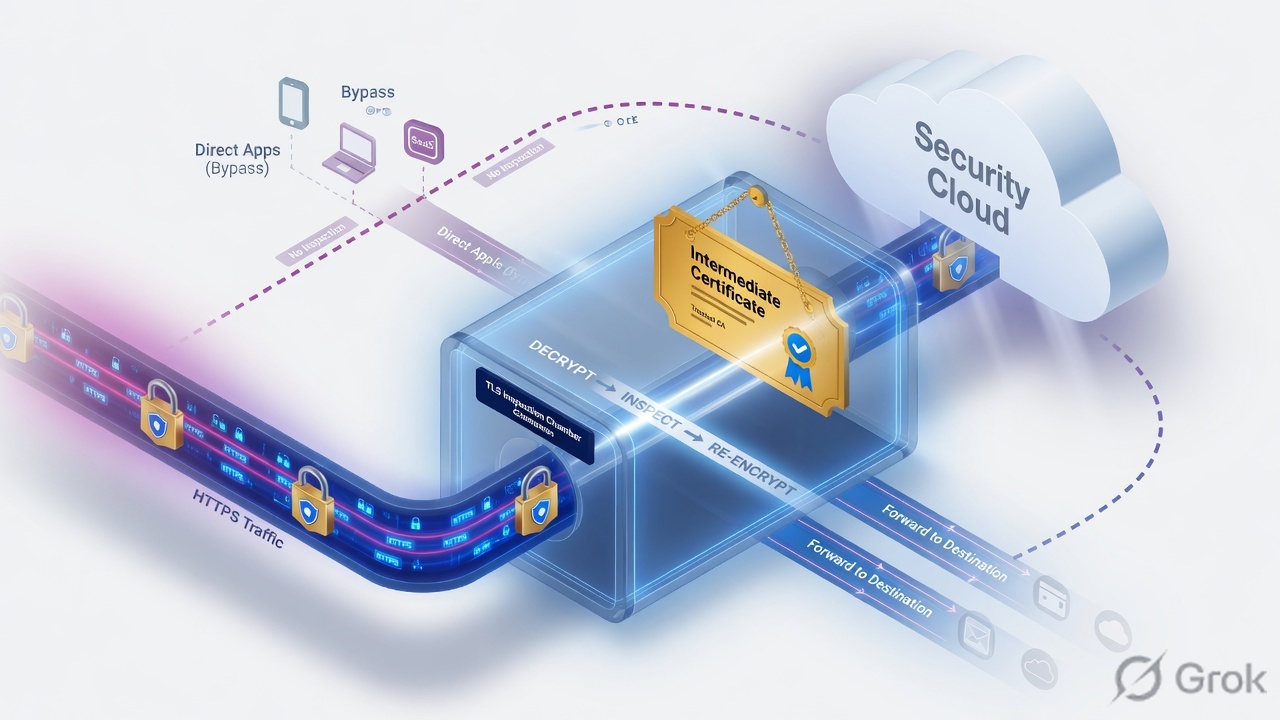
2. Mental model — two TLS legs + Intermediate CA
Pre-train these words before you touch the portal. Intermediate CA is the signer ZIA uses to mint a substitute server certificate for the client. You download and install the matching root — Zscaler Help says the organization does not need to install the intermediate itself on the endpoint. Inspect opens the payload. Do Not Inspect leaves TLS intact and then either still evaluates URL/Cloud App policy or bypasses those policies. Certificate pinning is an app that will accept only a specific certificate or public key — it will reject the Zscaler-signed substitute even if the OS trusts the root.
Read left → right. The client never talks TLS directly to the origin on an Inspect rule. Do Not Inspect skips the cleartext window entirely.
The endpoint trusts the root. ZIA signs the substitute certificate with the Intermediate CA. Policy decides Inspect or Do Not Inspect. File Type Control only runs on what Inspection made visible.
3. Decision flow — Inspect vs Do Not Inspect
SSL/TLS Inspection policy is evaluated top-down. The first matching rule wins. Zscaler ships a predefined Zscaler-Recommended Exemptions rule (enabled by default) that Do Not Inspects destinations in the recommended-exemptions URL category — pinned apps, some Zscaler-owned domains, and other known-breakers. A second predefined rule, Unauthorized Traffic Bypass for IoT Classifications, is disabled by default.
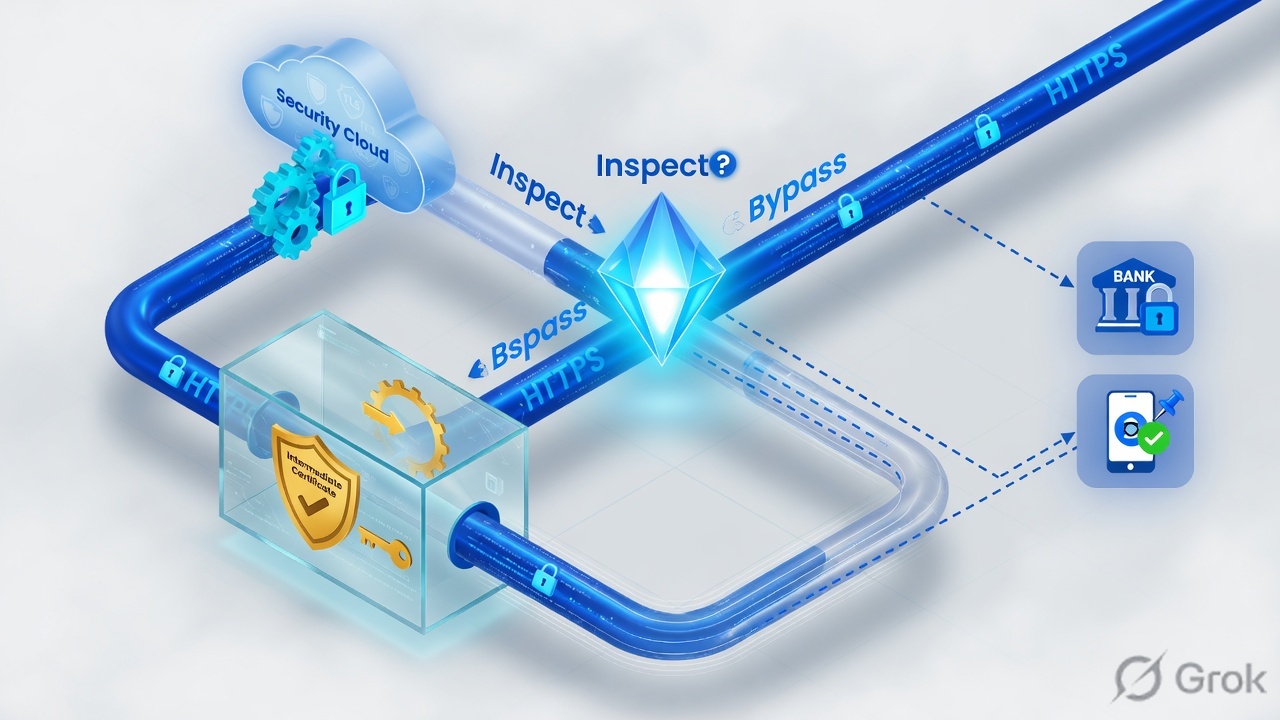
Diamond = decision. If Inspect-All sits above exemptions, first match MITMs banking and every pinned client. Put Do Not Inspect first.
4. How to choose the action
On Policies → Common Configuration → SSL/TLS Inspection → SSL/TLS Inspection Policy → Add Rule, the Actions section is Inspect, Do Not Inspect, or Block. Older tenants may still show Policy → SSL Inspection — use the Common Configuration path unless your UI still says the legacy label.
| Action | Use when | What the client sees | What later engines see |
|---|---|---|---|
| Inspect | You need URL path, malware/sandbox, DLP, or File Type on this destination. Optional: Override Default Intermediate CA Certificate = Yes if this rule must use a non-default enabled Intermediate CA. | Substitute cert signed by the Intermediate CA. Issuer string contains Zscaler (exact CN varies by cloud). | Payload visible. File Type Control can classify true file type. |
| Do Not Inspect | Recommended exemptions, pinned apps, banking/health, mutual TLS / client-certificate sites, or a documented privacy carve-out. Then pick Evaluate Other Policies (URL Filtering and Cloud App Control still run) or Bypass Other Policies. | The origin’s real certificate. No Zscaler in the chain. | No file bytes. File Type Control cannot read the HTTPS body. |
| Block | You refuse the TLS session itself (undecryptable traffic you will not allow, or a destination that must not connect). | Connection fails. End-user notification depends on the rule. | No payload. Log reason is a block, not Inspected. |
Zscaler Help: the recommended-exemptions URL category is a small set (commonly under 1% of traffic) that cannot be inspected — certificate pinning is the usual reason, plus some Zscaler-owned domains. Leave the predefined rule enabled. To find hits, search Web Insights for SSL/TLS Policy Reason = Not inspected because of Zscaler best practices. Do not invent a private “bypass everything Microsoft” rule unless you own the residual risk.
5. Runbook — Side A cert, Side B policy, Side C proof
Do this in order. Cert trust first. Policy second. File Type and logs last. Each block cites one primary Help article.
Side A — Client trusts the Intermediate CA’s root
Primary source: Choosing the CA Certificate for SSL/TLS Inspection.
-
Download the root, not a random PEM from Slack
Go to Policies → Common Configuration → SSL/TLS Inspection → SSL/TLS Inspection Intermediate Certificate. Edit the Zscaler Intermediate CA. Under Root Certificate, click Download. Unzip
ZscalerRootCerts.zip. You install that root. One default Intermediate CA is allowed; custom software or Cloud HSM intermediates are a separate subscription decision. -
Push it where the handshake actually happens
Windows / macOS / mobile: MDM or GPO into the system trust store. Client Connector fleet: Infrastructure → Connectors → Client → App Profiles → enable Install Zscaler SSL Certificate on the OS policy. Firefox has its own store — follow Zscaler Help Deploying Zscaler Certificate to Mozilla Firefox Browsers. Java, Git, npm, and other language runtimes have application-specific stores — see Adding Custom Certificate to an Application-Specific Trust Store.
-
Prove trust before any Inspect rule
On a pilot laptop, open the certificate store and confirm the Zscaler root is present and trusted for SSL. Do not enable Inspect for that user until this check is green. HSTS-preloaded sites will not offer a click-through if the issuer is untrusted — they just fail.
Policies / Common Configuration / SSL/TLS Inspection / SSL/TLS Inspection Intermediate Certificate / Edit
Edit Zscaler Intermediate CA Certificate
Source: Zscaler Help — Choosing the CA Certificate for SSL/TLS Inspection. Install the root from the ZIP. Do not email a live customer cert.
Side B — ZIA SSL/TLS Inspection policy
Primary source: Configuring SSL/TLS Inspection Policy and About SSL/TLS Inspection Policy.
-
Open the real engine
Policies → Common Configuration → SSL/TLS Inspection → SSL/TLS Inspection Policy. Confirm Zscaler-Recommended Exemptions is enabled. Do not delete it. You can only change order, rank, status, label, and Evaluate vs Bypass Other Policies on that predefined rule.
-
Add owned Do Not Inspect above any catch-all Inspect
Click Add Rule. Lab example: name
DNI-Pinned-Banking-Lab, status Enabled, URL Categories = Finance and Health (Zscaler’s leading-practices exemption pair — confirm the exact category labels in your tenant), Cloud Applications = the pinned apps you have actually reproduced (do not paste a rumor list). Action = Do Not Inspect → Evaluate Other Policies unless you have a written reason to Bypass Other Policies. Users/Groups = the pilot group first, not the whole org. -
Add default Inspect for the same pilot
Second rule, higher order number: name
Inspect-Pilot-Lab, Groups =ssl-pilot, Action = Inspect. Leave Override Default Intermediate CA Certificate = No unless you created a custom enabled Intermediate CA. Activate. Wait for the policy push, then test only the pilot group.
Policies / Common Configuration / SSL/TLS Inspection / SSL/TLS Inspection Policy / Add Rule
Add SSL/TLS Inspection Rule
Source: Zscaler Help — Configuring SSL/TLS Inspection Policy. Lab group and category names only. Put this rule above Inspect-Pilot-Lab.
Side C — Prove in logs + File Type Control
Primary sources: Web Insights Logs: Columns (SSL/TLS Policy Reason) and Configuring the File Type Control Policy.
-
Browser lock icon — two destinations
From the pilot laptop open a site you intend to inspect (lab example:
https://github.com). Certificate issuer must contain Zscaler — do not string-match one CN; it varies by cloud. Then open a bank or a destination on your Do Not Inspect rule. Issuer must be the public CA, not Zscaler. That pair is the first proof. -
Web Insights — SSL/TLS Policy Reason
Analytics → Insights → Web (wording may be Web Insights Logs). Filter the pilot user and the two URLs. You want SSL/TLS Policy Reason =
Inspectedon the inspect test, and a Do Not Inspect reason on the bypass (Not inspected because of SSL/TLS policy, orNot inspected because of Zscaler best practicesif it hit the predefined rule). Other documented reasons include Office 365 bypass, UCaaS bypass, mutual TLS, and HSM error — quote the field, do not paraphrase. -
Add File Type Control after Inspect works
Policies → Access Control → Internet & SaaS → File Type Control → Add Rule. Lab: name
Block-Exec-Download-Lab, File Types = Executable, URL Categories = Any (or all except the IT software-update category you own), Users/Groups = everyone exceptit-admins, Action = Block (Zscaler’s recommended starter for executables from arbitrary sites is often Caution — pick Block only if the org already agreed), Upload/Download = Download. ZIA classifies by true file type (content/signature), not the filename. Custom signatures live under Administration → Custom File Types. -
Prove the file rule
From the same inspected session, download a known-safe executable from a lab URL, then a PDF. Web Insights must show the File Type Control rule name and Allow/Block/Caution. If SSL/TLS Policy Reason is any “Not inspected…” reason, File Type never saw the bytes — fix Inspect first. Malware Protection Unscannable Files = Block can override a File Type Allow on password-protected or otherwise unscannable files; check that policy if an Allow “does nothing.”
Policies / Access Control / Internet & SaaS / File Type Control / Add Rule
Add File Type Control Rule
Source: Zscaler Help — Configuring the File Type Control Policy / Recommended File Type Control Policy. Criteria are AND across type + category + app; users/groups are OR.
time=10:42:18Z user=user@lab.example url=https://github.com/org/repo
action=allowed ssl_tls_policy_reason=Inspected rule=Inspect-Pilot-Lab

time=10:42:41Z user=user@lab.example url=https://bank.example
action=allowed ssl_tls_policy_reason="Not inspected because of SSL/TLS policy"
rule=DNI-Pinned-Banking-Lab

time=10:43:05Z user=user@lab.example url=https://files.lab.example/tools/build.msi
file_type=Executable file_type_rule=Block-Exec-Download-Lab action=blocked
ssl_tls_policy_reason=Inspected
6. Runtime path after Activate
After Activate, the client still forwards the same way (Client Connector tunnel, GRE/IPSec location, or PAC). The SSL engine is a later station. QUIC/HTTP3 on UDP/443 can skip this station if you allow it — Zscaler documents managing the QUIC protocol so clients fall back to TLS over TCP when you need inspection. Mutual TLS still cannot be decrypted; those destinations stay on a Do Not Inspect or Block decision.
Activate is not proof. The runtime path is root trust → first-match SSL rule → optional File Type → quoted log reason.
7. Traps, cert errors, and the proof checklist
| What you see | Likely cause | Fix + evidence |
|---|---|---|
Every HTTPS site: NET::ERR_CERT_AUTHORITY_INVALID |
Root from Intermediate CA page is not in the store that performed the handshake. | Install ZscalerRootCerts.zip via MDM and/or Client Connector Install Zscaler SSL Certificate. Re-test lock icon. HSTS sites will not click-through. |
| Chrome/Edge clean, Firefox still warns | Firefox does not use the OS store unless you deploy its enterprise policy. | Follow Deploying Zscaler Certificate to Mozilla Firefox Browsers. Do not re-push the Windows GPO and call it done. |
| Browser works, native app fails only after Inspect | Certificate pinning, or an app-specific trust store (Java, Git, npm, Slack-class clients). | Narrow Do Not Inspect for that destination. Or import the root into that runtime. Quote SSL/TLS Policy Reason after the change. |
| Banking or health shows a Zscaler issuer | Inspect-All is above the Do Not Inspect / recommended exemptions rule, or the category does not match. | Raise the DNI rule. Confirm category on the URL. Issuer must return to the public CA. |
| File Type Allow still blocked, or Block never fires on HTTPS | Session was not inspected — or Malware Protection Unscannable Files overrides the File Type action. | Confirm SSL/TLS Policy Reason = Inspected first. Then read File Type rule name and the malware unscannable setting. |
| Client-certificate / mTLS site dies under Inspect | Zscaler does not inspect mutual TLS. Documented as unsupported. | Do Not Inspect (or Block) that destination. Log reason may show mutual TLS. Do not “fix” it by disabling the root. |
- Enabling Inspect for a location before the root is on the laptops.
- Putting Inspect-All at Rule Order 1 so recommended exemptions never match.
- Turning SSL Inspection off org-wide because one pinned app broke.
- Inspecting Finance and Health to “see everything” without Legal/HR sign-off.
- Writing File Type Control and wondering why HTTPS uploads ignore it — the flow was Do Not Inspect.
- Claiming Cloud Sandbox brute-forces ZIP passwords. It does not. Unscannable / password-protected files follow Malware Protection + File Type Unscannable options.
- Root downloaded from Intermediate Certificate → Root Certificate → Download, and present in OS + ZCC App Profile (+ Firefox / Java if those users exist).
- Zscaler-Recommended Exemptions still Enabled.
- Owned Do Not Inspect (pilot group, named destinations) sits above Inspect-Pilot.
- Lock icon: inspected site issuer contains Zscaler; bypassed site issuer is the public CA.
- Web Insights:
ssl_tls_policy_reason=Inspectedand a documented Not-inspected reason on the bypass URL. - File Type rule hit on an inspected download; filename spoof (exe named .pdf) still classified as Executable.
- Owner + review date on every Do Not Inspect rule. Then tranche beyond the pilot.
Knowledge check
Six judgment questions. Same bar as the runbook: cert first, first-match policy, then log proof.
Sources
- Understanding SSL/TLS Inspection — two-leg model; mutual TLS not supported for inspection.
- Choosing the CA Certificate for SSL/TLS Inspection — Intermediate Certificate page; Root Certificate → Download →
ZscalerRootCerts.zip. - About Intermediate CA Certificates — default vs custom software / Cloud HSM intermediates.
- About SSL/TLS Inspection Policy — Zscaler-Recommended Exemptions; Unauthorized Traffic Bypass for IoT; SSL/TLS Policy Reason = Not inspected because of Zscaler best practices.
- Configuring SSL/TLS Inspection Policy — path, Add Rule, Inspect / Do Not Inspect / Block, Evaluate vs Bypass Other Policies, Override Default Intermediate CA Certificate.
- Certificate Pinning and SSL/TLS Inspection
- Best Practices for Testing and Rolling Out SSL/TLS Inspection
- Internet & SaaS TLS and SSL Inspection Leading Practices
- Configuring SSL Inspection for Zscaler Client Connector — App Profiles → Install Zscaler SSL Certificate.
- Deploying Zscaler Certificate to Mozilla Firefox Browsers
- Adding Custom Certificate to an Application-Specific Trust Store
- Configuring the File Type Control Policy — Policies → Access Control → Internet & SaaS → File Type Control; Allow / Block / Caution; Upload/Download.
- Recommended File Type Control Policy — Caution on Executable downloads as the documented starter pattern.
- Web Insights Logs: Columns — SSL/TLS Policy Reason.
- SSL Policy Reason Runbook
Related: Zscaler authentication · URL & Cloud App Control · Threat Protection · ZIA traffic flow · Exchange factory