SentinelOne is an agent + storyline factory. The autonomous agent on the host observes process, file, registry and network activity and stays protective even when offline. When it can talk, Sentinels writes Last Reported and Network Status. Related events become one Storyline ID — the plot, not the filename. The assigned Group Policy stamps Detect (alert, do not auto-mitigate) or Protect (kill, quarantine, remediate, rollback as the policy defines). Remote action is how you finish: Fetch File, Remote Shell, Disconnect from Network. Success is a live check-in, a Storyline you can quote, a policy mode you can name, and an action that actually ran — not “the icon is green.”
I do not start with the filename. I ask whether this agent checked in, what Storyline the threat belongs to, whether that Group is Detect or Protect, and which remote action finishes the plot. A Detect stamp is not a miss. Kill is not Remediate. A dark Last Reported cannot take a Remote Shell or a Fetch.
1. Why a green tray is not a Storyline
Every other briefing starts with the filename. update.exe. “S1 missed it.” That is why students freeze in interviews. The real object is the Storyline the agent printed. Features are only stamps the factory puts on that plot before a human (or Protect policy) takes a remote action.
Official SentinelOne architecture: a single autonomous agent on the endpoint, a Management console that manages those agents, and on-agent Static AI plus Behavioral AI that classify before and during execution. Official FAQ: the agent protects while disconnected from the internet; administrative visibility in the console is lost until the device is back online. Official Sentinels field: Last Reported is the most recent console check-in. Hours old is a dark factory floor. Seconds old is a live worker.
What the ticket asked
“S1 missed update.exe.” That sentence is a hypothesis. The factory may already have Detect-stamped the Storyline and printed a live ticket you have not opened.
What you prove first
Identity of the endpoint row, then Last Reported, then the assigned Group policy, then the Storyline. The evidence desk is the night-shift version of this order.
“The tray icon is green, so SentinelOne is working — we need a wider exclude.” A green icon only means an agent process is running on that laptop. If Last Reported is fourteen hours old, or the assigned Group is Detect, or the leftover Sentinels row is the one you opened, the factory did not print the ticket you think it printed. Widening an exclusion just stamps more events as invisible.
Hard words before the runbook
Agent / Sentinels
The software on the host. Sentinels is the inventory. Official fields: Last Reported, Network Status, Agent Version. One hostname can have two rows after a reimage. Work the live check-in.
Storyline
Official: each agent builds a model of the endpoint; a Storyline ID groups related processes, files, threads and events. Threat Center Explore is that plot. A filename in Slack is not the Storyline.
Detect vs Protect
Assigned on the Group Policy. Official: the choice is customer-controlled. Detect alerts and does not auto-mitigate. Protect takes the mitigation actions defined in the policy. A Detect stamp is configuration, not a miss.
Remote action
Official response set: alert, kill, quarantine, remediate unwanted changes, Windows rollback, network isolation, Remote Shell, Fetch File. Disconnect from Network is isolation except the management console. Kill is not Remediate.
Official Threat Center status bar (Kauai): Threat Status (mitigated by policy or not), AI Confidence Level (Suspicious or Malicious), Analyst Verdict and Incident Status. Official Remote Shell: PowerShell on Windows, Bash on macOS and Linux; must be enabled in the management policy; each session uses a dedicated encryption password; 2FA before access; every session is audited. Use those words in the ticket.
Singularity menu chrome moves by console generation. SentinelOne documents Sentinels for agent inventory, Incidents opening the Kauai-era Threat Center (Overview / Explore / Timeline), Group Policy with Detect vs Protect, Remote Shell, and Fetch File. Older tenants may still say Threats instead of Incidents. Confirm the click-path in the SentinelOne Customer Portal knowledge base for your console. The factory fields — Last Reported, Network Status, Threat Status, AI Confidence Level, Analyst Verdict, Storyline ID, Detect vs Protect — are the ones you paste.
2. Mental model — four factory stations
Hold four parts. Interviews fail when people mix them. Skipping a station is how you Disconnect a leftover row or argue a miss on a Group that was never allowed to Protect.
1. The worker is the agent
One autonomous agent. It sees the host. Last Reported is the heartbeat. Network Status Connected vs Disconnected is containment state, not “agent down.” A green tray is not Last Reported.
2. The ticket is the Storyline
Process, file, registry, network, DNS. The first event of a new plot is setup. Later events of the same Storyline ID ride that story. No Storyline = nothing for policy to stamp.
3. The stamp is Detect or Protect
Policy on the assigned Group. Detect writes the threat and lets the process run. Protect writes the threat and may kill / quarantine / remediate / rollback. STAR custom rules sit on the same Storyline.
4. The finish is a remote action
Fetch File, Remote Shell, Disconnect from Network, or a mitigation you can name. Official: analysts want to know what the Agent did — processes killed, files quarantined, items rolled back. “Mitigated” without that list is a slogan.
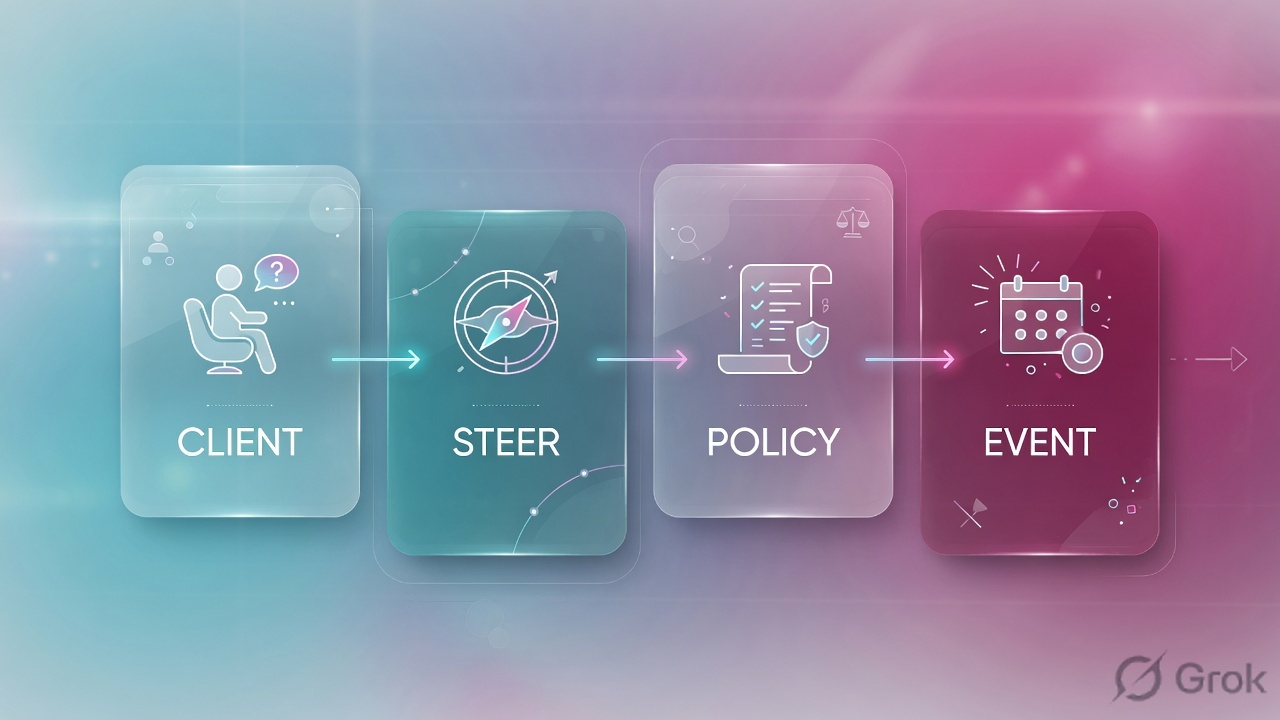
Read left → right. Station 1 is Last Reported plus the live row. Remote action is last, and only on a live host. Disconnect is a network stamp, not a replacement for Remediate.
Concept: SentinelOne manufactures Storylines on an agent and stamps them with Detect or Protect. Path: agent health → threat / Storyline → Group policy → remote action. Do: never open the filename first.
Agent health answers “is this endpoint talking?” Official: Management console manages agents; protection continues offline; console visibility returns when the device is back. Fields: Last Reported, Network Status, Agent Version. Source: SentinelOne FAQ + Customer Portal Sentinels inventory.
Storyline answers “what is the plot?” Official: a Storyline ID groups related events in the agent’s model; Explore shows processes, files, registry, network and DNS. Threat Status, AI Confidence Level, Analyst Verdict sit on the status bar. Source: Threat Center feature spotlight + Storylines / Deep Visibility spotlight.
Detect vs Protect answers “was this Group allowed to block?” Official: the choice is governed by customer-controlled policies; Protect takes the mitigation actions defined in the policy (Static AI / Behavioral AI). Source: SentinelOne detection-engine write-up + Singularity Complete response set.
Remote action answers “what did we do on this live host?” Official: alert, kill, quarantine, remediate, Windows rollback, network isolation, Remote Shell, Fetch File. Remote Shell is native PowerShell or Bash from the Management Console. A dark Last Reported does not collect. Source: FAQ + Full Remote Shell spotlight + Threat Center (Fetch File).
3. First event vs later events of the Storyline
The first event of a new process has no Storyline yet. It walks the factory: agent observes → events are grouped under a Storyline ID → assigned Group policy stamps Detect or Protect → Threat Center writes Threat Status / AI Confidence. Later events of the same Storyline ride that plot. That is why “I flipped Detect to Protect” sometimes does nothing until the next new process, and why “I Disconnected the leftover row” does nothing to the laptop on the desk.
Read left → right, then the green later-events bar. Decision diamond = “is Last Reported seconds?” Detect vs Protect sits on the live branch only.
The first events of a living-off-the-land chain are still just process creates. The factory may write a threat with AI Confidence Malicious, Threat Status not mitigated, and leave the process running. That is the assigned Group policy doing what you configured. Official: Detect or Protect is governed by customer-controlled policies; Protect takes the mitigation actions defined in the policy. If the engine is Detect, promoting it or Disconnecting the workstation is a change — writing “S1 missed it” is a lie.
4. How to choose the stamps
You are not choosing a product. You are choosing what the factory is allowed to write on the Storyline, and which remote action finishes it.
| Choice | Use when | Do not use when | Proof you were right |
|---|---|---|---|
| Protect on the assigned Group | Production Groups that must auto-mitigate (kill, quarantine, remediate, rollback as the policy defines). | A detect-only pilot you have not finished. Promoting the Site mid-incident without change control. | Threat Status shows mitigated by policy. Process is not still running on Remote Shell. |
| Detect on the assigned Group | Pilot, noisy app, or a documented exception with an owner. | You treat Detect as “S1 failed” on the bridge. | Policy name + Detect quoted. Threat exists. Process may still be running — that is the mode. |
| Kill | Active process, no persistence yet on Explore. | Storyline already shows a Run key / service / task and you stop at Kill. | Threat Center counters: processes killed. Explore no longer shows the live process. |
| Quarantine / Remediate / Rollback | Quarantine cages the executable. Remediate also removes persistence and restores OS/app changes. Rollback (Windows, VSS) restores files after ransomware. | You say “mitigated” and mean only Kill. You Rollback a Mac/Linux host as if it were VSS. | Official counters: files quarantined, items remediates / rolled back. Explore persistence gone. |
| Disconnect from Network | Live workstation, Malicious Storyline, Network Status still Connected. | Last Reported is days old. You would only Disconnect the leftover row. DC / DNS / DHCP without change-control. | Network Status = Disconnected. Last Reported still incrementing. Remote Shell still opens. |
| Remote Shell / Fetch File | You need live proof or the sample. Last Reported is seconds. Policy has Remote Shell enabled. | Host is dark. You treat the shell as a scratch pad and delete first. | Fetch completed, or shell session + command output + audit trail. Dedicated session password set. |
Detect versus Protect is a contract for the factory, not a vibe. Official wording: the choice is governed by policies the customer controls; Protect takes the mitigation actions defined in the policy. Official response features: alert, kill, quarantine, remediate unwanted changes, Windows rollback, network isolation, remote shell. Source: SentinelOne detection-engine write-up + FAQ + Singularity Complete.
I say Last Reported, then the Storyline ID, then the assigned Detect vs Protect stamp. I Disconnect a live workstation. I do not start with “S1 missed it,” and I do not say isolate when the console says Disconnect from Network.
5. Runbook Side A → B → C
Lab values only. Site Techclick-Lab, hostname ENDPOINT-LAB-41, live row Last Reported 16s, leftover row Last Reported 12 days, user finance.user, client 192.0.2.25, threat THR-1042, Storyline SL-88, file C:\Users\finance.user\Downloads\update.exe, Group FIN-WS, policy FIN-WS-Detect. Nothing here is a live tenant. Confirm console labels on your Singularity generation. Primary source for each block is named under the steps.
Side A — Sentinels (building the factory floor)
Primary source: SentinelOne FAQ (Management console manages agents; protection while offline) + Customer Portal knowledge base — Sentinels filters, Decommissioned agents.
-
Filter hostname, then sort Last Reported
Sentinels. Search
ENDPOINT-LAB-41. Official fields:Last Reported,Network Status,Agent Version, Site / Group. If two rows share the hostname, you have a leftover-install problem before you have a Storyline problem. Work the row with Last Reported in seconds. -
Read Network Status and the decommissioned filter
Network Status Disconnected means someone already ran Disconnect from Network — the host can still talk to the management console. That is containment, not “agent down.” Offline / decommissioned agents drop out of the default view (Customer Portal: commonly after aging unless your Site changed it). Quote the filter you used.
-
If Last Reported is hours, stop. This is an agent ticket
Do not start Remote Shell. Do not Fetch File and call it collected. Do not call it a miss. Check connectivity to the management console, install token / Site, pending uninstall, and whether you opened the leftover row. Official FAQ: console visibility is lost until the device is back online. Then come back.
Sentinels › Endpoints › ENDPOINT-LAB-41
Sentinels
| Endpoint | Site / Group | Last Reported | Network Status | Agent Version |
|---|---|---|---|---|
| ENDPOINT-LAB-41 | Techclick-Lab / FIN-WS | 16s ago | Connected | 24.1 |
| ENDPOINT-LAB-41 | Techclick-Lab / FIN-WS | 12 days ago | Connected | 23.4 |
Two rows, one hostname. Work the 16s row. The 12-day row is leftover — do not Disconnect it and call the laptop contained.
Source: SentinelOne FAQ — Management console manages agents; Customer Portal knowledge base — Sentinels filters, Decommissioned agents. Dummy values only. Training mock · not live.
Side B — Storyline and Detect vs Protect (printing the ticket, choosing stamps)
Primary source: Feature Spotlight — Introducing the New Threat Center + SentinelOne detection-engine write-up (Detect or Protect is customer-controlled; Protect takes the mitigation actions defined in the policy).
Policy › Group FIN-WS › FIN-WS-Detect
Policy mode
Read the assigned Group policy, not the Site default. A Detect engine means the factory will write a threat, not a kill. Confirm engine labels on your Singularity build.
Source: SentinelOne — Detect or Protect is governed by customer-controlled policies; Protect takes the mitigation actions defined in the policy. Full Remote Shell must be specifically enabled in the management policy. Dummy values only.
-
Open the threat, not Slack’s filename
Path: Incidents → the threat (older chrome: Threats). You land in Threat Center. Official status bar:
Threat Status(mitigated by policy or not),AI Confidence Level(Suspicious or Malicious),Analyst Verdictand Incident Status. Source: Feature Spotlight — Introducing the New Threat Center. -
Open Explore (Storyline) before you type Remote Shell
Threat Center → Explore. Official: the entire attack Storyline — processes, files, registry, network, DNS — in Process Tree or the table. Quote Storyline ID and persistence. Explore is historical telemetry. Remote Shell is live. Do not skip the plot to go collect a file the tree already named.
-
If the ticket is “why didn’t it block?”, quote the assigned Group policy
Path: endpoint card → Policy, or Policy on that Group. Read Detect vs Protect for the engine that convicted (Static AI / Behavioral AI). Detect means the product did what that Group is configured to do. Promote to Protect under change control — do not call it a miss and do not flip the Site.
-
Set Analyst Verdict. Do not leave Undefined
True Positive, False Positive, Suspicious, Undefined. Official Threat Center: mark the threat so the rest of the team knows whether it is in progress. A Malicious / Undefined / Not mitigated threat is not a hash debate in Slack.
endpoint             : ENDPOINT-LAB-41
last_reported        : 16s
network_status       : Connected
agent_version        : 24.1
group / policy       : FIN-WS / FIN-WS-Detect
engine_stamp         : Behavioral AI = Detect
threat               : THR-1042
storyline            : SL-88
ai_confidence        : Malicious
analyst_verdict      : Undefined
threat_status        : Not mitigated
explore_persistence  : HKCU\...\Run · update.exe  PRESENT
remote_action        : none yet
Say the word predicted until you have opened Explore. A Detect stamp plus a live process is a printed ticket, not a miss. Compare this block to Threat Center and Remote Shell in Side C.
Side C — prove the Storyline and take a remote action
Primary source: Threat Center feature spotlight (Fetch File, Remote Shell, mitigation window, agent counters) + Full Remote Shell spotlight + FAQ (network isolation; PowerShell / Bash).
-
Baseline the live row again
Sentinels: hostname
ENDPOINT-LAB-41, Last Reported still seconds, Network Status still Connected, you are not on the 12-day leftover. Half of “Remote Shell failed” is the leftover row. Half of empty Incidents is a decommissioned filter. -
Read the stamps on Threat Center
You need
Threat Status,AI Confidence Level,Analyst Verdict, StorylineSL-88, Explore persistence named. Copy the Storyline ID into the ticket before you click Mitigate. -
Contain a live malicious workstation before you collect souvenirs
Official action: Disconnect from Network (network isolation). The host keeps a path to the management console. That is the right 01:40 move on a finance laptop with a live Malicious Storyline. It is the wrong reflex on a DC / DNS / DHCP — those wait for change-control.
-
Fetch File or start Remote Shell only after Last Reported is seconds
Threat Center can fetch the threat file from the same view. Endpoint Actions → Remote Shell opens PowerShell on Windows and Bash on macOS and Linux. Official: enable Remote Shell in the management policy; set a dedicated session password; 2FA; every session is audited. A dark Last Reported does not give you a shell tonight.
-
Use the documented action that answers the ticket
Kill stops processes. Quarantine cages the executable. Remediate also removes persistence and restores OS/app changes. Rollback (Windows, VSS) restores files. Official Threat Center counters tell you what the Agent actually did. If Explore still shows the Run key after Kill, you stopped too early.
Incidents → THR-1042 → Overview
Threat Center
| Role | Object | Detail (lab) | State |
|---|---|---|---|
| File | update.exe | C:\Users\finance.user\Downloads\ | running |
| Persistence | Run key | HKCU\...\Run · update.exe | present |
| User | finance.user | interactive logon | active |
Cloud conviction is Malicious. Policy stamp is Detect — the process is still running. Disconnect this workstation, then Remediate. Do not start with the leftover 12-day row.
Click next: Disconnect ENDPOINT-LAB-41 (the 16s row), Fetch File update.exe, open Remote Shell, confirm the Run key, then Remediate. Source: Threat Center spotlight + FAQ network isolation + Full Remote Shell.
remote shell: connected host=ENDPOINT-LAB-41 last_reported=18s network=Disconnected
PS> Get-Item HKCU:\Software\Microsoft\Windows\CurrentVersion\Run
update.exe C:\Users\finance.user\Downloads\update.exe
Threat Center → Fetch File update.exe status=completed
# Kill would stop the process. Explore still shows the Run key. Remediate next.
Predicted host = ENDPOINT-LAB-41 16s row, Last Reported still incrementing. Assigned policy = FIN-WS-Detect. Storyline SL-88 quoted with persistence. If you Disconnected: Network Status = Disconnected and Last Reported still incrementing. If you used Remote Shell or Fetch: session opened or fetch completed, output pasted. Action Detect with a live process is a printed ticket, not a miss. Last Reported 14 hours with an empty shell is not IR.
6. Runtime — Disconnect, dark hosts, leftover rows
After the slot exists, later events of the same Storyline skip the “is this a new plot?” question and ride the existing threat. Official Disconnect from Network: inbound and outbound are cut except the management console, so Remote Shell and Fetch File can still work. Official Remote Shell: enabled in policy, dedicated session password, 2FA, full audit. Official FAQ: if the device is offline, the agent still protects; the console just cannot see it.
If you moved Detect to Protect after the process already started, the running process may keep the old stamp until it dies. That is the later-events bar in Flow 2. Do not call it a failed save. Wait for a new process, or Disconnect this workstation now because the Storyline is real.
If Last Reported goes stale after you click Disconnect, Network Status sits where it was. That is a sensor / network problem, not a console bug. The worker never picked the action up. Fix Last Reported. Do not Disconnect the leftover 12-day row and celebrate.
HA for SentinelOne is not two firewalls. The factory is every agent plus the Management console. A green tray on a laptop whose Last Reported is Monday is one worker who clocked out. Decommission or hide the leftover row after change control so threats stop attaching to a ghost.
Disconnect is a network decision. The agent stays up on purpose so you can keep investigating. Remote Shell is not free — policy, password, 2FA, audit.
7. Traps + factory proof
| Symptom | Looks like | Actually | First move |
|---|---|---|---|
| Green tray, empty Incidents | S1 is fine / silent miss | Last Reported stale, leftover row, or decommissioned filter — no Storyline reached the console | Sentinels Last Reported + decommissioned filter |
| Threat fired, process still running | S1 missed it | Assigned Group engine is Detect | Read Policy Detect vs Protect |
| Flipped Detect → Protect, nothing changed | Save failed | Later events of the same Storyline ride the old stamp | Wait for a new process, or Disconnect this host |
| Kill done, user infected at login | Product failure | Explore still shows persistence. Kill is not Remediate | Explore Storyline, then Remediate / Rollback |
| Remote Shell will not connect | Permissions / console bug | Dark Last Reported, leftover row, or Remote Shell not enabled in policy | Last Reported, then policy Remote Ops, then session password / 2FA |
| Disconnect stuck / still Connected | API failed | Agent never checked in to apply the action | Fix Last Reported. Do not Disconnect the leftover row |
| Two Sentinels rows, one hostname | Duplicate threats | Reimage / leftover install | Sort Last Reported. Decommission the leftover after change control |
| Red-team demo blocked | Product failure | Protect stamp doing its job | Time-boxed Group exception or scoped exclusion |
| Ticket says “isolate it” | Same as Falcon contain / Defender isolate | Console action is Disconnect from Network. Network Status = Disconnected | Write Disconnect / Reconnect Network, not isolate |
- Sentinels shows the endpoint you named.
Last Reportedis seconds. You stated which row and why (sorted Last Reported). - Network Status named: Connected or Disconnected.
- Assigned Group policy name + Detect vs Protect stamp quoted for the engine that convicted.
- Threat Center quoted:
Threat Status/AI Confidence Level/Analyst Verdict/ Storyline ID. - Explore persistence named (or explicitly absent). Filename-in-Slack is not the plot.
- If Disconnected: Network Status = Disconnected on the live row, Last Reported still incrementing.
- If Remote Shell / Fetch: session opened or fetch completed, command output pasted, policy enable + session password + 2FA noted, change number on destructive commands.
- If exception: Group, exclusion scope, owner, expiry. Night-shift field map: evidence desk.
SentinelOne is an agent + storyline factory. I prove agent health with Last Reported and Network Status. I open the Storyline on Explore, not the filename. Detect vs Protect is the assigned Group stamp — Detect is not a miss. I finish with a remote action I can name: Fetch File, Remote Shell, Disconnect from Network, Remediate. Kill is not Remediate. A green tray is not a plot.
Related: The evidence desk · SentinelOne hub · Dummy lab
Knowledge check
Six judgment questions. Map each miss back to the section named in the reason.
Sources
- SentinelOne FAQ — Management console manages agents; agent protects while offline, console visibility returns when back online; response features: alert, kill, quarantine, remediate unwanted changes, Windows rollback, network isolation, remote shell; Remote Shell is PowerShell on Windows and Bash on macOS and Linux
- SentinelOne — Feature Spotlight: Introducing the New Threat Center — Incidents → Threat Center; Overview / Explore / Timeline;
Threat Status,AI Confidence Level(Suspicious or Malicious),Analyst Verdict; Fetch File; Remote Shell; endpoint online / quarantined snapshot; mitigation counters (processes killed, files quarantined, items rolled back) - SentinelOne — Rapid Threat Hunting with Storylines — each agent builds a model; Storyline ID groups related processes, files, threads and events
- SentinelOne — Full Remote Shell — must be enabled in the management policy; dedicated session encryption password; 2FA; full audit of every session; native PowerShell and Bash
- SentinelOne — ActiveEDR feature spotlight — on-agent correlation that becomes the Storyline
- SentinelOne — Detect or Protect is governed by customer-controlled policies — Protect takes the mitigation actions defined in the policy
- SentinelOne — Singularity Endpoint Protection Platform — Kill, Quarantine, Remediate; Rollback reverses damage and restores endpoints without reimaging; tune policies and automate response
- SentinelOne — Singularity Complete — Storyline context; automated and manual remediation including 1-click rollback; block incoming and outgoing network; Full Remote Shell
- SentinelOne — Singularity Endpoint
- SentinelOne — Remediation and Rollback
- SentinelOne — Storyline Active Response (STAR)
- SentinelOne — What is EDR? — Storyline correlation; isolating an infected endpoint from the network
- SentinelOne — Deep Visibility — hunt from Threat Center / Storyline ID
- SentinelOne Customer Portal / Knowledge Base — confirm current console paths: Sentinels, Incidents / Threat Center, Policy, Remote Shell, Fetch File, Disconnect from Network, Decommissioned filter
- SentinelOne Status — platform-wide console health; not a substitute for one host’s Last Reported
Related: The SentinelOne evidence desk — first tool + proof field · SentinelOne hub · Dummy lab · Storyline, Ranger & Rollback