TTechclick ⚡ XP 0% All lessons
Palo Alto · NGFW Security · Security ProfilesInteractive · L1 / L2 / L3

Palo Alto Security Profiles & Profile Groups: — Allow the App, Inspect What's Inside

Your security rule says "allow web-browsing" and the user is happy. But App-ID only opened the door — nothing has searched the bag. Without a Security Profile attached, that allowed session is a clean tunnel for malware. This lesson is how you make "allow" actually safe.

📅 2026-06-11 · ⏱ 13 min · 3 live demos · 4 infographics · 🏷 10-Q assessment + AI Tutor inline

⚡ Quick Answer

Palo Alto Security Profiles & Profile Groups for PCNSE/PCNSA: the six profiles on an allow rule, default vs strict, profile actions, and a profile group on every rule.

🎯 By the end you will be able to

Read as:

Pick where you want to start

1

Why profiles exist

App-ID allows the app; profiles inspect what's inside it.

2

The six profiles

AV, spyware, vuln, URL, file, WildFire — what each catches.

3

Default vs strict & actions

Clone strict; pick allow/alert/drop/reset-both/block-ip.

4

Group on every rule

Bundle once, attach everywhere, default-deny with logs.

🧠 Warm-up — 3 questions, no score

Just notice which ones make you pause. We answer all three inside the lesson.

1. Your rule allows "web-browsing" but has no Security Profile attached. A user downloads a known virus over that allowed session. What does the firewall do?

Answered in Why profiles exist.

2. You want the same set of profiles (AV, spyware, vuln, URL, file, WildFire) on 40 allow rules. What's the clean way to do it?

Answered in Default vs strict & actions.

3. Palo Alto ships a predefined "strict" Anti-Spyware profile. You need it slightly stronger. What should you do?

Answered in The six profiles.

Most engineers think…

Most engineers new to Palo Alto think that once a security rule says allow for an application, the firewall is "protecting" that traffic — App-ID is doing the heavy lifting, so the job is done.

Wrong — and it is the single most common way a brand-new firewall still gets a branch infected. App-ID only decides whether the application is allowed; it does not scan the content inside it. The scanning lives in the Security Profiles you attach to that rule — Antivirus, Anti-Spyware, Vulnerability Protection, URL Filtering, File Blocking and WildFire Analysis. Allow the app, skip the profiles, and you have allowed the malware too. The whole point of this lesson is that "allow" and "safe" are two different switches, and the profile group is the second one.

① Why Security Profiles exist — allow the app, inspect the inside

Picture Sneha, an L1 engineer at Infosys, who just stood up a new Palo Alto firewall for a branch. She writes a clean rule: from trust to untrust, application web-browsing and ssl, action allow. Users can browse, the ticket is closed. Two days later a finance laptop downloads a malicious invoice over plain HTTPS and gets ransomware. The rule did exactly what it said — and that is the problem.

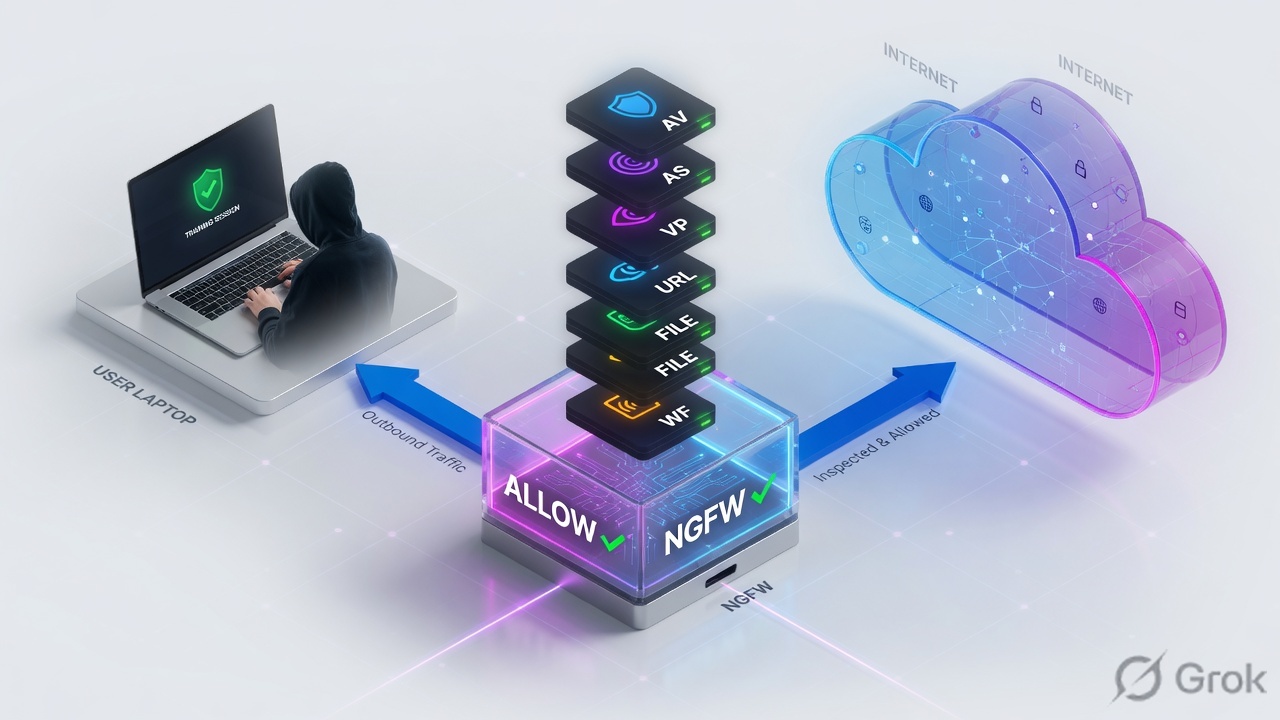
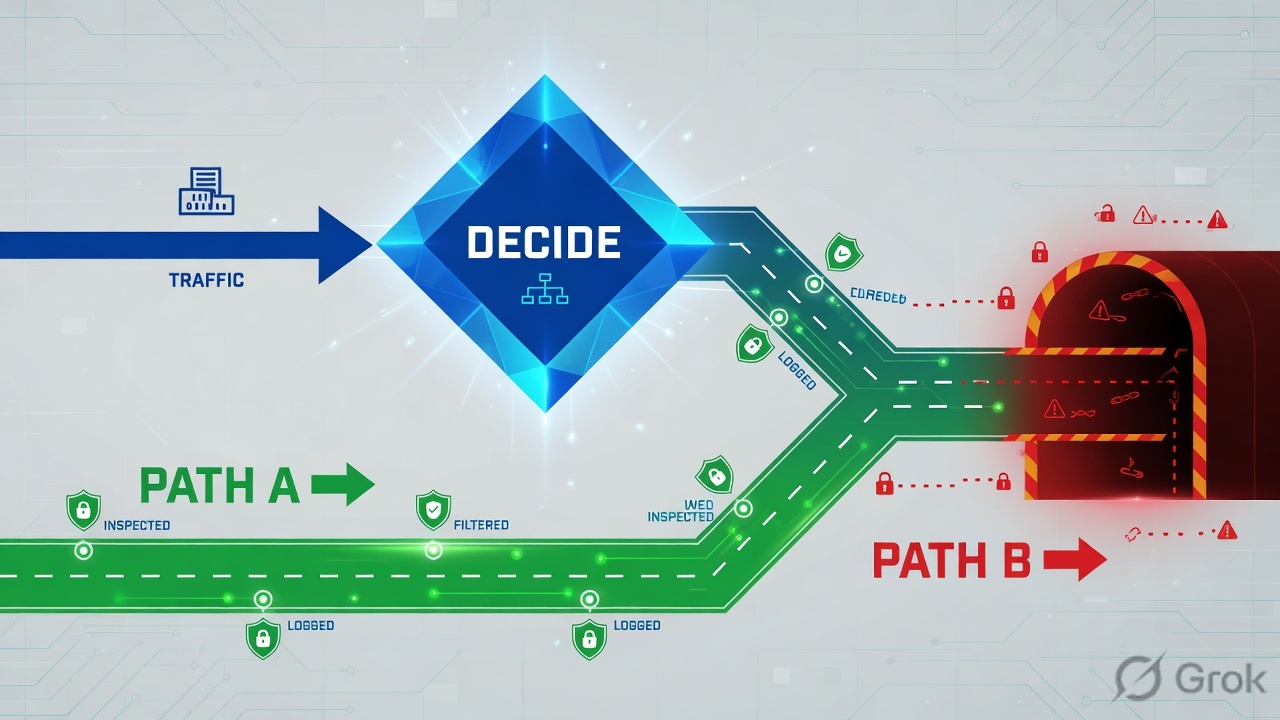
Here is the mental split every Palo Alto engineer has to internalise. App-ID answers one question: is this application allowed through this rule? If yes, the door opens. Security Profiles answer a completely different question: now that the app is allowed, is what's flowing through it actually clean? App-ID lets the app through; profiles inspect what is inside that allowed app.

We do not re-teach App-ID, Content-ID or User-ID here — that's the core trilogy lesson, and you should already have it. This lesson is the layer that sits on top: the inspection engines you bolt onto an allow rule so that "allowed" stops meaning "unchecked".

Prereq: App-ID, Content-ID & User-ID (the core trilogy)Prereq: Security Policy fundamentals
👉 So far: App-ID = is the app allowed; Security Profiles = is the allowed content clean. Two different switches. Next: see exactly what breaks when you flip only the first one.
Figure 1 — Allow the app, skip the profiles — you allowed the malware too
Allow the app, skip the profiles, and you have allowed the malware too — App-ID opens the door, profiles search the bag An allow rule on a Palo Alto firewall drawn as a two-gate checkpoint. The first gate is App-ID which decides whether the application (web-browsing, ssl, ms-office365) is allowed through the rule. The second gate is the Security Profile Group attached to that same rule: a stack of six scanners — Antivirus, Anti-Spyware, Vulnerability Protection, URL Filtering, File Blocking and WildFire Analysis, plus Data Filtering — that inspect what is inside the allowed traffic. The top path shows a rule with a profile group attached, where malware is caught (green, clean). The bottom path shows the same allow rule with no profile group, where the malware rides straight through inside the allowed app (red). Two gates on one allow rule: App-ID opens the door, profiles search the bag untrust203.0.113.0/24 · internet Gate 1 · App-IDis this app allowed?web-browsing / ssl → allow (taught in the core-trilogy lesson — not re-taught here) Gate 2 · Security Profile Group Antivirus — viruses in the file Anti-Spyware — C2 / DNS beacons Vulnerability — exploit attempts URL Filtering — bad / risky sites File Blocking — risky file types WildFire — unknown file → sandbox (+ Data Filtering — DLP, attach when needed) app allowed → trust10.20.0.0/16 · clean malware blocked Same allow rule — NO profile group attached App-ID still says "allow web-browsing" → but nothing inspects inside → the malware rides through malware delivered → Allow ≠ safe. The profile group is what makes "allow" safe. untrusted / internettrusted / inspectedprofile / inspectionkey insightclean / allowed
Read both paths for the same allow rule. Top: App-ID allows, then the profile group (Gate 2) scans inside and catches the malware (green/clean). Bottom: the same allow rule with no profile group — the malware rides straight through inside the allowed app (red).
Daily-life analogy — the society guard who only checks the gate pass

Think of your apartment society's main gate. The guard checking whether your name is on the visitor list is App-ID — he decides who is allowed in. But a visitor on the list could still be carrying something dangerous in his bag. The bag scanner and the metal detector are the Security Profiles — they inspect what the allowed visitor is actually bringing inside. A society with a guard but no scanner feels secure and isn't. Allow ≠ safe.

Why is content inspection even possible on an allowed flow? Because of Palo Alto's single-pass parallel processing. The packet is decoded once, and every enabled profile inspects that same decode in parallel — not as a relay race. That is why attaching six profiles barely costs more performance than attaching one, which removes the usual "it'll slow things down" excuse for skipping them.

Quick check · Q1 of 10

Rahul at TCS says: "My rule already allows the app and logs traffic. Isn't that enough to stop a virus in a download?" What's the correct response?

Correct: b. App-ID decides the app is allowed; it does not scan file content. Only a Security Profile (here, Antivirus) attached to that allow rule inspects inside the session and can block the virus. Traffic logging records the session but inspects nothing; changing to deny would break browsing entirely; and App-ID identifying the app says nothing about whether the payload is clean.

Pause & Predict

Predict: if Palo Alto's single-pass design lets all profiles inspect ONE decode in parallel, why is the old objection "adding profiles will slow my firewall to a crawl" mostly wrong? Type your guess.

Answer: Because the heavy work — decoding and reassembling the stream — happens once. The profiles don't each re-scan from scratch in sequence; they read the same decoded content at the same time. So going from one profile to a full group adds inspection logic, not a fresh full pass per profile. The performance delta is small, which is exactly why "it's too slow" is no excuse to ship allow rules with no profiles.

② The six profiles on an allow rule — and Data Filtering

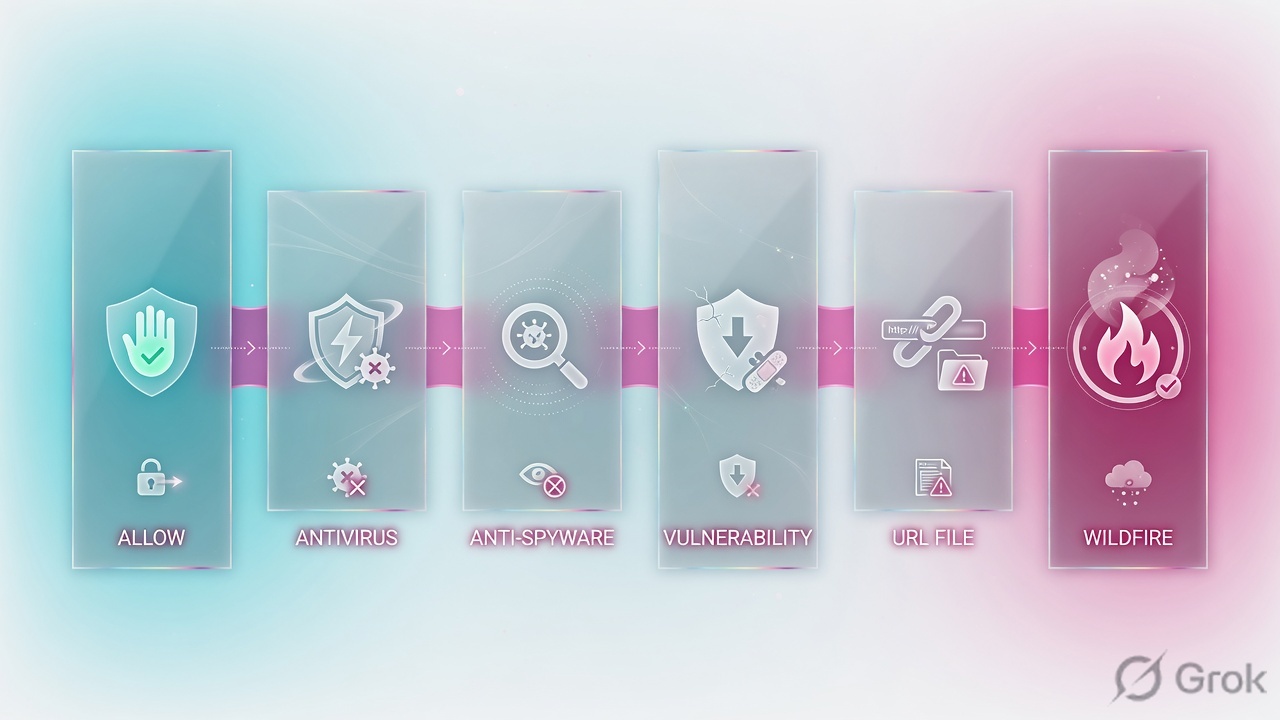
All of these live in one place: Objects > Security Profiles, with a separate tab for each type. Six of them are the ones you attach to almost every internet-facing allow rule. Let's take them in the order traffic logically hits them.

1) Antivirus — viruses inside the file

The Antivirus profile scans allowed traffic for known malware across protocol decoders — http, smtp, imap, pop3, ftp, smb. Each decoder has a Signature Action and a WildFire Signature Action; the best-practice cloned profile sets every decoder to reset-both. This is the bag scanner that catches the known-bad invoice.

2) Anti-Spyware — the call home (C2)

Anti-Spyware assumes a host might already be infected and watches for it phoning home to a command-and-control (C2) server, including DNS-based C2. It is your last line when prevention already failed: it spots the beacon and resets it. The predefined strict Anti-Spyware profile is the usual starting clone.

3) Vulnerability Protection — the exploit (IPS)

Vulnerability Protection is the IPS piece: it stops attempts to exploit known software flaws — buffer overflows, remote code execution, SQL injection — against your servers and clients. Signatures carry a severity (critical/high/medium/low/informational), and that severity is what the Strict profile uses to decide which ones to reset.

4) URL Filtering — the destination

URL Filtering controls where the allowed web app may go, by category — block malware, phishing and command-and-control categories, alert or block gambling, and so on. It is also where credential-theft protection lives. The deep dive on categories and credential theft is its own lesson; here you just need to know it's one of the six and why it belongs on every web-facing rule.

5) File Blocking — the file type

File Blocking stops risky file types by direction — for example block .exe and .bat on download, or force a "continue" prompt on certain types. It's policy before payload: you don't even let the dangerous file class arrive to be scanned.

6) WildFire Analysis — the unknown file

WildFire Analysis is for the never-seen-before file. If Antivirus has no signature for it, this profile forwards the unknown file to the WildFire cloud sandbox, where it's detonated and a verdict (and a brand-new signature) comes back. WildFire is big enough to be its own lesson (next in the series) — here, know it's the sixth profile and it handles the unknowns the other five can't.

And the seventh you should know: Data Filtering — a data-loss-prevention control that watches allowed traffic for sensitive patterns (credit-card / PAN numbers, Aadhaar, custom regex) leaving the network. It's not on the default "every rule" list, but it's a Security Profile and you attach it where data must not leak.

Figure 2 — Single-pass: allow first, then the profile stack scans in one go
One packet, one pass: App-ID allows, then the whole profile stack scans in parallel before the packet is released A left-to-right inspection pipeline for an allowed session on a Palo Alto firewall using its single-pass parallel processing. Step 1, the packet arrives from the internet. Step 2, App-ID identifies and the security rule allows the application. Step 3, the attached Security Profile Group runs all its profiles in one content scan: Antivirus, Anti-Spyware, Vulnerability Protection, URL Filtering, File Blocking and WildFire Analysis inspect at the same time, not one after another. Step 4, if any profile's action fires (for example reset-both), the session is blocked and logged to the Threat log; otherwise the clean packet is forwarded to the trust zone. A break note shows what happens when no profile group is attached: the content scan is skipped and the packet is released uninspected. Single-pass: allow first, then the profile stack scans the content in one go 1· packet infrom 203.0.113.45 2· App-IDrule match → allowapp = web-browsing 3· profile group — parallel content scan Antivirus Anti-Spyware Vulnerability Prot. URL Filtering File Blocking WildFire Analysis all scan the SAME stream once — not a relay race any action fires (reset-both) → block + Threat log 4· clean → forwardto trust 10.20.5.10 Key idea — single-pass parallel processingThe packet is decoded ONCE and every enabled profile inspects that one decode in parallel.That is why attaching six profiles barely costs more than attaching one — so there is no excuse to skip them. untrusted / internettrusted / inspectedprofile / inspectionkey insightclean / allowed
Follow the arrows: packet in → App-ID allows → the profile group scans the SAME decoded stream in parallel (not a relay) → clean traffic is forwarded; any profile action (e.g. reset-both) blocks and logs to the Threat log.

The six profiles in one tap each

Tap each card — this is the mental index you want before any PCNSE question or any 'why didn't the firewall catch it' ticket.

🦠
Antivirus
tap to flip

Scans allowed traffic for known malware across http/smtp/ftp/smb decoders. So: catches the known-bad file in the download.

📡
Anti-Spyware
tap to flip

Spots an already-infected host beaconing to C2, incl. DNS C2. So: your safety net after prevention failed.

🛡️
Vulnerability Prot.
tap to flip

The IPS — blocks exploits of known software flaws by severity. So: stops the attack before the payload even runs.

🌐
URL · File · WildFire
tap to flip

URL=bad sites; File Blocking=risky types; WildFire=unknown files to the sandbox. So: destination, file-type and zero-day cover.

🖥️ This is the screen you'll use — Objects > Security Profiles > Antivirus > Add. (Recreated for clarity — your console matches this.)
PA-VM · Objects · Security Profiles · Antivirus
1
Name
BP-Antivirus-strict
2
Description
Clone of default AV — all decoders reset-both
3
Decoder: http — Signature Action
reset-both
Decoder: http — WildFire Action
reset-both
Decoder: smtp / ftp / smb — Action
reset-both
4
Packet Capture
single-packet
OK
Common mistake — "WildFire verdicts never arrive"

Symptom: you attached a WildFire Analysis profile but the Monitor > Logs > WildFire Submissions log stays empty and nothing is ever forwarded. Cause is usually one of two things: the egress allow rule that should permit the firewall to reach the WildFire cloud FQDN is itself missing or blocked, or WildFire forwarding is off under Device > Setup > WildFire. Fix: confirm the cloud FQDN is reachable and forwarding is enabled, then re-test with request wildfire test-file and watch the submissions log.

Quick check · Q2 of 10

Priya at HCL gets an alert: a workstation on the LAN keeps making odd DNS lookups to random-looking domains every 60 seconds. Which Security Profile is designed to catch this, and what is the behaviour called?

Correct: d. Regular, machine-like DNS lookups to random domains are a classic C2 beacon from an already-infected host — exactly what the Anti-Spyware profile (with its DNS Security signatures) is built to detect and reset. File Blocking is about file types; URL Filtering is about web categories of user browsing; Vulnerability Protection is about exploiting software flaws, not phoning home.

Pause & Predict

Predict: a file arrives that Antivirus has NO signature for. Which of the six profiles is responsible for getting a verdict on it, and roughly how does it do that? Type your guess.

Answer: WildFire Analysis. When no existing signature matches (the file is unknown), the WildFire Analysis profile forwards a copy of that file to the WildFire cloud sandbox, where it's detonated in an isolated environment and observed. A verdict — benign / grayware / malware — comes back, and if it's malicious WildFire generates a new signature that your firewall (and everyone's) then blocks. That's how the 'never-seen-before' file gets covered.

③ Default vs strict, profile actions, and the profile group

Palo Alto ships two predefined profiles for Anti-Spyware and Vulnerability Protection: default and strict. Knowing the difference is a guaranteed PCNSE question and a real-world decision.

The default profile simply takes each signature's own default action — which for a lot of threats is only alert (log, don't block) — and it has no rule for informational events. It's a soft start. The strict profile overrides critical, high and medium severity signatures to reset-both (it actually blocks), while low and informational keep their default action. Strict is the gateway baseline Palo Alto recommends.

Common mistake — "I edited the predefined strict profile and now I can't tweak it cleanly"

Symptom: you try to change an action on the built-in strict profile and either can't, or you lose your customisation after a content update. Cause: the predefined default/strict profiles are read-only baselines, meant to track Palo Alto's recommendations. Fix: never edit them. Clone the strict profile (select it → Clone), rename it (e.g. BP-AntiSpyware-strict), turn on single-packet capture, and edit the copy. Your customisation now survives content updates and you can always diff it against the moving baseline.

Figure 3 — Default vs Strict — and the five actions
Default just alerts on what the signature says; Strict resets the dangerous stuff — clone Strict, never edit the predefined one A two-column comparison of the two predefined Anti-Spyware and Vulnerability Protection profiles. Left column is the Default profile: it takes the signature default action, which for many threats is only alert, and never blocks informational events — quiet but leaky. Right column is the Strict profile: it overrides critical, high and medium severity threats to reset-both, while low and informational keep the default action — loud but safe. A footer strip lists the five profile actions every engineer must know: allow, alert, drop, reset-both and block-ip, ordered from most permissive to most aggressive. A banner reminds that predefined profiles are read-only, so you clone Strict and edit the copy. Predefined profiles: Default vs Strict — clone, never edit Default profile (quiet, leaky) • takes each signature's default action • that is often only alert — logs, does not block • no policy for informational events • fine for a quick start, weak for a gateway critical / high / medium → default (often alert)low / informational → default Strict profile (loud, safe) overrides critical/high/medium → reset-both • low + informational keep the default action • this is the gateway baseline Palo Alto recommends clone it + turn on single-packet capture → your profile critical / high / medium → reset-both (blocks)low / informational → default The 5 profile actions — permissive → aggressive allowlet it pass, no log alertlog only, do not block dropsilently discard packet reset-bothRST both ends (TCP) block-ipblock source for N sec
Left (amber) = Default: signature default action, often just alert, nothing for informational. Right (green) = Strict: crit/high/medium overridden to reset-both. Footer = the five actions from permissive (allow) to aggressive (block-ip). Both predefined profiles are read-only — clone to edit.

Now the actions themselves — what a profile actually does when a signature matches. Five matter, ordered least to most aggressive: allow (pass, no log), alert (log only, do not block — the silent leak if you forget to change it), drop (silently discard the packet), reset-both (send a TCP RST to both client and server; for UDP it drops), and block-ip (block the source — or the source/destination pair — for a number of seconds). For a public gateway, reset-both on dangerous signatures is the sane default; block-ip is the heavy hammer for repeat scanners.

▶ Watch a malicious download hit the profile stack

A user at the Mumbai branch clicks a link and an HTTPS download starts. The allow rule has a profile group attached. Follow the file through the stack. Press Play for the healthy path, then Break it to see the failure.

① Allowed203.0.113.45 → user 10.20.5.10; App-ID = web-browsing → rule says allow
② Scanprofile group runs: AV checks the file; Antivirus signature matches a known trojan
③ ActAV action = reset-both → firewall RSTs both ends; download dies mid-stream
④ Logentry written to Monitor > Logs > Threat; user 10.20.5.10 stays clean
Press Play to step through the healthy path. Then press Break it.

Here's the operational move that ties it together: a Security Profile Group. Instead of attaching six profiles to every rule by hand, you bundle one of each into a group at Objects > Security Profile Groups, then attach that single group to each allow rule. Change the group once and every rule using it updates. Name the group exactly default and PAN-OS will auto-apply it to every new security rule you create — a quiet best practice.

🖥️ This is where the group gets bolted onto a rule — Policies > Security > (your allow rule) > Actions > Profile Setting. (Recreated for clarity — your console matches this.)
PA-VM · Policies · Security · Allow-Outbound · Actions
1
Action Setting · Action
Allow
2
Profile Type
Group
3
Group Profile
SPG-Internet-Outbound
4
Log at Session End
enabled (checked)
Log Forwarding
to Panorama / Strata Logging
OK
CLI — confirm a rule allows the app AND which profile group it carries
admin@PA-VM> test security-policy-match from trust to untrust source 10.20.5.10 destination 203.0.113.45 application web-browsing protocol 6 destination-port 443

admin@PA-VM> show running security-policy
Expected output
"Allow-Outbound" {
        from trust;
        to untrust;
        source 10.20.0.0/16;
        destination any;
        application/service web-browsing/ssl;
        action allow;
        profile-setting group SPG-Internet-Outbound;
        log-end yes;
}

Rule matched: Allow-Outbound  ; index 4 ; action allow ; profile-group SPG-Internet-Outbound
Prove the group is actually inspecting, not just attached

Attaching a group only proves intent. To prove it's working, generate a safe test: from a lab host, fetch the EICAR test file over the allowed rule, then check Monitor > Logs > Threat — you should see an entry with the AV signature and action reset-both, and the download should fail. If the Threat log is empty but the file downloaded, the group isn't attached to the rule that actually matched (check rule order with test security-policy-match) — that's the #1 reason 'my profiles do nothing'.

Karthik at Wipro faces this

Karthik, an L2 engineer, gets a complaint: malware reached a user even though there's an Antivirus profile configured on the firewall. The profile exists and is set to reset-both.

Likely cause

The profile exists in Objects but was never attached to the allow rule that the user's traffic actually matched — OR a higher, more specific allow rule (with no profile group) matched first. Security rules are evaluated top-to-bottom, first match wins; a profile on a lower rule never runs.

Diagnosis

He stops trusting the GUI checkbox and tests which rule the flow really hits, then reads that rule's profile setting.

CLI: test security-policy-match from trust to untrust source destination application web-browsing — then Policies > Security to read that exact rule's Actions > Profile Setting
Fix

Attach the Security Profile Group to the rule that actually matched (or reorder so the profiled rule wins), then commit. Best practice: put the group on EVERY allow rule so order can't betray you.

Verify

Re-run test security-policy-match → the matched rule shows profile-group ; re-test with the EICAR file → a reset-both entry appears in Monitor > Logs > Threat and the download fails.

Quick check · Q3 of 10

Aditya is hardening a public internet gateway. He needs Vulnerability Protection that actively BLOCKS critical/high/medium exploits but keeps Palo Alto's recommended baseline. What's the cleanest approach?

Correct: c. Strict already overrides crit/high/medium to reset-both (it blocks), so cloning it preserves the recommended baseline; enabling single-packet capture aids investigation; attaching the clone keeps your edits update-safe. 'default' mostly alerts (doesn't block); editing predefined profiles in place isn't supported and loses customisation on content updates; a blank profile set to alert blocks nothing.

Pause & Predict

Predict: you set a Vulnerability Protection signature's action to 'alert' instead of 'reset-both' to 'just monitor for a week'. An exploit attempt matches that signature. What actually happens to the attack traffic, and what's the trap here? Type your guess.

Answer: With 'alert', the firewall LOGS the exploit attempt to the Threat log but does NOT block it — the malicious traffic passes through. The trap is that the dashboard now lights up with threat entries, which feels like protection, but every one of those is an attack you let through. 'alert' is monitoring, not prevention. If you 'temporarily' set things to alert and forget to switch back to reset-both, you've built a very detailed log of your own breaches.

④ The golden rule — a group on every allow rule, default-deny with logs, exam & job

Pull it all together into the one habit that separates a safe Palo Alto config from a dangerous one: every allow rule gets a Security Profile Group, and the last rule is an explicit default-deny with logging turned on. Two halves, both required.

Half one — the profile group on every allow rule — means there is no allowed path into your network that nobody is inspecting. If a rule allows traffic, something is scanning that traffic. Half two — the explicit deny — exists because PAN-OS has hidden interzone-default and intrazone-default rules at the bottom, and the interzone-default deny does not log out of the box. Add your own explicit deny rule at the end with Log at Session End enabled (or override the interzone-default to log), so every blocked attempt is visible. Silent denies are how real intrusions hide in plain sight.

Daily-life analogy — airport security layers

An airport doesn't have one check; it has a stack. Boarding-pass scan (App-ID — are you allowed past this point?), then the X-ray belt and metal detector (Antivirus, Vulnerability Protection), the no-fly / watch list (URL Filtering, Anti-Spyware C2), the prohibited-items rule (File Blocking), and the suspicious-item lab for the bag nobody recognises (WildFire). The Security Profile Group is bundling all those checkpoints into one lane you put every passenger through — and the default-deny is the locked door for anyone who shouldn't be airside at all, with a camera recording it.

👉 So far: group on every allow rule + explicit logged default-deny = the golden rule. Next: a recent real-world reminder of why this matters, then the exam and a one-card recap.

A sober note from 2026. Palo Alto confirmed active exploitation of CVE-2026-0257, a GlobalProtect authentication-bypass added to CISA's Known Exploited Vulnerabilities catalog, alongside earlier issues like the 2025 management-web-interface bypass CVE-2025-0108. The lesson for profile work: attackers who slip past one control are exactly why you run layers. Even if an edge service is breached, an infected host still has to get its malware in and beacon out — and a well-built Anti-Spyware + Vulnerability + WildFire stack is what catches that second move. Defense in depth isn't a slogan; it's why the profile group exists.

For your certification path, this maps straight onto the PCNSE and PCNSA blueprints. "Deploy and Configure Core Components" and "Deploy and Configure Features and Subscriptions" both test custom configuration of the different Security Profiles and Security Profile Groups, the relationship between URL Filtering and credential-theft prevention, and how content inspection rides on top of an App-ID allow rule. Expect at least one question of the exact shape "the rule allows the app but malware still got through — what's missing?" The answer is always: a Security Profile (group) on that rule.

Figure 4 — Security Profiles — the cheat-sheet
Security Profiles on one card — the six scanners, the menu paths, the actions, and the first commands you type A nine-tile cheat sheet for Palo Alto security profiles. Tiles cover: the six profile types and what each catches; the menu path to create profiles; the menu path to bundle them into a profile group; the menu path to attach the group to a rule; the default versus strict rule and clone-not-edit advice; the five profile actions; the best-practice rule that every allow rule gets a profile group and the cleanup rule gets default-deny with logging; the WildFire job; and the first CLI commands to verify policy and profiles. Each tile has a one-line role. Security Profiles — your one-glance card The 6 scannersAV=viruses · Anti-Spyware=C2/DNS beaconsVuln=exploits · URL=bad sitesFile Blocking=risky typesWildFire=unknown file → sandbox Build a profileObjects > Security Profilesone tab per scanner typeclone Strict, never edit predefined Bundle into a groupObjects > Security Profile Groupspick one of each scannername it "default" → auto-applies Attach to a rulePolicies > Security > (rule) >Actions > Profile SettingProfile Type = Grouponly matters on ALLOW rules Default vs StrictDefault = signature default (often alert)Strict = crit/high/med → reset-bothboth are read-only → clone to edit The 5 actionsallow · alert · dropreset-both · block-ipreset-both = the gateway default The golden ruleevery ALLOW rule → a profile group attachedlast rule → default-deny WITH logging oninterzone-default is silent by default — log itallow without a profile = allow the malware too First commandsshow running security-policytest security-policy-match from untrust ...show wildfire statusMonitor > Logs > Threat to see what fired
Your one-card map of this lesson: the six scanners, the three menu paths (build / bundle / attach), default vs strict, the five actions, the golden rule, and the first CLI commands. Keep it open in week one and before any PCNSE attempt.
Prove you own this lesson

Cold, in 60 seconds: name the six profiles on an allow rule and what each catches; say the difference between default and strict and why you clone rather than edit; list the five actions permissive-to-aggressive; and give the golden rule (profile group on every allow rule + logged default-deny). If you can do that without notes, you're ready for the WildFire lesson and for the Security Profiles section of PCNSE.

Next: WildFire — sandboxing the unknown fileRevisit: Security Policy fundamentals
Quick check · Q4 of 10

An interviewer asks Meera: "On a Palo Alto, a rule allows web-browsing and users get infected anyway. Give me the single best-practice fix that prevents this class of problem across the whole rulebase." Best answer?

Correct: b. The class of problem is 'allowed but uninspected', and the fix is a profile group on every allow rule plus an explicit logged default-deny — so no allowed path is unscanned and every block is visible. Changing allow to deny breaks the business; traffic logging records sessions but inspects no content; reordering rules doesn't add any inspection. Only the profile group makes 'allow' safe.

🤖 Ask the AI Tutor

Tap any question — instant, scoped to this lesson. No login, no waiting.

Pre-curated from Palo Alto docs + community Q&A, scoped to this lesson. For a live prod issue, paste your export into chat.techclick.in.

📝 Wrap-up assessment — six more

You've answered 4 inline. Six left. 70% (7 of 10) marks the lesson complete on your profile. Tap Submit all answers at the end.

Q5 · Remember

On a Palo Alto NGFW, which component decides whether an application is ALLOWED through a rule, versus which inspects the content INSIDE that allowed traffic?

Correct: c. App-ID identifies the application and the security rule allows/denies it; Security Profiles (AV, spyware, vuln, URL, file, WildFire) then inspect the content inside the allowed session. The other options invert or blur these two distinct jobs — which is exactly the misconception this lesson fixes.
Q6 · Apply

Sneha needs the same six profiles on 40 internet-facing allow rules and wants one place to update them later. What should she configure?

Correct: a. A Security Profile Group bundles one of each profile type and is attached as a unit, so editing the group updates every rule using it. Attaching profiles individually is error-prone and unmaintainable; profiles on a deny rule never run (denied traffic isn't inspected); and Antivirus alone misses exploits, C2, URLs, file types and unknown files.
Q7 · Apply

You're hardening a public gateway and want Anti-Spyware that actually BLOCKS critical/high/medium threats while staying on Palo Alto's recommended baseline. Which is correct?

Correct: b. Strict already overrides crit/high/medium to reset-both (it blocks) and is the recommended baseline; cloning it keeps that baseline while letting you add packet capture and survive content updates. 'default' mostly alerts (doesn't block); predefined profiles can't be edited in place cleanly; a blank alert-only profile blocks nothing.
Q8 · Analyze

A rule allows web-browsing, an Antivirus profile (reset-both) exists in Objects, yet a user got infected over that app. test security-policy-match shows a DIFFERENT, higher rule matched. Most likely root cause?

Correct: d. Security rules are first-match top-to-bottom; if a higher allow rule without a profile group matched, the profile on the lower rule never executes — the classic 'profile configured but not applied' trap. The match output already proves a different rule won, which rules out signature freshness, App-ID failure, or WildFire as the cause.
Q9 · Analyze

To 'monitor before blocking', an engineer sets a Vulnerability Protection signature to 'alert' for a week, then forgets. During that week, exploit attempts match the signature. What actually happened to that attack traffic?

Correct: a. The 'alert' action logs the match to the Threat log but does NOT block — the malicious traffic passes through. That's the trap: the dashboard fills with threat entries that feel like protection but are actually attacks you allowed. 'alert' is monitoring, not prevention; it does not drop, sandbox, or reset, so the other options describe actions that did not occur.
Q10 · Evaluate

Two ways to summarise Palo Alto best practice for an audit: (A) "we allow only known apps with App-ID"; (B) "every allow rule carries a Security Profile Group AND we end with an explicit default-deny that logs." Which is stronger and why?

Correct: b. B is the actual best practice: a profile group on every allow rule means no allowed path is uninspected, and a logged default-deny makes blocked attempts visible (the hidden interzone-default doesn't log). A stops at 'allowed' and never inspects the content inside or records silent denies — exactly the gap this lesson closes. They are not equivalent.
Lesson complete — saved to your profile.
Almost! You need 70% (7 of 10) — re-read the path that tripped you up and tap "Try again".

🧠 In your own words

Type one line: In one line, why does an App-ID allow rule with no Security Profile attached still let known malware through? Then compare to the expert version.

Expert version: Because App-ID only decides that the application is allowed — it does not inspect the content inside the session; the scanning lives in the Security Profiles (Antivirus, Anti-Spyware, Vulnerability, URL, File Blocking, WildFire) you attach to that rule, so with none attached the allowed session is an uninspected tunnel and the malware rides straight through.

🗣 Teach a friend

Best way to lock it in — explain it in one line to a teammate. Tap to generate a paste-ready summary.

📖 Glossary

Security Profile
An inspection engine (AV, spyware, vuln, URL, file, WildFire, data filtering) attached to an allow rule; scans the content inside an already-allowed session.
Security Profile Group
A named bundle of one profile of each type, attached to a rule as a unit instead of six separate profiles.
Antivirus profile
Scans allowed traffic for known malware signatures across protocol decoders (http, smtp, ftp, smb, etc.).
Anti-Spyware profile
Detects already-infected hosts beaconing to command-and-control servers, including DNS-based C2.
Vulnerability Protection
Palo Alto's IPS — blocks attempts to exploit known software flaws (overflow, RCE, SQLi) by signature severity.
URL Filtering profile
Controls web access by category (malware, phishing, gambling, etc.); also hosts credential-theft protection.
File Blocking profile
Blocks or alerts on specific file types (.exe, .bat, encrypted archives) in a chosen direction.
WildFire Analysis
Forwards unknown files to the WildFire cloud sandbox for detonation; a verdict and new signature return, usually in minutes.
Data Filtering profile
A DLP control that detects and blocks sensitive data patterns (PAN/card, Aadhaar, custom regex) leaving in allowed traffic.
Default vs Strict profile
Default takes each signature's default action (often alert); Strict overrides crit/high/medium to reset-both. Both are read-only — clone to edit.
reset-both
Profile action that sends a TCP RST to both client and server (UDP: drop), cleanly killing a malicious session.
interzone-default
Hidden implied deny rule at the bottom of the rulebase; does NOT log by default — add an explicit logged default-deny.

📚 Sources

  1. PAN-OS Network Security — "Security Profiles" overview (the six profiles attached to allow rules: Antivirus, Anti-Spyware, Vulnerability Protection, URL Filtering, File Blocking, WildFire Analysis, plus Data Filtering / DLP; profiles scan traffic AFTER the app/category is allowed). docs.paloaltonetworks.com/network-security/security-policy/administration/security-profiles
  2. PAN-OS Web Interface Help — "Objects > Security Profiles > Antivirus" and "> Anti-Spyware" (exact Add-screen field labels: Name, Description, Decoder/Protocol, Signature Action, WildFire Signature Action, WildFire Inline ML Action, Packet Capture single-packet) and "Actions in Security Profiles" (allow, alert, drop, reset-client, reset-server, reset-both, block-ip). docs.paloaltonetworks.com/ngfw/help/12-1/objects/objects-security-profiles-antivirus
  3. PAN-OS Admin Guide — "Security Profiles" + "Set Up or Override a Default Security Profile Group" (default vs strict predefined profiles: strict overrides crit/high/medium to reset-both; name a group 'default' to auto-apply to new rules; attach at Policies > Security > Actions > Profile Setting). docs.paloaltonetworks.com/pan-os/11-1/pan-os-admin/policy/security-profiles
  4. Palo Alto Networks Best Practices + LIVEcommunity — "Create Best Practice Security Profiles" / "Vulnerability Protection Strict Profile BPA Checks" (clone the predefined strict profile, enable single-packet capture, never edit predefined; attach a URL Filtering profile to every web-allow rule). docs.paloaltonetworks.com/best-practices/internet-gateway-best-practices · live.paloaltonetworks.com/t5/best-practice-assessment-objects/vulnerability-protection-strict-profile-bpa-checks/ta-p/298110
  5. WildFire — "Configure a WildFire Analysis Profile" + PAN-OS 11.1/11.2 release notes "Advanced WildFire Inline Cloud Analysis" (unknown PE files forwarded to the WildFire cloud for real-time inline ML analysis; verdict + new signature returned). docs.paloaltonetworks.com/wildfire/u-v/wildfire-whats-new/wildfire-features-in-pan-os-11-1/advanced-wildfire-inline-cloud-analysis
  6. Palo Alto Networks Security Advisories — CVE-2026-0257 (GlobalProtect authentication bypass, actively exploited, added to CISA KEV May 2026) and CVE-2025-0108 (management web interface auth bypass, exploited Feb 2025) — the defense-in-depth case for layered profiles. security.paloaltonetworks.com/CVE-2026-0257 · unit42.paloaltonetworks.com/active-exploitation-of-pan-os-cve-2026-0257/
  7. Palo Alto Networks PCNSE / PCNSA Exam Blueprints — "Deploy and Configure Core Components" and "Features and Subscriptions": custom configuration of Security Profiles and Security Profile Groups, URL Filtering + credential-theft relationship, content inspection on App-ID allow rules. paloaltonetworks.com/content/dam/pan/en_US/assets/pdf/datasheets/education/pcnse-blueprint.pdf

What's next?

You now know WildFire is the sixth profile that handles the file nobody has seen before. Next we open the sandbox itself — how an unknown file is forwarded, detonated and turned into a verdict and a fresh signature, plus the cloud vs private appliance choice and how to prove forwarding actually works.