ip.zscaler.com answers “did this browser even hit a ZIA Public Service Edge?” PAC / Location answers “who is this user to policy — known site, hosted PAC, or unknown / Road Warrior?” Tunnel Insights answers “is this site GRE / IPSec up?” Web Insights Policy Action answers “was this URL / Cloud App Allowed, Blocked, or Cautioned — and which policy?” SSL exemption answers “was this transaction Inspected, Do Not Inspect, or blocked on handshake — and which SSL/TLS rule?” An Allow is not a healthy tunnel. A green Client Connector icon is not a Web row. A Do Not Inspect is not a URL Allow.
1. Why a ZIA ticket is five commands
Operators collapse five ZIA failures into one sentence. The laptop never reached a Public Service Edge. The PAC returned DIRECT on hotel Wi-Fi. The branch GRE peer died at 02:00. URL Filtering blocked the attachment host. SSL/TLS Inspection broke a pinned banking app. Those are five first clicks, not one “check Zscaler.”
This page is the night-shift command desk for ZIA only. The evidence desk maps five proof tools across ZIA, ZPA, and ZDX. Here you stay inside Internet & SaaS: wire, PAC/location, site tunnel, Web verdict, SSL exemption. You do not open ZPA Diagnostics or ZDX Hop View until a ZIA field says the problem is not here.
If they say “troubleshoot ZIA,” do not say “I opened the Admin Portal.” Say: “I prove the wire with ip.zscaler.com, the identity of the session with PAC / Location, the site path with Tunnel Insights Tunnel Status, the transaction with Web Insights Policy Action, and the decrypt decision with SSL/TLS Policy Reason.”
2. Mental model — the command ladder
Memorise five named rungs before you click. Each rung is allowed to prove one thing. Climbing two rungs at once is how you Activate a URL Allow on a dead GRE.
1 · ip.zscaler.com
On the user’s device. Official My IP Address page. Proves whether this browser request arrived from a Zscaler IP. Does not prove policy, PAC content, or tunnel health.
2 · PAC / Location
Hosted PAC + known Location. Proves PROXY vs DIRECT, and whether the session landed on a named Location or the unknown / remote bucket. Does not prove a URL verdict.
3 · Tunnel Insights
ZIA Logs → Insights → Tunnel Insights → Logs. Proves GRE / IPSec site-tunnel health: Tunnel Status, Tunnel Type, Event Reason. A Sample row with bytes is not a user allow.
4 · Web Insights
ZIA Logs → Insights → Web Insights → Logs. Proves one internet/SaaS transaction: Policy Action + Blocked Policy Name. Does not prove a private FQDN or a dead GRE.
5 · SSL exemption
Policies → Common Configuration → SSL/TLS Inspection. Proves Inspect vs Do Not Inspect vs Block. Quote SSL/TLS Policy Reason (and rule name) before you exempt a host.
Hard words, once
Public Service Edge / ZEN = the ZIA node the traffic hit. Known Location = static IP / GRE / IPSec / dedicated proxy port you bound. Road Warrior = unknown-location bucket. Nanolog = the store Insights queries.
Read left → right. Each box is allowed one claim. If you cannot name the field, you are not commanding — you are guessing.
I prove the wire, then who the session is, then the site tunnel, then the Web verdict, then the SSL decision. I do not change URL Filtering, SSL/TLS Inspection, or a GRE peer until I can quote the field that made me do it.
3. Decision flow — ticket → first tool
Flowchart first. Do not open the policy editor until a diamond says so.
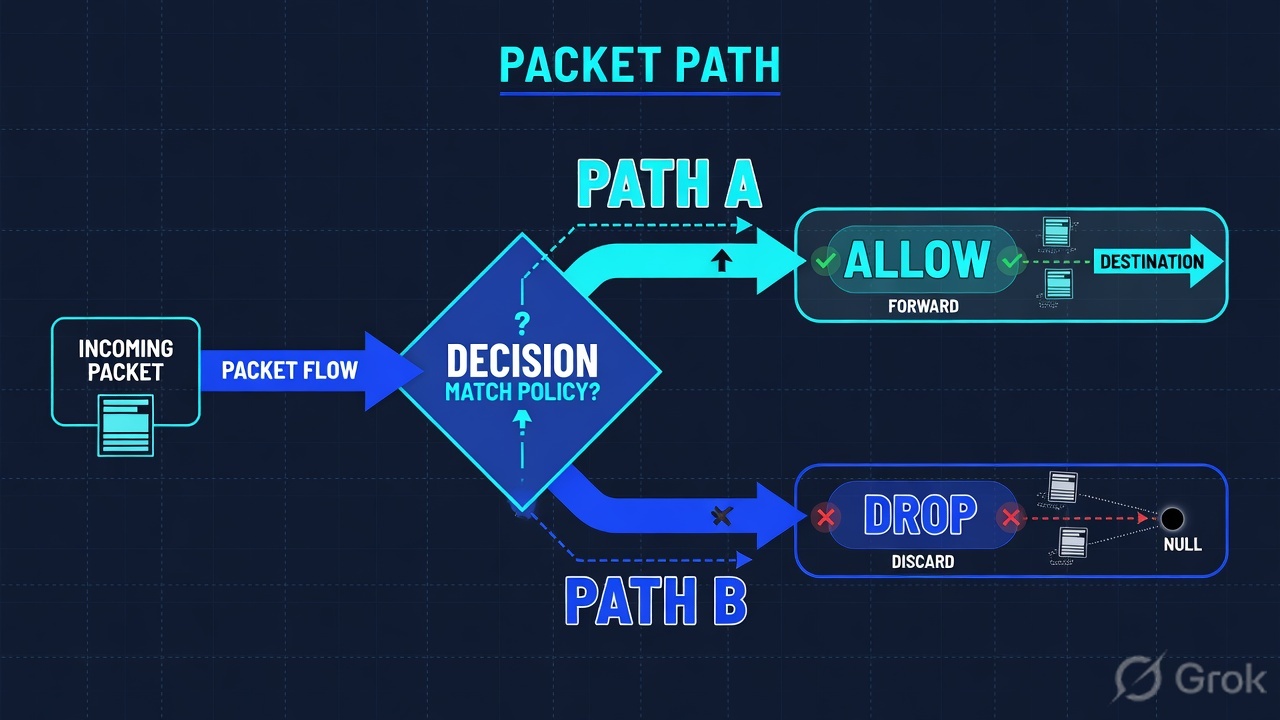
Read the diamond first. A pinned-app TLS failure never starts in URL Filtering. A dark branch never starts in Blocked Policy Name. Off-cloud never starts in SSL/TLS Inspection.
4. How to choose — first tool + proof field
Print this next to the Admin Portal. If you cannot recite the proof field, you are not ready to Activate.
| If the ticket says… | First tool (official path) | Proof field | Do not open first |
|---|---|---|---|
| Laptop / hotel / “am I even in Zscaler?” | On the device: https://ip.zscaler.com (My IP Address) | Request arrived from a Zscaler IP — or the official “didn’t come from a Zscaler IP” line | A new URL Allow |
| One user off-cloud; same desk on-cloud / PAC vs GRE mismatch | Device proxy PAC URL + ZIA Infrastructure → Locations → Location Management → Legacy Locations | PAC return (PROXY vs DIRECT) + Location name (or unknown / Road Warrior) |
SSL/TLS Inspection editor |
| Whole branch internet dead after a firewall / peer change | ZIA Logs → Insights → Tunnel Insights → Logs | Tunnel Status + Tunnel Type (GRE / IPSec IKEv1 / IKEv2) + Event Reason |
A Cloud App rule edit |
| One SaaS / URL blocked or cautioned after a policy change | ZIA Logs → Insights → Web Insights → Logs | Policy Action (Allowed / Blocked / Cautioned) + Blocked Policy Name |
Disable SSL for the tenant |
| App works on HTTP-ish sites, fails with cert / pin / handshake after inspect rollout | Same Web Insights row, then Policies → Common Configuration → SSL/TLS Inspection | SSL/TLS Policy Reason + SSL/TLS rule name (Inspect / Do Not Inspect / Block) |
A second URL Allow for the homepage |
Zscaler Help on verifying forwarding: the My IP Address service at ip.zscaler.com might not recognize IPv6 traffic that is already passing through the Zscaler cloud. If the laptop is IPv6-first and the page looks “off-cloud,” confirm with a Web Insights row for that user in the same minute — do not rip Z-Tunnel or rewrite the PAC from one IPv6 false negative.
5. Runbook Side A → B → C
Side A proves the wire and who the session is (PAC / Location). Side B proves the site tunnel and the Web verdict. Side C proves the SSL/TLS decision and writes a scoped exemption. On a messy Sev-2, do them in this order until a field lights up.
Side A — Wire, PAC, Location
Primary sources: Verifying a User’s Traffic is Being Forwarded to the Zscaler Service; Identifying the PAC File on a Device Using Browsers; About Locations.
-
Prove the browser hit a Public Service Edge
On the user’s device open https://ip.zscaler.com. If the page says the request did not come from a Zscaler IP, stop. There is no
Policy Actionto chase. Fix PAC / Z-Tunnel 2.0 / known-location GRE, then reload the page. -
Identify the PAC the browser is actually using
Official browser path (Chrome-family): Settings → System → Open your computer’s proxy settings, or Help’s Identifying the PAC File article (Menu → Settings → Browser / Network → Change Proxy Settings → Proxies). Quote the PAC URL. Current Admin path for the hosted file: Infrastructure → Internet & SaaS → Traffic Forwarding → Hosted PAC Files. Older tenants still say Administration → Hosted PAC Files.
-
Read PROXY vs DIRECT, then Location
A PAC is a
FindProxyForURL(url, host)file. If the failing host returnsDIRECT, ZIA never saw it — Web Insights will be empty for that URL. If it returnsPROXYand My IP is still off-cloud, the proxy host/port is wrong or 80/443/9400/9443 is blocked. Then open Infrastructure → Locations → Location Management → Legacy Locations. A session with no static IP / GRE / IPSec / dedicated proxy-port bind lands as unknown / Road Warrior and takes a different policy stack than Pune-GRE. -
Only then ask whether the other desk is a different Location
Same Salesforce, two users: one on GRE Location, one on PAC unknown. That is not “Zscaler is flaky.” That is two policy scopes. Quote Location name from the Web row once the wire is up — do not merge them with a tenant-wide Allow.
Device:          user’s browser, not yours
Wire:            https://ip.zscaler.com  → Zscaler IP yes / official off-cloud sentence
PAC URL:         (from OS / browser proxy)  e.g. https://pac.zscalerthree.net/lab.example/pune-pilot-v2.pac
PAC return:      PROXY ${GATEWAY}:80  |  DIRECT
Location:        Pune-GRE-01  |  unknown / Road Warrior
If IPv6-first: do not rip tunnel from My IP alone — confirm a Web row same minuteUser device / browser / ip.zscaler.com
You are going through the Zscaler service
The request received from you didn't come from a Zscaler IP
therefore you are not going through the Zscaler proxy service.
Source: Zscaler Help — Verifying a User’s Traffic is Being Forwarded to the Zscaler Service; live service at ip.zscaler.com. Cloud / ZEN strings above are lab labels. Training mock · not live.
Infrastructure / Internet & SaaS / Traffic Forwarding / Hosted PAC Files
Hosted PAC Files
return "PROXY ${GATEWAY}:80; PROXY ${SECONDARY_GATEWAY}:80; DIRECT";
Source: Zscaler Help — Using Custom PAC Files to Forward Traffic to Internet & SaaS; Understanding PAC Files; Writing a PAC File; About Locations / Configuring Locations (Legacy Locations). Lab names only. Training mock · not live.
Side B — Tunnel Insights + Web Insights Policy Action
Primary sources: Tunnel Insights Logs: Columns; About Insights Logs; Web Insights Logs: Columns.
-
If Web is empty for a whole site, switch Insights type first
Path: Logs → Insights → Tunnel Insights → Logs. Filter Location + time. Read
Log Type= Tunnel Event (status change), not only Sample (bytes in the one-minute interval). QuoteTunnel Status,Tunnel Type,Tunnel Source IP,Tunnel Destination IP(the VIP), andEvent Reason. -
Memorise the official Event Reason list
Help lists: Lifetime expired, PSK not found, PSK mismatch, Invalid proposal, DPD timeout, Timeout, Org excluded from DC. Those are firewall / IKE / VIP problems. They are not URL categories.
-
When the wire is up, open Web Insights — not the policy editor
Path: Logs → Insights → Web Insights → Logs (About Insights. Older tenants may still say Analytics → Insights Logs → Web). Filter User + the UTC window on the ticket. Add URL or Cloud Application if you already know the destination.
-
Read the two columns that close a policy ticket
Policy Action— Allowed, Blocked, or Cautioned.Blocked Policy Name— which policy took the action. AddURL CategoryandCloud Applicationso you know what the engine thought it saw. That name is the change — not a second Allow for the marketing hostname.
Logs / Insights / Web Insights / Logs
Web Insights Logs
| User | URL / App | URL Category | Policy Action | Blocked Policy Name | SSL/TLS Policy Reason |
|---|---|---|---|---|---|
| priya@lab.example | login.salesforce.com | Sales CRM | Allowed | — | Inspected |
| priya@lab.example | content.salesforce.com | Sales CRM | Blocked | URL-Sales-Attach-Pilot | Inspected |
Source: Zscaler Help — About Insights; About Insights Logs; Web Insights Logs: Columns (Policy Action, Blocked Policy Name, URL Category, Cloud Application, SSL/TLS Policy Reason). Lab identities only.
Tunnel path:     Logs → Insights → Tunnel Insights → Logs
Log Type:        Tunnel Event   (not only Sample)
Quote:           Tunnel Status + Tunnel Type + Event Reason + Location + VIP
Web path:        Logs → Insights → Web Insights → Logs
Filters:         User + UTC window + Cloud Application or URL
Quote:           Policy Action + Blocked Policy Name + URL Category
Empty Web:       do not Activate a Cloud App rule — go back to Side A or Tunnel Event
Side C — SSL exemption (Inspect vs Do Not Inspect)
Primary sources: About SSL/TLS Inspection Policy; Configuring SSL/TLS Inspection Policy; Certificate Pinning and SSL/TLS Inspection; Web Insights Logs: Columns (SSL/TLS Policy Reason).
-
Confirm the failure is TLS, not URL policy
If
Policy Actionis already Allowed and the user still sees a certificate error, pinning failure, or a reset, stay on the same Web row and readSSL/TLS Policy Reason. Help documents reasons such as Inspected, Blocked, N/A, Not inspected because of failed client SSL handshake, and Not inspected because of Zscaler best practices. The SSL Policy Reason runbook is the official next hop when that column is “not inspected due to SSL policy rules.” -
Open the SSL/TLS Inspection policy, not URL Filtering
Path: Policies → Common Configuration → SSL/TLS Inspection → SSL/TLS Inspection Policy. Rule actions in Help are Inspect, Do Not Inspect, or Block. Do not “fix” a pin by adding a URL Allow — the bytes never decrypted, or the client rejected the intermediate CA.
-
Write a scoped Do Not Inspect — and choose Evaluate vs Bypass
For certificate-pinned apps, Help’s instruction is to exempt the application from SSL/TLS Inspection. Action = Do Not Inspect. Then choose Evaluate Other Policies (URL Filtering and Cloud App Control still run on what ZIA can see without decrypt) or Bypass Other Policies (Help: bypasses web policies — URL Filtering and Cloud App Control — for that TLS traffic). Bypass is louder than people think. Scope the rule to Cloud Application / URL / destination + a pilot group, not the org.
-
Leave Zscaler-Recommended Exemptions alone unless you meant to
The predefined Zscaler-Recommended Exemptions rule is enabled by default. Traffic matching it shows
SSL/TLS Policy Reason= Not inspected because of Zscaler best practices. That is not your missing Salesforce Allow. Do not disable the recommended rule to “make inspect 100%” on a Sev-2. -
Prove the exemption on the same user, same host, next minute
Activate. Re-read Web Insights:
SSL/TLS Policy Reasonshould show the not-inspected / policy-rule reason you intended, and the user should load the pinned app. If the row still says Inspected, a higher-priority Inspect rule is winning — Help also documents “Inspected despite a Do Not Inspect action.”
Policies / Common Configuration / SSL/TLS Inspection / Add Rule
Add SSL/TLS Inspection Rule
SSL/TLS Policy Reason · not inspected due to SSL policy rules
Do not pick Bypass Other Policies unless you intend to skip URL + Cloud App Control.
Source: Zscaler Help — About SSL/TLS Inspection Policy; Configuring SSL/TLS Inspection Policy (Inspect / Do Not Inspect / Block; Evaluate Other Policies vs Bypass Other Policies); Certificate Pinning and SSL/TLS Inspection. Training mock · not live.
- Side A wire: ip.zscaler.com shows the request came from a Zscaler IP (IPv4). Side A identity: PAC URL +
PROXYreturn + named Location (or a deliberate Road Warrior). - Side B tunnel: Tunnel Event shows
Tunnel Statusup for that Location at the same minute the site recovered. - Side B policy: Web row names
Policy Action+Blocked Policy Name; after the change, the same filter returns Allowed or Cautioned as intended. - Side C:
SSL/TLS Policy Reasonmatches the Inspect or Do Not Inspect rule you named; the pinned app loads for the pilot group only.
6. Five tickets as full stories
These five land every quarter on a ZIA bridge. Memorise first tool + proof field. Times and identities below are lab-only.
| Ticket | Symptom | First tool | Proof field |
|---|---|---|---|
| ZIACC-01 | WFH laptop: “internet is broken, Zscaler is down” | ip.zscaler.com | Request from a Zscaler IP — or the official off-cloud sentence |
| ZIACC-02 | Hotel user off-cloud; same app works at the GRE branch | PAC URL + Legacy Locations | DIRECT vs PROXY + Location name / Road Warrior |
| ZIACC-03 | Branch internet dead since a 02:00 firewall change; Web empty | Tunnel Insights Logs | Tunnel Status + Event Reason + Location / VIP |
| ZIACC-04 | After a new URL rule, Salesforce login loads, content host fails | Web Insights Logs | Policy Action = Blocked · Blocked Policy Name = that URL rule |
| ZIACC-05 | Banking app dies after SSL inspect rollout; homepage Allowed | SSL/TLS Policy Reason + Inspection Policy | Inspected vs Do Not Inspect · scoped exemption rule name |
ZIACC-01 — Prove the wire (ip.zscaler.com)
01:42 · P2. Priya on a hotel network. Client Connector icon looks green-ish on a phone photo. L1 already drafted a new URL Allow for salesforce.com.
First tool: on her browser, https://ip.zscaler.com.
If off-cloud: the page states the request did not come from a Zscaler IP, so she is not going through the Zscaler proxy service. Quote that sentence. Next check is forwarding — PAC returning DIRECT, Z-Tunnel down, or trusted-network disable — not Web Insights policy.
If on-cloud: the request arrived from a Zscaler IP. Now you are allowed to open Web Insights for her user and the failing URL. The My IP page is not Policy Action.
Do not trust a colleague’s ip.zscaler.com from a different network. The proof is on the failing device. IPv6-only paths can lie — confirm with a Web row in the same minute.
ZIACC-02 — Prove PAC / Location (one user, two paths)
01:55 · P2. Hotel Priya is off-cloud. Desk Amit on Pune-GRE opens the same Salesforce. Someone wants to “fix the PAC for the company.”
First tool: identify the PAC URL on Priya’s browser (Help: Identifying the PAC File on a Device Using Browsers). Compare it to Hosted PAC Files. Then open Legacy Locations for Pune-GRE-01.
Proof field: her PAC returns DIRECT for the Salesforce host (or the PAC URL is yesterday’s file), or she is Road Warrior while Amit is Location = Pune-GRE-01. Those are two different ZIA identities. A tenant-wide URL Allow does not put her on the wire.
Quote PAC URL + return + Location name. Repair the PAC (Validate + Activate + cache-bust ?v=) or the Forwarding Profile. Reload ip.zscaler.com on her laptop. Do not edit GRE for a hotel PAC miss.
ZIACC-03 — Prove the site tunnel (Tunnel Insights)
02:20 · P1. Pune branch: every desk lost internet after a 02:00 firewall change. Web Insights for that Location is empty. L1 wants a Force re-auth.
First tool: Logs → Insights → Tunnel Insights → Logs. Filter Location + 01:50–02:20 UTC. Look at Log Type = Tunnel Event, not just Sample.
Proof field: Tunnel Type = GRE (or IPSec IKEv2), Tunnel Status flipped, Event Reason = DPD timeout / PSK mismatch / invalid proposal, Tunnel Destination IP = the VIP you think you still allow. Simultaneous 02:00 death is almost never “everyone’s SAML cookie expired together” — cookies stagger.
Empty Web is the clue the tunnel never landed. Quote Tunnel Event + Event Reason. Restore 443 / protocol 47 / UDP 500+4500 to the VIP, then wait for Tunnel Status up and the first Web row. Do not Activate a Cloud App rule on an empty log.
ZIACC-04 — Prove the SaaS transaction (Web Insights Policy Action)
02:40 · P2. Salesforce login opens. Content / attachment host fails after last night’s URL Filtering ship. Someone wants “another Allow for salesforce.com.”
First tool: Logs → Insights → Web Insights → Logs. Filter User = priya@lab.example, Cloud Application = Salesforce, last hour.
Proof field: login host Policy Action = Allowed; content host Policy Action = Blocked and Blocked Policy Name = URL-Sales-Attach-Pilot. That name is the ticket. Change that one rule — or narrow its URL category — Activate, then re-read the same two columns.
I would not add a second URL Allow for the marketing hostname. I would quote Blocked Policy Name on the failing transaction. Activate is not proof until the same filter returns Allowed.
ZIACC-05 — Prove the SSL exemption (SSL/TLS Policy Reason)
03:05 · P2. Corporate banking app dies after the inspect rollout. Salesforce (inspected) is fine. Web Insights Policy Action on the bank host is Allowed or the row shows a handshake failure. L1 wants SSL Inspection disabled for the tenant.
First tool: same Web row → SSL/TLS Policy Reason, then Policies → Common Configuration → SSL/TLS Inspection.
Proof field: Inspected (client rejected the intermediate CA / pin) or Not inspected because of failed client SSL handshake. Help on pinning: exempt the application. Add a scoped Do Not Inspect with Evaluate Other Policies for the pilot group. Leave Zscaler-Recommended Exemptions enabled.
Bypass Other Policies skips URL Filtering and Cloud App Control for that TLS traffic. Do not pick it to “make the bank work” unless change-control said so. A homepage URL Allow does not fix a pin.
7. Traps + close-the-ticket proof
| You see | Weak close | Strong close |
|---|---|---|
| ip.zscaler.com off-cloud | “Zscaler is down” / new URL Allow | Quote the official off-cloud sentence; fix PAC / tunnel / Location; reload My IP |
| ip.zscaler.com on-cloud, still failing | “Zscaler is fine” | You only proved the wire. Open PAC/Location, then Web Insights for that URL. |
| Hotel user DIRECT; branch user PROXY | Rewrite GRE or tenant SSL | Quote PAC return + Location name. Two identities, two stacks. |
| Empty Web Insights | A Cloud App rule blocked the internet | ip.zscaler.com, then PAC, then Tunnel Insights first |
| Tunnel Sample still has bytes | “Tunnel is fine” | Read Tunnel Event + Tunnel Status. Sample is a one-minute counter. |
| Allow + Inspected, cert error | Second URL Allow / disable SSL org-wide | SSL/TLS Policy Reason + scoped Do Not Inspect |
| Recommended Exemptions hit | Disable the predefined rule on a Sev-2 | Reason = Not inspected because of Zscaler best practices — expected |
| IPv6 My IP looks off-cloud | Rip Z-Tunnel / rewrite PAC | Official IPv6 caveat. Confirm with a Web row in the same minute. |
- UTC window written next to the tool you opened.
- Wire proved on the failing device (
ip.zscaler.com) when the ticket is “am I in Zscaler?” - PAC URL +
PROXY/DIRECT+ Location name written when two users disagree. - One transaction quoted: Web
Policy Action+Blocked Policy Name, or Tunnel EventTunnel Status, orSSL/TLS Policy Reason+ rule name. - Next tool named — or change-control owner named. No Activate without residual control.
- SSL exemption scoped (app + group). Bypass Other Policies not used as a shortcut.
- IPv6 My IP not used as the only off-cloud proof.
I name the question, then the first ZIA tool, then one official field. ip.zscaler.com proves the wire. PAC / Location proves who the session is. Tunnel Insights proves the site GRE/IPSec. Web Insights proves the SaaS verdict. SSL/TLS Policy Reason proves inspect vs exemption. I do not change URL Filtering, SSL Inspection, or a GRE peer until that field is on the ticket. Sister desk for ZPA + ZDX: Prove Zscaler is working — evidence desk.
Knowledge check
Six night-shift judgments. Each maps to a first ZIA command or a proof field. Check answers, then Reset if you picked the wrong rung.
Sources
- Zscaler Help — Verifying a User’s Traffic is Being Forwarded to the Zscaler Service (
ip.zscaler.comMy IP Address; IPv6 caveat) - Zscaler Help — Identifying the PAC File on a Device Using Browsers
- Zscaler Help — Understanding PAC Files
- Zscaler Help — Writing a PAC File (
FindProxyForURL) - Zscaler Help — Using Custom PAC Files to Forward Traffic to Internet & SaaS (Infrastructure → Internet & SaaS → Traffic Forwarding → Hosted PAC Files)
- Zscaler Help — Using Default PAC Files to Forward Traffic to Internet & SaaS
- Zscaler Help — Forwarding Traffic Based on User’s Location Using PAC Files
- Zscaler Help — Choosing Traffic Forwarding Methods
- Zscaler Help — About Locations
- Zscaler Help — Configuring Locations (Legacy Locations; static IP / GRE / VPN credential)
- Zscaler Help — Understanding Sublocations
- Zscaler Help — About Insights (Logs → Insights)
- Zscaler Help — About Insights Logs
- Zscaler Help — Web Insights Logs: Columns (
Policy Action,Blocked Policy Name,SSL/TLS Policy Reason) - Zscaler Help — Web Insights Logs: Filters
- Zscaler Help — Tunnel Insights Logs: Columns (
Tunnel Status,Tunnel Type,Event Reason) - Zscaler Help — Tunnel Insights Logs: Filters
- Zscaler Help — About SSL/TLS Inspection Policy (Zscaler-Recommended Exemptions; best-practices reason)
- Zscaler Help — Configuring SSL/TLS Inspection Policy (Inspect / Do Not Inspect / Block; Evaluate vs Bypass Other Policies)
- Zscaler Help — Certificate Pinning and SSL/TLS Inspection
- Zscaler Help — Best Practices for Testing and Rolling Out SSL/TLS Inspection
- Zscaler Help — SSL Policy Reason Runbook
- Zscaler Help — Policy Reasons