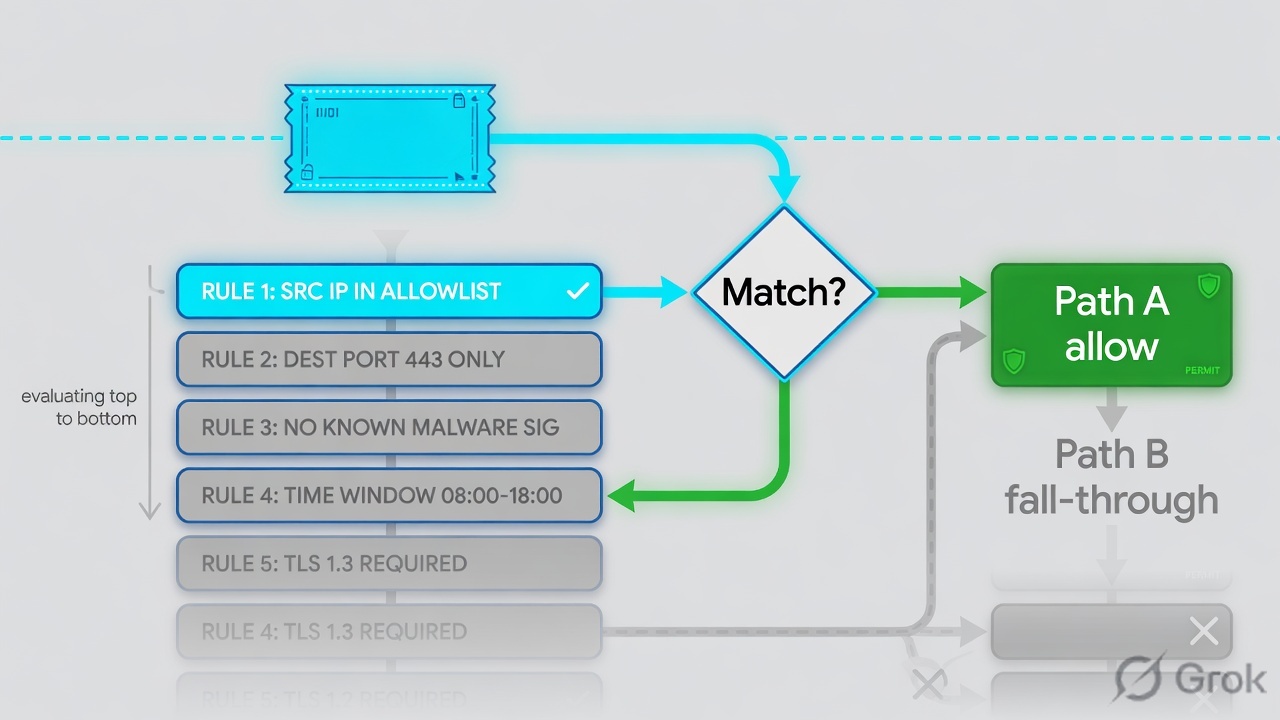
PAN-OS evaluates Security rules left to right, top to bottom. The first rule whose zones, addresses, user, application, and service all match wins — later rules are not evaluated. Use App-ID for what the session is and Service = application-default so that app only runs on its standard ports. Attach a Security profile group on Allow (profiles do not scan Deny). Prove it in Monitor → Logs → Traffic: Rule Name, Application, Action, Source/Destination Zone. If a new deny never hits, look for a shadow above it — not a broken App-ID.
1. Why first-match matters
A port ACL can look “correct” and still be dead. PAN-OS does not walk the whole rulebase and pick the tightest row. It stops at the first full match.
That is why a specific deny mysql at position 12 never fires if position 6 is trust → dmz, application any, service any, allow. The session already matched. Policy Analyzer calls that a shadow: a lower rule that cannot be hit because a higher rule covers the same traffic with a different action.
Two more reasons this is not “just an ACL”:
- Zones are required match fields. No Security rule allows traffic between two zones unless a rule (or the default) says so. Same-zone traffic is allowed by
intrazone-default; different-zone traffic is denied byinterzone-default. - Allow is not inspect. A Security profile group (Antivirus, Anti-Spyware, Vulnerability Protection, URL Filtering, File Blocking, WildFire Analysis) is evaluated only when the action is Allow. A Deny with profiles attached does not scan — it just stops the session.
Zone — a label on an interface. The Security rule matches Source Zone and Destination Zone, not the interface name.
App-ID — classification of the application (signatures, decoders, heuristics), not the TCP port.
Service — Layer 4 TCP/UDP port. application-default means “only the standard ports for the App-IDs on this rule.”
Shadow — a lower rule that never hits because a higher rule already matches the same traffic.
2. Mental model
Hold three parts. Interviews fail when people mix them.
1. Match
Source/dest zone, address, user, application, service, (optional) URL category. All specified fields must match. First rule that does, wins.
2. Action + inspect
Allow, Deny, Drop, Reset client/server/both. Profiles and Log Forwarding attach here. Profiles run only on Allow.
3. Proof
Traffic log Rule Name is the rule that won — not the rule you meant. If the name is wrong, the match is wrong. Do not start by changing App-ID.
Zones decide the door. App-ID decides what walked through it. Service decides which port that app may use. The first full match is the whole decision. The Traffic log Rule Name is the evidence.
Two NAT facts you must not invert (official Security Policy Rules table):
- Destination Zone is the post-NAT zone.
- Source and destination addresses are the pre-NAT IPs in the packet.
Get those backwards and a perfectly typed App-ID rule never matches. The log then shows interzone-default, not your new name.
3. Match-order flowchart
Read this before you click Policies → Security. The packet does not “find the best rule.” It walks down until one rule says yes.
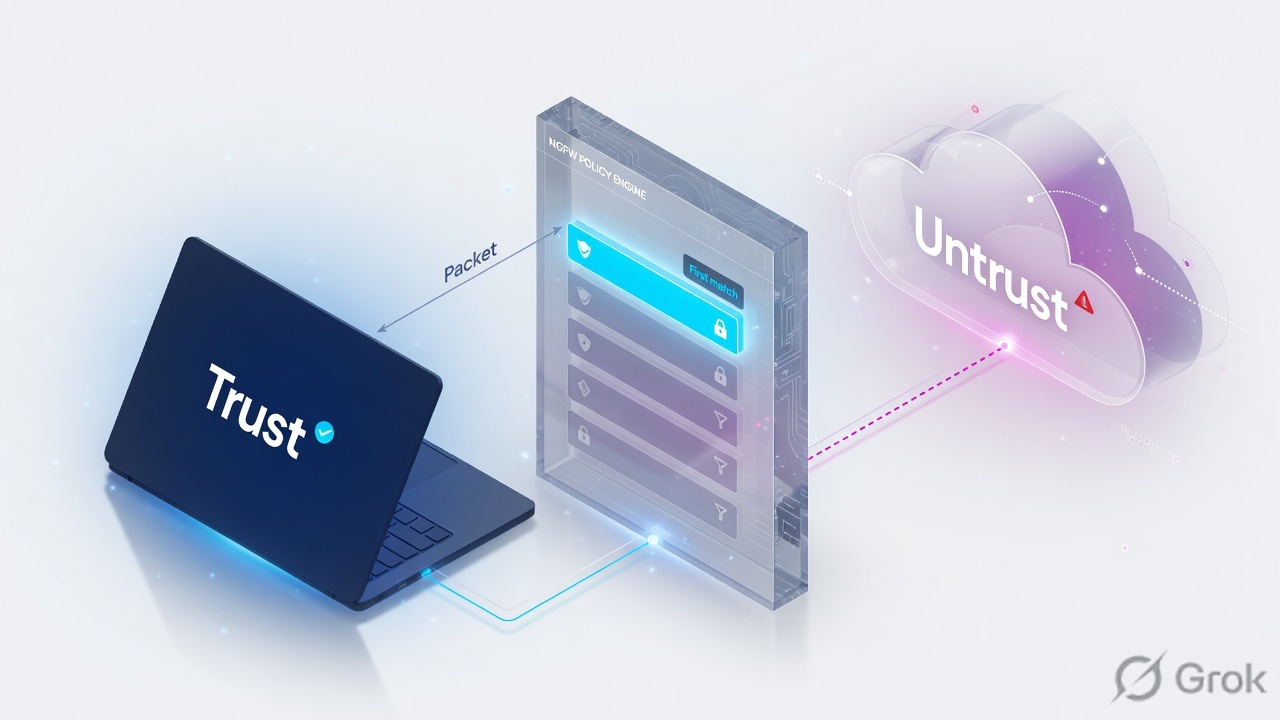
Read left → right, then down. Diamond = decision. Green STOP is the only rule that writes Rule Name in the Traffic log for this session.
4. How to choose Application vs Service
Application and Service are two different columns. Mixing them is the classic “app-default broke my custom port” ticket.
| You need | Application | Service | Why |
|---|---|---|---|
| Production allow of a known app on its normal port | Named App-ID (or group / filter) | application-default |
Official best practice. DNS matches TCP/UDP 53, not 5353. Stops port-hopping evasion. |
| Same app on a non-standard port (in-house HTTPS on 8443) | Keep the App-ID | Custom Service object (TCP 8443) | application-default will not match 8443 for ssl / web-browsing. Pin the port; do not set Service = any. |
| Temporary discovery / unknown app mix | Application filter or any (short window) |
application-default still preferred |
Then use Policy Optimizer / Traffic logs to replace any with named App-IDs. |
| Port-based “allow TCP 443” | Avoid as the permanent design | service-https or any | Any application can sit on 443. You lose App-ID control and open an evasion path. |
| Block a specific app that was allowed by a broad rule above | Named App-ID, action Deny | application-default or any |
The deny must sit above the broad allow, or it is a shadow. |
Source: Security Policy Rules and Create a Security Policy Rule — “always use application-based security rules… and always set the Service to application-default unless you’re using a more restrictive list of ports.”
Do not set Application = mysql and Service = application-default, then wonder why a DBA tool on TCP 3307 never matches. Default ports are in Applipedia / Objects → Applications. If the app is legitimately off-port, create Objects → Services and attach that Service. Service = any on an App-ID rule is the other failure: the app is allowed on every port.
5. Runbook · Side A objects, Side B rule, Side C log
Lab story (placeholder IPs only): users in zone trust (10.1.8.0/24) need DNS and sanctioned web to zone untrust. You will not use the factory rule1 (trust → untrust, any). You will build objects, one allow rule with a profile group, commit, then prove the hit.
Primary source for clicks: Set Up a Basic Security Policy (PAN-OS).
Side A — objects first
-
Confirm zones exist
Network → Zones. You need
trustanduntrust(or your site names) already attached to interfaces. A Security rule cannot invent a zone. If the zone is missing, stop — this is a network build, not a policy ticket. -
Address object for the user subnet
Objects → Addresses → Add. Name
net-users-trust. Type IP Netmask. Address10.1.8.0/24. Official guidance: use address objects as Destination (and Source) instead of typing raw IPs, especially for commonly exploited services. -
Security profile group
Objects → Security Profile Groups → Add. Name it
pg-outbound(or name it exactlydefaultif you want every new rule to inherit it). Add Antivirus, Anti-Spyware, Vulnerability Protection, URL Filtering, File Blocking, WildFire Analysis — start from the predefined profiles (default/strict/basic file blocking) documented in the basic-policy guide, then tighten later.
Objects → Security Profile Groups → Add
Security Profile Group
Click next: OK, then Policies → Security → Add. Naming the group default auto-attaches it to new rules. Source: Objects → Security Profile Groups.
Side B — the Security rule
-
Add the rule in the right place
Policies → Security → Add. Put this allow below any explicit denies for the same zones, and above leftover
anyallows and the two default rules. First match is position, not “tightest match.” -
General
Name
allow-users-web-dns. Rule Type leave universal unless you have a real reason for intrazone-only or interzone-only. Changing a working universal rule to intrazone is a classic way to send trust→untrust intointerzone-default. -
Source
Source Zone =
trust. Source Address =net-users-trust(or any). Source User = any unless User-ID is already on that zone. -
Destination
Destination Zone =
untrust(post-NAT zone if you NAT to the internet). Destination Address = any for general web, or a specific address object for infrastructure (DNS, SMTP) — the basic-policy guide calls that out as a best practice. -
Application + Service
Applications tab: Add
dns,ssl,web-browsing(and later the real SaaS App-IDs you see in logs). Check Depends on on each App-ID in Objects → Applications — some apps implicitly includessl/web-browsing; others you must add.Service/URL Category tab: Service =
application-default. Leave URL Category as any unless you intend only web traffic to that category to match. -
Actions
Action Setting = Allow. Profile Type = Group, Group Profile =
pg-outbound(or Profile Type = Profiles and pick them one by one). Verify Log at Session End is enabled (default). Do not enable Disable Server Response Inspection. Click OK, then Commit.
Policies → Security → Add
Security Policy Rule
Click next: OK, Commit, generate DNS + HTTPS from a host in 10.1.8.0/24, then open Monitor → Logs → Traffic. Source: Policies → Security (PAN-OS & Panorama).
Side C — prove it in the Traffic log
-
Optional pre-check: Security Policy Match
Device → Troubleshooting → Select Test = Security Policy Match. Enter Source and Destination IPs, Protocol (6 = TCP), Application if you know it, Execute. The output is the best matching rule for those values. It is a config test — not a live packet.
-
Generate traffic, then open the log
From a host in
net-users-trust, resolve DNS and fetch an HTTPS site. On the firewall: Monitor → Logs → Traffic. Filter on the source IP or(rule eq 'allow-users-web-dns'). -
Quote these fields in the ticket
Rule Name =
allow-users-web-dns. Application =dns/ssl/ the identified App-ID (not stillincompleteat session end). Action = allow. Source Zone / Destination Zone = trust / untrust. Session End Reason is tcp-fin or tcp-rst — not policy-deny. Type/subtype is end (or start if you also logged start), not drop/deny.
Monitor → Logs → Traffic
Traffic · filter (addr.src in 10.1.8.0/24)
Green close: Rule Name is yours, Application is a real App-ID at session end, Action = allow, zones are the ones on the rule. Source: Monitor → Logs (Traffic log fields: Rule Name, Application, Action, zones).
Monitor → Logs → Traffic: rule=allow-users-web-dns · app=dns or ssl (not stuck on incomplete at end) · action=allow · from=trust · to=untrust · Threat log may be quiet if nothing was blocked — that is still a successful allow-and-scan. Device → Troubleshooting → Security Policy Match returns the same rule name.
test security-policy-match from trust to untrust source 10.1.8.41 destination 203.0.113.53 protocol 17 destination-port 53 application dns
6. Runtime path after commit
After go-live the firewall does not re-read your intent. It does this.
App-ID overview: traffic is matched against policy first, then signatures run on allowed traffic. If the application later changes, the firewall looks up policy again — a broad ssl allow above a youtube deny is why the page “starts then dies.”
Two log subtypes you will quote (official Traffic log / Monitor → Logs help):
- drop — session dropped before the application is identified, and no rule allows it (often application = any on the blocking rule).
- deny — session dropped after the application is identified, and a rule blocks it (or nothing allows it).
7. Traps + proof checklist
| Trap | What you see | What is true |
|---|---|---|
| Shadow | New deny never hits; old allow still in the log | A higher rule already matched. Move the specific rule up, or tighten the broad allow. Policy Analyzer: Shadows. |
| Service = any on an App-ID allow | “It works on every port” | You allowed that app off its standard ports. Use application-default unless you deliberately pin a tighter Service. |
| application-default + custom port | App-ID is right, session misses the rule | Standard ports only. Create Objects → Services for 8443 (etc.) and attach it. |
| Profiles on Deny | No Threat logs, “AV is broken” | Security profiles evaluate only on Allow. Deny does not scan. |
| Zone / NAT swap | Hits interzone-default |
Destination Zone is post-NAT. Addresses are pre-NAT. Fix the rule, do not add any-any. |
| Universal → intrazone “to tighten” | trust→untrust now denied | Intrazone rules do not match between zones. Leave universal unless you mean same-zone only. |
| Silent default deny | User blocked, empty Traffic log | Override interzone-default, enable Log at Session End. Defaults are read-only until Override. |
| Incomplete at session start | Panic that App-ID failed | Start logs often show incomplete/ssl. Read the end log Application. That is why default is Log at Session End. |
- Rule sits above any broader allow that would shadow it.
- Service is
application-defaultor a deliberate custom Service — never “any” by accident. - Action = Allow and a profile group is attached (or you can say why it is Deny with no profiles).
- Log at Session End is on. Defaults overridden if you need to see implicit denies.
- One live session: Traffic log Rule Name, Application, Action, zones match the rule you wrote.
- Device → Troubleshooting → Security Policy Match returns the same name.
Knowledge check
Six judgment items. Same facts as the runbook. Check answers, then reset if you missed the shadow or the profile-on-allow rule.
Sources
- Security Policy Rules — first match, required fields, application-default, profiles on allow, NAT zone/address notes, default intrazone-allow / interzone-deny.
- Create a Security Policy Rule — Policies → Security → Add; tabs; application-default best practice; Actions profile group; Commit; Device → Troubleshooting → Security Policy Match.
- Set Up a Basic Security Policy — zone prerequisite, example Apps, application-default, predefined profiles, Log at Session End.
- App-ID Overview — policy match first, then signatures on allowed traffic; decoders; rematch after identify.
- Safely Enable Applications on Default Ports — application-default purpose.
- Security Profile Groups — Objects → Security Profile Groups; name
defaultto auto-attach; profiles scan after allow. - Policy Analyzer — Shadows (higher rule matches the same traffic; lower rule never hits).
- Log Types and Severity Levels / Monitor → Logs — Traffic log contents; drop vs deny.
- Traffic Log Fields — Rule Name, Application, Source/Destination Zone, Action, Session End Reason.
Related: PAN-OS session factory · Traffic not passing — 7-step ladder · NAT deep dive · Logging and reporting · Palo Alto interview hub · Palo Alto course